Inviting Users
Everyone who touches an expense in Agave needs their own user: the people submitting receipts, the people reviewing them, and the people running the account. Every Expense Management user is invited the same way. What differs is whether you make them an admin, and for reviewers, where you name them in your approval setup.
This guide is for admins. Use it when you first set up Expense Management, and whenever someone joins the team.
This guide covers:
- Choosing the right access for each person
- Inviting a user
- Making someone a reviewer
- What reviewers can and cannot do without admin access
For what each type of user does day to day, see Expense Management Users.
Before you start
- Decide who needs admin access. Most people do not. See Step 1.
- Have each person's work email. Email addresses are case sensitive and cannot be changed after the user is created. Enter them in lowercase, exactly as the person will type them when they log in.
- Create reviewers before you build your approval workflow. A workflow can only name people who already exist as users with Expense Management Access.
Step 1: Choose the right access
Every Expense Management user gets Expense Management Access. Only people who run the account also get Expense Management Admin.
| Person | Typically | Expense Management Access | Expense Management Admin |
|---|---|---|---|
| Field user | Cardholders submitting receipts | Checked | Unchecked |
| Reviewer or approver | Project managers, accounting staff | Checked | Unchecked |
| Admin | Your accounting lead or controller | Checked | Checked |
A reviewer does not need to be an admin. Reviewers are regular users who have been named as a reviewer in your approval setup, which you do in Step 3.
Give Expense Management Admin only to people who should be able to:
- Manage your ERP and bank connections, cards, and users
- Change account settings, coding profiles, policies, and approval workflows
- See and act on every expense and transaction on the team
- Sync approved expenses to your ERP
Admins can see every cardholder's transactions. Checking Expense Management Admin so that someone can review expenses gives them far more access than the review needs.
Step 2: Invite the user
- Click Home and select Users.
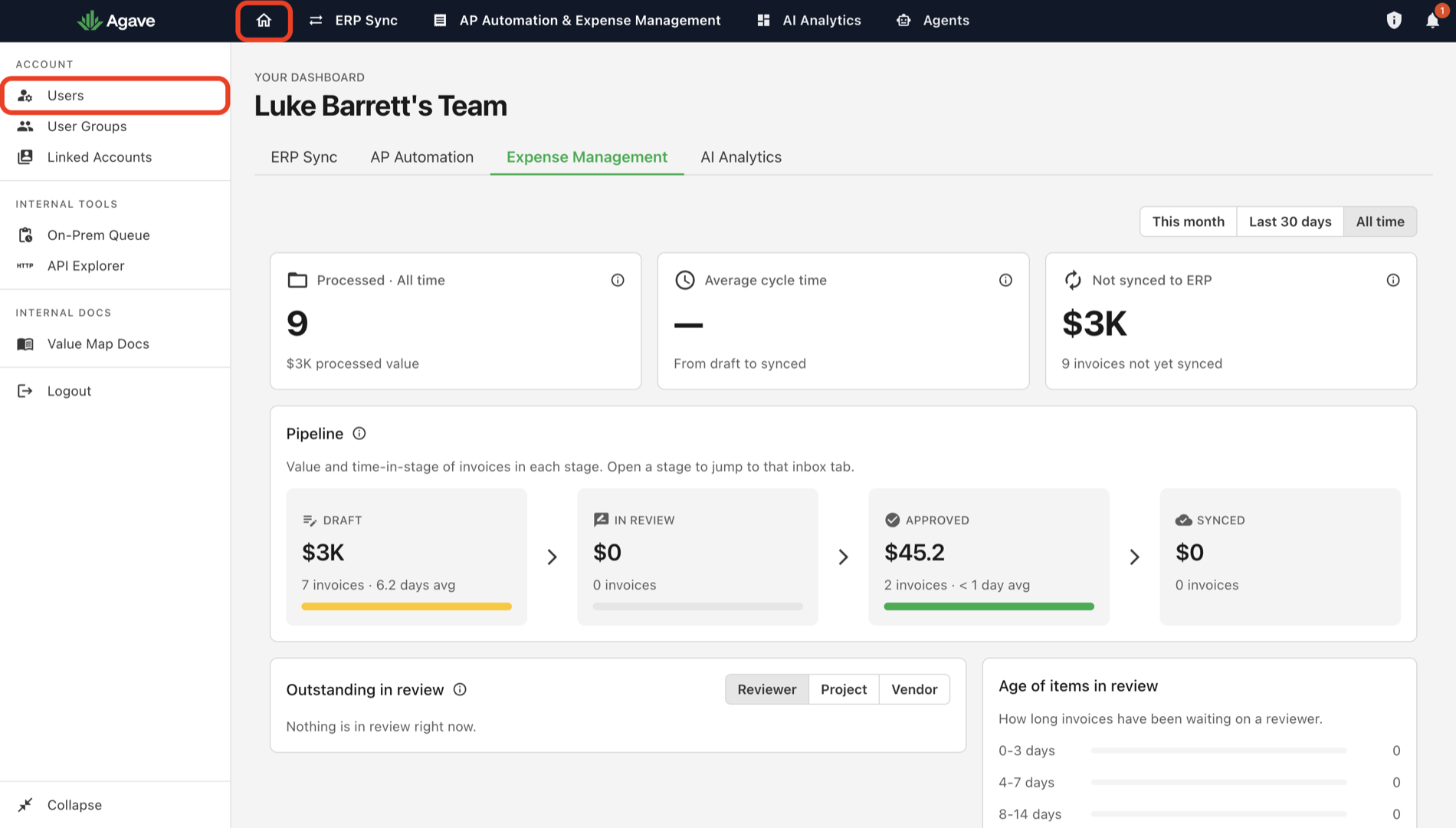
- Select Invite User.
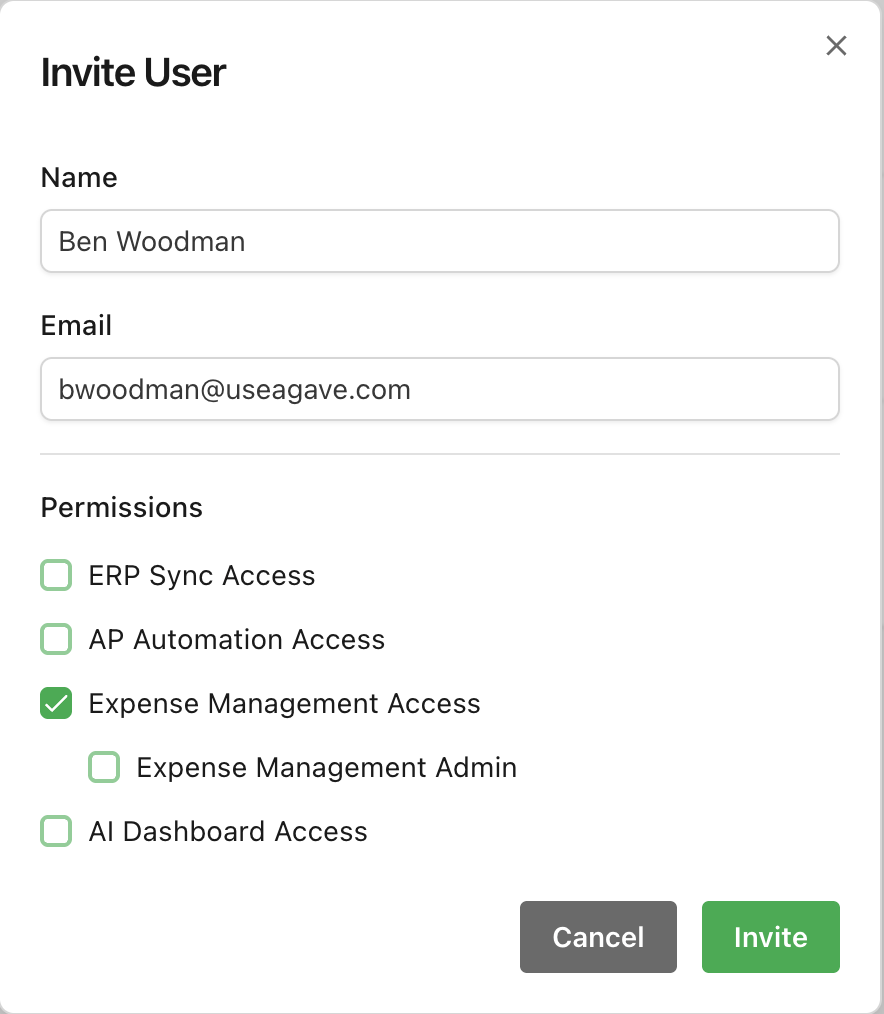
- Enter the user's Name and Email.
- Under Permissions, check Expense Management Access.
- Check Expense Management Admin only if this person is an admin. Leave it unchecked for field users and reviewers.
- Select Invite.
The Invite User dialog for a field user or reviewer, with Expense Management Access checked and nothing else:
Agave emails the user a link to activate their account and set a password. If someone never gets it, resend it from the Users page rather than creating a second account for them.
Field users then need a card and the field app. Continue with Field App Setup from Step 2.
A reviewer who also holds a company card is invited once. Assign their card to them on the Credit Cards page as you would for any field user. See Setting Up Your Cards.
Step 3: Make them a reviewer
Inviting someone does not send them any expenses. A user becomes a reviewer when you name them in your approval workflow, which decides who reviews each expense and in what order.
To add a reviewer to an approval workflow:
- Open AP Automation & Expense Management.
- Select Settings in the left navigation.
- Under Expense Management, select Approval Workflow.
- Select New rule, or the pencil on an existing rule.
- In First Reviewers or Second Reviewers, search for the user and select them.
- Close the rule with the tick, then select Save at the top right of the page.
If a person does not appear in the reviewer search, check that they have Expense Management Access. Only users with that access can be named in an Expense Management workflow.
You can also name a user group, or a macro such as {Project First Reviewer}, instead of a person. The last entry in the workflow, Fallback, names who reviews any expense your other rules do not catch. For how rules, stages, groups, and macros work, and the Apply approval workflow when expenses are processed switch that has to be on before any rule runs, see Approval Workflow Settings.
Set up your reviewers before field users start submitting, so expenses reach the right people from the start. Changing a workflow later may not reroute expenses that are already with a reviewer.
What reviewers can do without admin access
A reviewer works from the For My Review tab in the Expense Inbox, which lists the expenses assigned to them. From there they can:
- Open an expense and check it against the receipt
- Edit its coding, such as project, cost code, and expense account
- Approve it, or send it to the next reviewer if your workflow has a second stage
- Reject it back to an admin with a comment
By default a reviewer can edit the expenses assigned to them and see the transactions of the person they are reviewing. They do not see expenses or transactions that are not theirs or assigned to them.
A few account settings change what reviewers can do. All of them are under Settings > Expense Management > Account:
| Setting | Effect on reviewers |
|---|---|
| Allow Reviewers To Edit Expenses | On by default. When off, reviewers can approve or reject but not edit |
| Prevent Reviewers From Editing Matched Transactions | Reviewers can edit everything except the transaction the submitter attached |
| Don't Require All Fields For Reviewers | Reviewers can approve without filling in every required field, for example a project manager who only confirms the cost code |
| Send Email Notification for Every Expense | Emails reviewers when an expense is assigned to them or rejected |
What non-admin users see and fill in on the field app is set separately, in Settings > Expense Management > Field App. There you set each field to Hidden, Optional, or Required. See Field App Settings.
Syncing approved expenses to your ERP is an admin action, unless you turn on Auto-Sync on Approval.
For the reviewer's side of the process, see Reviewing and Approving Expenses.
When inviting goes wrong
A user's email was entered wrong.
- The email cannot be edited. Remove the user from the Users page and invite them again with the correct email.
A user never received their invite.
- Resend it from the Users page. Do not create a second user for the same person.
A reviewer is not in the reviewer search.
- Open Users and confirm Expense Management Access is checked for them.
A reviewer says their queue is empty.
- Confirm they are named in an approval workflow rule, or on the project or vendor the expense belongs to.
- Confirm Apply approval workflow when expenses are processed is on in Approval Workflow settings.
- Check View History in Approval Workflow settings to see where recent expenses were routed.
A reviewer can see everyone's transactions.
- They were likely invited with Expense Management Admin checked. Admins see every cardholder's transactions. If they should only review, contact support to change their access.
If none of these resolve it, contact support@useagave.com.
Related guides
- Expense Management Users: what admins, reviewers, and field users each do
- Field App Setup: getting field users onto the app after you invite them
- Setting Up Your Cards: assigning each card to its cardholder
- Approval Workflow Settings: building the rules that route expenses to reviewers
- Reviewing and Approving Expenses: what a reviewer does once an expense reaches them