Field App Settings
Field App Settings decides what a field user is asked for when they submit a receipt from their phone. Every field you make required is one more thing somebody has to do standing at a fuel pump, so this tab is mostly an exercise in asking for as little as you can get away with.
This guide is for admins.
Opening Field App Settings
- Open AP Automation & Expense Management.
- Select Settings in the left navigation.
- Under Expense Management in the settings list, select Field App.
Changes are not applied until you select Save at the top right.
Field App Receipt Upload Visibility
Controls whether each field is hidden, optional, or required when a field user uploads a receipt.
| Value | What it does |
|---|---|
| Hidden | The field does not appear at all |
| Optional | The field appears and can be left blank |
| Required | The field appears and has to be filled in |
Fields are split into two groups by where they appear:
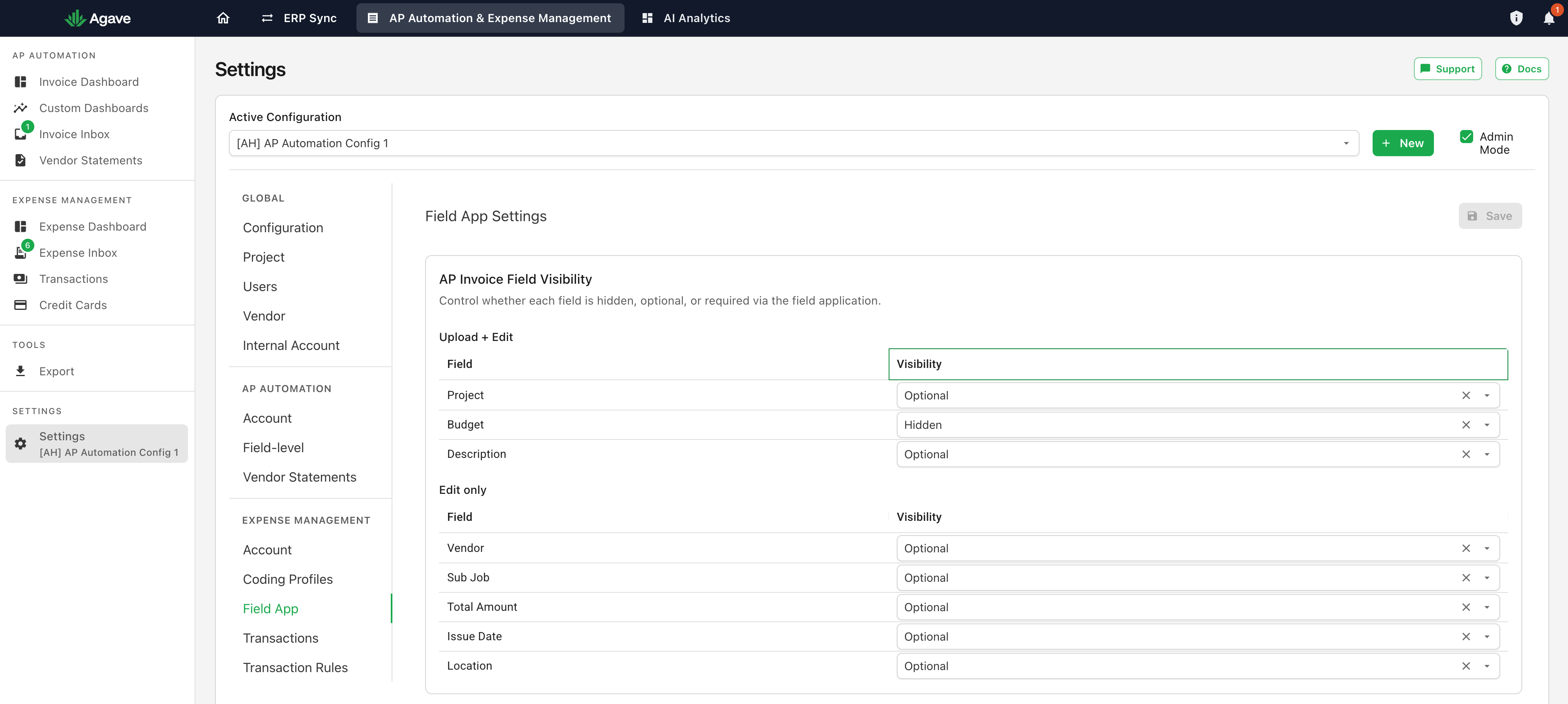
Upload + Edit
Project, Budget, and Description appear both when a field user submits a receipt and when they go back to edit one.
These are the three that decide how much work submitting a receipt is, because they are the ones a field user meets in the moment. In the Add receipt flow below, Budget is set to Hidden so it does not appear, while Project and Description are Optional, so they are on screen but nothing blocks the submission:
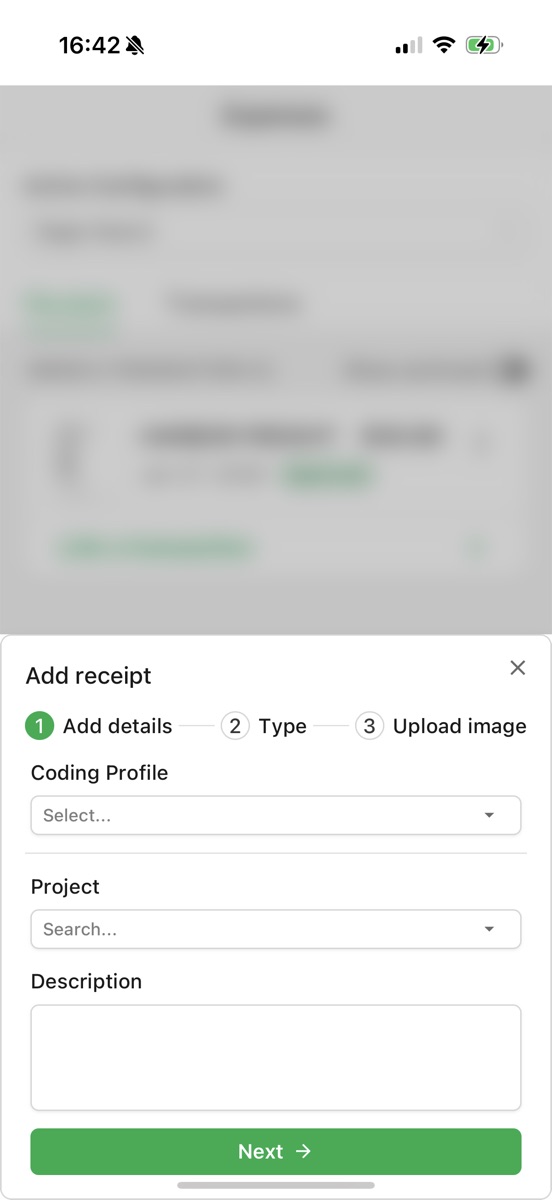
Coding Profile is not part of this matrix. It appears when the field user has profiles available to them, and it is the better way to get accurate coding without adding required fields: the profile carries the vendor, ledger account, cost code, and cost type, so the field user picks one plain-English name instead of knowing your chart of accounts. See Coding Profiles and Policies.
Edit only
Vendor, Sub Job, Total Amount, Issue Date, and Location appear only when a field user edits an existing expense, not when they first submit it.
Several of these are filled in for the field user anyway. Vendor, amount, and date can come from the receipt or from the matched card transaction depending on how you have set the source settings, so asking a field user to type them is usually duplicated effort. See Account Settings.
Field app onboarding
Generates the setup sheet you hand to field users: a QR code, the agave.build fallback, and the install steps for iPhone and Android. Show setup sheet opens it and Download sheet saves a copy you can print or send.
This is a handout rather than a setting, and nothing here changes how the app behaves. For how to use it, see Field App Setup.
Related guides
- Field App Setup: getting your crew onto the app
- Coding Profiles and Policies: pre-filling coding so field users do not have to
- Account Settings: where vendor, date, and amount are sourced from
- Submitting Receipts: what the field user actually does