Field App Setup
Field users capture and upload receipts on their phone through the Agave field app. This guide is the admin side of that: inviting users, deciding which fields they have to fill in, and getting the app installed on their phones.
This guide is for admins. Do this once per person, then hand off.
This guide covers:
- Inviting field users and giving them Expense Management access
- What has to be in place before their receipts can match
- Choosing what a field user must fill in on each submission
- Handing out the setup sheet so they can install the app themselves
Field users do not need this guide. Send them Install on iPhone or Install on Android, whichever phone they carry.
Before you start
Your ERP and card feed should already be connected. A field user can submit receipts before either is in place, but nothing will match until transactions are arriving. See Connect Your ERP and Connect Your Card Feed.
Step 1: Invite your field users
Field users are ordinary Agave users with Expense Management access. They do not need AP Automation rights.
- Click Home and select Users.
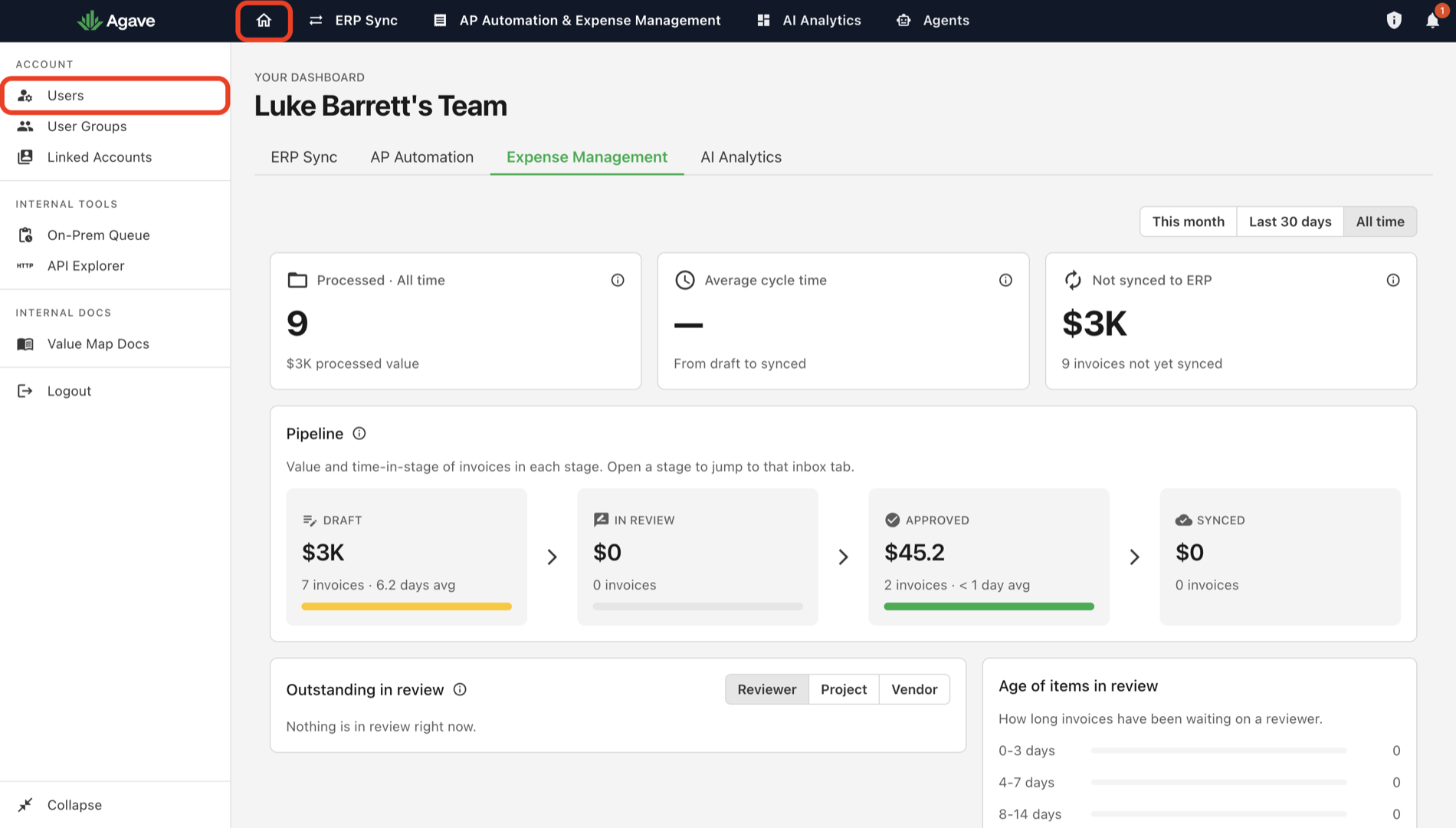
- Select Invite User.
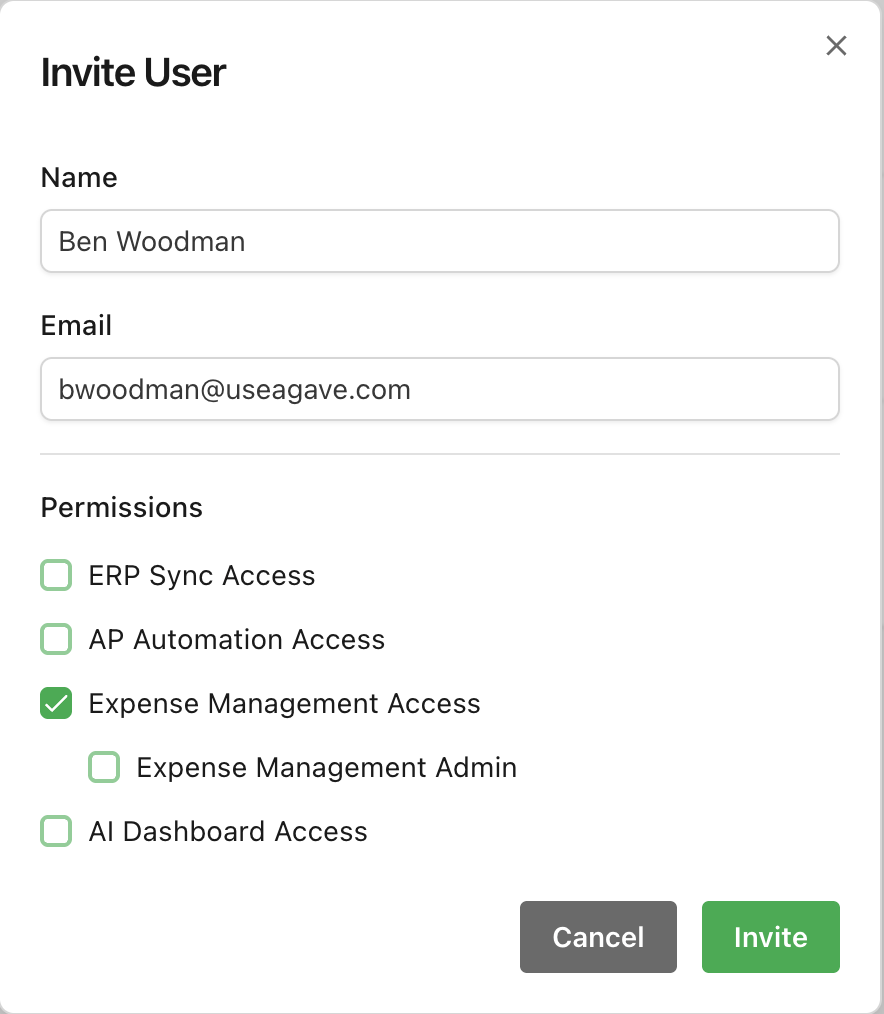
- Enter the user's Name and Email.
- Under Permissions, check Expense Management Access. Leave Expense Management Admin unchecked: a field user does not need it.
- Select Invite.
The Invite User dialog, with Expense Management Access granted and nothing else:
Agave emails the user a link to activate their account and set a password. If someone never gets it, resend it from the Users page rather than creating a second account for them.
Email addresses are case sensitive and cannot be changed after the user is created. Enter them in lowercase, exactly as the person will type them. Fixing a typo means deleting the user and starting again.
Step 2: Assign their cards
A receipt finds its transaction through the card's assigned user. A card with no assigned user produces expenses that never match, and nothing warns you it is happening.
Assign every card before go-live, and audit the list for blanks. See Setting Up Your Cards.
A card appears in Agave only after a transaction has been made on it. If a cardholder has not spent anything since the feed started, their card will not be in the list yet.
Step 3: Decide what field users must fill in
Every required field is one more thing a person standing at a fuel pump has to do before the app will let them submit. Keep the list short.
Set which fields are required or optional, and which coding profiles field users can pick, in Settings > Field App. See Field App Settings.
Coding profiles are templates that auto-fill fields for common purchases. Each profile stores the key fields for a purchase type, such as vendor, ledger account, and cost type. See Coding Profiles and Policies.
Step 4: Hand out the setup sheet
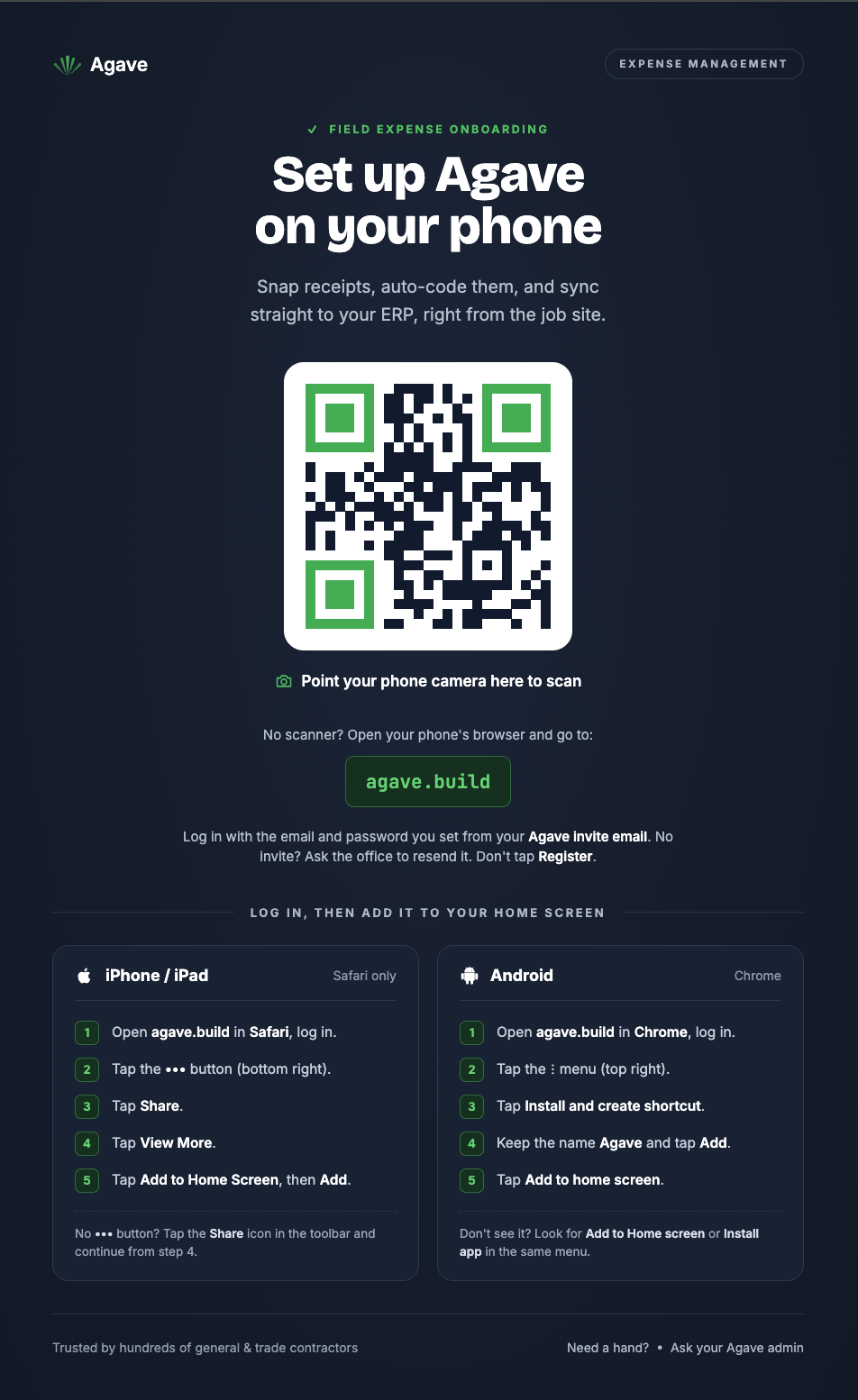
Agave generates a setup sheet with a QR code and the install steps:
- Go to Settings > Field App.
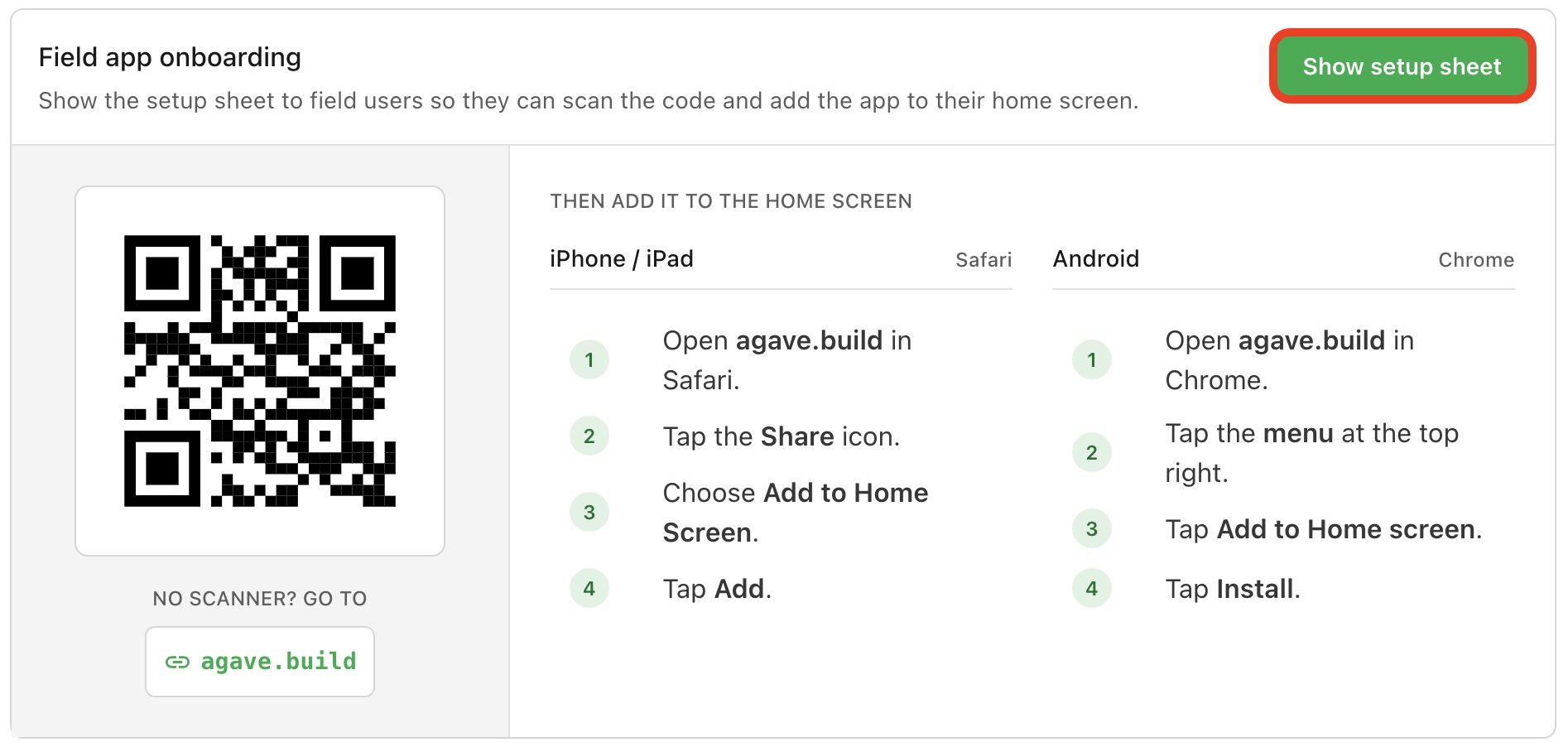
- Scroll to the Field app onboarding panel.
- Select Show setup sheet.
- Select Download sheet if you want a copy to print or send.
The panel sits at the bottom of the Field App tab, below the field visibility settings:
Show setup sheet opens the handout itself. Put it on a screen your crew can point a camera at, or download it and print it for the job trailer:
Field users must be invited before they try to open the app. If they scan the code before their account exists, they cannot get in.
Related guides
- Install on iPhone and Install on Android: the field user's side, which is what you send them
- Field App Settings: required fields and visible profiles
- Setting Up Your Cards: the assignment that drives matching
- Inviting Users: choosing admin access, and making someone a reviewer
- What is Expense Management?: what the product does, and how an expense flows from card swipe to synced record
- Expense Management Users: what admins, reviewers, and submitters are each responsible for