Connect Your Card Feed
Agave Expense Management reads your credit card transactions directly from your bank, so cardholders never have to key in what they spent. You connect the bank account behind your cards once, through Plaid, and transactions flow in from then on.
This guide is for your Expense Management admin. You connect each bank account once.
This guide covers:
- Connecting a bank account through Plaid
- What to do if your card does not produce a bank feed
Before you start
You will need online banking credentials for the account your cards are issued against. Plaid takes those credentials directly and Agave never sees or stores them.
Connect the account the cards are billed to, not each individual card. Once the account is connected, each card on it appears under Connected Accounts as soon as it has at least one transaction. From there you assign each card to a cardholder.
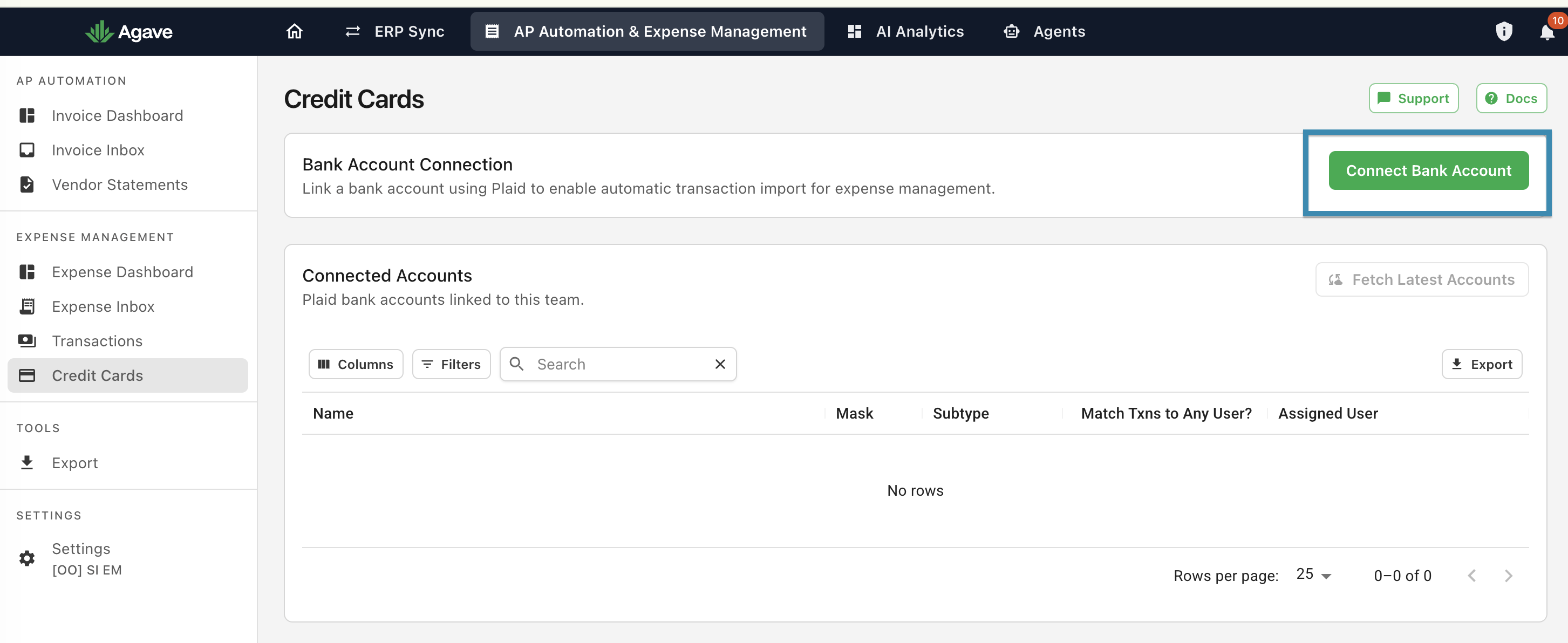
Step 1: Open the Credit Cards page
- In Agave, open AP Automation & Expense Management from the top navigation.
- Under EXPENSE MANAGEMENT in the left sidebar, select Credit Cards.
- Press Connect Bank Account.
Step 2: Start the connection
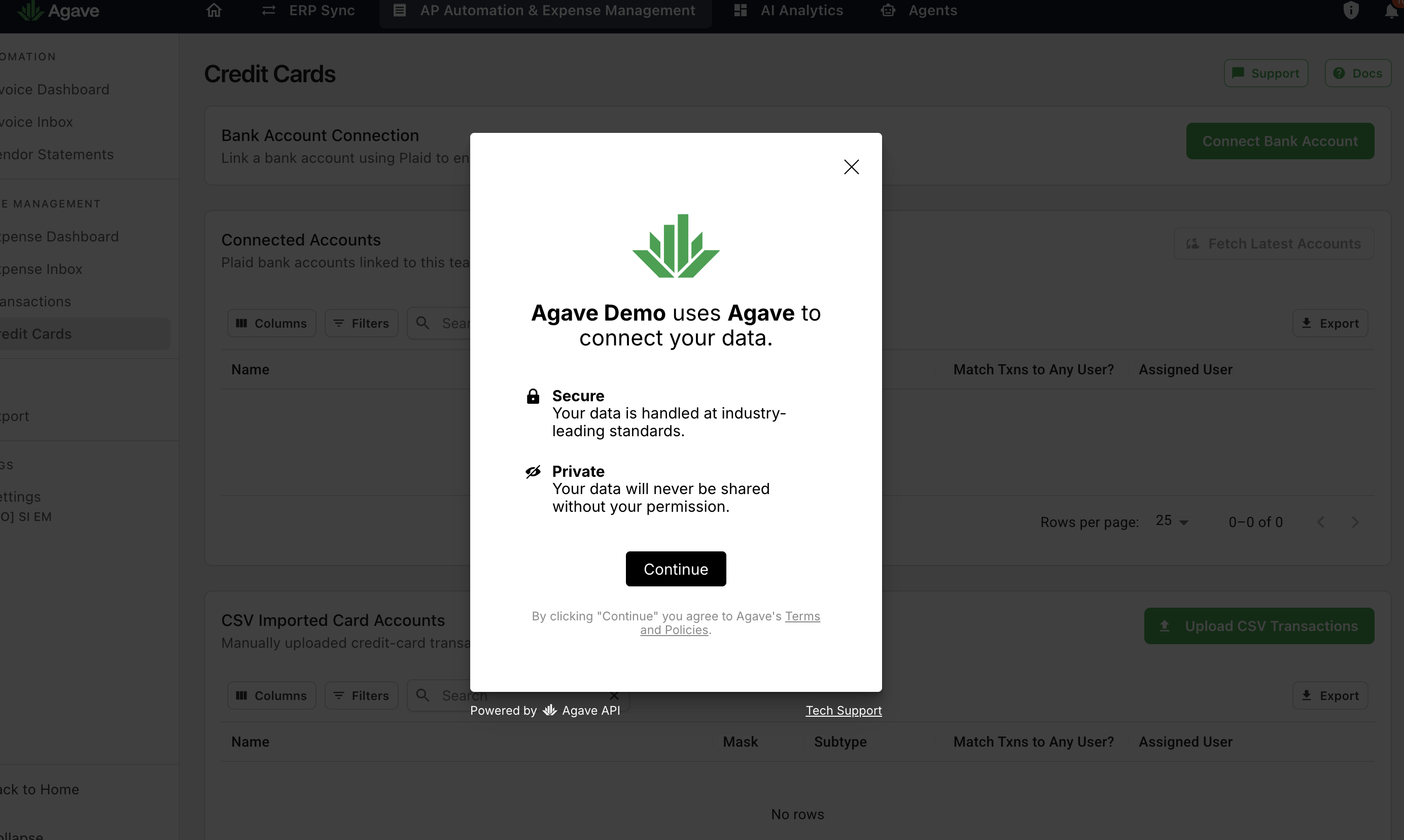
- Press Continue to confirm you are connecting your data through Agave.
- Select Plaid.
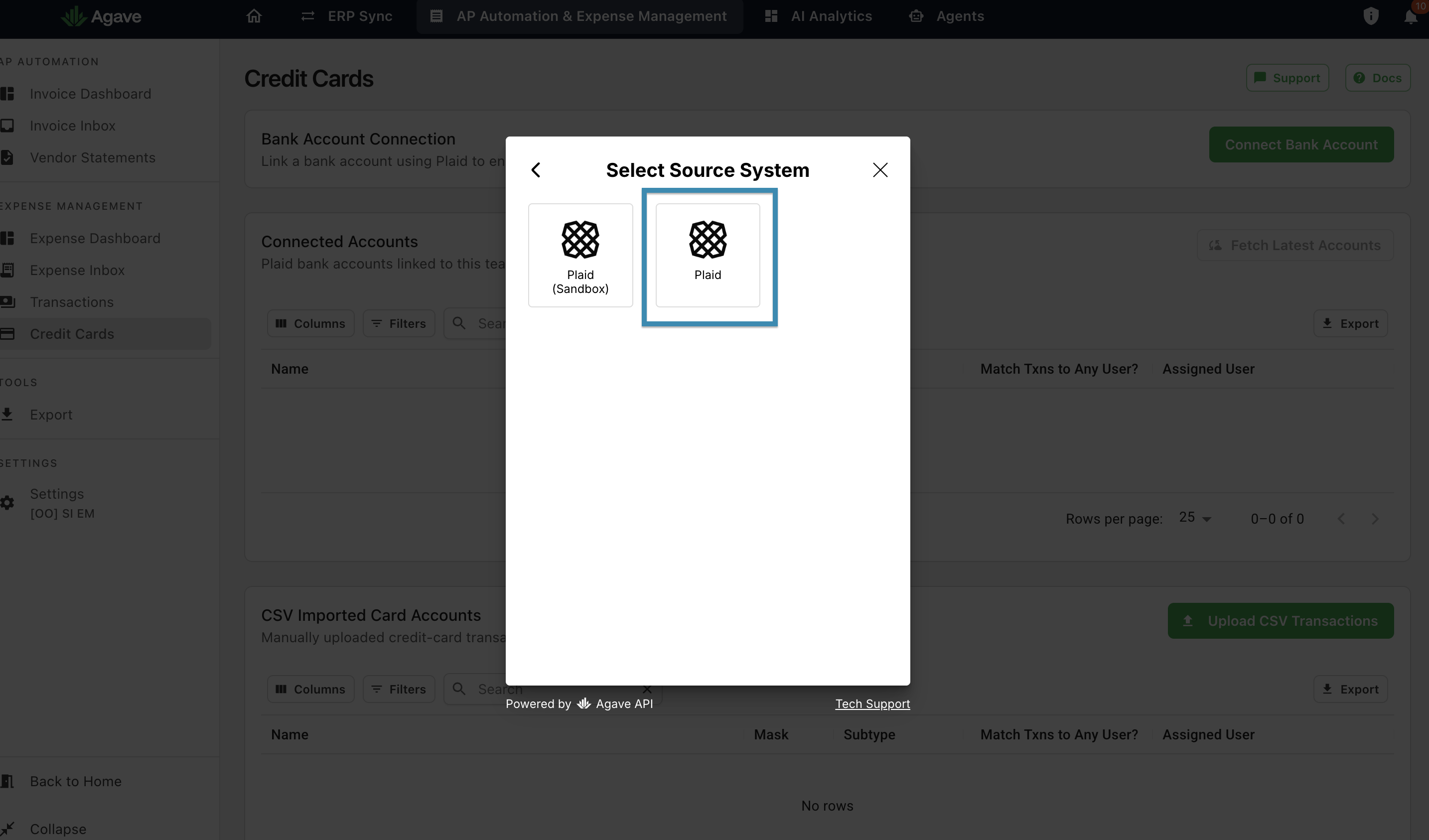
Select Plaid, not Plaid (Sandbox). The sandbox option connects to test data rather than your real bank, so no live transactions will come through.
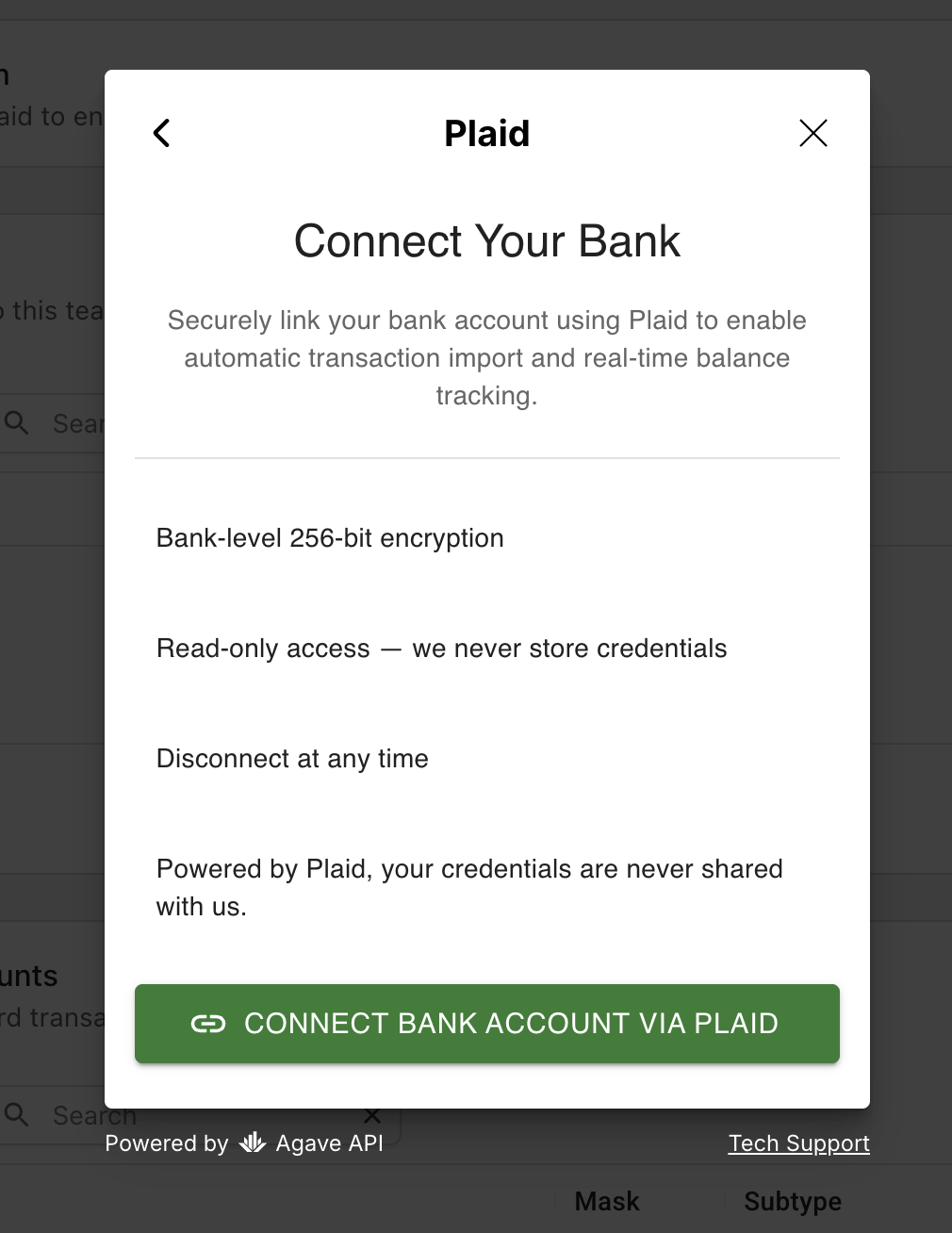
- Scroll to the bottom of the next screen and press Connect Bank Account via Plaid.
Step 3: Sign in to your bank
Plaid takes over from here. Agave does not see any of what you enter in these screens.
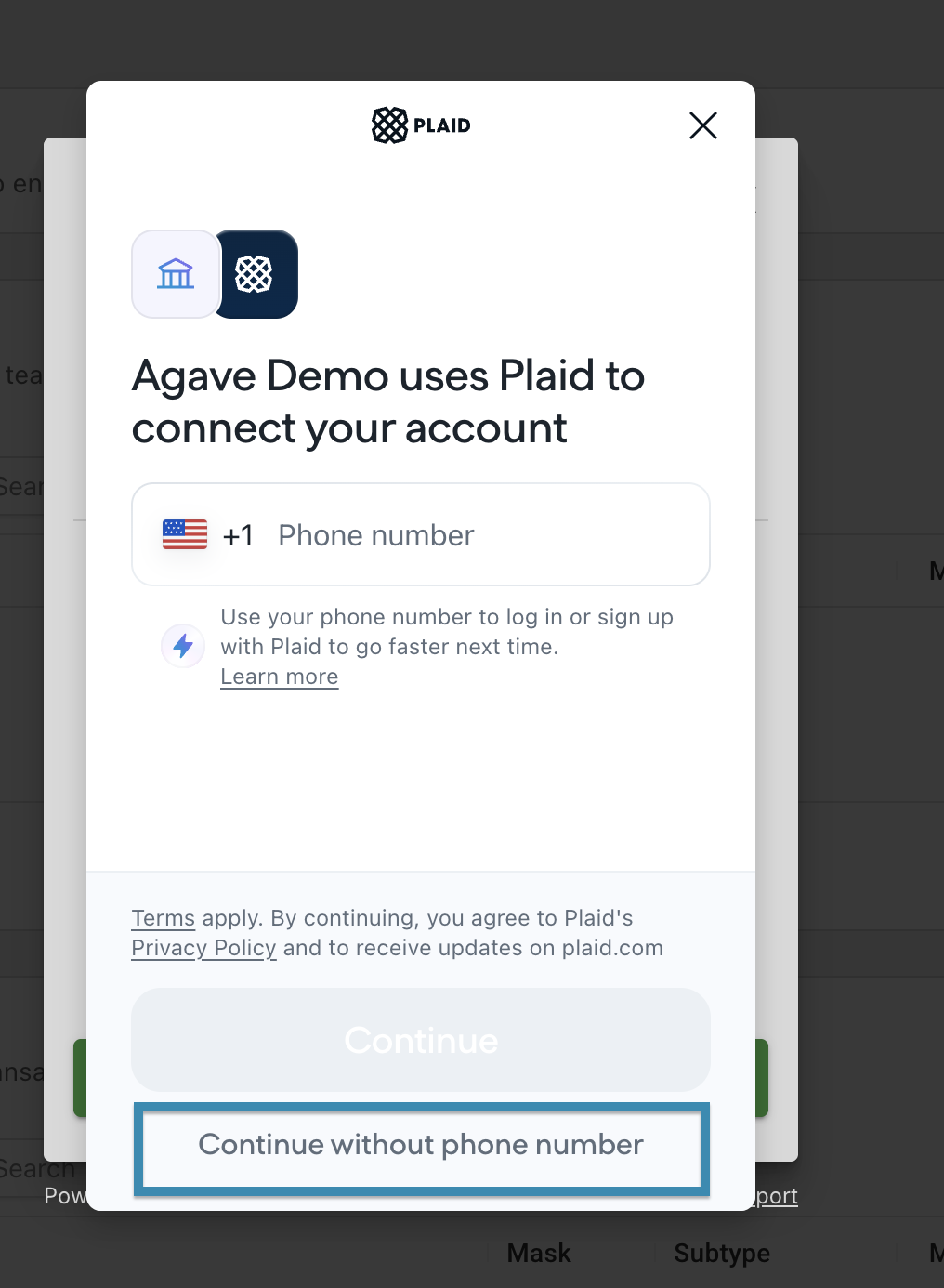
- Enter your phone number to save your details with Plaid for next time, or press Continue without phone number to skip.
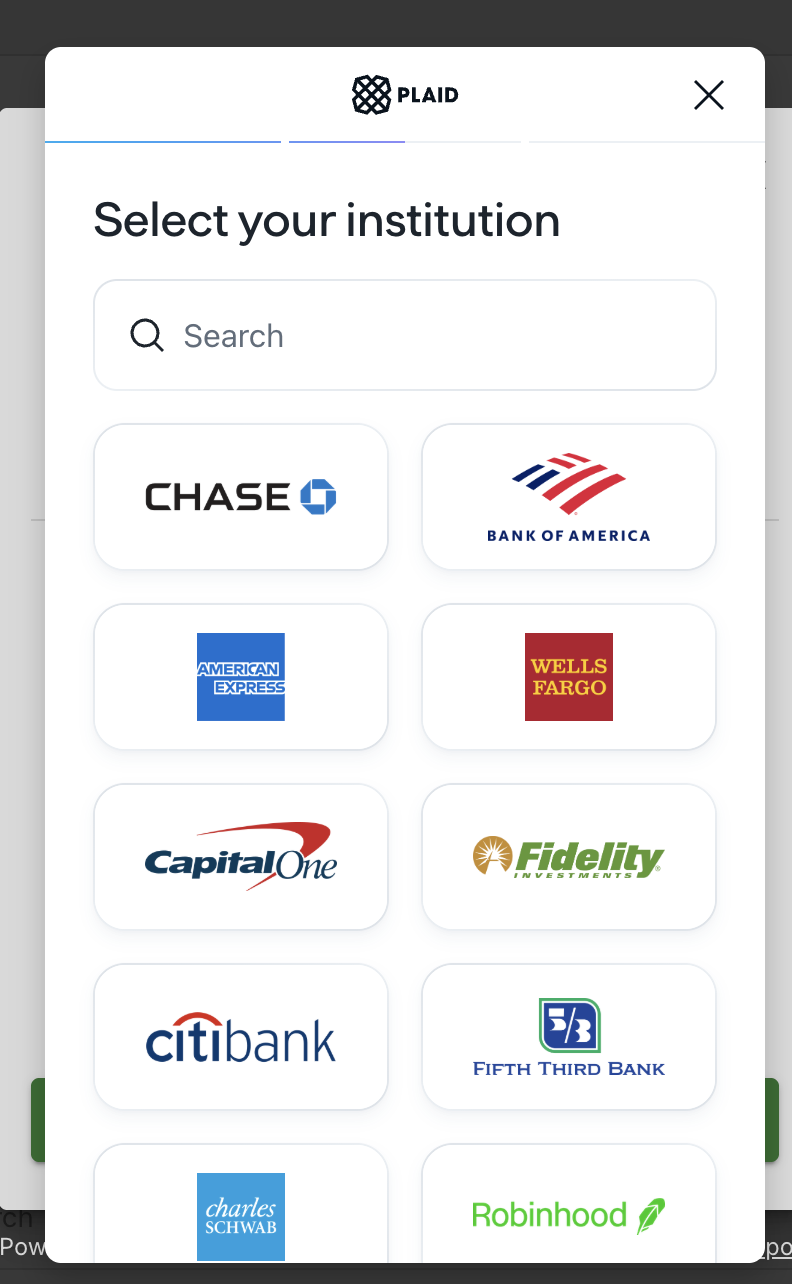
- Select your bank from the list, or search for it.
-
Sign in with your online banking credentials and complete any verification your bank asks for.
-
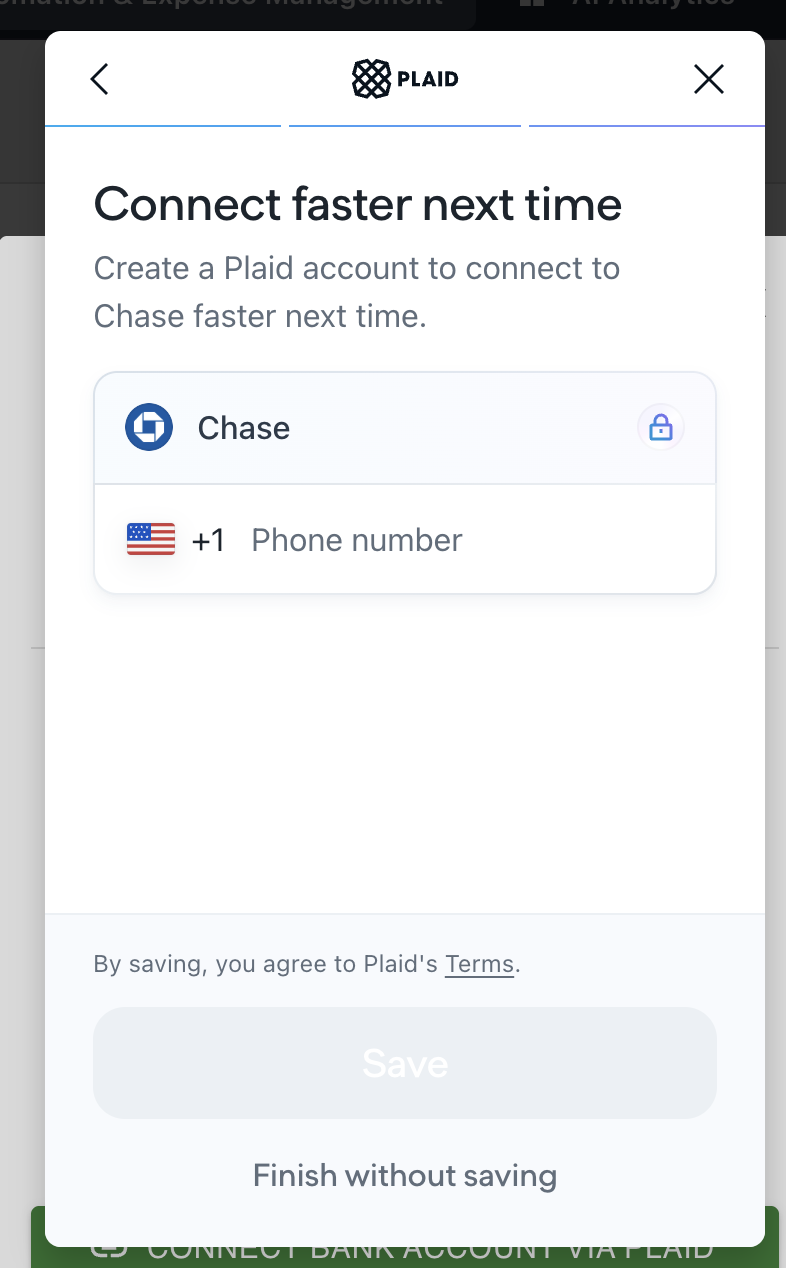
When Plaid offers to save your details, enter your phone number or press Finish without saving.
Your account now appears under Connected Accounts on the Credit Cards page. A card is listed once it has at least one transaction, so a card nobody has used yet will not show up. Press Fetch Latest Accounts after its first purchase posts. To set up each card, see Setting Up Your Cards.
If your card has no bank feed
Some cards do not produce a feed Plaid can read, most often fuel cards and store cards. Those are still covered: download the transactions from the card issuer as a CSV and import the file into Agave instead. Imported transactions match to receipts exactly as feed transactions do, and appear under CSV Imported Card Accounts on the same page.
When connecting goes wrong
Your bank is not in the list. Search for it by name in the institution picker. If it still does not appear, contact your Agave implementation manager.
No transactions appear after connecting. Press Fetch Latest Accounts on the Credit Cards page. Banks vary in how far back they share history and how quickly new transactions post.
The connection stops working after a while. Banks expire these connections periodically, and a password change at your bank ends one immediately. Reconnect by pressing Connect Bank Account and signing in again.
If none of these resolve it, contact support@useagave.com.