Approval Workflow Settings
An approval workflow is an ordered list of rules that decides who reviews an expense. You describe the kind of expense in plain language, say who it should go to, and Agave routes it when the expense is processed. Anything none of your rules catch falls through to default reviewer routing.
This guide is for admins, and covers building the rules. It does not cover doing the review itself; for that see Reviewing and Approving Expenses.
This guide covers:
- How rules are evaluated, and why order matters
- Adding, editing and reordering a rule
- Choosing reviewers: users, user groups, and macros
- The two actions a rule can take
- The All remaining invoices rule and why it cannot be deleted
- Saving, and the switch that has to be on before any of it runs
Opening Approval Workflow Settings
- Open AP Automation & Expense Management.
- Select Settings in the left navigation.
- Under Expense Management in the settings list, select Approval Workflow.
How rules are evaluated
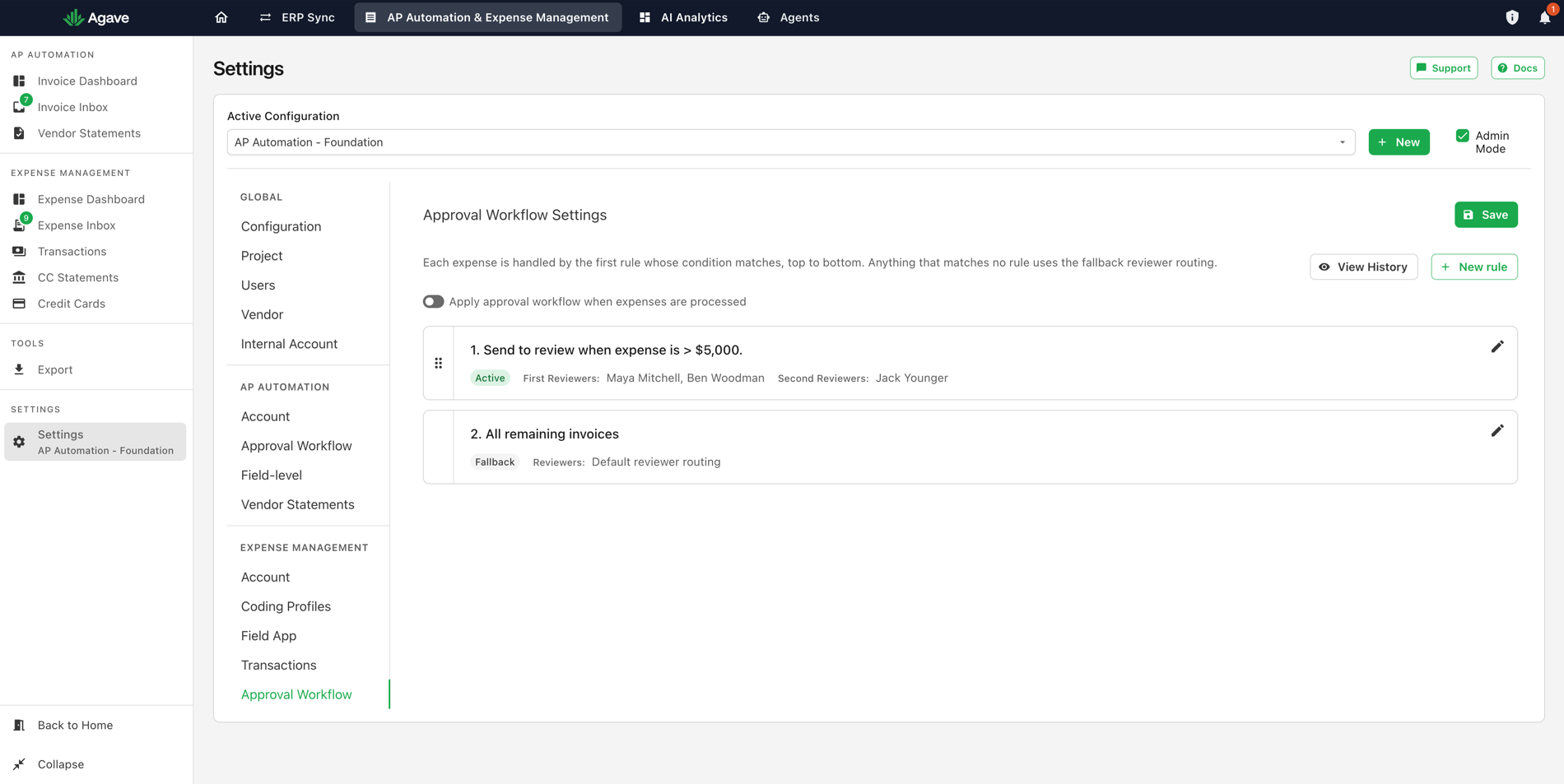
Each expense is handled by the first rule whose condition matches, top to bottom. Anything that matches no rule uses the fallback reviewer routing.
First match wins, so order is the whole design. A broad rule sitting above a narrow one means the narrow one never runs: put your most specific rules at the top and let the general ones catch what is left. Drag a rule by the handle on its left to move it.
Adding and editing a rule
Select New rule to add one. To change an existing rule, select the pencil on its right.
A rule opens into four parts: the condition, the action, the reviewers, and an active switch.
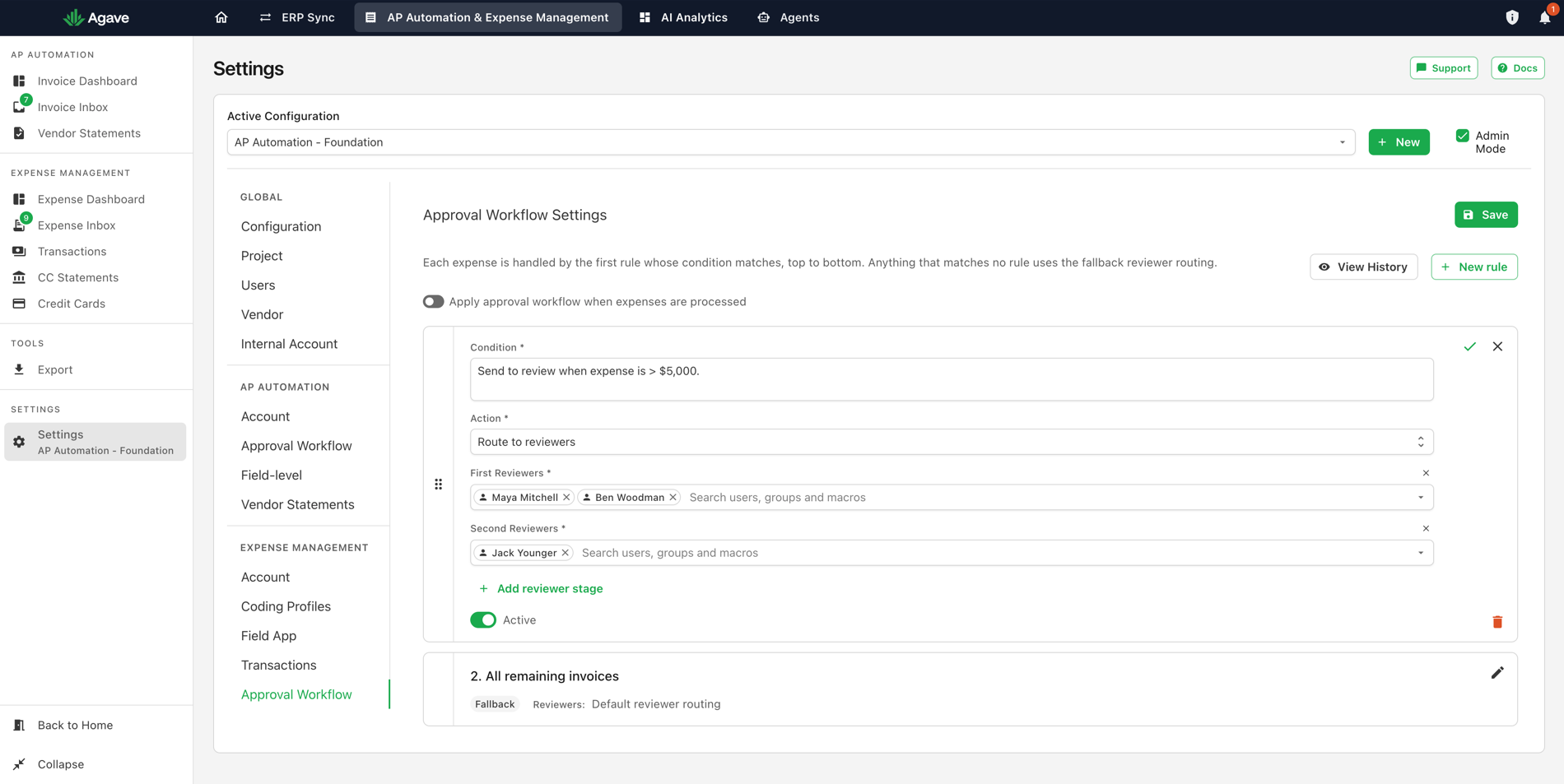
Select the tick to close the rule, or the cross to discard your edits. The trash icon deletes the rule.
Condition
Required. Write, in plain language, which expenses this rule should catch. There are no dropdowns or operators to assemble; you write a sentence.
The rule in the screenshots reads:
Send to review when expense is > $5,000.
Other conditions in the same shape:
| What you want | A condition that says it |
|---|---|
| Everything above a threshold gets a second pair of eyes | Send to review when expense is > $5,000. |
| Spend on one project routes to that project's team | Route any expenses on the Fremont Office Building project. |
| Small routine spend needs no review | Archive any expenses under $25. |
Be specific about the threshold. A condition that is vaguer than you intend will catch more than you intend, and because the first match wins, it will also stop later rules from running.
Action
Required. A rule does one of two things.
| Action | What it does |
|---|---|
| Route to reviewers | Sends the expense to the reviewers you name, in the stages you set. The expense enters review and waits for them |
| Archive | Takes the expense out of the working list without routing it to anyone. No reviewer is asked and nothing waits on approval |
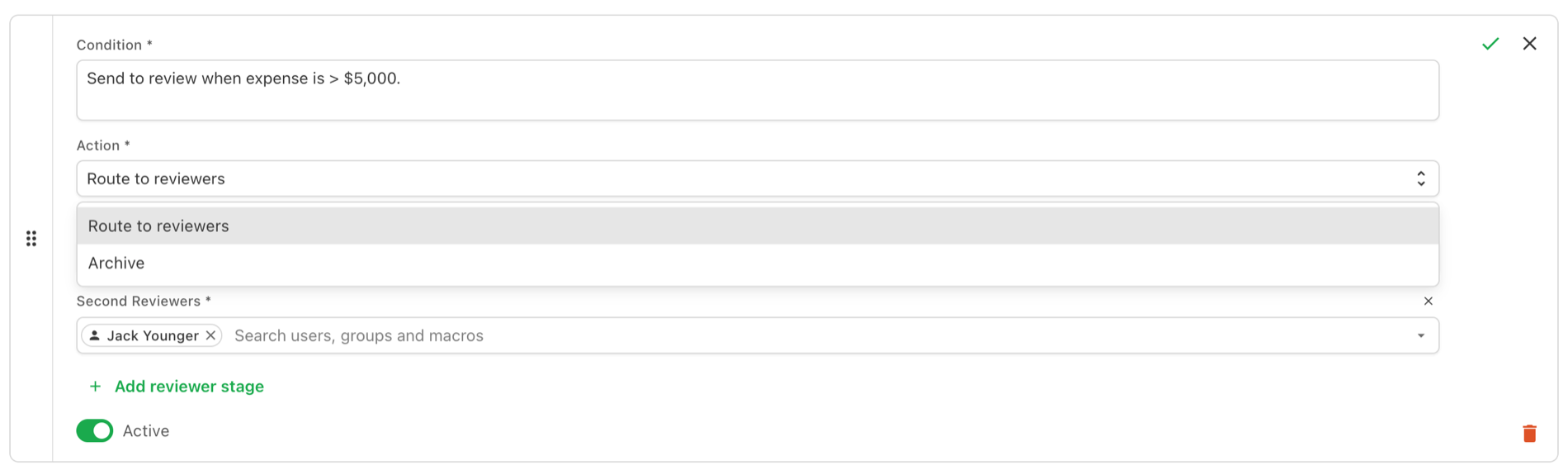
Choosing Archive removes the reviewer fields, because there is nobody to route to. Use it for categories of spend you have decided in advance need no approval. Archived expenses can be brought back, so it is not a delete. See Expense Inbox and Transactions.
Reviewers
Reviewers are set in stages. First Reviewers act first; when they are done the expense moves to Second Reviewers. Select Add reviewer stage for another round.
Several names in one stage means any of them can act on it, rather than all of them having to.
The picker searches three kinds of thing at once, which is what the Search users, groups and macros placeholder means.
User groups are groups you have defined, listed with the number of people in each. Naming a group rather than a person means the rule survives somebody leaving:
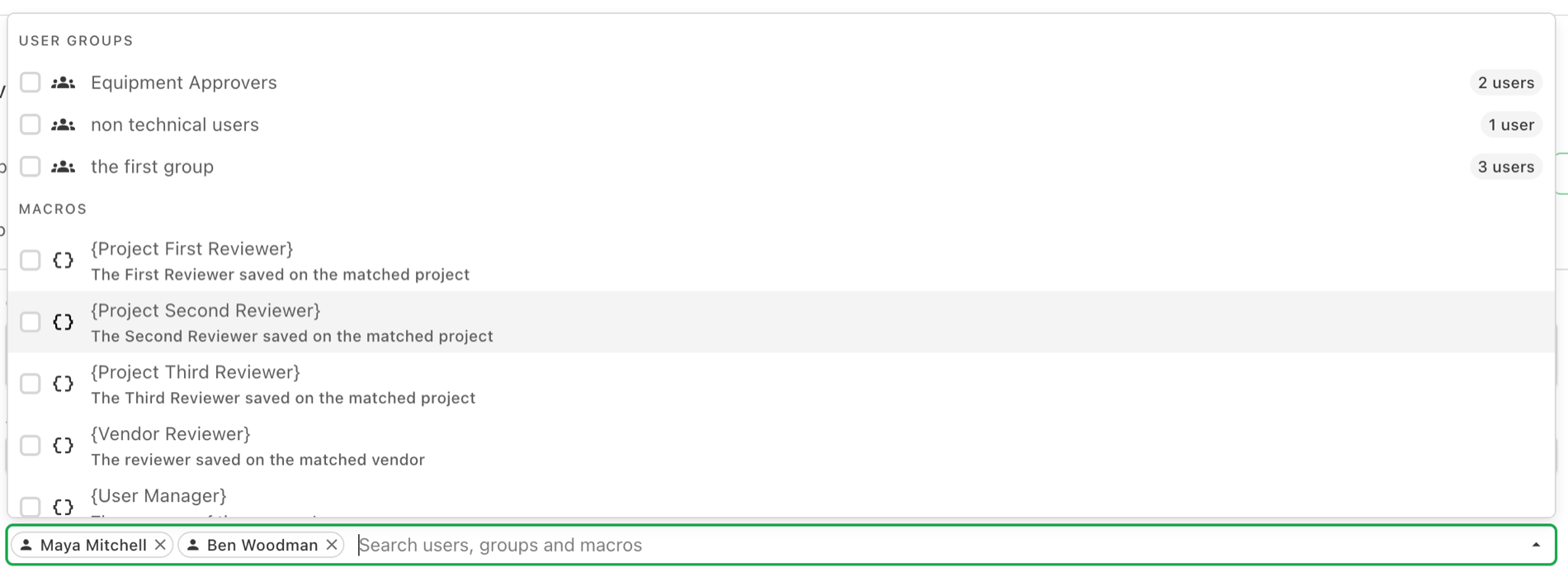
Macros resolve to a person at routing time rather than being fixed when you write the rule. This is what lets one rule route every project's expenses to the right project manager instead of needing a rule per project:
| Macro | Who it resolves to |
|---|---|
{Project First Reviewer} | The First Reviewer saved on the matched project |
{Project Second Reviewer} | The Second Reviewer saved on the matched project |
{Project Third Reviewer} | The Third Reviewer saved on the matched project |
{Vendor Reviewer} | The reviewer saved on the matched vendor |
{User Manager} | The manager of the expense's user |
Users are specific people, listed below the macros.
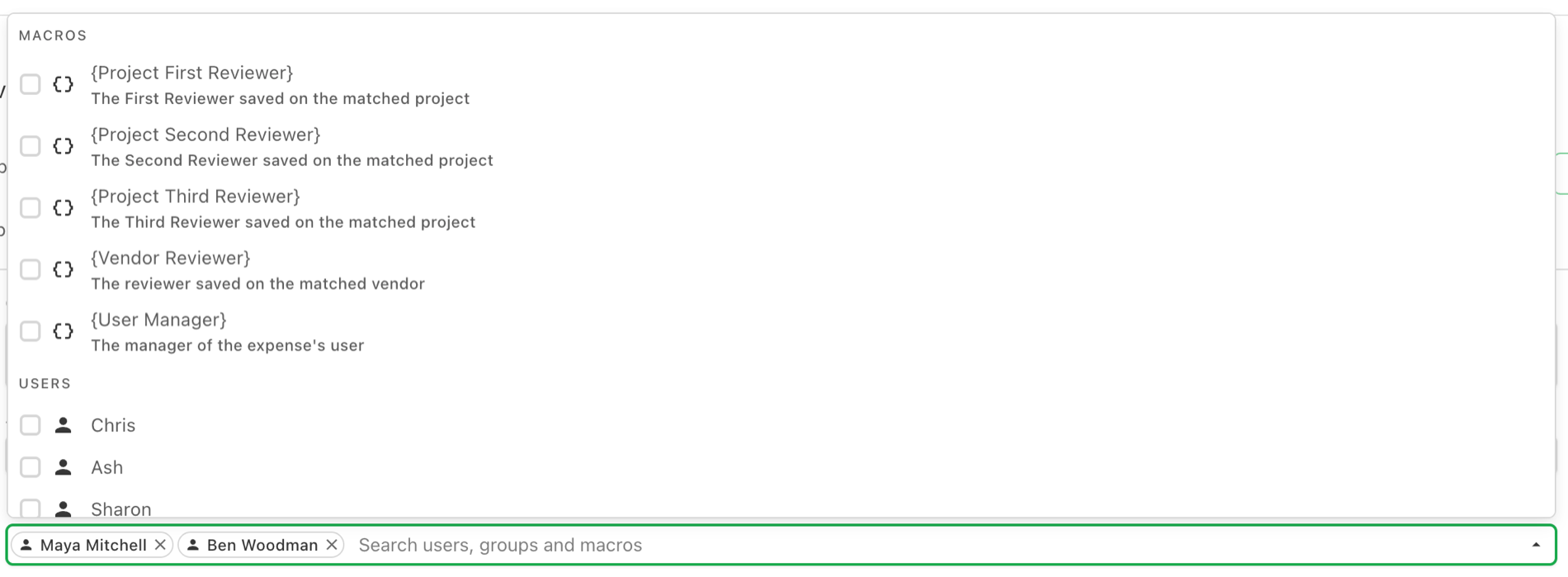
A macro only resolves if the underlying record has that reviewer saved on it. {Project First Reviewer} on a project with no First Reviewer set finds nobody, and {User Manager} needs a manager on the submitting user. Fill those in before you rely on a macro, or the rule will match and then have no one to route to.
Active
Switches a single rule on and off without deleting it. Turn a rule off while you work out whether it is catching the right expenses, rather than removing it and rebuilding it later.
All remaining invoices
The last entry in the list is the fallback, labelled Fallback rather than Active. It catches every expense none of your rules matched and sends it to default reviewer routing.
It has no condition, cannot be reordered, and has no delete control. That is by design rather than a restriction: the fallback is not a rule at all. Your rules are a list that can be added to and rearranged, and the fallback is a single setting on the workflow itself, so there is nothing to delete and never a case where an expense falls off the end unhandled.
You can still edit it with the pencil to change who the fallback reviewers are.
Saving, and switching the workflow on
Two things stand between a rule you have written and a rule that runs.
Save the page. The tick on a rule closes the editor, it does not save it. Select Save at the top right of the page. Nothing you have changed applies until you do.
Apply approval workflow when expenses are processed is the master switch, and it is separate from saving. With it off, your rules are stored and do nothing. An expense will not be routed by any rule until this is on.
View History
Shows what the workflow has done. Check it after adding a rule to confirm it routed what you expected to the people you expected.
Related guides
- Approval Workflows: the patterns these rules are usually built to express
- Reviewing and Approving Expenses: what a reviewer does once an expense reaches them
- Account Settings: when an expense is submitted for review in the first place
- Inviting Users: creating the users a rule can name