Approval Workflows
Agave's Expense Management routes expenses through a structured approval process, from initial submission all the way through your ERP. This guide walks through each stage of the approval workflow.
To configure who reviews each expense and in what order, see Approval Workflow Settings.
Step 1: Receipt Intake
Receipts enter Agave Expense Management in one of two ways:
- Field App - Submitters (Cardholders) capture receipts in the field app and submit them to Agave.
- Manual Upload - Receipts can be manually uploaded on the Agave platform.
When Agave receives a receipt, it uses AI to match the receipt to its corresponding posted bank transaction. The matched expense enters your approval workflow and is routed to its reviewer. If no approval workflow is set up, the expense stays in Draft, where an admin can review it and send it to a reviewer.
Expenses waiting for an admin appear on the Draft tab of the Expense Inbox page:
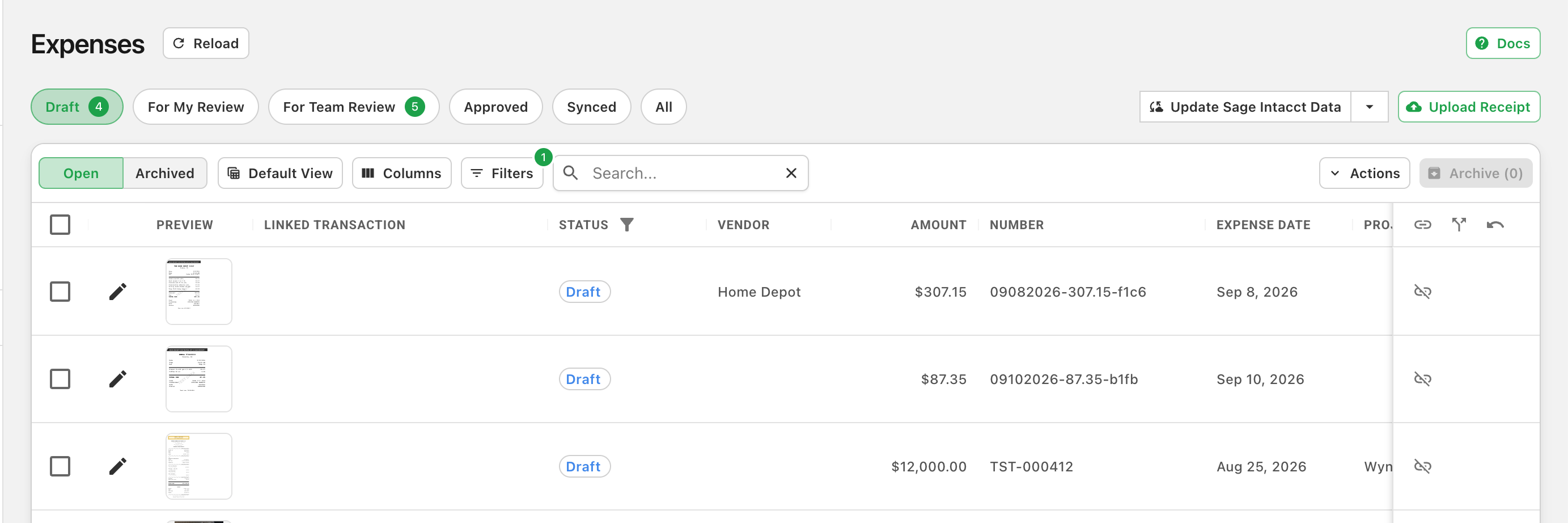
In "Draft" status, the Admin can do an initial review, match it to one of the transactions manually, and send to a reviewer:
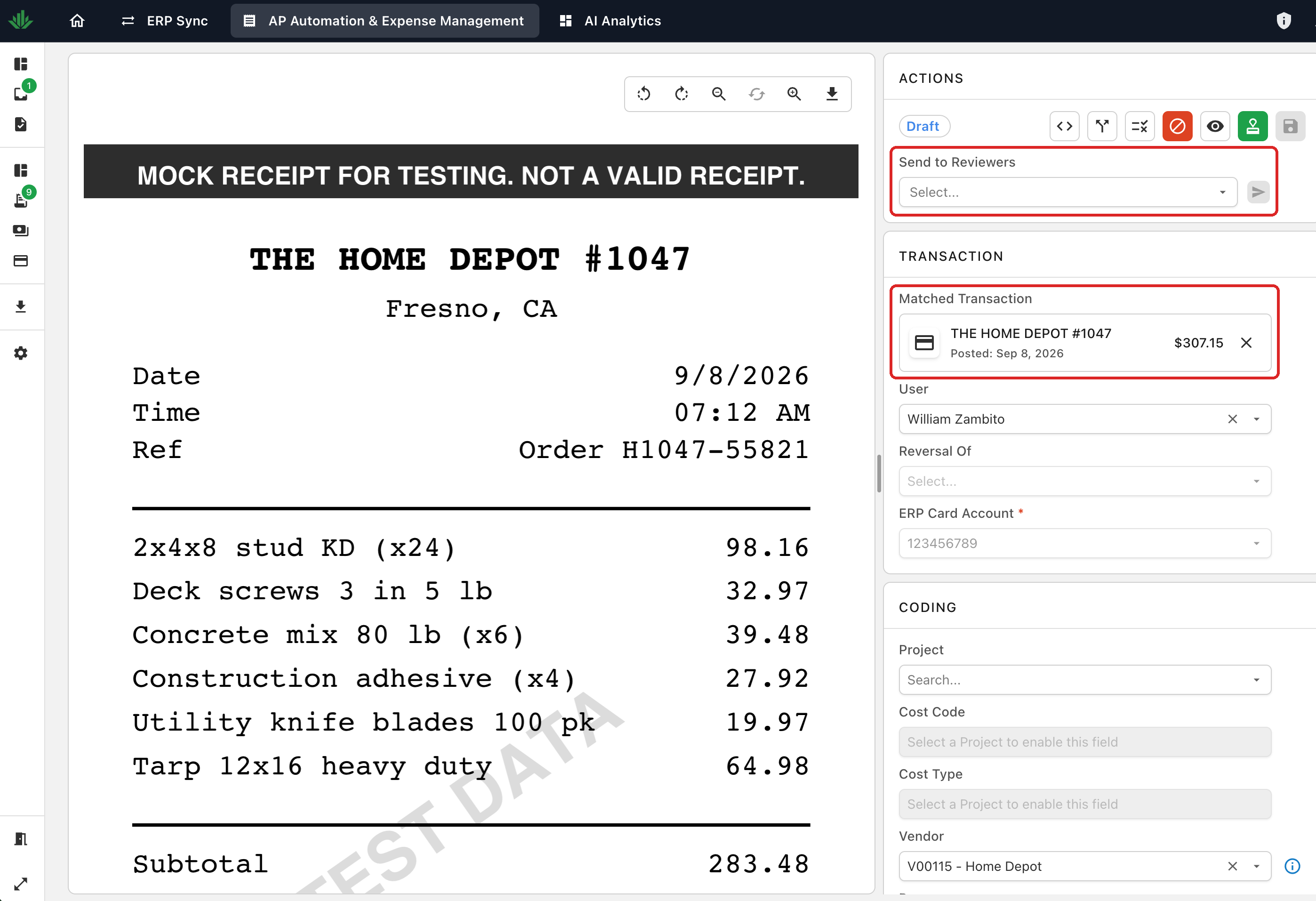
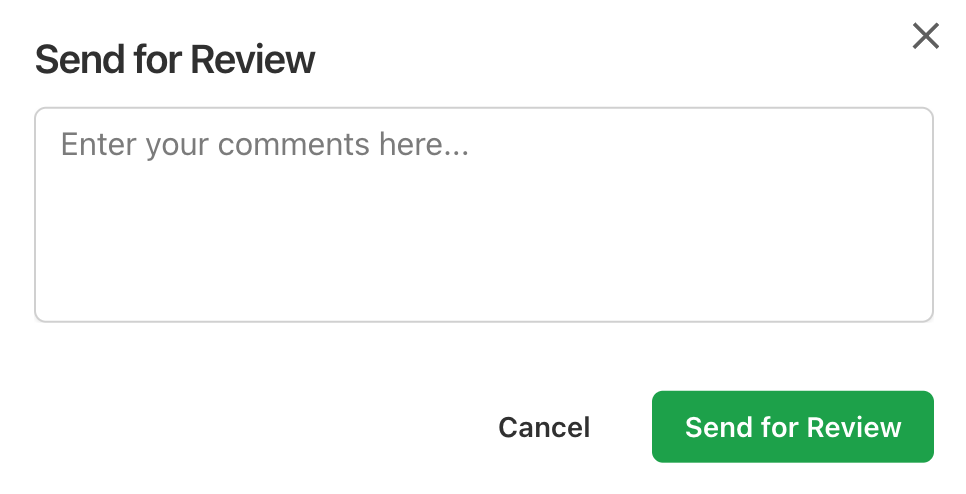
When you send the expense, a Send for Review window opens where you can add a comment for the reviewer. The reviewer gets an email notification that includes your comment:
Step 2: Reviewer Approval
An expense reaches a reviewer in one of two ways:
- Automatically - If the expense is matched and an approval workflow is set up, it skips Draft and goes straight to the reviewer.
- Sent by an admin - If the expense is in Draft, an admin sends it to a reviewer (shown above).
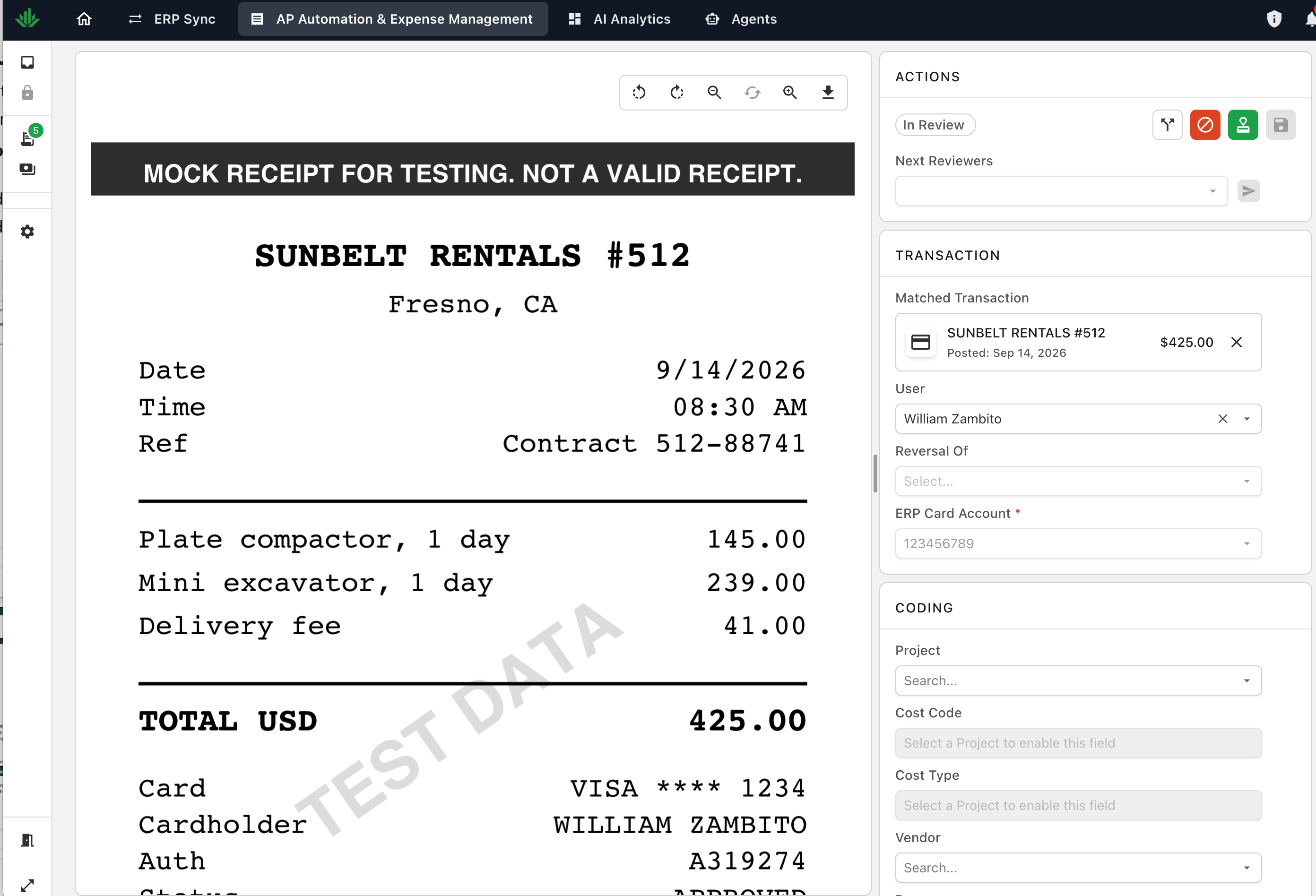
Either way, the expense appears in the reviewer's For My Review tab:
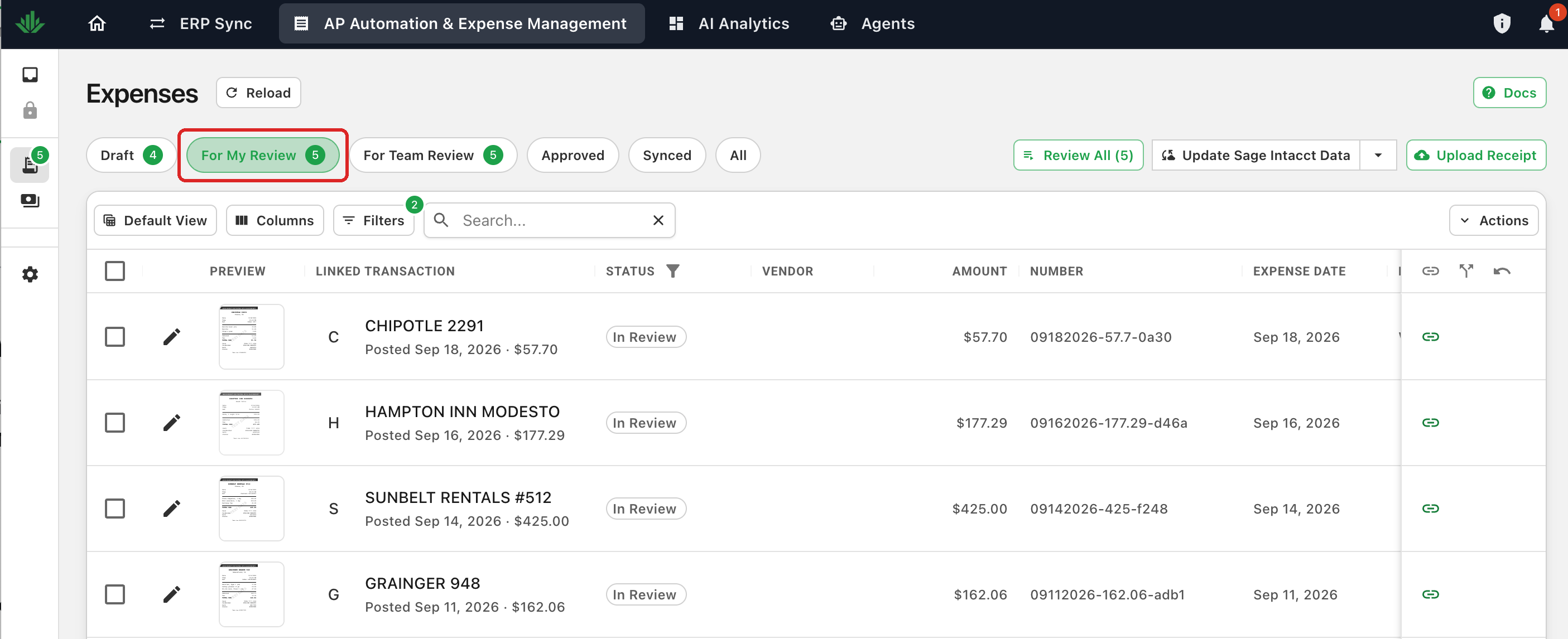 From this tab, a reviewer can select an expense and:
- Review the expense details
- Code the expense to the appropriate project, vendor, expense account
- Approve or Reject the expense back to an Admin
- Send it on to the next reviewer if multi-stage review is enabled.
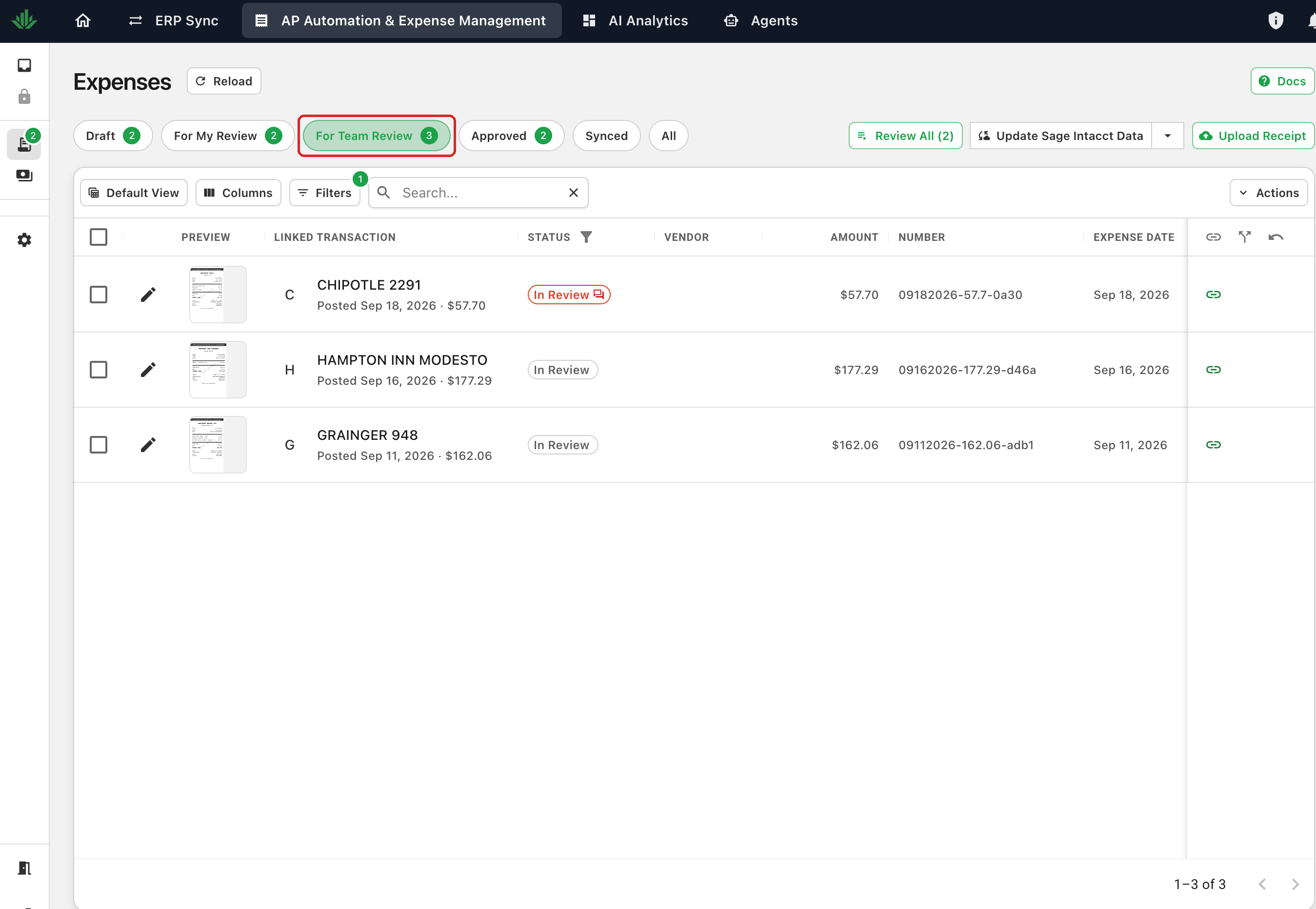
The For Team Review tab shows in-review expenses beyond your own queue. Admins see every in-review expense on the team and can act on any of them. Other users see only their own expenses and ones they are reviewing or already approved, and can act only on the ones currently assigned to them. The exception is self-approval: when it is enabled, owners can approve their own expenses.
The For Team Review tab on the Expenses page:
Step 3: ERP Sync
After the reviewer or multiple reviewers approve the expense, it moves to the final stage: syncing to your ERP.
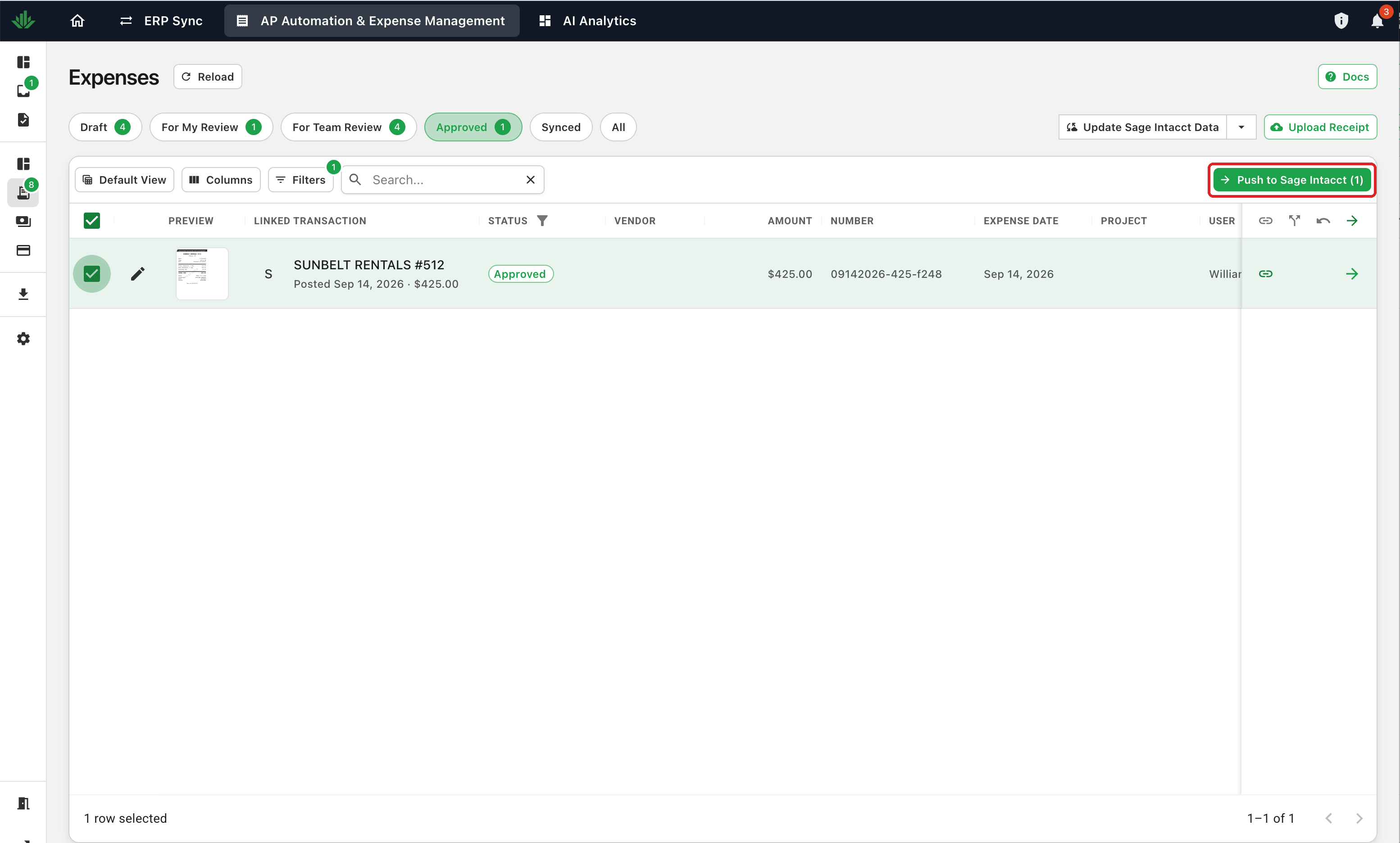
- Manual Sync: The Admin receives the approved expense and initiates the sync to your ERP when ready. Multiple expenses can be selected and pushed at the same time.
- Automatic Sync: If auto-sync is enabled for your account, approved expenses are pushed to your ERP automatically without any additional action required.
To sync manually, select the approved expenses on the Approved tab and click Push to Sage Intacct:
To enable automatic syncing, reach out to your account manager or contact support@useagave.com.