Account Settings
Account Settings controls how expenses behave across your whole account: who can approve them, when they go out for review, how they reach your ERP, and which values fill the coding fields. Every setting here applies to every expense on the active configuration.
This guide is for admins. Use it as the reference for what each setting does. The how-to guides link here rather than re-explaining a toggle.
This guide covers:
- Opening Account Settings and saving a change
- The Approval and sync settings, which govern who can approve and how approved expenses reach your ERP
- The Review and routing settings, which govern when an expense enters review and what reviewers can change
- The Invoice fields settings, which govern the values that populate an expense
Opening Account Settings
- Open AP Automation & Expense Management.
- Select Settings in the left navigation.
- Under Expense Management in the settings list, select Account.
Settings belong to the configuration named in Active Configuration at the top of the page. If your account has more than one, confirm you are on the right one before changing anything:
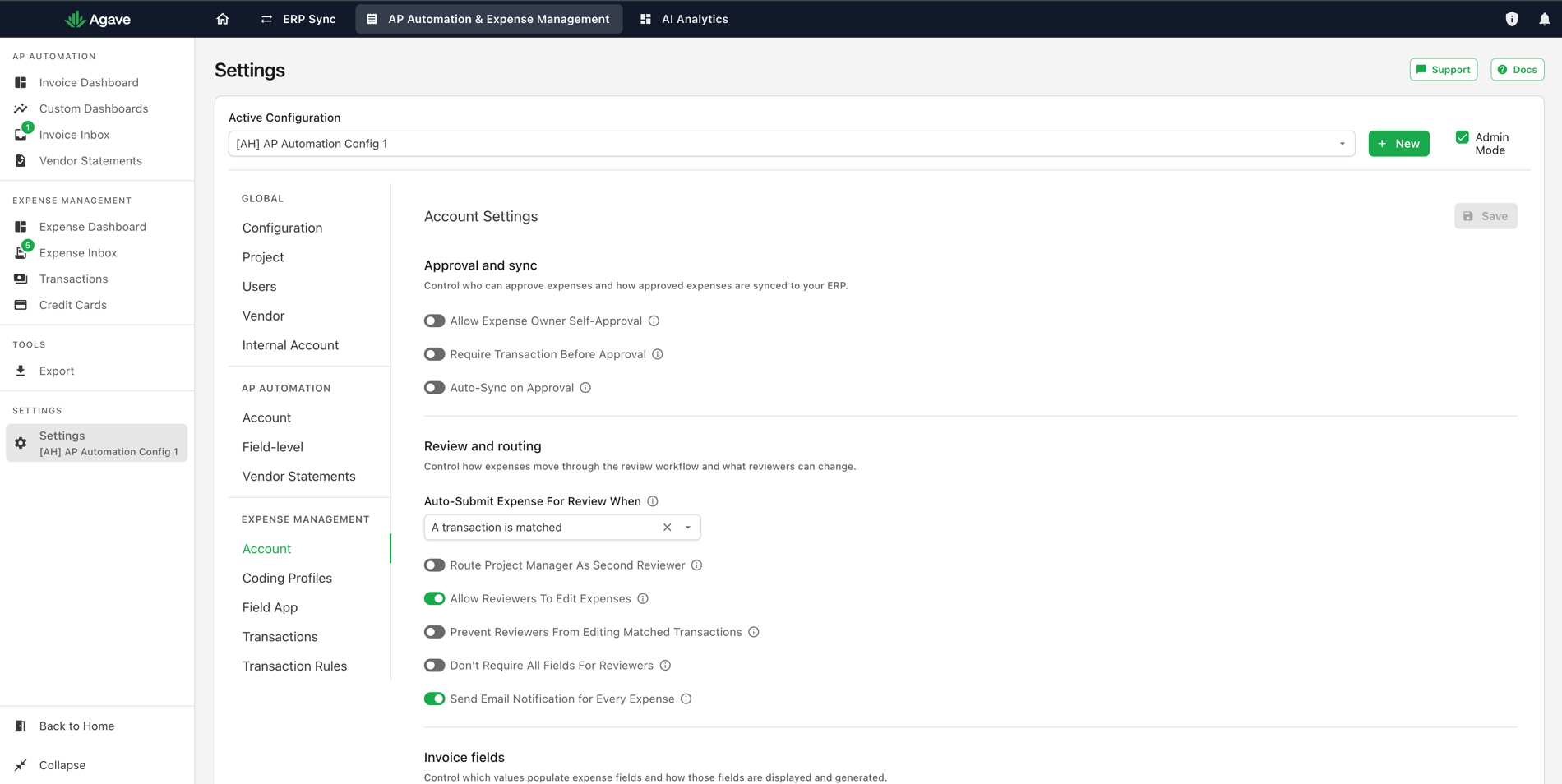
Changes are not applied until you select Save at the top right of the page. Save stays greyed out until you change something, so an active Save button means you have unsaved work.
Allow Expense Owner Self-Approval
Allows non-admin users to approve their own expenses while in draft or in review. Approving a draft finalizes it, skipping any assigned reviewers.
Leave this off when your approval workflow exists to put a second pair of eyes on field spend. Turning it on lets a cardholder close out their own expense without anyone else seeing it.
Require Transaction Before Approval
Requires a matched transaction to be attached to an expense before a non-admin can approve it. Admins can always approve.
This is the setting that stops a receipt being approved before the charge it belongs to has arrived from the card feed. For how receipts and transactions get paired, see How Matching Works.
Auto-Sync on Approval
Automatically pushes expenses to your ERP as soon as they are approved, without requiring a manual sync step.
With this off, approval and sync are two separate actions: someone approves the expense, then someone pushes it. See Syncing to Your ERP.
Systems that run through the Agave Connector do not sync the moment you approve. The push is queued and runs on the connector's schedule.
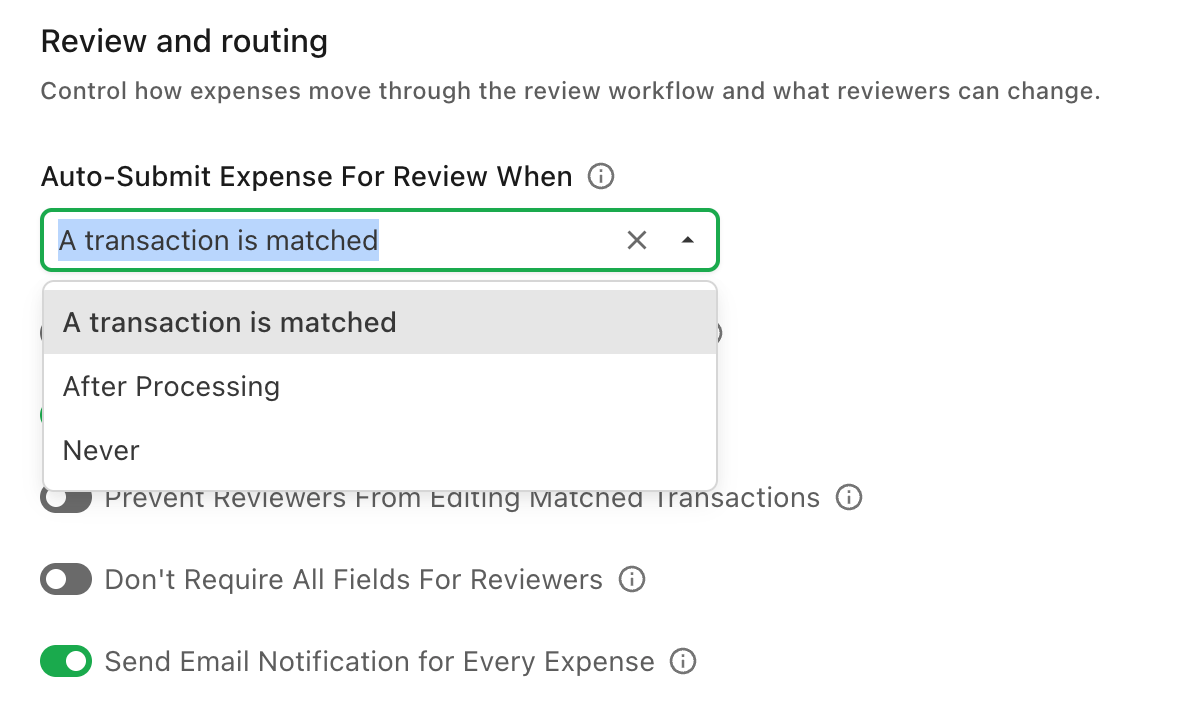
Auto-Submit Expense For Review When
Controls when expenses are automatically submitted for review instead of being left as drafts.
| Option | What it does |
|---|---|
| A transaction is matched | Waits for a bank transaction to be linked to the expense |
| After Processing | Submits as soon as a reviewer is found, without waiting for a transaction |
| Never | Requires users to submit expenses for review by hand |
Pick A transaction is matched when reviewers should never see an expense until the charge backing it has arrived. Pick After Processing when you would rather reviewers start coding while the transaction is still pending. The options are shown on the dropdown:
Route Project Manager As Second Reviewer
When enabled, the project manager resolved from the ERP is assigned as the second reviewer, and the default reviewer becomes the first reviewer. If no default reviewer is set, the project manager stays the first reviewer.
Multi-stage review must also be enabled.
Allow Reviewers To Edit Expenses
Enabled by default. Non-admin reviewers can edit the expenses assigned to them for review, and can see the transactions of the user they are reviewing.
When disabled, non-admins can only edit and see transactions for their own expenses. Assigned reviewers can still approve or reject.
Prevent Reviewers From Editing Matched Transactions
When enabled, non-admin reviewers can edit every field on an expense in review except the matched transaction, which stays locked to whatever the submitter attached. Admins and the expense owner can still change it.
Requires Allow Reviewers To Edit Expenses to be enabled.
Don't Require All Fields For Reviewers
When enabled, non-admin reviewers can approve an expense without filling in every required header field, letting them complete just the fields they know.
Required fields still apply to admins, who must finish them before approving or pushing the expense. This is the setting that lets a project manager confirm the cost code and hand the rest to accounting.
Send Email Notification for Every Expense
Sends email notifications to reviewers when expenses are assigned to them or rejected.
Split Budget Fields
When enabled, the combined Job Costing budget field is broken into three separate fields: Sub Job, Cost Code, and Cost Type. When disabled, the single combined budget selector is shown.
Turn this on when your team codes those three independently rather than picking one budget line. See Coding an Expense.
The Invoice fields section controls which values populate expense fields and how those fields are displayed and generated:
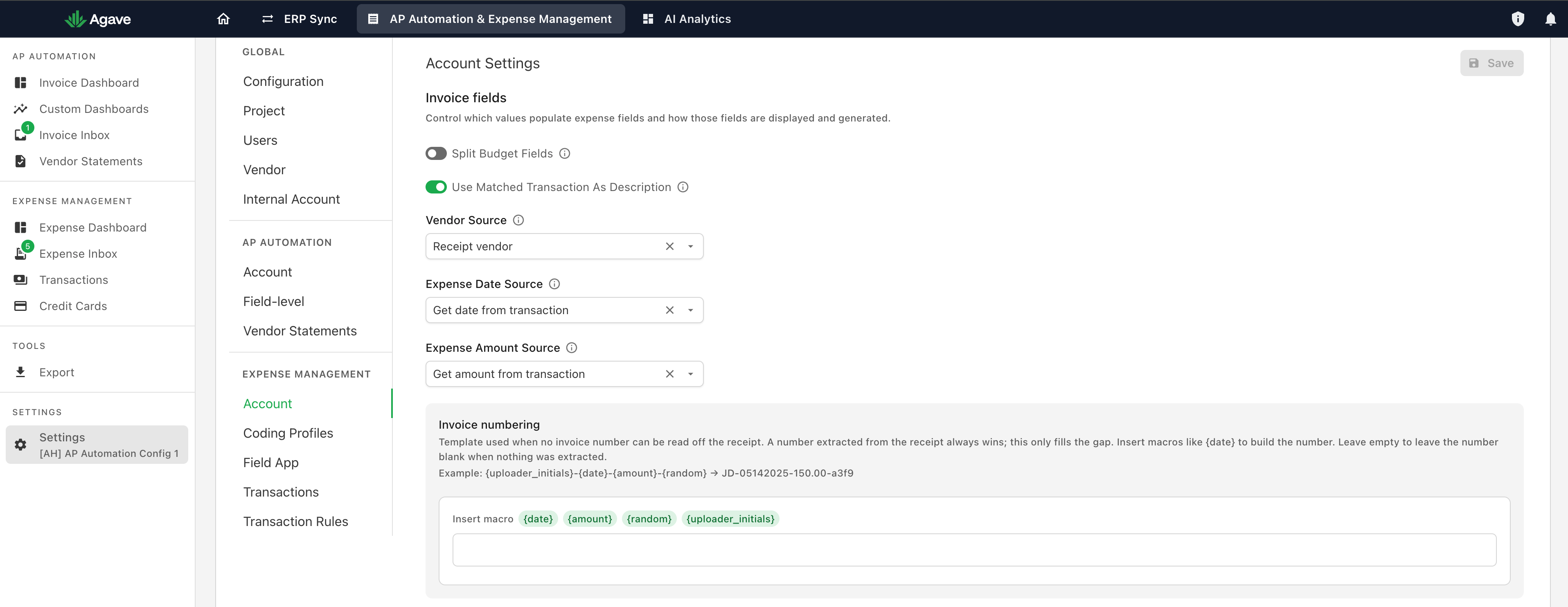
Use Matched Transaction As Description
When enabled, the matched credit card transaction is used as the synced expense line item description, carrying the transaction name, the user, and the card mask.
When disabled, the original description entered by the user is used on both the header and the line items.
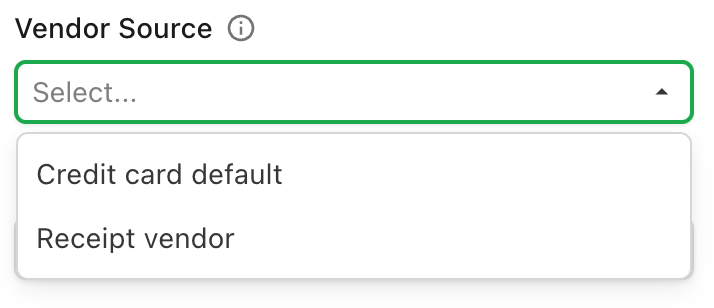
Vendor Source
Controls where the vendor is sourced from when syncing expenses to your ERP.
| Option | What it does |
|---|---|
| Receipt vendor | Uses the vendor extracted from the receipt |
| Credit card default | Uses the credit card company as the vendor |
Which one to pick depends on what you want to see in the ERP. Receipt vendor gives you reporting on spend by merchant, so Home Depot posts as Home Depot. Credit card default treats the charge as prepaid spend paid to the bank at statement close, which is simpler because the bank is who you actually pay:
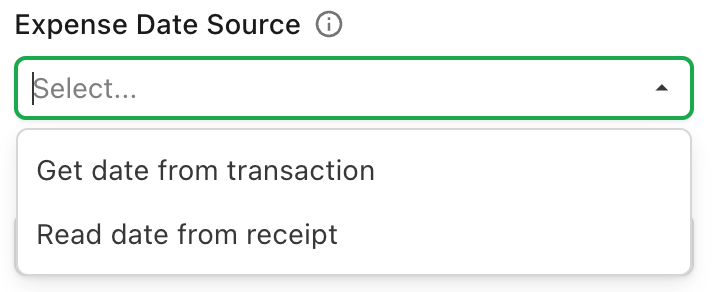
Expense Date Source
Controls where the expense date is sourced from when syncing expenses to your ERP.
| Option | What it does |
|---|---|
| Read date from receipt | Uses the date extracted from the receipt image |
| Get date from transaction | Uses the date from the underlying credit card transaction |
The two dates differ whenever a charge takes a day or more to settle, which decides the period an expense lands in:
A missing date blocks the sync. If an expense will not push, open it and check the date field first.
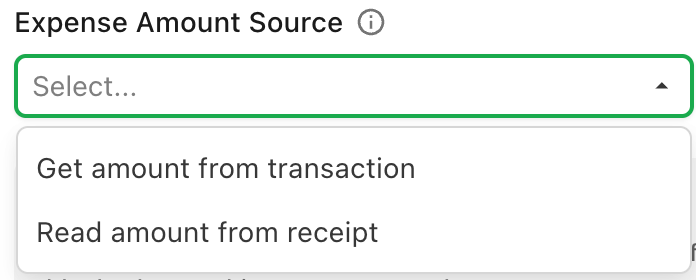
Expense Amount Source
Controls where the expense amount is sourced from when syncing expenses to your ERP.
| Option | What it does |
|---|---|
| Read amount from receipt | Uses the total amount extracted from the receipt image |
| Get amount from transaction | Uses the amount from the underlying credit card transaction |
Taking the amount from the transaction reflects tips, taxes, and adjustments applied after the receipt was printed:
Invoice numbering
A template used when no invoice number can be read off the receipt. A number extracted from the receipt always wins; this only fills the gap. Leave it empty to leave the number blank when nothing was extracted.
Build the template from the macros listed under Insert macro. The panel shows a worked example of the result.
The green macros are buttons. Click one to drop it into the template rather than typing the braces yourself. They read as labels, so it is easy to miss that they do anything.
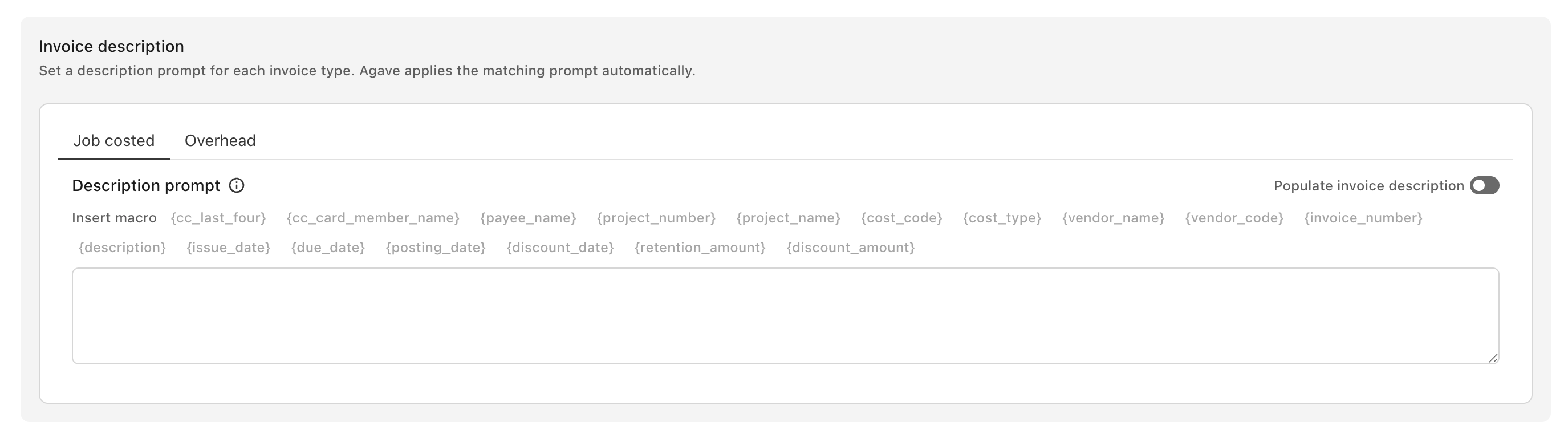
Invoice description
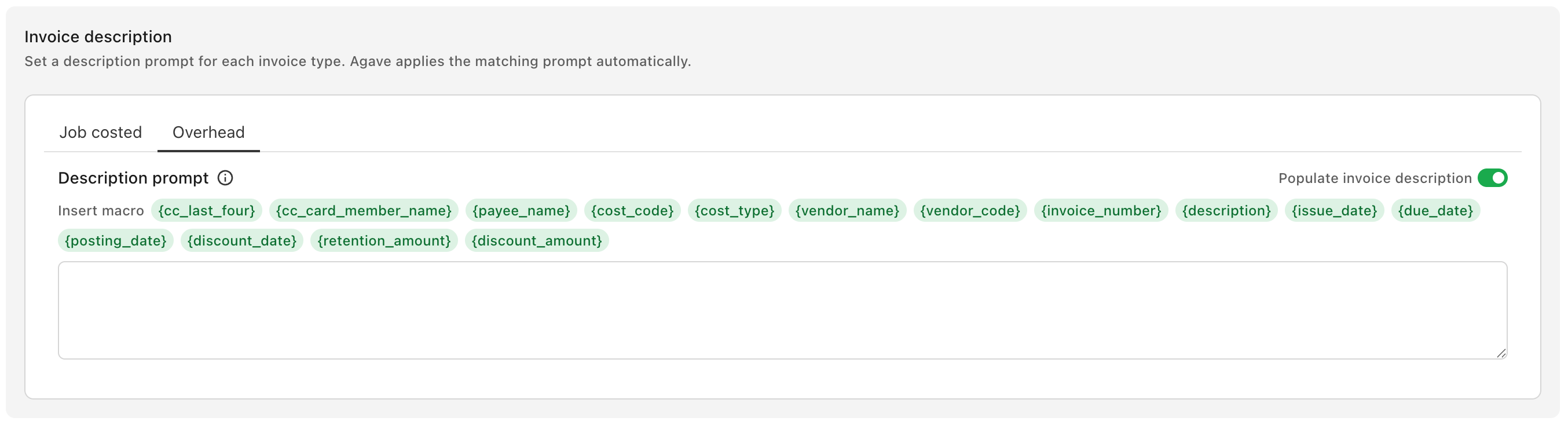
A description prompt set per invoice type. Agave applies the matching prompt automatically, so job-costed expenses and overhead expenses can read differently.
Populate invoice description is set per tab. Turning it on under Job costed does not turn it on under Overhead, so switch to each tab you want and set it there.
Until that toggle is on, the macros under Insert macro are greyed out and the prompt field does nothing:
Turn Populate invoice description on and the macros turn green, which means they are now clickable in the same way as the ones under Invoice numbering:
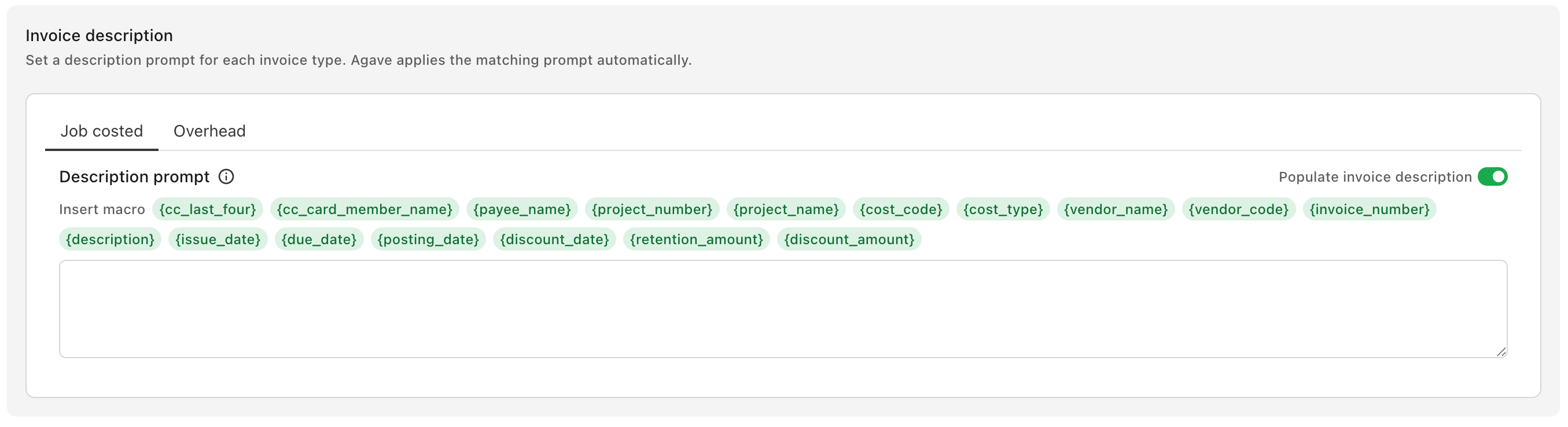
The two tabs do not offer the same macros. Overhead drops the two project macros, since an overhead expense is not coded to a project:
Related guides
- Transaction Settings: settings for the card feed and the Transactions page
- Coding Profiles and Policies: building coding profiles and the policies that restrict them
- Field App Settings: required fields and visible profiles for field users
- Approval Workflows: how routing is built, and the patterns it supports
- Syncing to Your ERP: what happens once an expense is approved