Reviewing and Approving Expenses
This guide is for reviewers and approvers, typically project managers and accounting staff. When an expense is in your queue, confirm its details, check its coding, and then approve it or reject it and send it back with a comment.
For the full intake-to-sync picture, see Approval Workflows.
Step 1: Find expenses to review
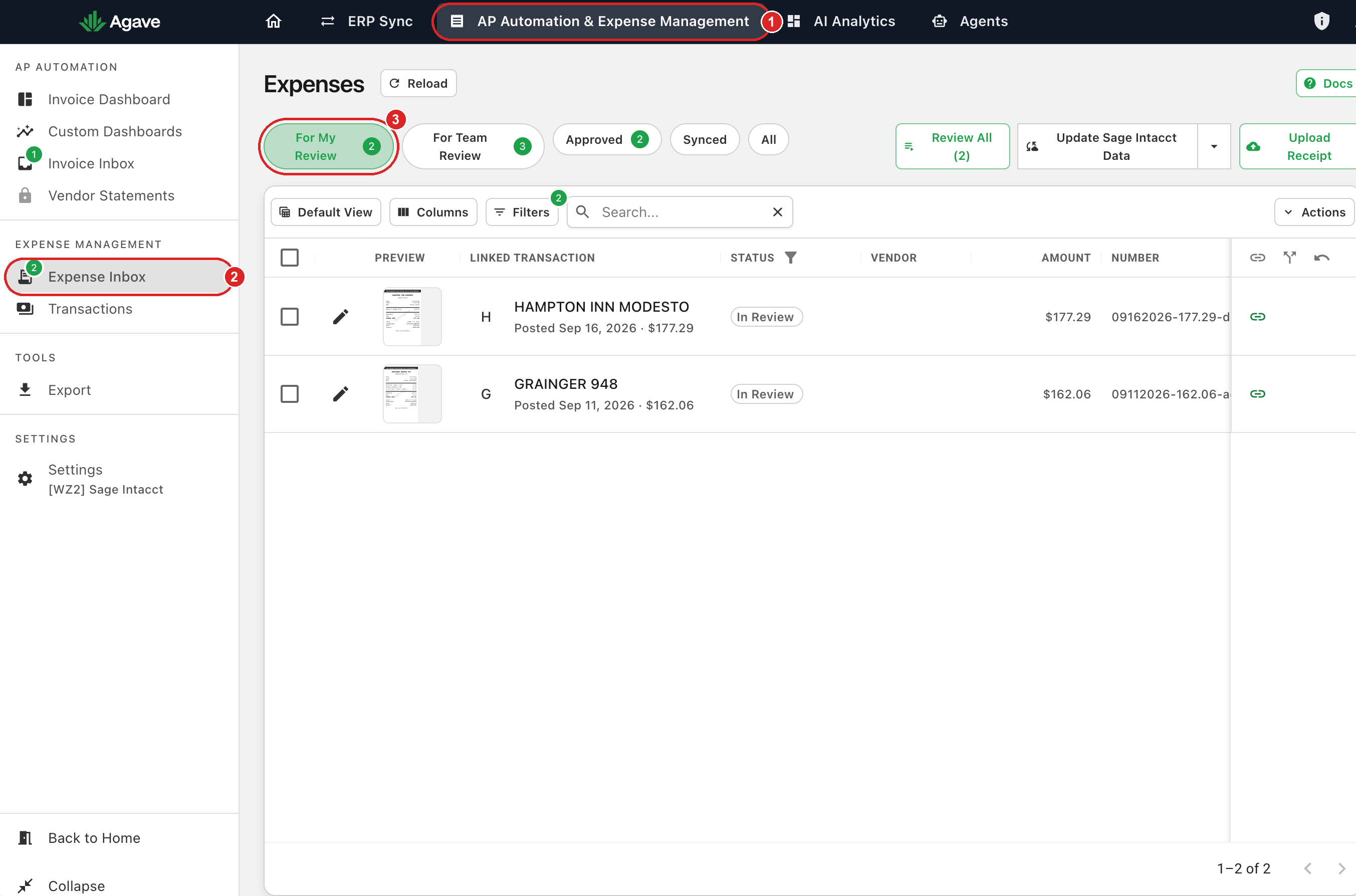
- Open Expense Management and go to Inbox.
- Select the For My Review tab. This lists the expenses assigned to you.
The numbered callouts show where each of these is in Agave:
Step 2: Open and review the expense
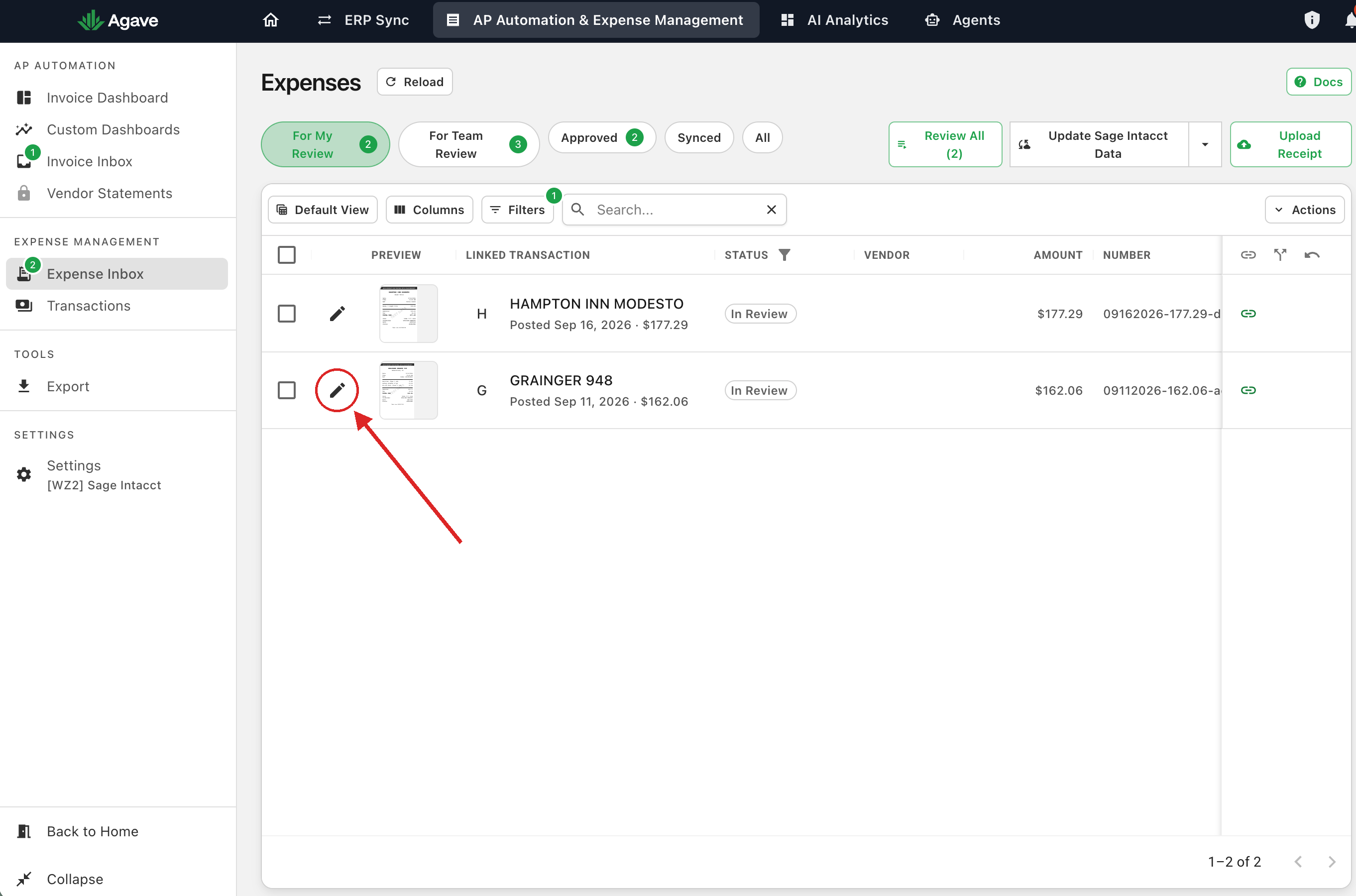
- Click the Edit icon on an expense to open it.
The Edit icon sits at the start of each row on the For My Review tab:
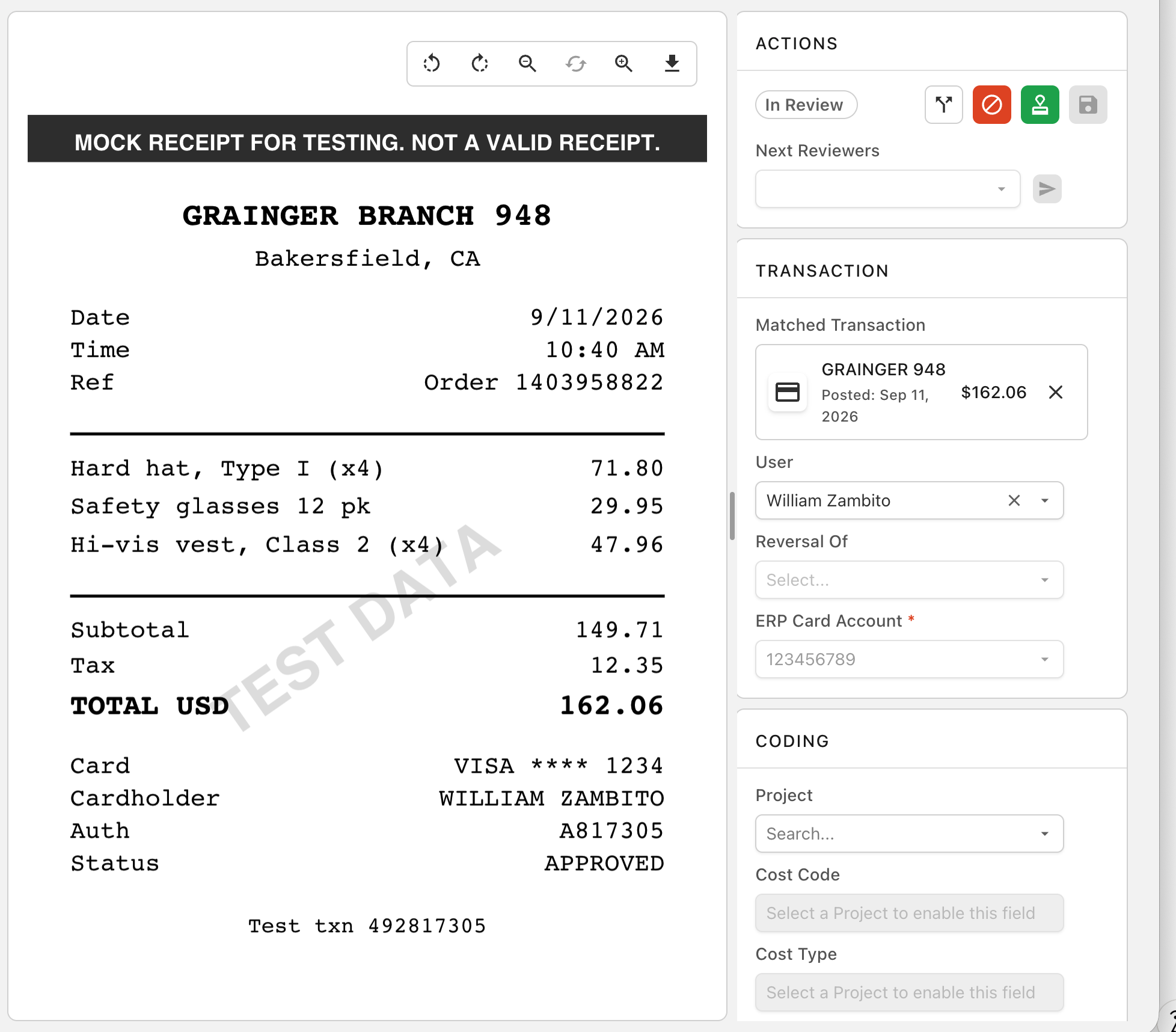
In the coding view, compare the receipt on the left with the fields on the right and check that they match.
Check these fields in particular:
- Matched Transaction
- Vendor
- Project (if applicable)
- Expense Account
- Amount
- Date
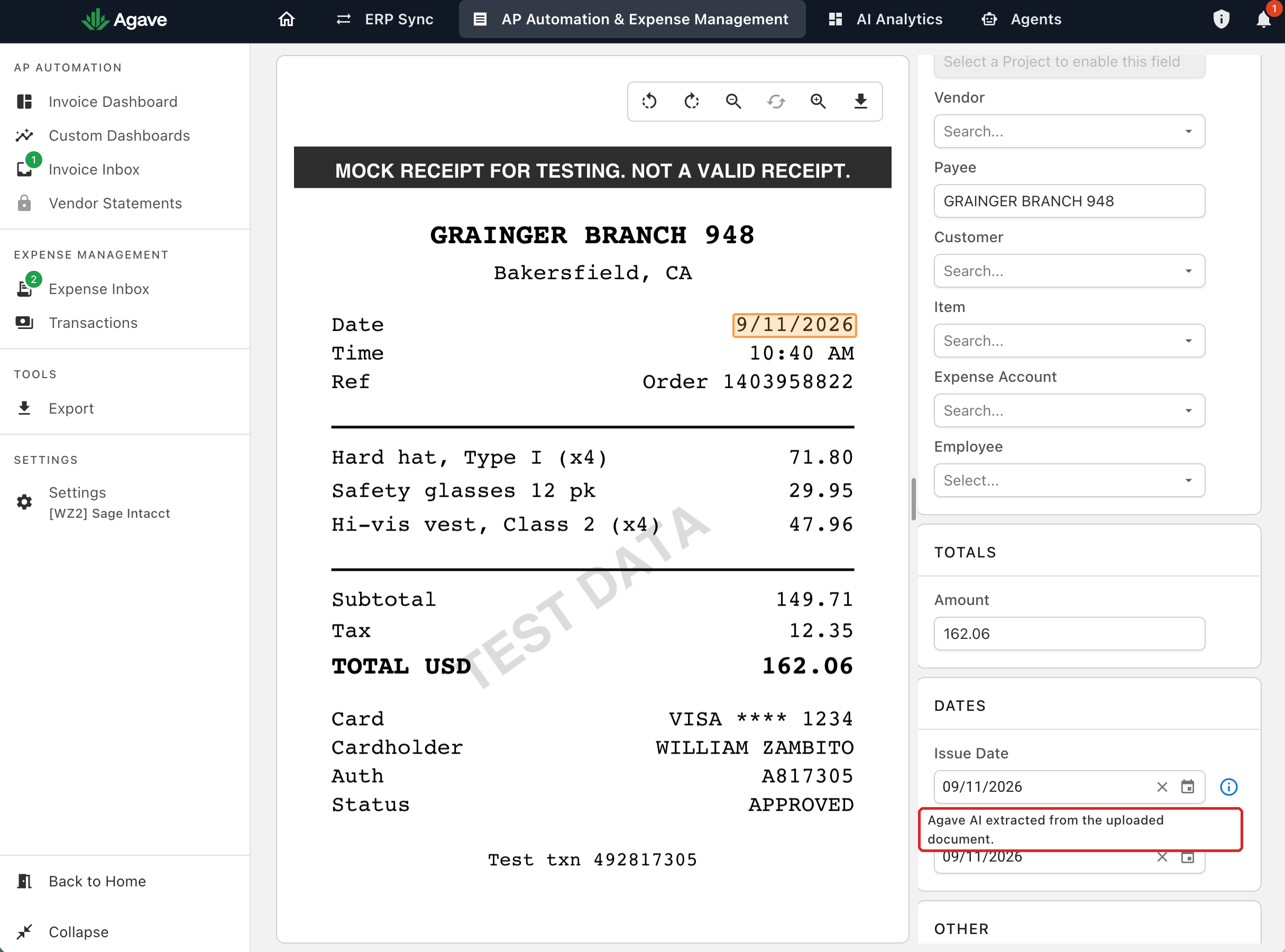
If Agave auto-filled a field, hover the blue information icon to see why:
If the coding needs changes, make them here before you approve the expense or send it to the next reviewer.
Step 3: Reject an expense
Reject an expense when something is wrong and an admin needs to fix it.
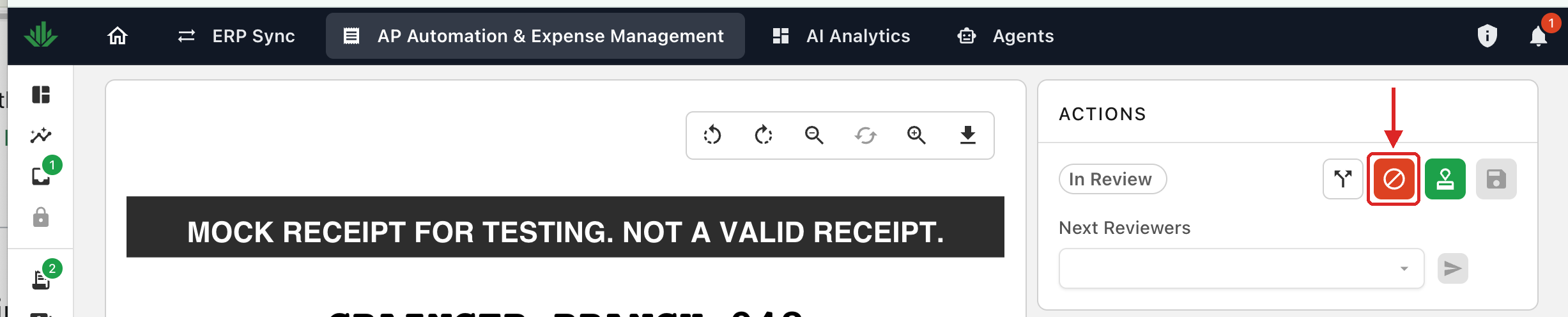
- Click the red reject icon in the Actions panel.
-
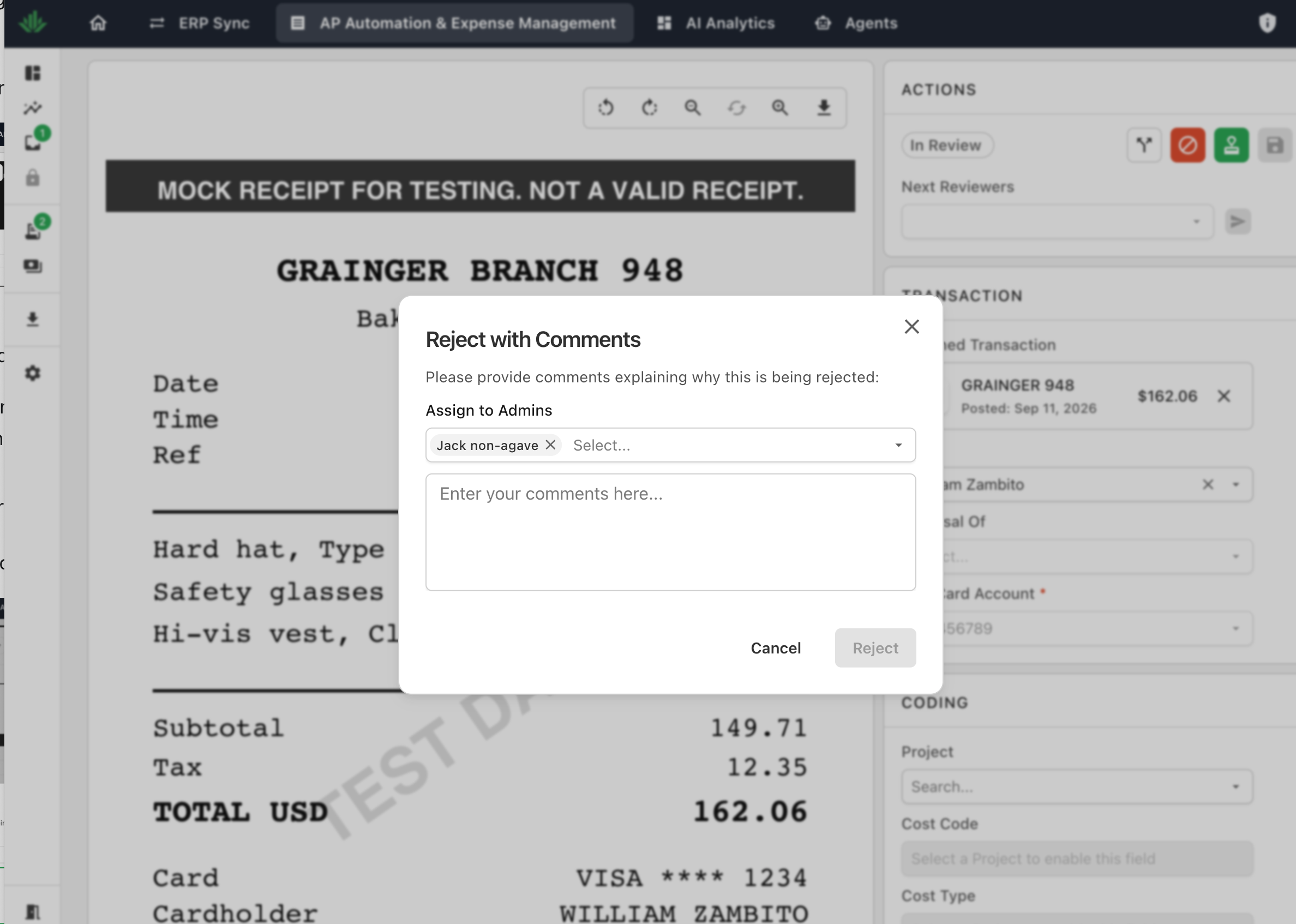
In the Reject with Comments dialog:
- Choose who should receive it under Assign to Admins.
- Enter a comment explaining the problem. A comment is required.
-
Click Reject. Click Cancel to close without rejecting.
Step 4: Approve an expense
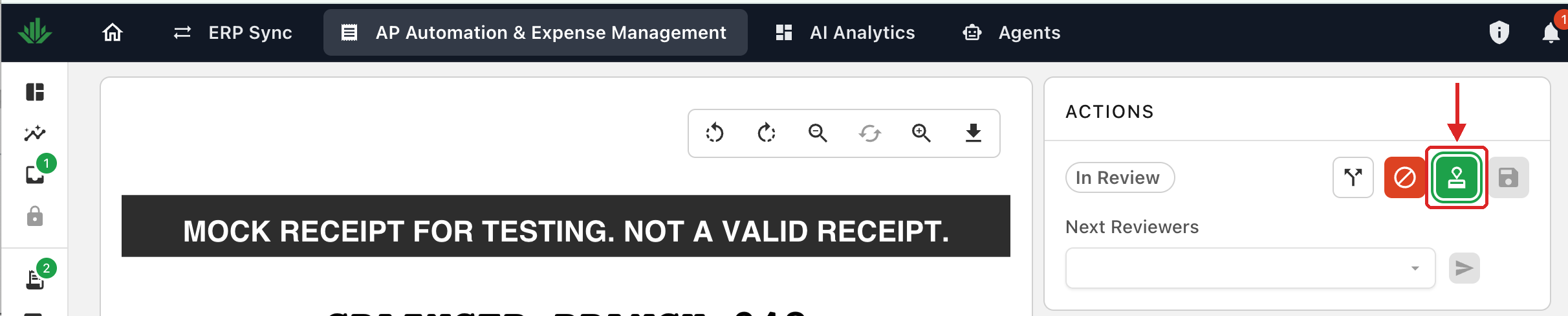
- Click the green approve icon in the Actions panel.
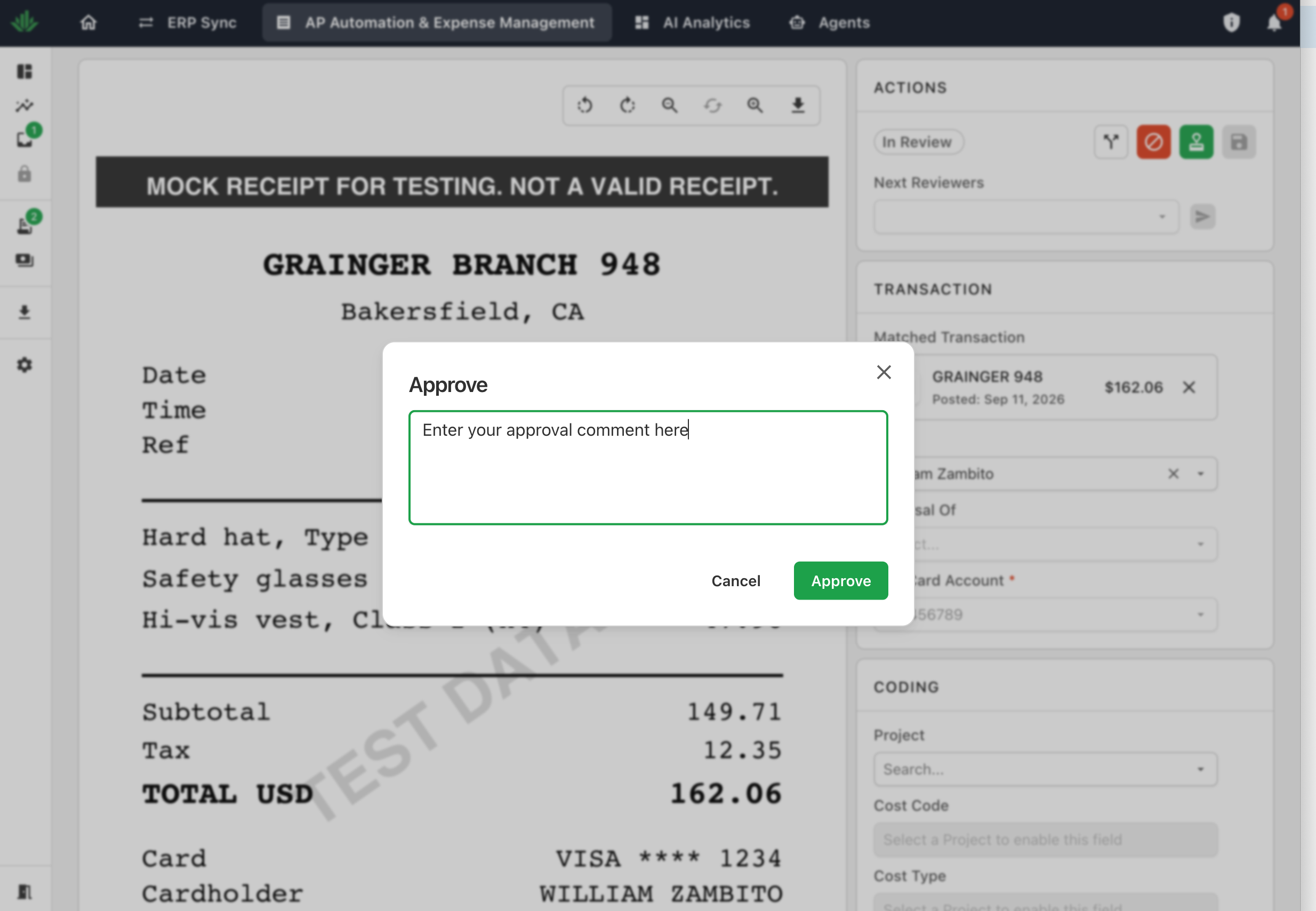
- In the Approve dialog, add an optional comment.
- Click Approve. Click Cancel to close without approving.
Save without approving or rejecting
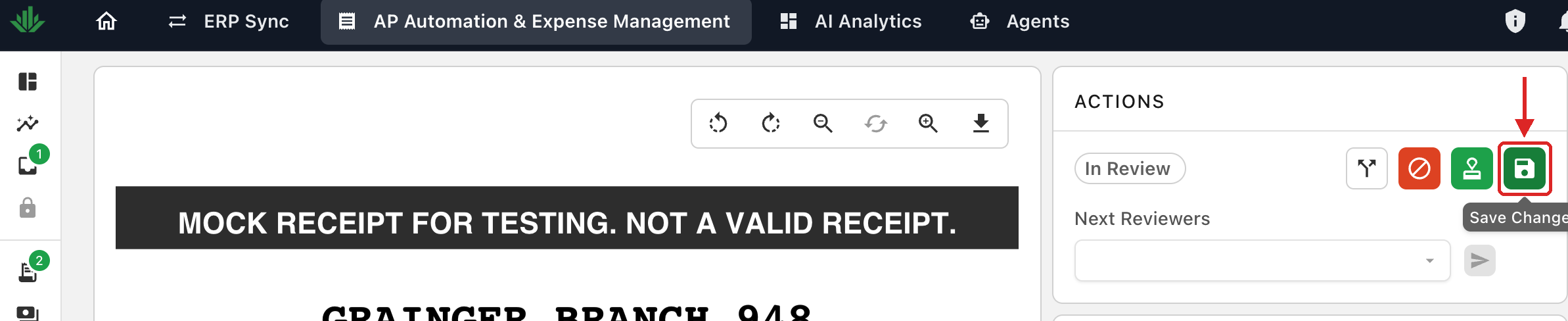
To save your coding changes without approving or rejecting, click the disk icon in the Actions panel.
Related guides
- Approval Workflows: how an expense reaches you, from receipt intake to ERP sync
- Approval Workflow Settings: the rules that decide who reviews each expense
- Coding Profiles and Policies: the coding Agave pre-fills before an expense reaches you
- Expenses Without a Receipt: handling card charges that arrive with no receipt
- Expense Management Users: which user type you are and what you can do