Setting Up Your Cards
Each card in Agave needs a few settings before its charges can match receipts and sync to your ERP. Setting up a card tells Agave who holds it, which vendor its charges belong to, and which employee and card records in your ERP to use. A card that is left blank still imports transactions, but they will not match receipts on their own.
This guide is for admins. Use it after you connect your card feed or upload your first CSV, and again whenever a new card shows up.
This guide covers:
- Finding your cards on the Credit Cards page
- Assigning each card to a cardholder, or marking it as shared
- Setting a card's default vendor
- Linking a card to your ERP's employee and card account records
- Checking every card before you go live
To connect your bank in the first place, see Connect Your Card Feed.
Before you start
- Connect your card feed or upload a CSV first. Cards appear on the Credit Cards page only after one of these. See Connect Your Card Feed or Uploading Transactions from CSV.
- Create an Agave user for every cardholder. You assign cards to Agave users, so each person has to exist before you can pick them. See Expense Management Users.
- Have a list of who holds which card. The Credit Cards page shows each card's last four digits, not the cardholder's name, so you need to know which four digits belong to whom.
- Connect your ERP. The Default Vendor, ERP Employee, and ERP Card Account dropdowns list records from your ERP. See Connect Your ERP.
Step 1: Open the Credit Cards page
- Open AP Automation & Expense Management.
- Under Expense Management in the left navigation, select Credit Cards.
The page has two tables. Connected Accounts lists cards that come in through your bank feed. CSV Imported Card Accounts, further down the page, lists cards whose transactions you upload by hand. Both tables have the same columns and are set up the same way.
Each row in Connected Accounts is one card, with its settings in the columns to the right:
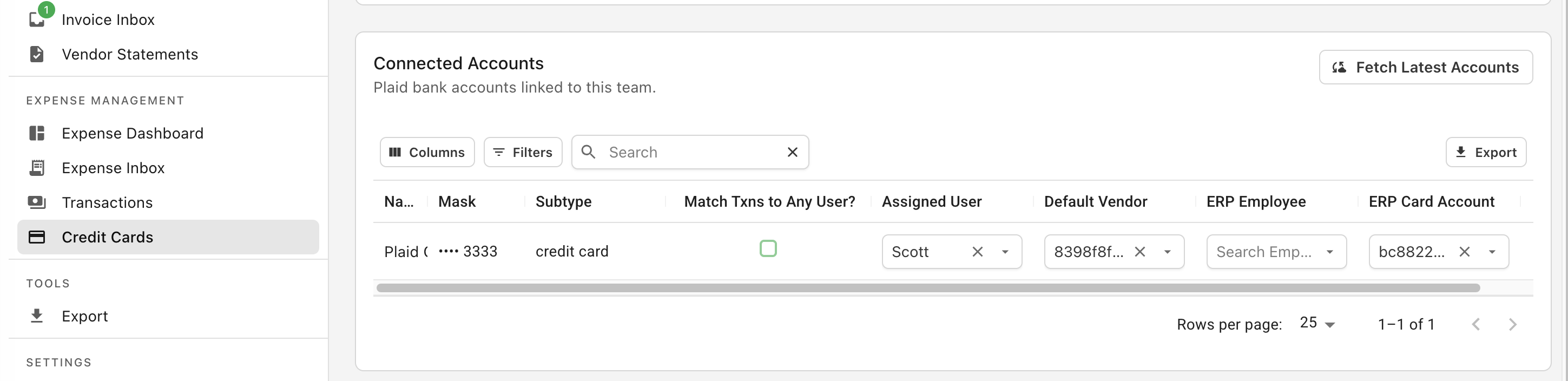
The first three columns come from your bank:
| Column | What it shows |
|---|---|
| Name | The card's name as your bank reports it |
| Mask | The card's last four digits |
| Subtype | The account type your bank reports, such as credit card |
The table scrolls sideways. If you do not see ERP Card Account, scroll the table to the right. You can also use Columns to hide columns you do not need.
A card appears only once it has at least one transaction. If a cardholder has not used their card since you connected the feed, their card will not be listed yet. Once they make a purchase, press Fetch Latest Accounts at the top of the table.
Step 2: Assign the card to its cardholder
Every card needs either an assigned user or Match Txns to Any User? checked. Pick one:
| The card is | Set this | What happens |
|---|---|---|
| Held by one person | Assigned User: select that person | Its charges match receipts that person submits |
| Shared, such as a shop or truck card | Check Match Txns to Any User? | Its charges match receipts from anyone on your team |
- Find the card by its Mask.
- For a card one person holds, select them in the Assigned User dropdown.
- For a shared card, check Match Txns to Any User? and leave Assigned User empty.
A card with no assigned user and Match Txns to Any User? unchecked never matches anything, and Agave does not warn you. Its charges sit on the Transactions page until someone links them by hand.
The assigned user also controls who sees the card's charges in the field app. Cardholders who are not admins see only transactions on cards assigned to them.
Step 3: Set the default vendor
Default Vendor is the vendor record in your ERP for the bank or company that issues the card, for example American Express or Chase.
- In the Default Vendor dropdown, select the vendor record for the card's bank.
Whether this vendor is used on synced expenses depends on your Vendor Source setting. If your account is set up to post card charges to the bank instead of the merchant on the receipt, the card's Default Vendor is the vendor those charges sync with. To see which option your account uses, see Vendor Source. Your Agave implementation rep can help you decide which setup fits your ERP and get it configured.
Step 4: Link the card to your ERP
ERP Employee and ERP Card Account connect the card to records in your ERP. Set them if your ERP has its own records for employees and credit card accounts. If it does not, leave both empty.
| Column | What it is |
|---|---|
| ERP Employee | The cardholder's employee record in your ERP |
| ERP Card Account | The card's own record in your ERP |
- In ERP Employee, search for and select the cardholder's employee record.
- In ERP Card Account, select the card record in your ERP that matches this card.
ERP Employee and Assigned User are two different records. Assigned User is the person's Agave login, and it decides which receipts match the card and who sees its charges. ERP Employee is the person's record in your ERP, and it decides who the expense is attributed to when it syncs. For most cards they are the same person, but you set each one separately.
Setting both values on the card means reviewers do not have to pick them on every expense from that card.
Step 5: Check every card before you go live
- Scroll through Connected Accounts and CSV Imported Card Accounts.
- Confirm every card has either an Assigned User or Match Txns to Any User? checked.
- Confirm Default Vendor, ERP Employee, and ERP Card Account are filled in wherever your setup needs them.
- Compare the list against your cardholder list, and press Fetch Latest Accounts if a card is missing.
Repeat this check when you add a cardholder, issue a new card, or upload a CSV for a new card. A card that arrives through a CSV upload has none of these settings until you fill them in.
How card setup drives matching
When a receipt comes in, Agave looks for a transaction on a card assigned to the person who submitted it. Cards marked Match Txns to Any User? are checked in a separate pass against receipts from anyone on your team. A receipt submitted by someone other than the cardholder will not match a card assigned to the cardholder, so assign cards to the person who will actually submit the receipts.
Receipts that arrive by email have no submitter, so they can match a transaction on any card.
For the full matching rules, see How Receipt Matching and Automatic Coding Work.
When card setup goes wrong
A cardholder's receipts are not matching.
- Open Credit Cards and find their card by its Mask.
- Confirm Assigned User is the person submitting the receipts, not a manager or someone who submits on their behalf.
- Check the Transactions page for charges that still have no receipt after you fix the assignment, and link them by hand.
A card is missing from the list.
- Confirm the card has at least one posted transaction.
- Press Fetch Latest Accounts.
- For a card that comes in by CSV, confirm the upload finished. The row is created by the upload.
Expenses are syncing with the wrong vendor.
- Check your Vendor Source setting.
- If your account posts card charges to the bank, check the card's Default Vendor.
Expenses are missing the ERP employee or card account.
- Fill in ERP Employee and ERP Card Account on the card.
- For expenses already in the inbox, set the fields on each expense before you approve it.
If none of these resolve it, contact support@useagave.com.
Related guides
- Connect Your Card Feed: connecting your bank through Plaid
- Uploading Transactions from CSV: bringing in charges from fuel, store, and prepaid cards
- Expense Management Users: creating the users you assign cards to
- How Receipt Matching and Automatic Coding Work: how receipts and transactions get linked
- Account Settings: the Vendor Source setting