3 posts tagged with "Expense Management"

Agave Expense Management

View All Tags

Oct 09 - Auto-Expensing Transactions

· 3 min read

Card charges that do not need a matched receipt, or that recur at the same amount every month, can now be set to expense automatically. Describe the charge in plain language, say how it should be coded, and Agave turns every matching transaction into a coded expense on its own.

Some charges are the same every month. The software subscription bills the same amount on the same day, small purchases from the same handful of vendors land week after week, the recurring vendor payment never varies. Nobody is going to photograph a receipt for any of them, so somebody keys them by hand every month, or they sit in the Transactions table and the statement never fully ties out.

Where to Find It​

Rules live on the Transactions page. Select Auto-Expense Rules in the toolbar and a panel opens on the right with your rules in it.

Nothing runs until you turn on Automatically create expenses for transactions that match a rule at the top of that panel. That switch is separate from the Active toggle on each rule, so a rule can be active while the feature as a whole is still off.
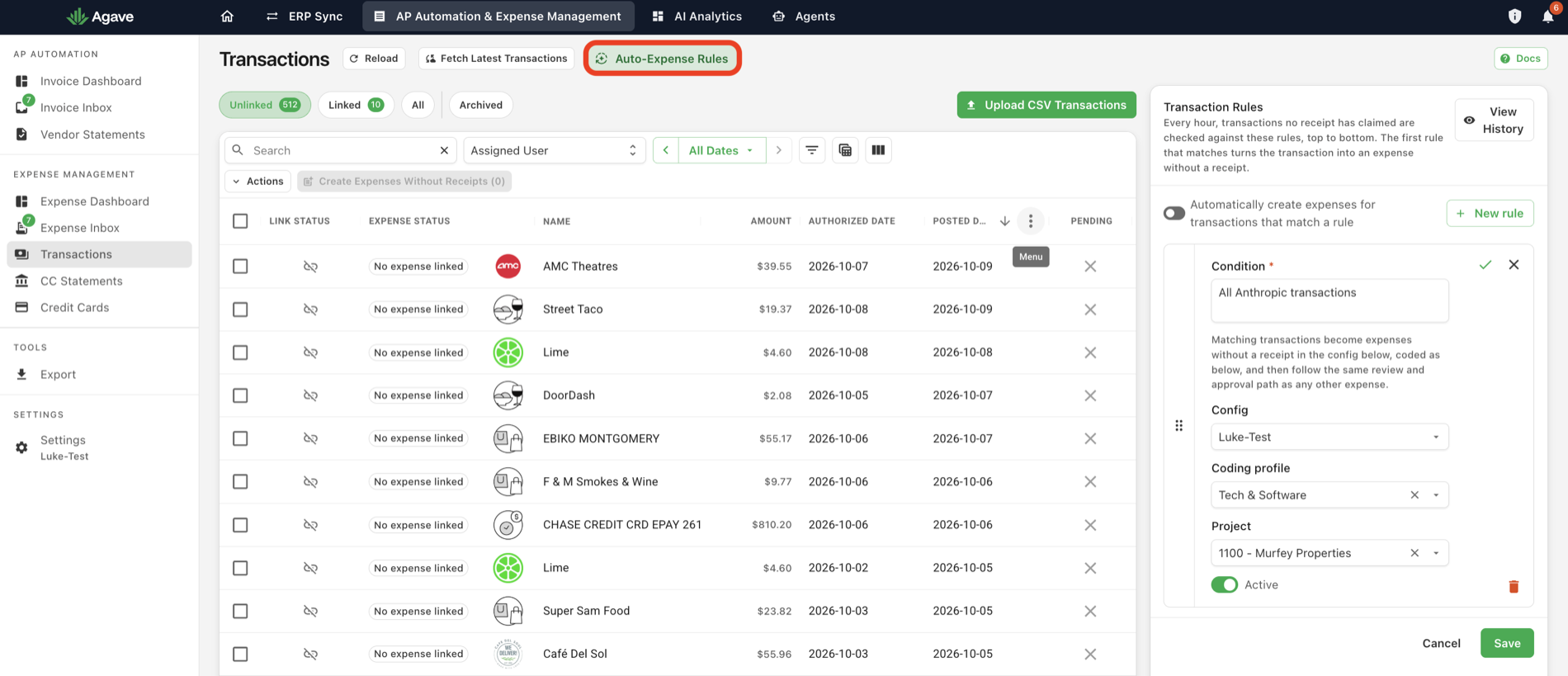
The Transactions page with Auto-Expense Rules circled in the toolbar and the Transaction Rules panel open on the right

Writing a Rule​

Select New rule and fill in four things:

FieldWhat it does
ConditionRequired. Describe in plain language which transactions to catch. This is a sentence, not a form of dropdowns and operators.
ConfigWhich Agave organization the expenses are created in, for accounts that have more than one.
Coding profileThe coding template applied to every expense the rule creates.
ProjectThe project the expenses are coded to. Leave it off for overhead.

A condition can name a vendor, set a dollar ceiling, or both:

What you wantA condition that says it
A subscription that never variesAll Anthropic transactions
Anything small from one vendorExpense any Shell transactions under $75.
A named vendor, whatever the amountExpense any transactions from Verizon.

Leave Active on, confirm the rule with the tick, then select Save. Matching transactions become expenses without a receipt, coded as you specified, and then follow the same review and approval path as any other expense. Nothing skips approval.

How Rules Run​

Every hour, transactions that no receipt has claimed are checked against your rules, top to bottom. The first rule that matches creates the expense. A transaction that matches nothing is left exactly where it was, for someone to handle.

Because rules only look at unclaimed transactions, a rule can never take a charge away from a receipt one of your crew submitted.

Order matters, so drag your narrow rules above your broad ones. View History in the panel shows what the rules have done.

One-Off Charges​

Rules are for the charges that repeat. For a one-off, a lost receipt or a charge nobody was ever going to photograph, select the transactions on the Transactions page and use Create Expenses Without Receipts.

Go Deeper​

Sep 29 - Reimbursements

· 3 min read

Employees can now submit out of pocket purchases as reimbursements in Expense Management. A reimbursement goes through the same coding and approval steps as a card expense. It then syncs to your ERP as an open AP invoice payable to the employee, so you pay them back through your normal payment run.

Submitting a reimbursement​

Reimbursements are submitted from the field app or the web app through the same Add receipt flow used for card purchases.

  1. Tap Add receipt and fill in the expense details as usual: project (leave it blank for overhead), cost code, and an optional memo.
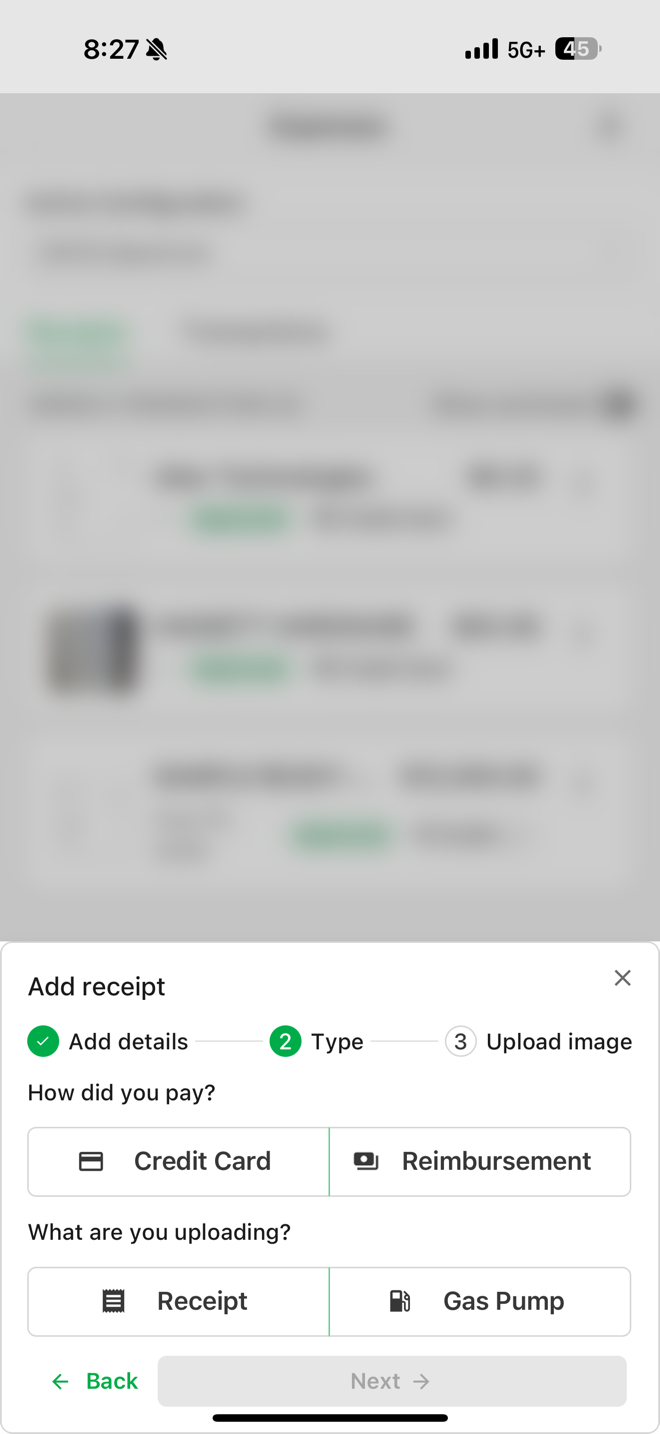
  2. On the Type step, choose Reimbursement under "How did you pay?" and pick whether you are uploading a receipt or a gas pump photo.
  3. Upload the image and submit.

The Type step of Add receipt, with Credit Card and Reimbursement options

Because there is no card transaction behind a reimbursement, Agave never tries to match it to one. Reimbursements stay out of auto-match, manual linking, the unlinked transaction count, and card reconciliation, and they will not raise missing transaction warnings. The vendor defaults to the employee's own vendor record, so the submitter does not need to pick one. Reimbursements cannot be submitted through the email inbox.

Review, approval, and sync to your ERP​

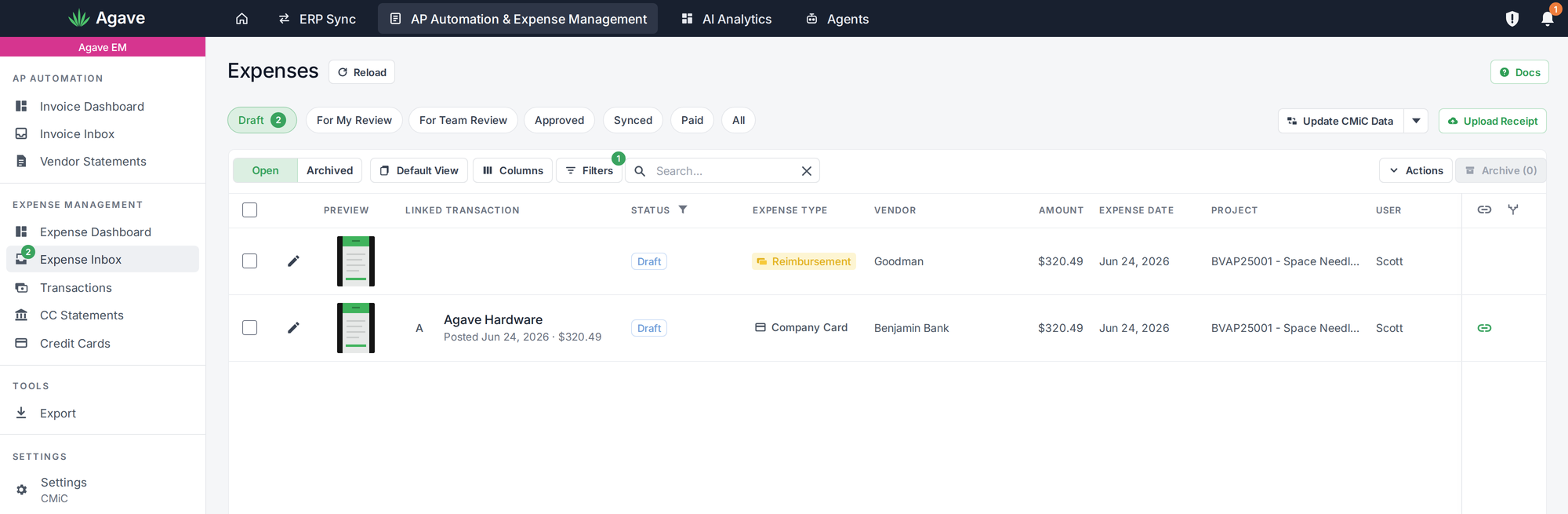
In the admin app, a transaction type chip on each expense shows accounting whether it is a card purchase or a reimbursement. Job costing, cost codes, and approval workflows work the same way they do for card expenses, and your approval rules can treat reimbursements differently, for example requiring approval on out of pocket fuel while card fuel passes through.

The Expenses list with an Expense Type column, showing a Reimbursement chip on one row and Company Card on another

The main difference is how the expense lands in your ERP:

Card expenseReimbursement
Matched to a card transactionYesNo
VendorMerchant or card vendorThe employee's vendor record
Lands in the ERP asA prepaid transaction against your card accountAn open AP invoice, awaiting your review
How the employee is paidNot applicableThrough your normal AP payment run

Agave does not move money. Once the invoice is in your ERP, you pay the employee the same way you pay any other vendor.

Getting started​

Reimbursements are rolling out to select ERPs first. Before your team starts submitting, your Agave team will map each eligible employee to their vendor record in your ERP and confirm how reimbursement invoices should be set up, including payment terms. Reach out to your account manager to turn it on.

Sep 23 - Credit Card Reconciliation

· 3 min read

Upload your credit card statement and Agave reads every line off it, works out whose card each charge belongs to, and matches what it can against the expenses your team already submitted. Month-end becomes a review of the exceptions instead of a line-by-line pass through the whole statement.

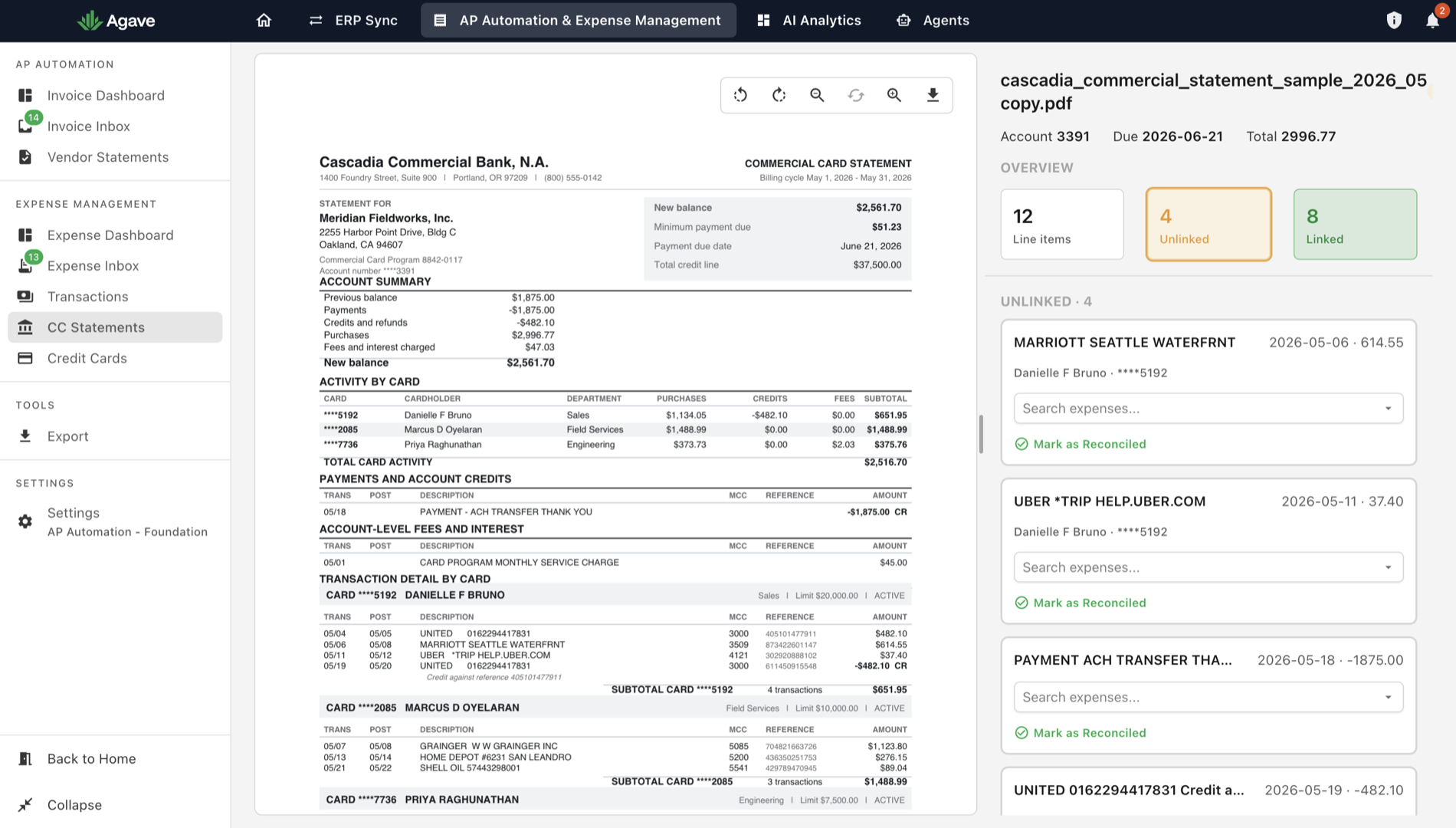
The CC Statements screen with the uploaded statement on the left and the reconciliation panel on the right, showing 12 line items, 4 unlinked and 8 linked

Reconciling a card statement means confirming that every charge on it has an expense behind it, then following up on the ones that do not. Done by hand that is a line-by-line comparison of the statement against your expense list, and the volume scales with your card program rather than with the number of problems in it. Agave now runs that comparison and hands back only the charges it could not match.

Reading the Statement​

Upload the statement PDF and Agave extracts every transaction from it, however long the statement runs. A hundred pages of charges from a large card program is handled the same as a two-page statement. It then works out which cardholder each transaction belongs to, so charges are attributed to people rather than sitting in an undifferentiated list.

What Matches Automatically​

A statement transaction is matched to an expense automatically when there is exactly one expense that has the same amount and the same date, and that expense belongs to the cardholder the transaction belongs to.

The rule is deliberately strict. Agave will not guess between two plausible candidates: if more than one expense could be the match, or if the closest one is a few days out, nothing is matched automatically and the transaction stays unlinked. An expense already matched to another transaction is never matched a second time.

Clearing What Is Left​

A statement opens with its counts: how many line items it holds, how many are Linked to an expense, and how many are still Unlinked. The unlinked ones are the work, and the count falls as you clear them.

Each unlinked charge shows the merchant, the date, the amount, and the cardholder it belongs to. Use Search expenses to attach the right expense, or Mark as Reconciled when the charge is accounted for in a way Agave cannot see. A link that turns out to be wrong can be undone, and anything you clear can be reopened.

Most of what stays unlinked is a charge nobody submitted a receipt for, which is the finding you wanted the reconciliation for in the first place. The statement is done once nothing on it is still unlinked.

Availability​

Credit Card Reconciliation is an admin tool and is gated behind a feature flag. Talk to your account manager about switching it on.