Expenses Without a Receipt
Some charges never produce a receipt anyone is going to hand in. Tolls, software subscriptions, recurring vendor payments, and the occasional receipt that went through the wash. Left alone they sit in the Transactions table forever, and the month-end statement never fully ties out.
An expense without a receipt closes that gap. It is an ordinary expense with no receipt image attached: it gets coded, reviewed, approved, and synced to your ERP exactly like any other.
This guide is for admins and reviewers.
This guide covers:
- What an expense without a receipt is, and what it is not
- Creating one from a transaction by hand
- Letting a transaction rule create them for you
- What reviewers should look at before approving one
What it is
Every card transaction needs to end up attached to something, so that every line on the statement can be explained. Normally that something is a receipt a field user photographed. When no receipt exists, the expense is created from the transaction alone.
The transaction supplies the merchant, the amount, and the date. What it cannot supply is the coding and the reason for the purchase, which is why these expenses still go through review.
This is not a way to skip approval. An expense without a receipt follows the same review and approval path as any other expense, and it syncs to your ERP the same way. See Reviewing and Approving Expenses.
Creating one by hand
Use this for one-offs: a lost receipt, or a charge nobody is going to photograph.
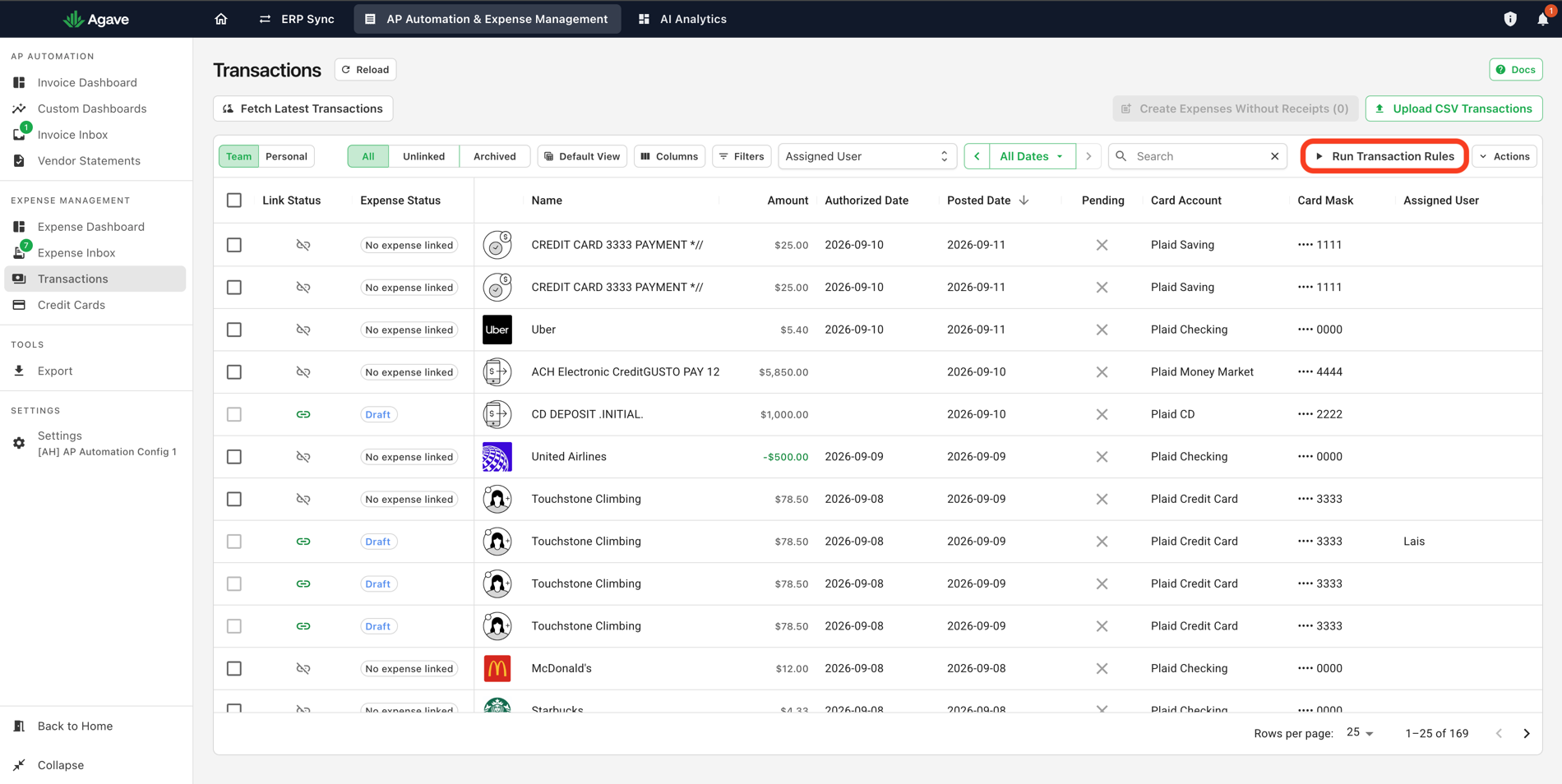
- Under Expense Management, select Transactions.
- Find the transaction. The Unlinked tab narrows the list to transactions with nothing attached.
- Tick the transaction, or several of them.
- Select Create Expenses Without Receipts.
The button carries a count of what you have selected, and stays inactive until you select something:
Each selected transaction becomes an expense. From there it is coded and reviewed like anything else.
Selecting a transaction a receipt is going to arrive for creates a second record for the same charge. Check the Link Status column first: a broken link icon and No expense linked mean nothing is attached yet. Before a statement close, it is worth giving your crews a day to submit what they are sitting on.
Letting a rule create them
Doing this by hand every month for the same handful of charges is the problem transaction rules solve. A rule describes a kind of charge in plain language, says how it should be coded, and Agave creates the expense without anyone selecting anything.
Rules only ever look at transactions no receipt has claimed, so a rule cannot take a charge away from a receipt a field user submitted. A transaction that matches no rule is left alone in the Transactions table, exactly as if rules did not exist.
Today a rule can do one thing: create an expense without a receipt, with the coding you specify.
The hourly pass. With Automatically create expenses for transactions that match a rule on, Agave checks unclaimed transactions against your rules every hour and creates the expenses it should.
Running rules on demand. Run Transaction Rules on the Transactions page applies your rules immediately rather than waiting for the hour. Useful after writing a rule, when you want to see what it catches, and at statement close when you would rather not wait.
Rules are written in Settings > Transactions. See Transaction Settings for how to write one and what the condition can say.
Reviewing an expense with no receipt
There is no receipt image to check the coding against, so a reviewer is working from the merchant name, the amount, and the date alone. Three things worth doing:
- Confirm the charge is what the coding says it is. A merchant name is thin evidence. If it does not obviously belong on the project it has been coded to, ask.
- Watch for the ones that should have had a receipt. A material purchase with no receipt is different from a toll. The first is a process problem and the second is not.
- Check for a duplicate. If a receipt turned up after the expense was created, you may be looking at the same charge twice.
Approving works exactly as it does for any other expense.
Related guides
- Transaction Settings: writing the rules that create these automatically
- Expense Inbox and Transactions: working across the two tabs
- How Matching Works: how a receipt and a transaction get paired in the first place
- Reviewing and Approving Expenses: the review path these follow