Oct 09 - Auto-Expensing Transactions
Card charges that do not need a matched receipt, or that recur at the same amount every month, can now be set to expense automatically. Describe the charge in plain language, say how it should be coded, and Agave turns every matching transaction into a coded expense on its own.
Some charges are the same every month. The software subscription bills the same amount on the same day, small purchases from the same handful of vendors land week after week, the recurring vendor payment never varies. Nobody is going to photograph a receipt for any of them, so somebody keys them by hand every month, or they sit in the Transactions table and the statement never fully ties out.
Where to Find It
Rules live on the Transactions page. Select Auto-Expense Rules in the toolbar and a panel opens on the right with your rules in it.
Nothing runs until you turn on Automatically create expenses for transactions that match a rule at the top of that panel. That switch is separate from the Active toggle on each rule, so a rule can be active while the feature as a whole is still off.
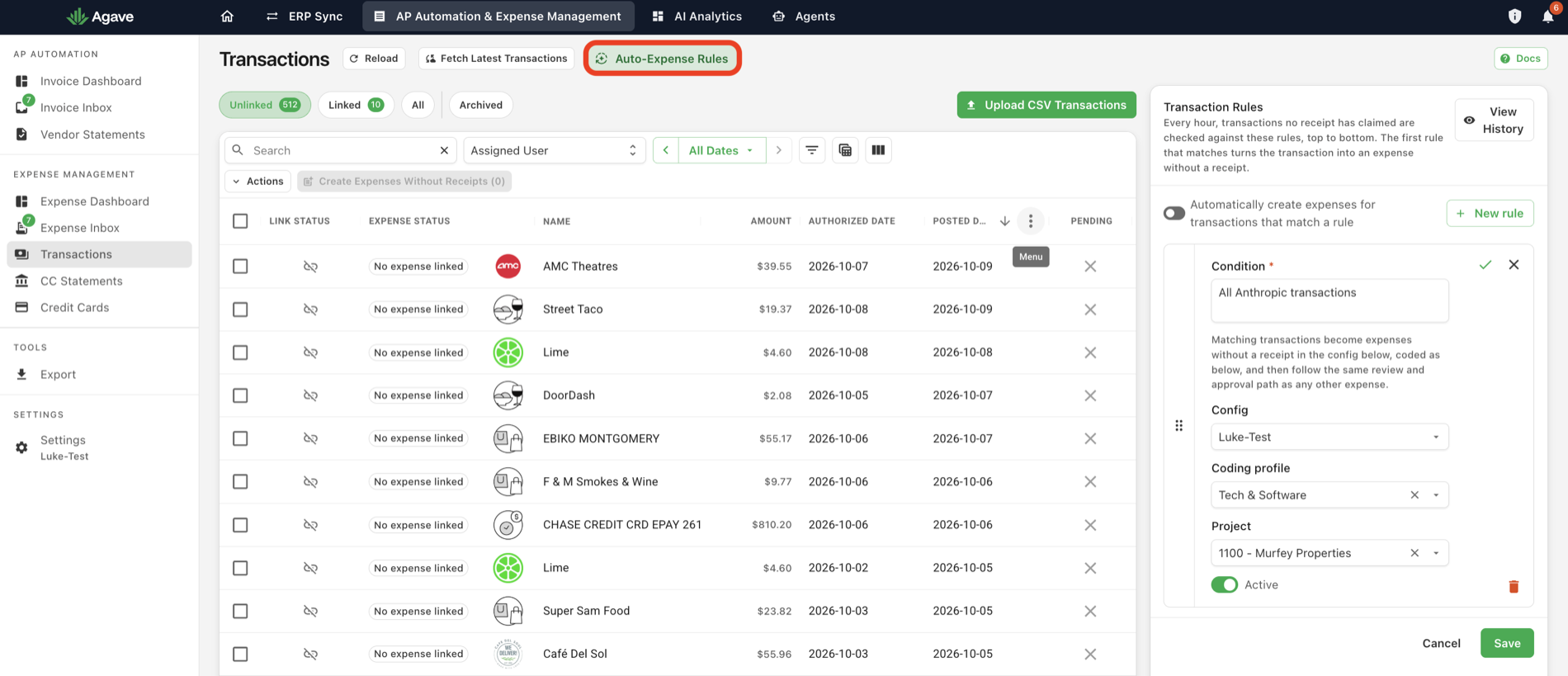
Writing a Rule
Select New rule and fill in four things:
| Field | What it does |
|---|---|
| Condition | Required. Describe in plain language which transactions to catch. This is a sentence, not a form of dropdowns and operators. |
| Config | Which Agave organization the expenses are created in, for accounts that have more than one. |
| Coding profile | The coding template applied to every expense the rule creates. |
| Project | The project the expenses are coded to. Leave it off for overhead. |
A condition can name a vendor, set a dollar ceiling, or both:
| What you want | A condition that says it |
|---|---|
| A subscription that never varies | All Anthropic transactions |
| Anything small from one vendor | Expense any Shell transactions under $75. |
| A named vendor, whatever the amount | Expense any transactions from Verizon. |
Leave Active on, confirm the rule with the tick, then select Save. Matching transactions become expenses without a receipt, coded as you specified, and then follow the same review and approval path as any other expense. Nothing skips approval.
How Rules Run
Every hour, transactions that no receipt has claimed are checked against your rules, top to bottom. The first rule that matches creates the expense. A transaction that matches nothing is left exactly where it was, for someone to handle.
Because rules only look at unclaimed transactions, a rule can never take a charge away from a receipt one of your crew submitted.
Order matters, so drag your narrow rules above your broad ones. View History in the panel shows what the rules have done.
One-Off Charges
Rules are for the charges that repeat. For a one-off, a lost receipt or a charge nobody was ever going to photograph, select the transactions on the Transactions page and use Create Expenses Without Receipts.
Go Deeper
- Transaction Settings: writing conditions, ordering rules, and a worked example
- Expenses Without a Receipt: what these expenses are, both ways to create one, and what reviewers should check
- Coding Profiles and Policies: reusable coding a rule can apply