Coding Profiles and Policies
A coding profile is a named set of coding values a field user picks in one tap. A policy is the list of profiles a particular person is allowed to pick from. Together they are the guard rails on field coding: the crew chooses a plain-English name like Gas or Facilities, and the vendor, ledger account, cost code and cost type come from the profile rather than from somebody guessing at your chart of accounts.
The point is fewer decisions, not more. A field user who would otherwise fill in four coding fields fills in none, and the coding that reaches accounting is consistent because it came from a profile you wrote.
This guide is for admins.
This guide covers:
- What a profile sets, and what a policy restricts
- Creating a profile
- Creating a policy from your profiles
- Assigning a profile and a policy to a specific person
- What happens when a profile is applied
Profiles and policies, and the difference
A coding profile carries coding values. Applying one fills the expense in.
A coding profile policy carries a list of profiles. Assigning one to a person limits them to those profiles and nothing else.
The classic example: you want somebody to buy fuel and nothing else. Build a Gas profile, build a policy containing only that profile, assign the policy to them. Their only option when submitting is Gas.
A policy restricts non-admins only. Admins always see every profile on the configuration. A user with no policy assigned is not restricted either, so the guard rail only exists once a policy is attached to a person.
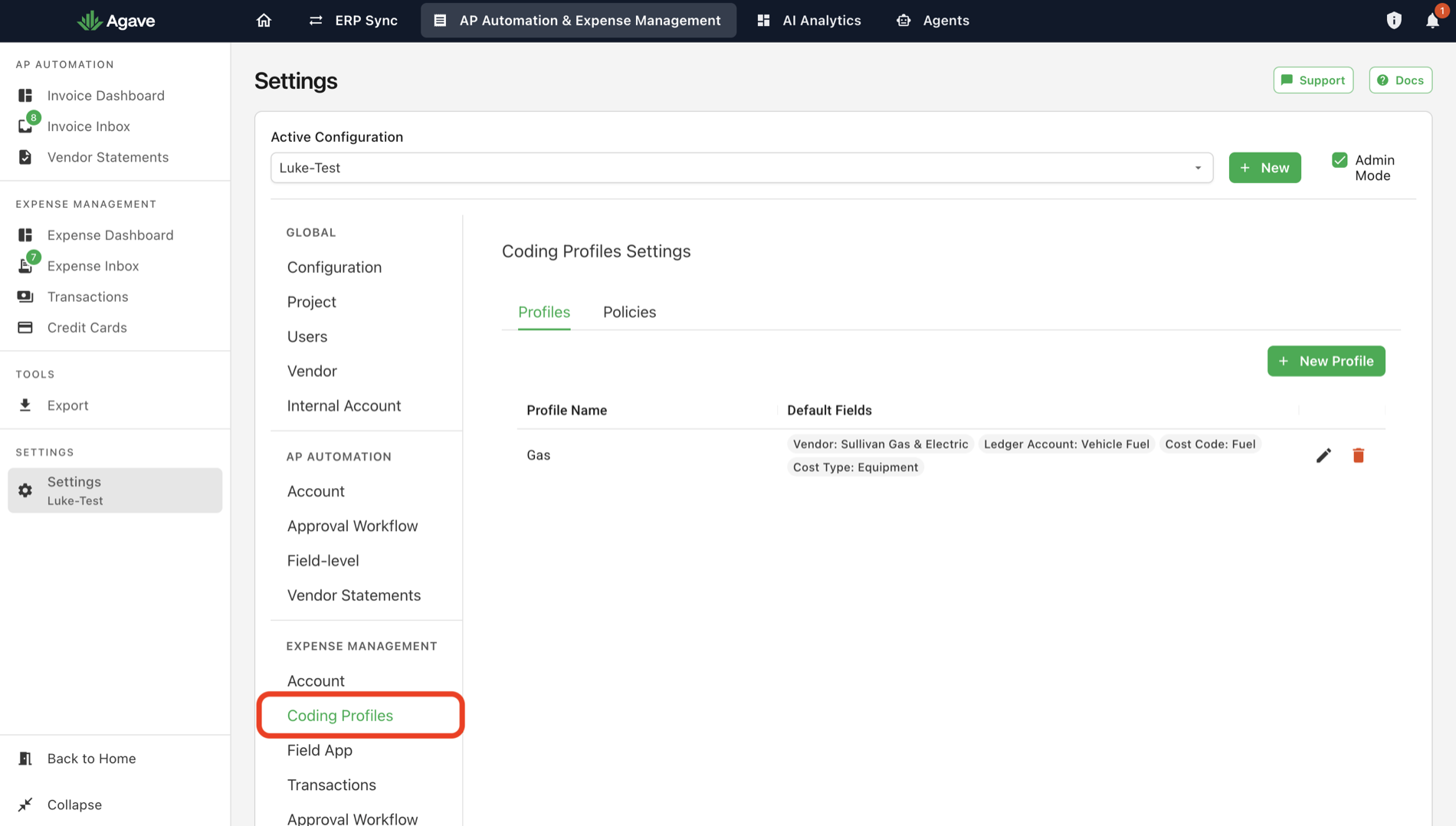
Both live under Settings > Coding Profiles, on the Profiles and Policies tabs:
Creating a profile
- Go to Settings > Coding Profiles and select the Profiles tab.
- Select New Profile.
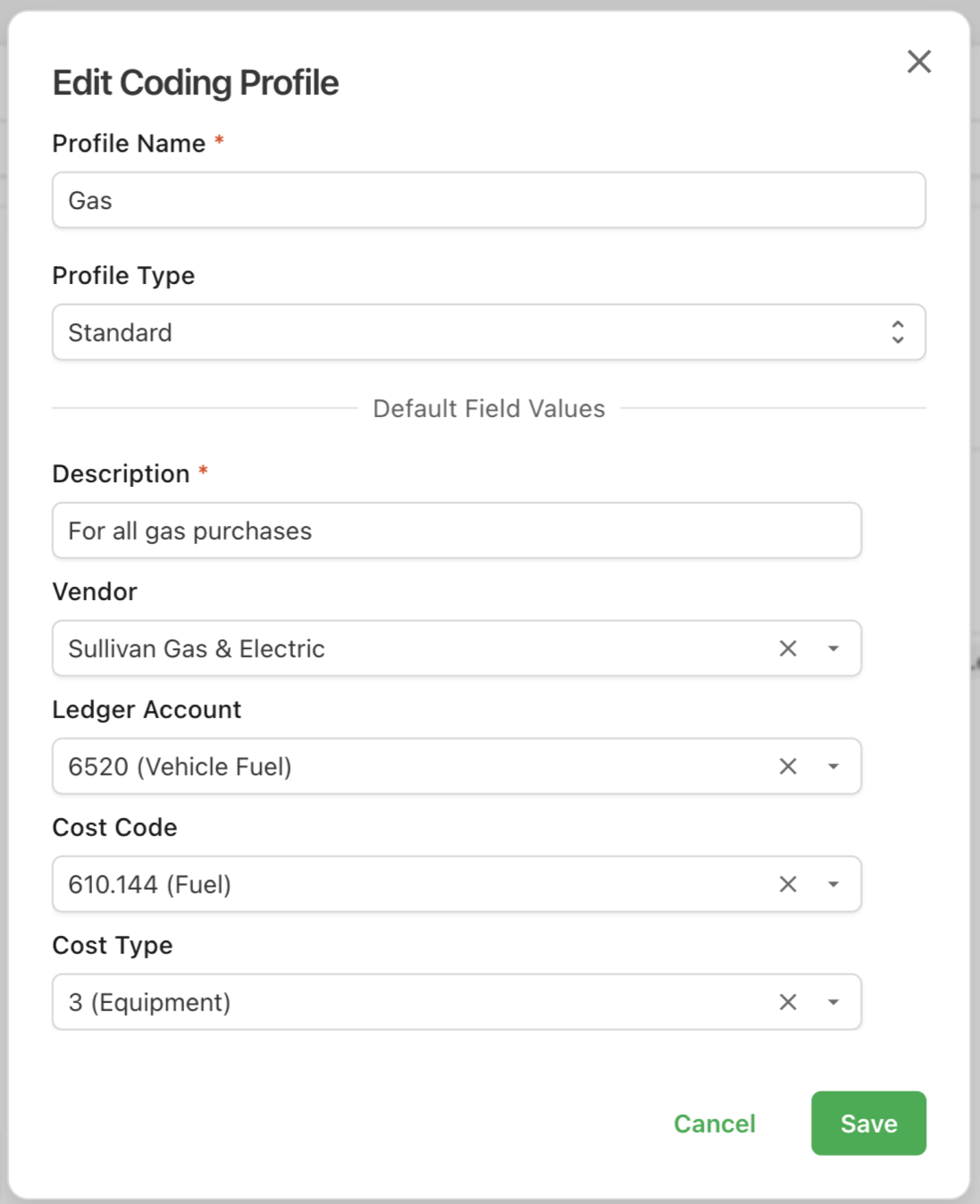
- Give it a Profile Name. This is what the field user sees, so name it the way the crew talks: Gas, Facilities, Tech & Software.
- Enter a Description. Required, and it becomes the expense description unless the submitter types their own.
- Fill in the coding values you want applied: Vendor, Ledger Account, Cost Code, Cost Type.
- Select Save.
Every coding field is optional, so a profile can set one value or all of them:
The list view shows each profile's values as chips, which is the quickest way to audit what your profiles actually do.
Start with the three or four kinds of purchase that make up most of your field spend. Fuel, materials from a named supplier, and tolls usually cover a surprising share of it, and those are the profiles that remove the most clicks.
Creating a policy
Build your profiles first. A policy is only a selection of them.
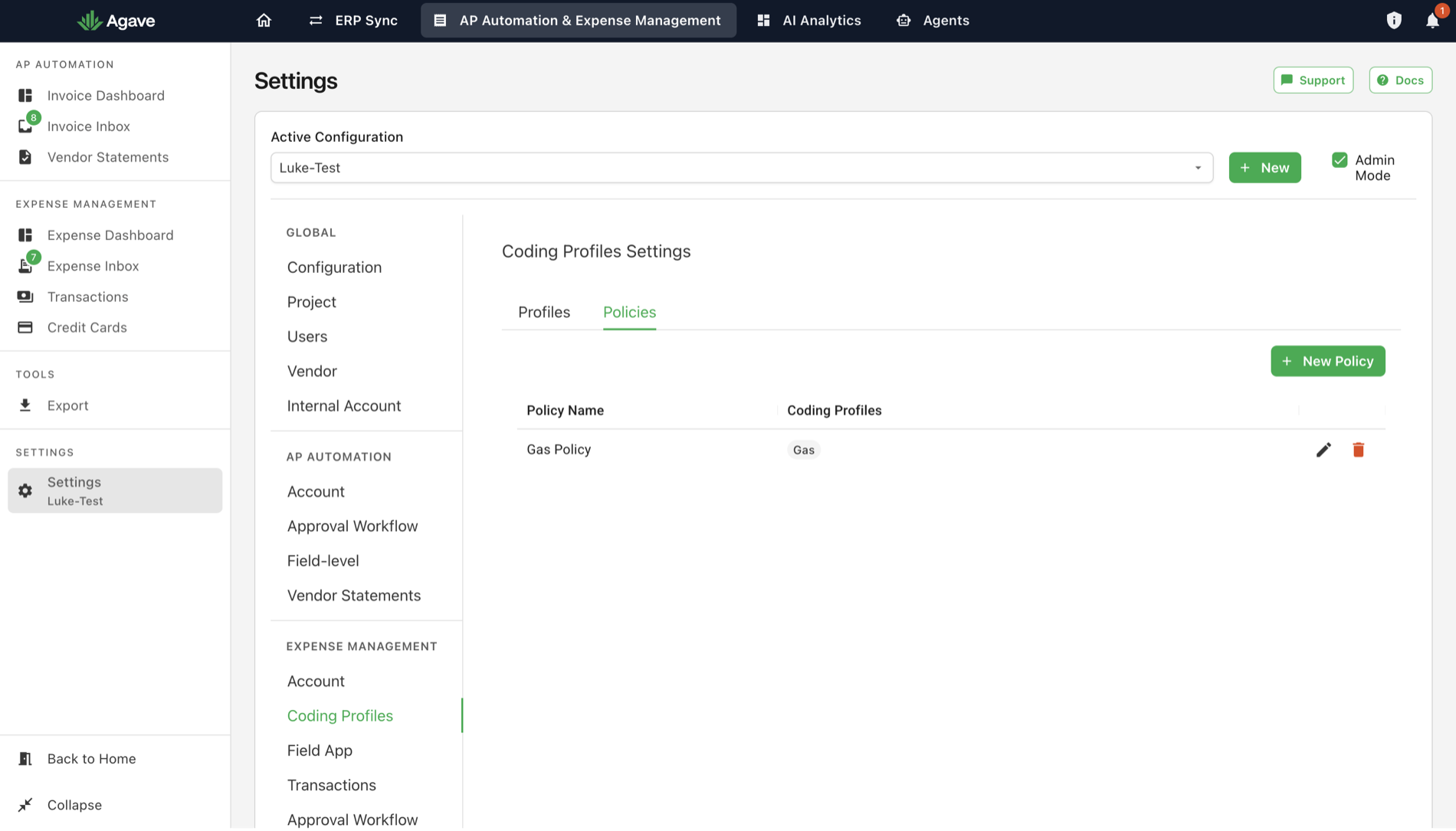
- Go to Settings > Coding Profiles and select the Policies tab.
- Select New Policy.
- Give it a Policy Name.
- Tick the profiles this policy should allow.
- Select Save.
The editor is a checklist of every profile on the configuration:
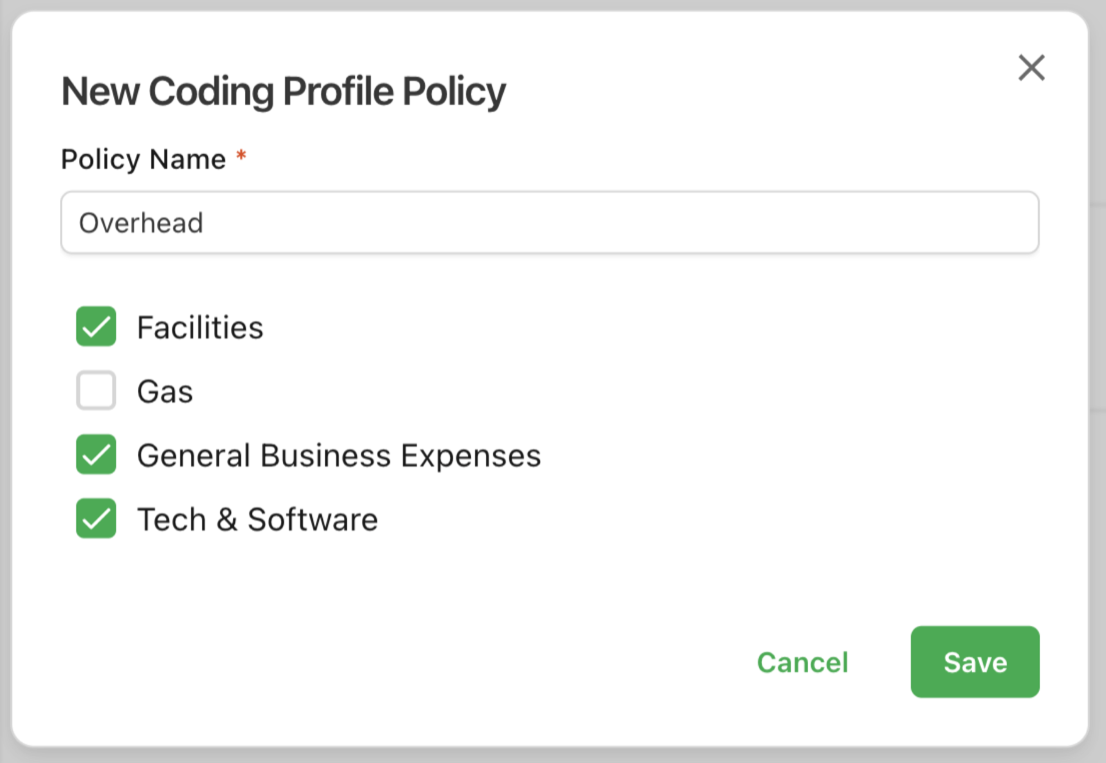
Policies work best named after the role rather than the person: an Overhead policy covering Facilities, General Business Expenses and Tech & Software, and a Field policy covering Gas and materials. One policy then serves everyone who does that job.
Assigning a profile and a policy to a person
Assignment happens per user, not per profile.
- Go to Settings > Users.
- Find the person's row.
- Set Coding Profile Policy to the policy that should limit their choices.
- Optionally set Default Coding Profile.
The page saves as you go, so there is no Save button to look for:
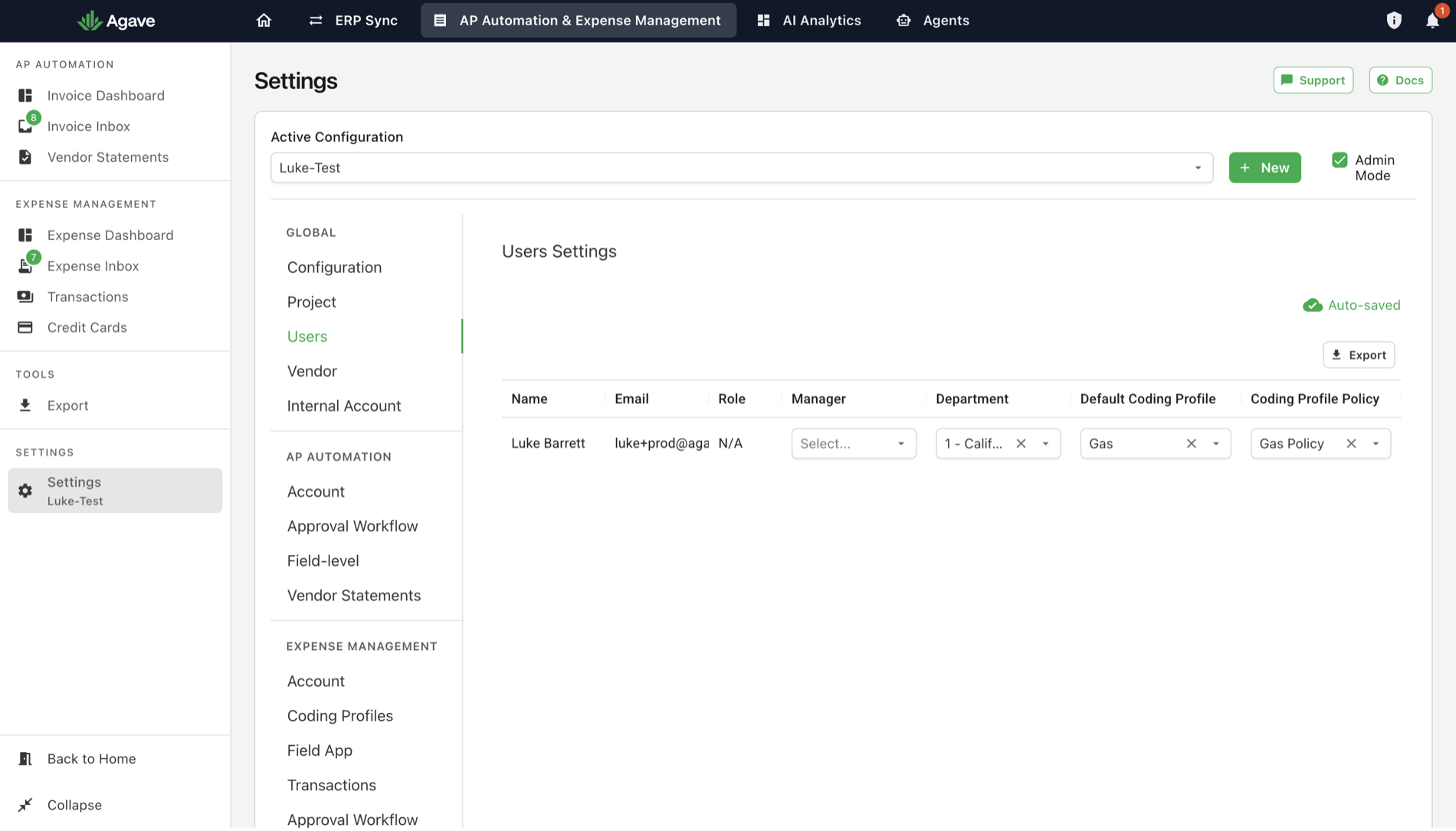
Default Coding Profile. When a user has one set, receipts they submit must use that profile: a submission with anything else is rejected. Use it for someone whose spend is genuinely all one kind, and leave it empty for anyone who needs to choose.
Two columns, two different jobs:
| Column | What it does |
|---|---|
| Coding Profile Policy | Limits which profiles the person can pick from |
| Default Coding Profile | Pins the person to one profile on submission |
What happens when a profile is applied
Vendor and department land on the expense header. Cost code and cost type land on the line items.
Cost code and cost type are stored once, then resolved into the project. A profile holds them at company level and Agave translates them into the right value for whichever project the expense is coded to, so one Gas profile works across every job rather than needing one per project. On Foundation the cost code becomes a project-level composite and surfaces the encoded phase as a sub job; on project-level Sage Intacct both cost code and cost type re-encode into the project's composite the same way. Other systems pass the value straight through, and the ledger account is company-level everywhere so it applies as-is.
A description the submitter typed wins. The profile's description fills the field when the submitter left it empty, and gives way when they wrote something.
Agave records which profile did it. The applied profile is remembered on the expense, so the selection survives a reload and a reviewer can see the coding came from a profile rather than from a person.
Field users pick their profile in the app while submitting. See Submitting Receipts.
Related guides
- Coding an Expense: the fields a profile fills in, and what they mean
- Field App Setup: rolling profiles out to a crew
- Field App Settings: which fields a field user must fill in
- Transaction Settings: rules that apply a profile automatically