May 19 - Delivery Tickets
You can now upload delivery tickets into Agave and link them to the invoices they correspond to.
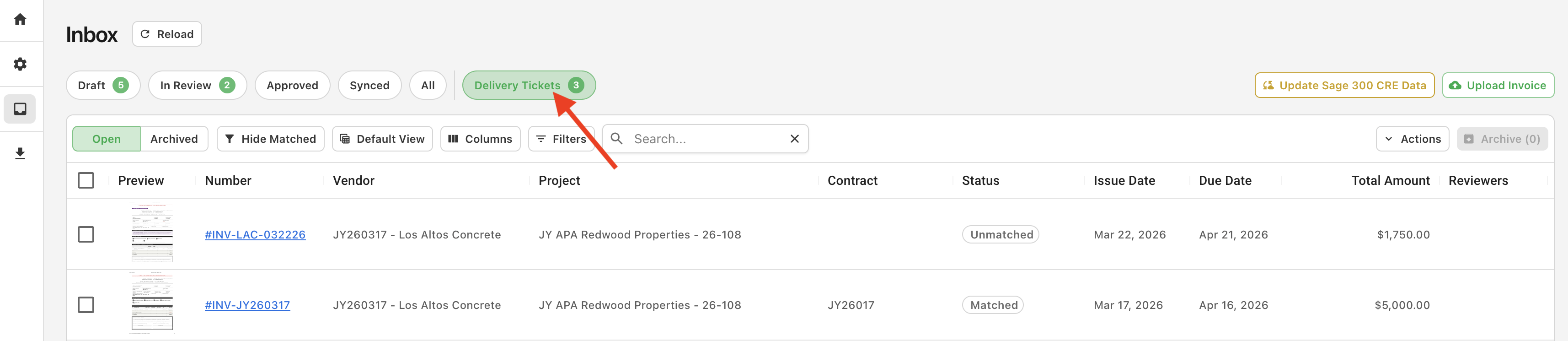
Delivery tickets, packing slips, and proof-of-delivery documents can now be uploaded the same way you upload invoices. Agave AI automatically identifies them and routes them to a dedicated Delivery Tickets tab in the Inbox.
Automatic Matching
Agave links a delivery ticket to an invoice when they share a contract, vendor, and project, or have closely-matching line items and dates.
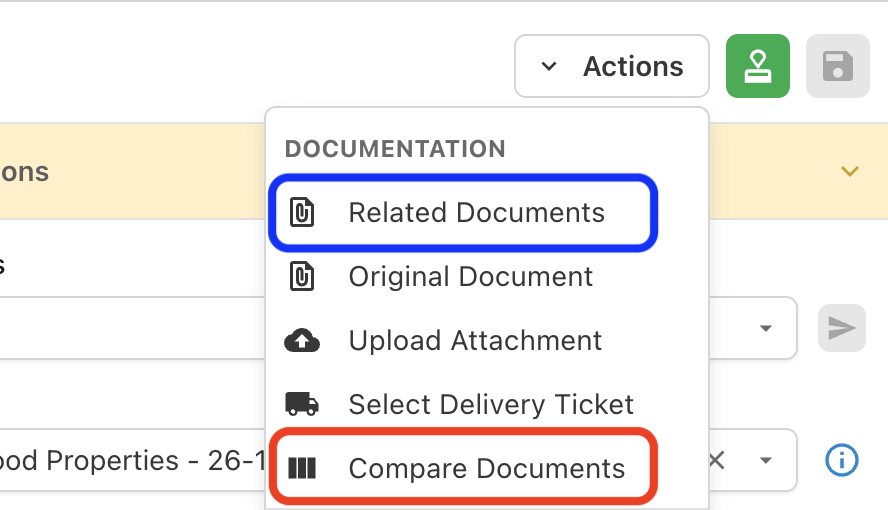
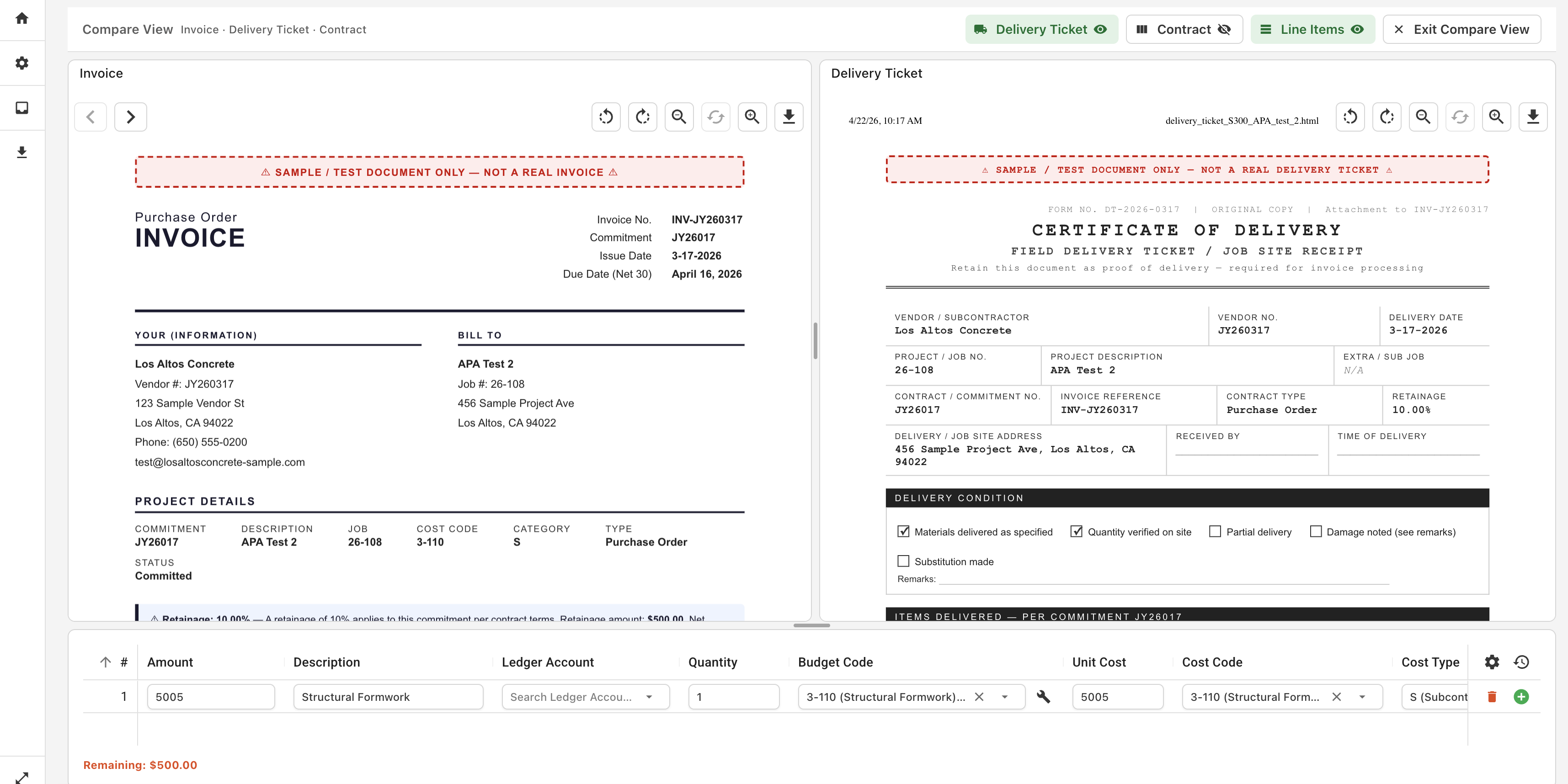
From the invoice view, linked tickets appear under Related Documents. To verify what was ordered, delivered, and being billed, open Compare Documents from the Actions menu.
This opens the invoice, delivery ticket, and matched purchase order side-by-side, so you can review line items, quantities, and totals at a glance without flipping between documents.
Manual Matching
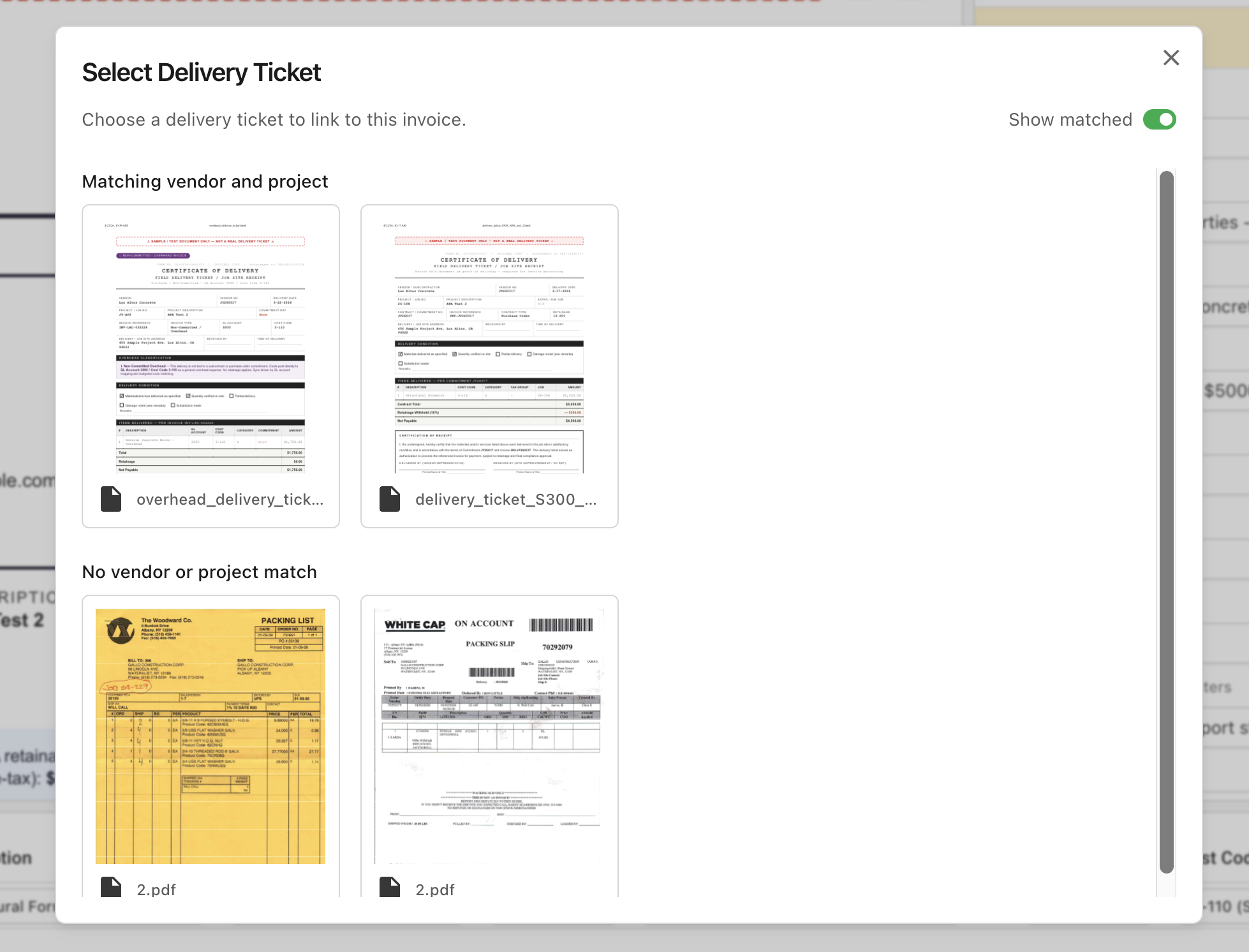
If a ticket can't be auto-matched, you can link it to any invoice manually. From the Actions menu, choose Select Delivery Ticket to pick from existing tickets, or Upload Attachment to add a new one directly to the invoice.
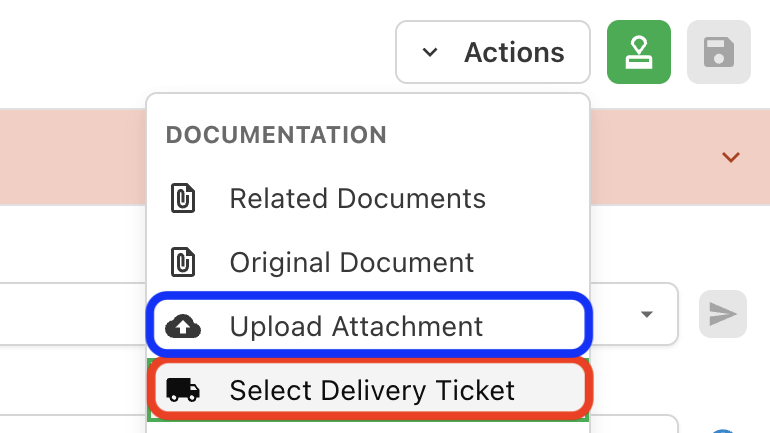
Select Delivery Ticket opens a searchable dialog with previews of each candidate, with the most likely matches surfaced at the top based on project and vendor, so you can confirm the right ticket before assigning it. Already-matched tickets can be swapped out the same way.
You can also reclassify documents. Convert an uploaded invoice into a delivery ticket (or vice versa) when something was filed under the wrong type.
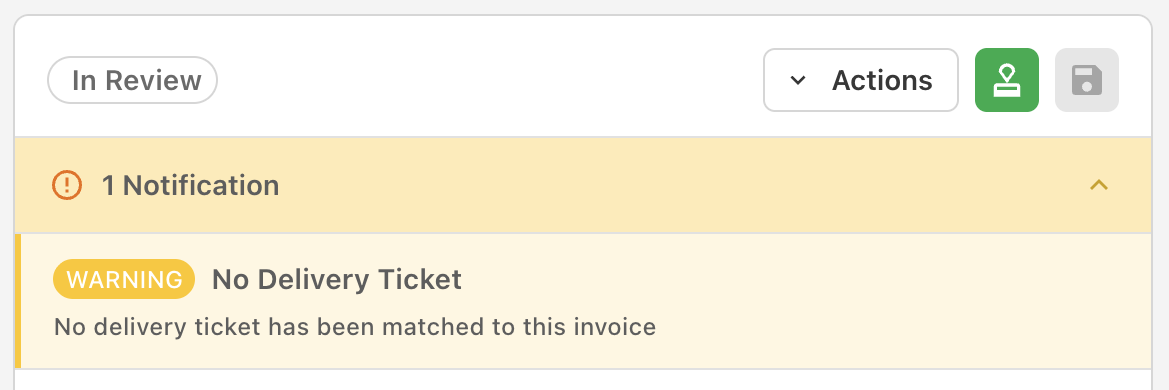
Invoices without an assigned delivery ticket will display a warning in the notifications panel so reviewers know to follow up before approving.
Discrepancy Warnings
If the linked delivery tickets don't agree with the invoice, whether on quantities, amounts, or line item totals, Agave will surface a warning before sync, catching over-billings, short shipments, and pricing mismatches before they reach the ERP.
Delivery tickets are optional per account. If you don't want them in your workflow, the feature can be turned off and incoming tickets are auto-archived.