Transaction Settings
Transaction Settings controls what arrives in your Transactions table and what happens to it. The first half decides which transactions come in and how they are cleaned up. The second half is transaction rules, which turn routine charges into expenses without anyone touching them.
This guide is for admins. For what happens to an expense once a rule creates it, see Expenses Without a Receipt.
Opening Transaction Settings
- Open AP Automation & Expense Management.
- Select Settings in the left navigation.
- Under Expense Management in the settings list, select Transactions.
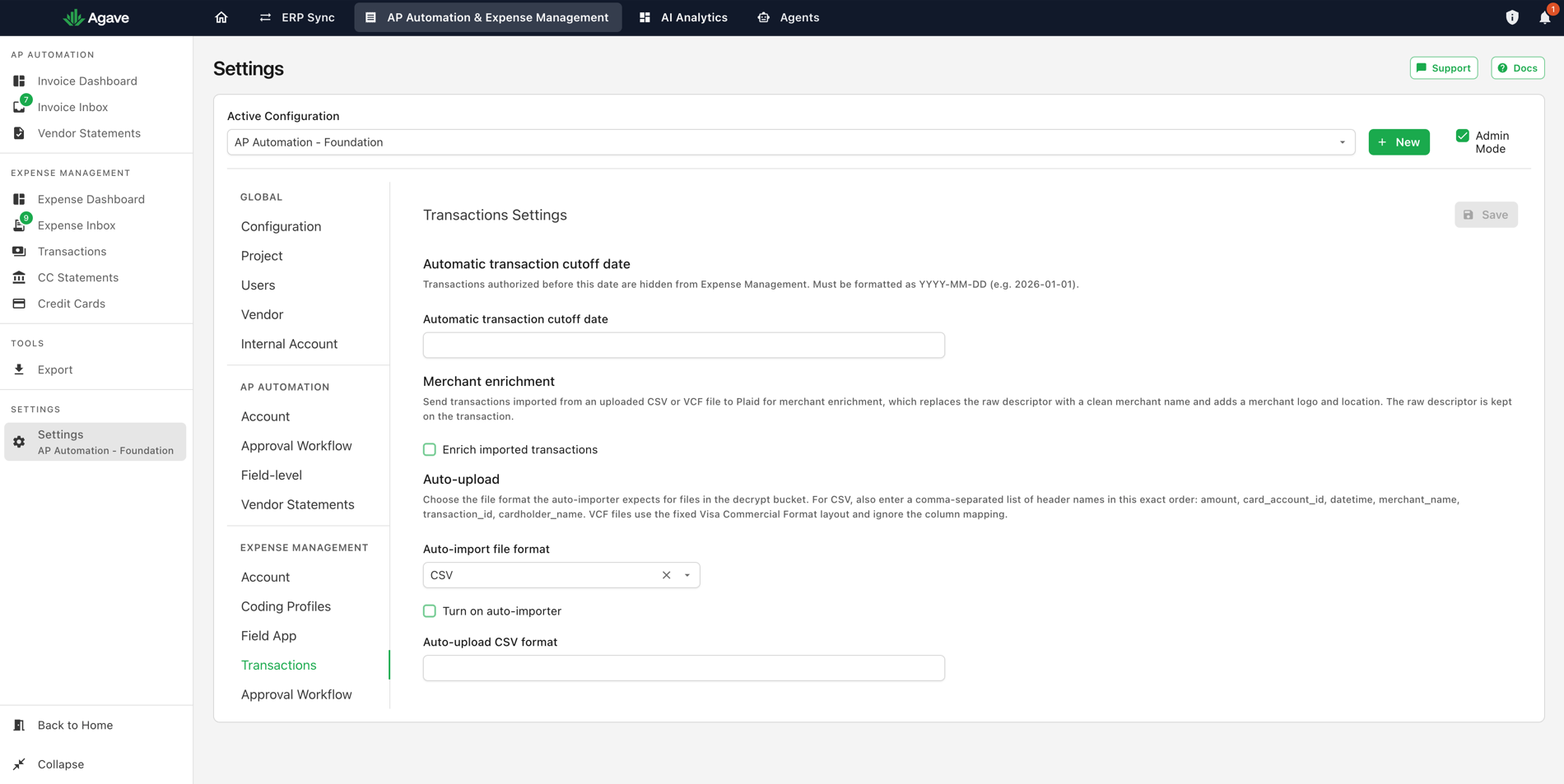
Automatic transaction cutoff date
Transactions authorized before this date are hidden from Expense Management. Format it as YYYY-MM-DD.
Set it to your go-live date. Without it, months of pre-Agave charges arrive in the Transactions table and sit there permanently, because no receipt is ever coming for any of them.
Merchant enrichment
Sends transactions imported from an uploaded CSV or VCF file to Plaid for enrichment, which replaces the raw descriptor with a clean merchant name and adds a merchant logo and location. The raw descriptor is kept on the transaction.
Turn on Enrich imported transactions when you upload card files by hand. It is the difference between a reviewer seeing SQ *THE COFFEE SHO 8005551 and seeing the merchant.
Auto-upload
For card programs that deliver a file rather than a live feed. Agave watches for the files and imports them without anybody uploading anything.
| Setting | What it does |
|---|---|
| Auto-import file format | Whether the incoming files are CSV or VCF |
| Turn on auto-importer | Starts the automatic import |
| Auto-upload CSV format | The header names in your CSV, comma separated, in this exact order: amount, card_account_id, datetime, merchant_name, transaction_id, cardholder_name |
VCF files use the fixed Visa Commercial Format layout and ignore the column mapping, so the format field is only needed for CSV.
The six columns are the same six the manual upload asks you to map. The difference is that the auto-importer cannot ask, so the order is fixed. See Uploading Transactions from CSV.
The delivery location the auto-importer watches is set up with Agave rather than by you. Talk to your account manager about arranging a file feed.
How rules are evaluated
Every hour, transactions no receipt has claimed are checked against your rules, top to bottom. The first rule that matches turns the transaction into an expense without a receipt. A transaction no rule matches is left in the Transactions table for someone to handle.
Three consequences worth holding on to:
- Only unclaimed transactions are considered. A charge a field user has already submitted a receipt for is never touched by a rule.
- Order matters, and the first match wins. A broad rule above a narrow one means the narrow one never runs. Drag a rule by its handle to reorder it.
- No match is a safe outcome. The transaction stays where it is, waiting for a receipt or for someone to deal with it.
Automatically create expenses for transactions that match a rule
The master switch. With it on, matching runs hourly on its own. With it off, your rules stay defined but nothing happens until someone runs them by hand from the Transactions page.
Turn it off when you want to write rules and watch what they would do before letting them run unattended.
Writing a rule
Select New rule to add one, or the pencil on an existing rule to change it:
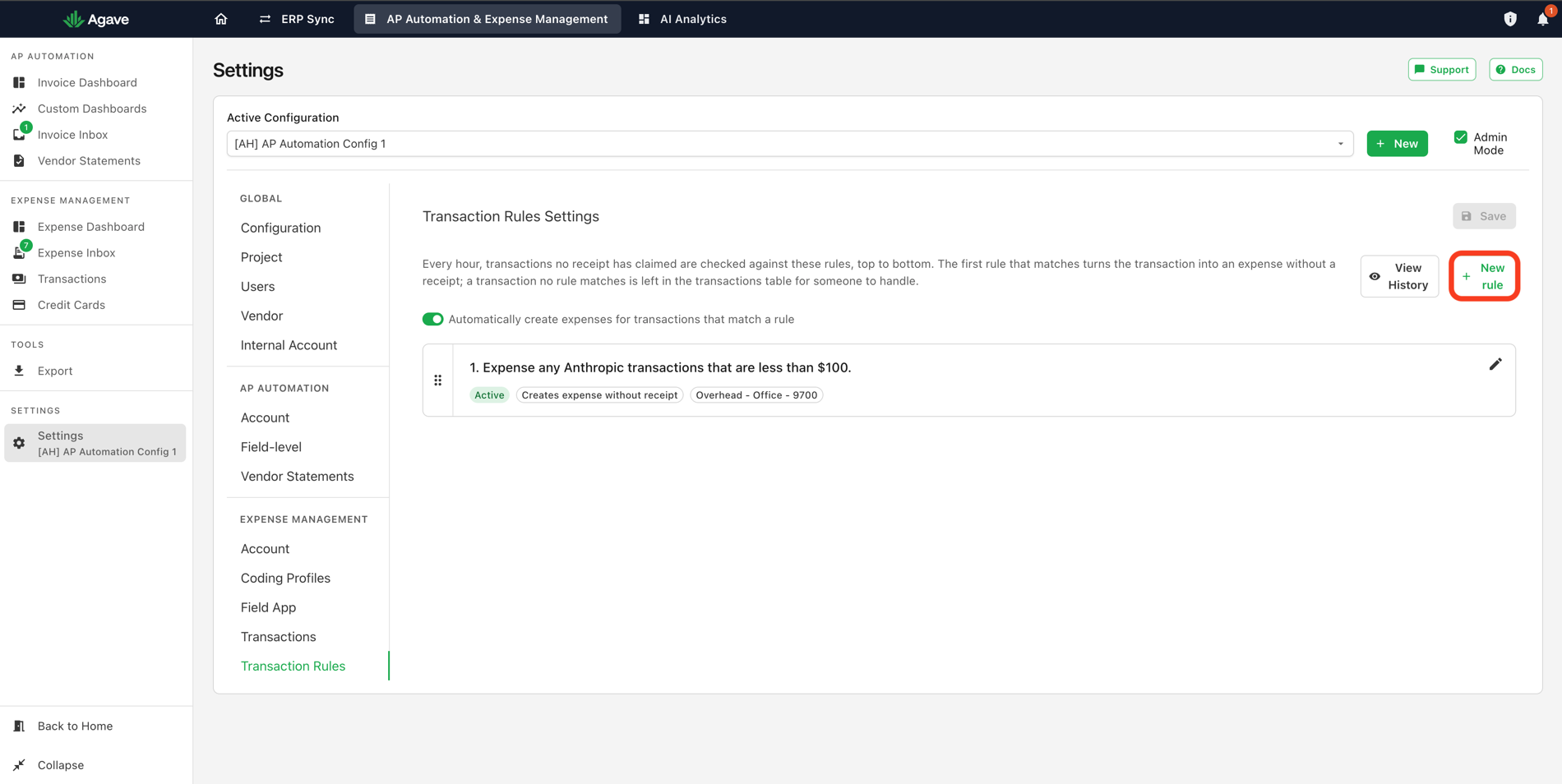
A rule has a condition, the coding to apply, and an active switch:
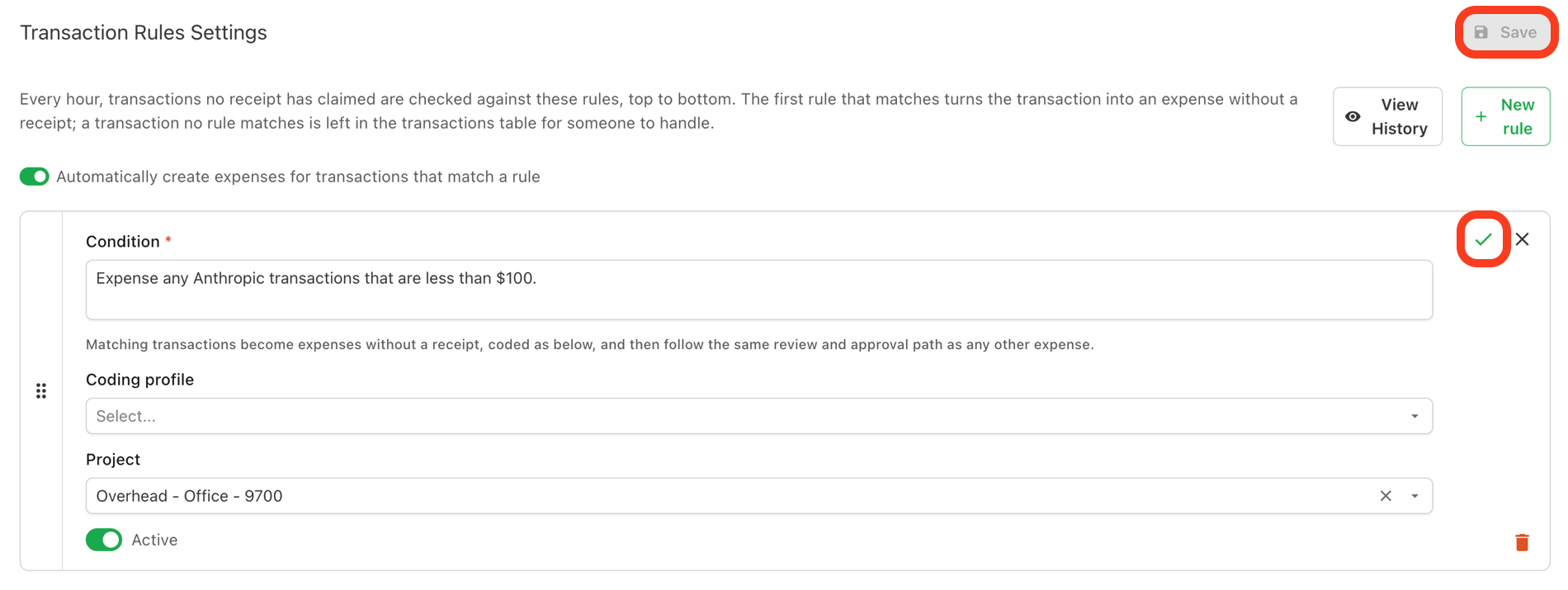
Condition
Required. Describe in plain language which transactions the rule should catch. This is not a form of dropdowns and operators; you write a sentence.
The rule in the screenshots reads:
Expense any Anthropic transactions that are less than $100.
That carries both a vendor and a limit. Other conditions in the same shape:
| What you want | A condition that says it |
|---|---|
| A named vendor, no matter the amount | Expense any transactions from Verizon. |
| A vendor, but only small charges | Expense any Shell transactions under $75. |
| A recurring charge you always treat the same way | Expense any transactions from Adobe. |
| Tolls, which never produce a receipt | Expense any toll transactions. |
Keep the amount limit in mind. It is the difference between a rule that quietly handles a subscription and a rule that expenses a large purchase somebody should have been asked about.
Coding profile and Project
The coding applied to every expense the rule creates. The rule in the screenshots sets a Project of Overhead - Office - 9700 and no coding profile.
Use a Coding profile when you want the full set of coding values, including vendor, ledger account, cost code and cost type, applied in one go. See Coding Profiles and Policies.
Active
Switches the rule on and off without deleting it. Turn a rule off rather than removing it when you want to stop it for a month, or while you work out whether it is catching the right charges.
Select the tick to keep your changes, then Save at the top right of the page. The trash icon deletes the rule outright.
Worked example: a monthly software subscription
Your company pays for a design tool monthly on the office card. There is never a receipt, and every month somebody clears the charge by hand.
- Select New rule.
- For Condition, write
Expense any transactions from Adobe under $200. - Set Project to your overhead project, or pick a Coding profile that already codes software to the right ledger account.
- Leave Active on.
- Select the tick, then Save.
Within the hour, the next Adobe charge becomes an expense without a receipt, coded as you specified, and enters review like anything else. The amount limit means an unexpected annual renewal at ten times the usual price does not slip through.
View History
Shows what the rules have done. Check it after adding a rule to confirm it caught what you expected, and that it did not catch anything you did not.
Related guides
- Expenses Without a Receipt: what a rule produces and how to handle expenses with no receipt
- Coding Profiles and Policies: reusable coding a rule can apply
- Expense Inbox and Transactions: working with transactions once they are in Agave
- Reviewing and Approving Expenses: the review path a rule-created expense follows