Install on Android
Agave Expenses lets you photograph a receipt and send it to the office from your phone, as soon as you pay.
There is nothing to download from the Play Store. You open a web address, log in, and add Agave Expenses to your home screen, where it sits with your other apps. It takes about two minutes and you do it once.
Before you start
The office has to invite you first. Look for an email from Agave, open it, and follow the link to set your password. If you never got one, ask the office to send it again before you go any further.
Have your phone, and either the setup sheet the office showed you or its QR code.
Step 1: Open Agave in Chrome
Either of these gets you to the same place:
- Scan the QR code on the setup sheet with your phone's camera.
- Type
agave.buildinto Chrome.
Step 2: Log in
Enter the email and password you set from the invitation email, then tap Login.
Forgotten it already? Tap Forgot your password? on that screen.
Step 3: Add it to your home screen
Do this now. Skip it and you have to type the address in every time, and the app will not refresh the way it should.
- Tap the ⋮ menu at the top right of Chrome.
- Tap Install and create shortcut.
- Leave the name as Agave and tap Add.
- Tap Add to home screen.
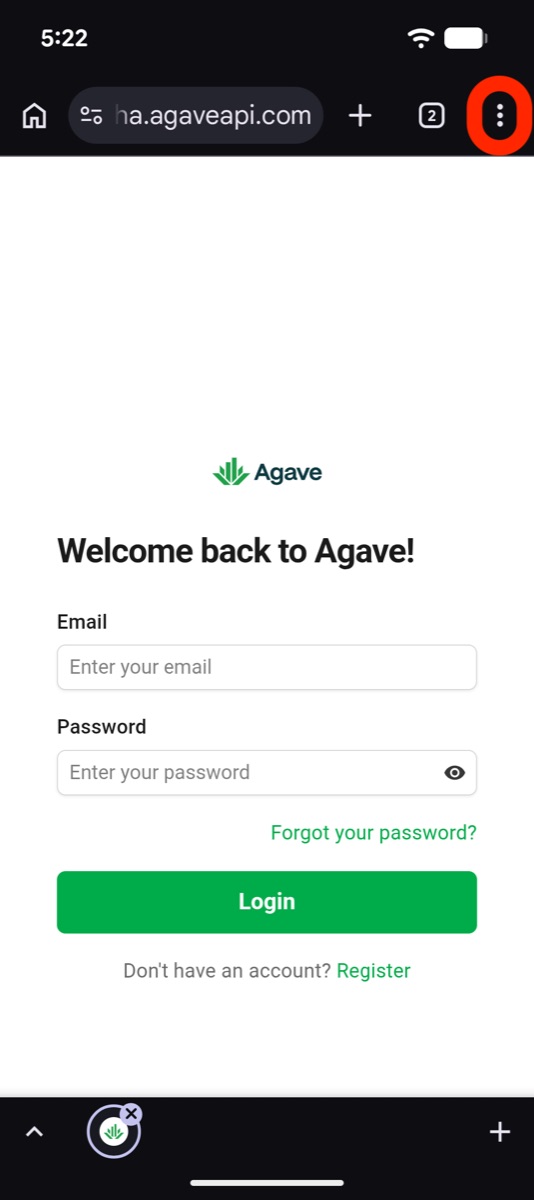
1. Tap ⋮
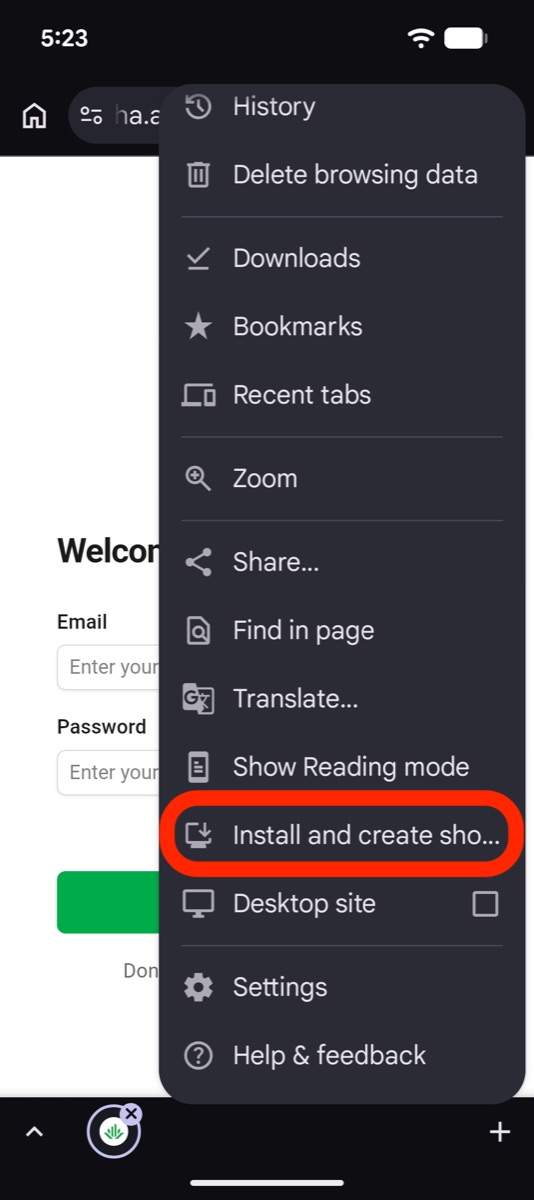
2. Tap Install and create shortcut
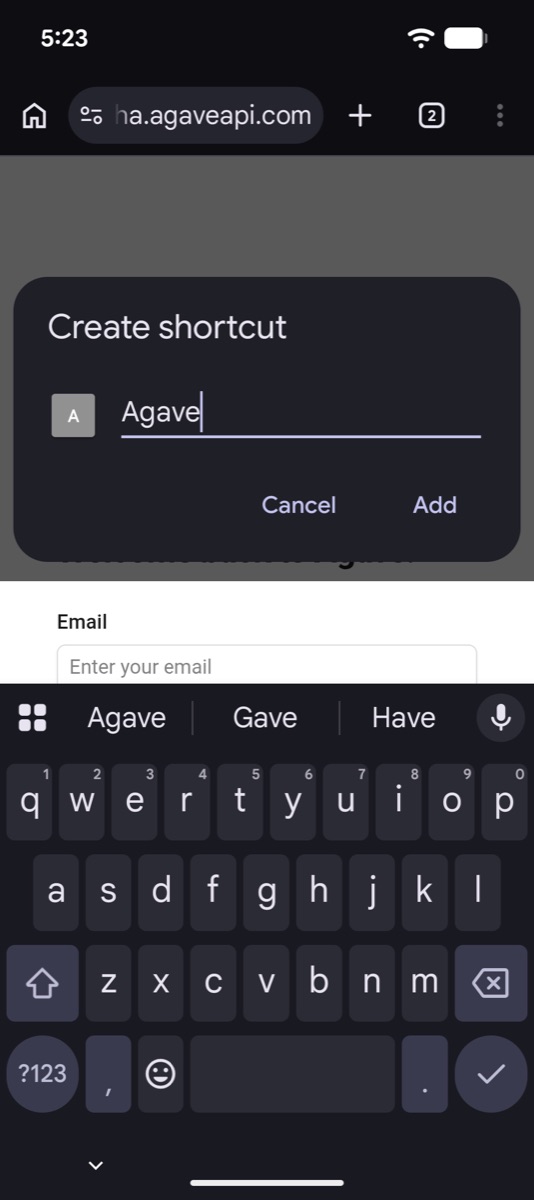
3. Tap Add
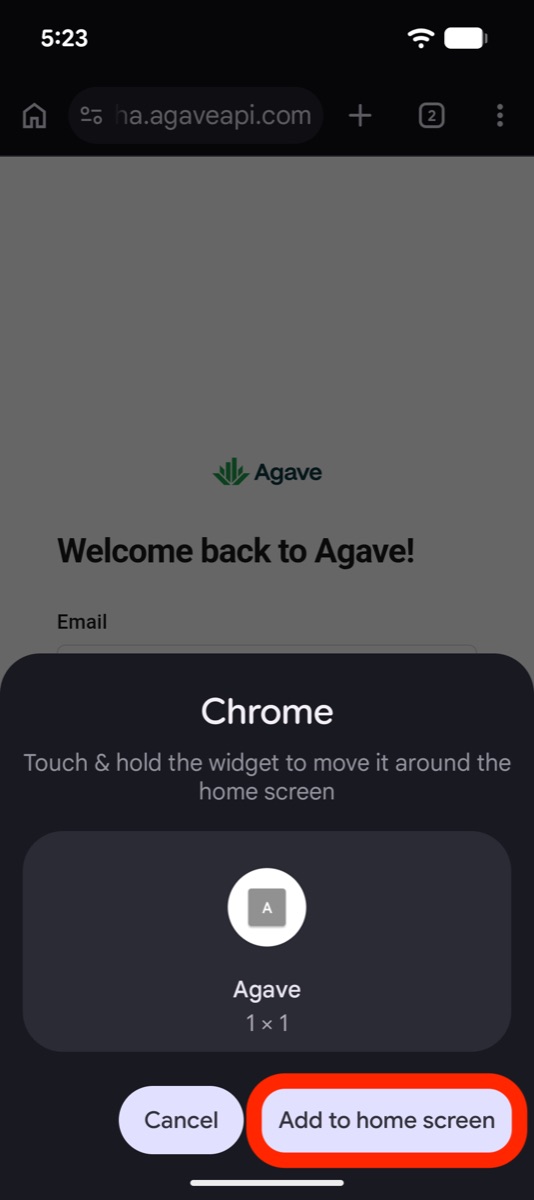
4. Tap Add to home screen
Chrome words this differently depending on the version you have. If you do not see Install and create shortcut, look for Add to Home screen or Install app in the same menu. They do the same thing.
You are set up
The Agave icon is on your home screen. Open it from there from now on, not from Chrome.
The app shows your own expenses and the card charges assigned to you, and nobody else's. When a charge from your company card comes through, it turns up here waiting for its receipt.
Next time you buy something, photograph the receipt before you leave: Submitting Receipts.
If you cannot get in
It says you do not have access.
Check you activated your account from the invitation email, then ask the office to confirm you have Expense Management access.
No invitation email ever arrived.
Check your junk folder, then ask the office to send it again. Do not tap Register on the login screen; that makes a separate account that your office cannot see.
You can log in but there are no transactions.
The office may not have assigned your card yet. Charges also take a few hours to come through, so this morning's fuel stop may not be there yet.
Turning notifications back on
Agave sends a notification to your phone when a card charge is waiting for its receipt. The first time you open Agave from your home screen it asks whether that is OK. If you tapped Don't allow or Block, or you turned notifications off later, you turn them back on in your phone's settings, the same way as for any other app. Start with the app itself:
- Touch and hold the Agave icon on your home screen, then tap App info (the small ⓘ).
- Tap Notifications.
- Turn on the switch at the top of the screen.
- Close Agave if it is open, then open it again from your home screen so it picks up the change.
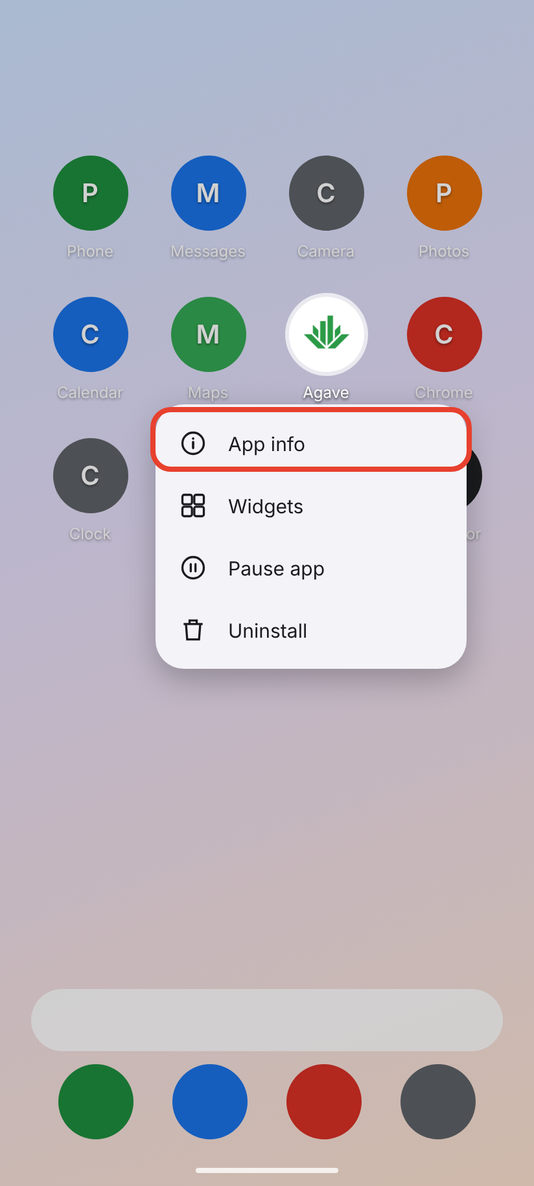
1. Tap App info
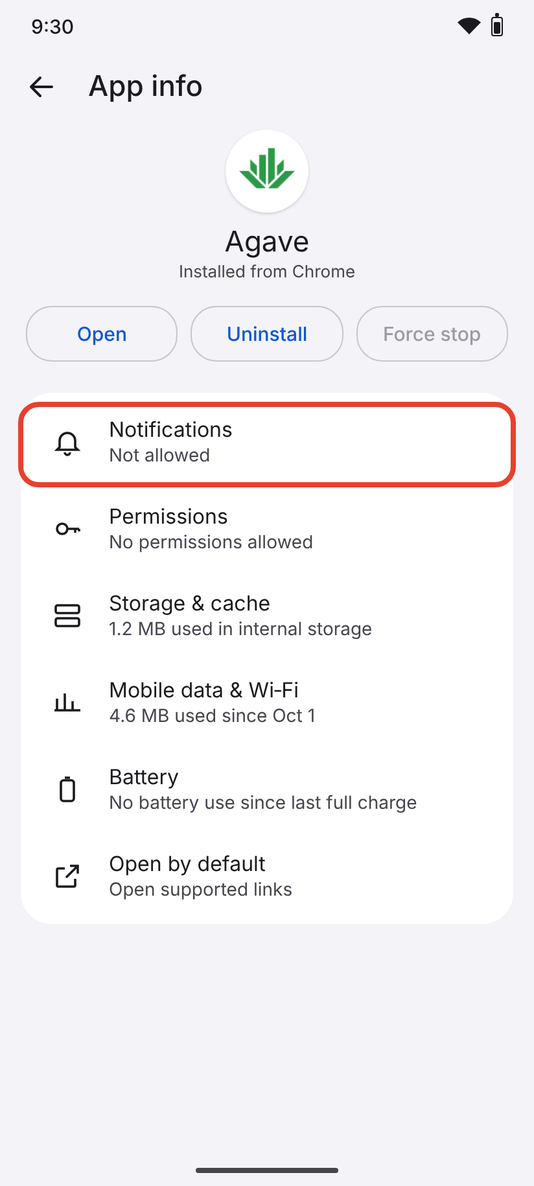
2. Tap Notifications
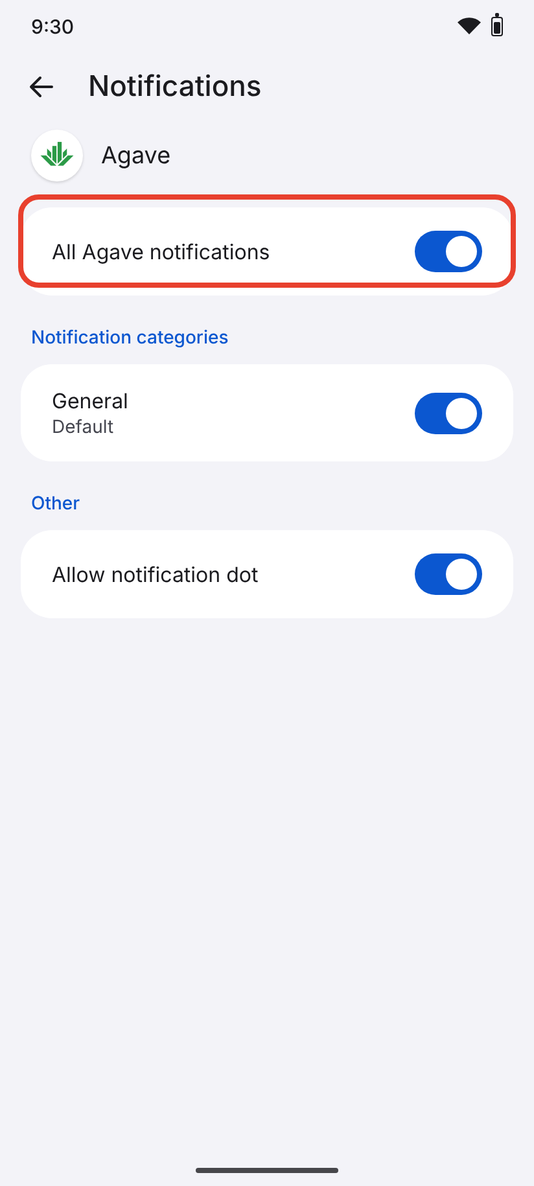
3. Turn on the switch
If you do not see App info when you hold the icon, open your phone's Settings, tap Apps, find Agave in the list, and tap Notifications.
If App info opens a screen for Chrome rather than Agave, or notifications still do not arrive, Chrome has its own switch for the site:
- Open Chrome, tap the ⋮ menu at the top right, then tap Settings.
- Tap Site settings, then Notifications, and make sure the switch at the top is on.
- Find agave.build in the list (it is under Blocked if you said no) and tap it.
- Tap Notifications and choose Allow.
- Open Agave from your home screen again.
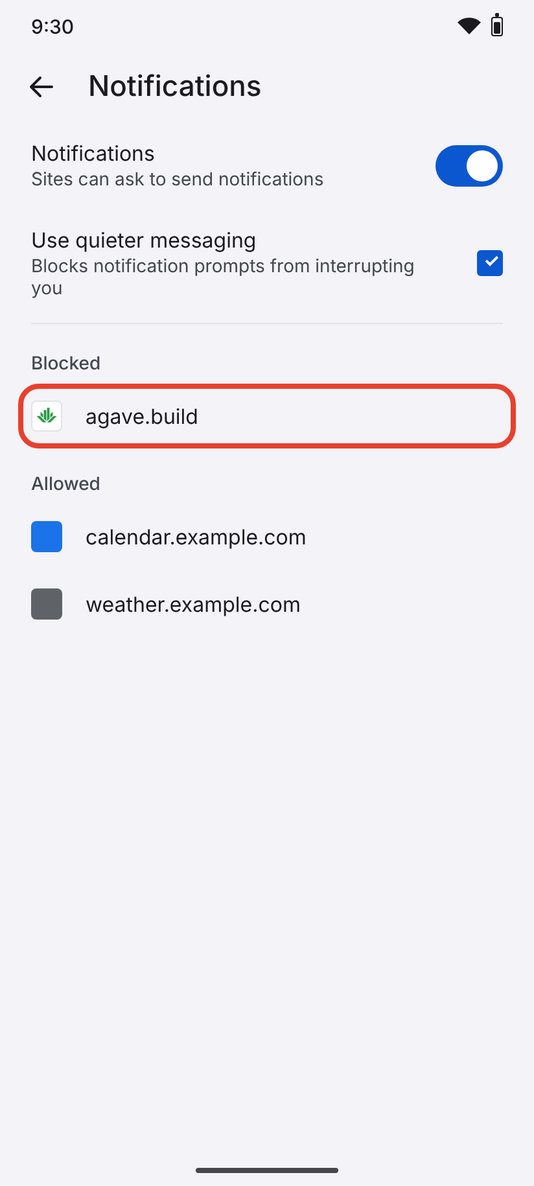
3. Tap agave.build
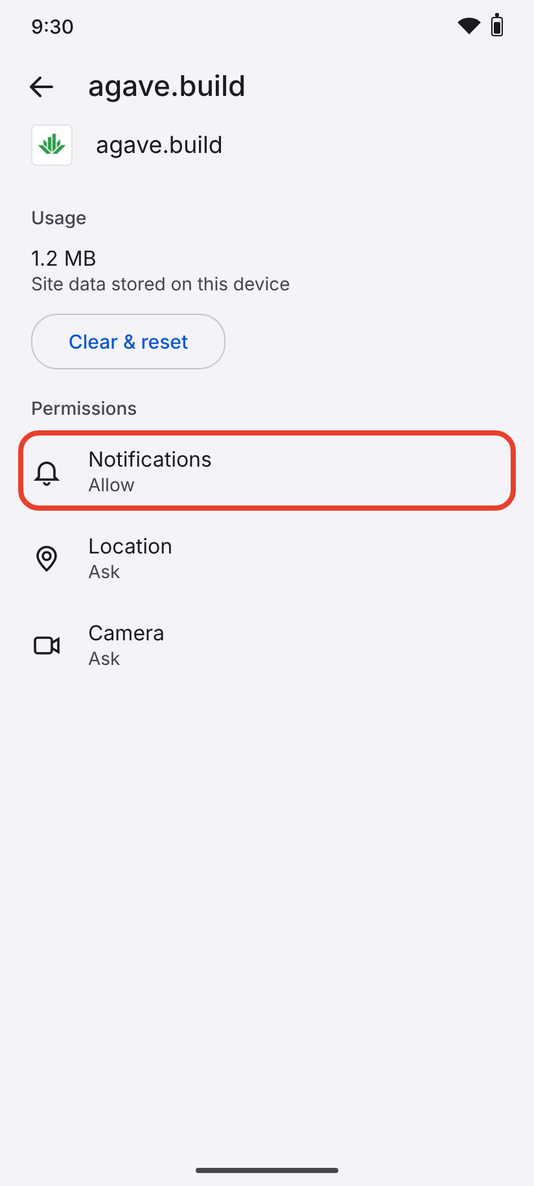
4. Choose Allow
Everything is on but nothing arrives. Check that Do Not Disturb is off, and that Chrome itself is allowed to send notifications (Settings > Apps > Chrome > Notifications). If that is not it, go back to agave.build in Chrome's site settings, tap Clear & reset, then open Agave from your home screen and tap Allow when it asks.
Related guides
- Submitting Receipts: sending a receipt from your phone
- FAQs: the questions people ask most