Nov 06 - Split Expenses
One receipt can now be split into several items, each with its own amount and its own coding. A single card charge that covers two jobs, or materials and fuel on the same ticket, no longer has to be coded to one place or entered twice.
Where to Find It
Open an expense in the expense viewer. Below the expense's fields is an Items card, with Add item in its header.
Here a $320.49 hardware receipt is split across two projects:
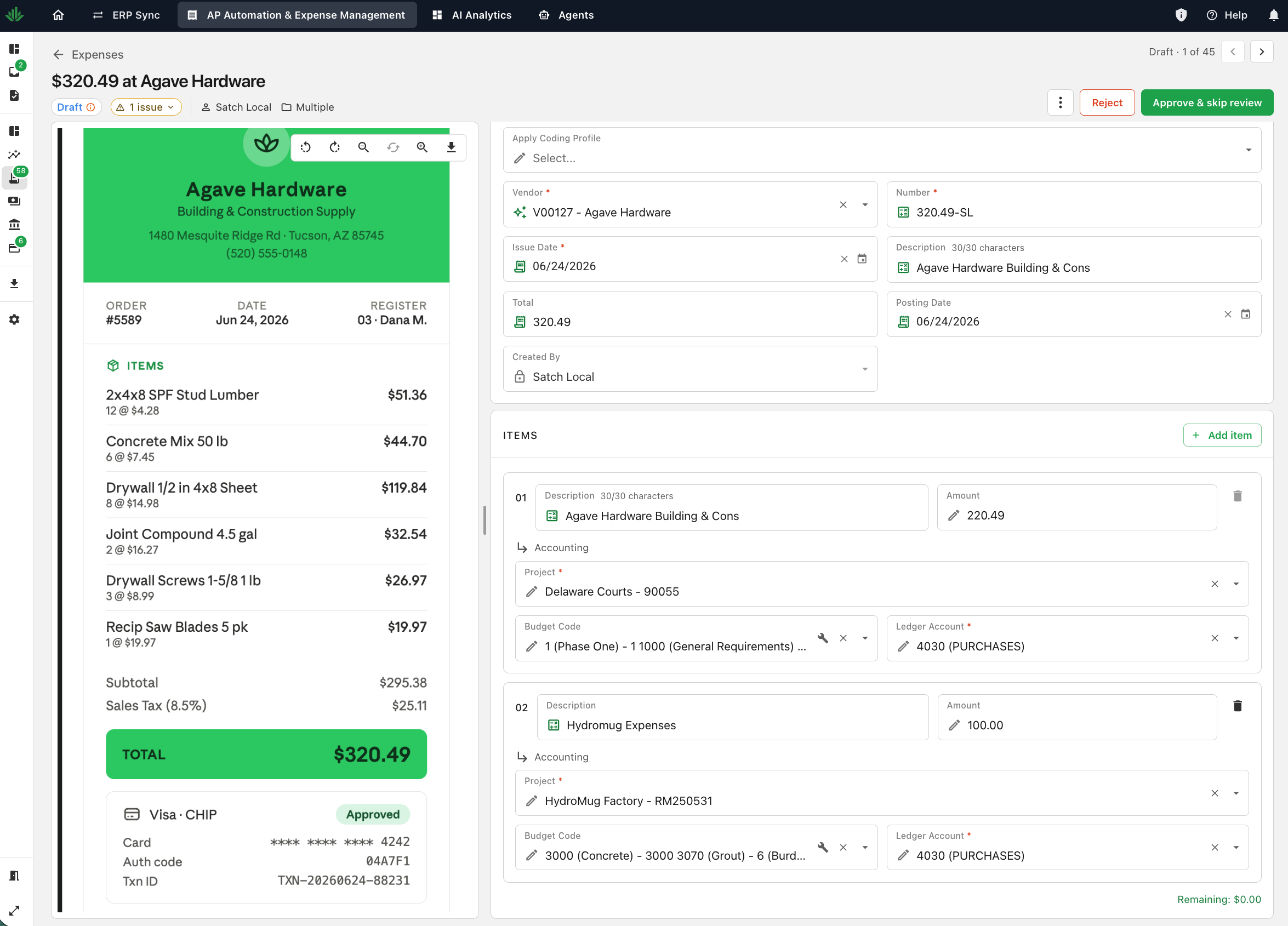
Splitting an Expense
Select Add item and a new item appears.
Enter an amount on a new item and that amount comes off item 1, so the items keep adding up to the expense total. Delete an item and its amount goes back to item 1. Item 1 cannot be deleted.
Under the items, Remaining shows what is left of the total, and turns green at $0.00. If the items add up to more than the total, it shows Over instead.
Changing one item's project moves only that item, and clears its coding so it can be coded to the new project.
The Items Must Add Up
An expense whose items do not add up to the expense total cannot be approved or synced. This applies to single and bulk approval, and sync checks it again in case something changed after approval. The message tells you both numbers, for example:
The line items add up to $45.00, but the expense total is $42.00. Adjust the line items or the total so they match.
Each item's required fields are checked on their own, so a missing field tells you which item it belongs to.
What Changes Elsewhere
- Expense list. When the items sit on different projects, the Project column shows Multiple. The same goes for the ledger account.
- Coding profiles and bulk edit. A split expense is coded item by item, so splitting an expense clears any coding profile applied to it, and bulk edit skips split expenses.
Syncing to Your ERP
Each item syncs as its own line.
| ERP | How items sync |
|---|---|
| Sage 100 Contractor | Each item posts its own ledger and job cost lines on the journal entry, and one card account line balances the entry. |
| Sage Intacct | Each item takes the customer of its own project. |
| QuickBooks Online, Spectrum, CMiC | Each item syncs with its own project and coding. |
| QuickBooks Desktop, Vista, ComputerEase | Items can have their own amounts and coding, but all items share the expense's project. |
Getting Started
Split expenses are available to every Expense Management customer. There is nothing to turn on.
Go Deeper
- Reviewing and Approving Expenses: what reviewers check before they approve
- Coding an Expense: the fields each item is coded with