Uploading Transactions from CSV
Some cards cannot be connected to a live feed: fuel cards, store charge cards, and prepaid expense cards are common examples. Uploading a CSV creates the transactions for those cards in Agave, so the receipts your crews have already submitted have something to match against.
This guide is for admins. Use it at statement close, or whenever you need to bring in charges from a card Agave cannot connect to directly.
This guide covers:
- When to upload a CSV instead of connecting a card feed
- What your statement file has to contain
- Mapping the columns in your file to Agave's transaction fields
- Assigning the card the upload creates
- What happens to receipts that were waiting on those transactions
For cards your bank supports through Plaid, see Connect Your Card Feed.
Before you start
- Have the receipts in Agave first. The upload creates transactions and then matches them against receipts that are already in Agave. Field users can submit receipts throughout the month and leave them unmatched; the upload is what closes the loop.
- Download the statement from the card issuer as a CSV. Agave reads the issuer's file. It does not connect to the issuer to fetch it. CSV is the only format the upload accepts.
- Know which card each row belongs to. Every row needs a column identifying the card, usually its last four digits. The upload does not ask which card the file is for, so Agave reads it from the rows.
Step 1: Download the statement from your card issuer
- Log in to the card issuer's portal.
- Export the statement period you want to bring into Agave.
- Choose the CSV format if the issuer offers more than one.
Step 2: Check the file has what Agave needs
Your column names do not have to match anything. Agave reads the header row of whatever file you give it and lets you map its columns to Agave's fields in Step 4, so an export straight from your issuer usually works as-is.
What the file does have to contain is a column for each of these:
- The charge amount
- Something identifying the card, usually the last four digits
- The transaction date
- The merchant
- The issuer's reference number for the charge
- The cardholder's name, in either one column or two
Two things in a raw issuer export will stop the upload, and both are quick to fix in a spreadsheet before you upload.
Remove rows with no card account number. Statement-level rows such as annual fees, interest, and statement payments are not charges on a card, so they arrive with that column blank. A blank card account number fails the whole file, not just that row.
Format credits as negative numbers. Refunds and credits have to be numeric negative values, for example -45.00. A credit written as text, such as (45.00) or 45.00 CR, is not accepted.
Keep the cleaned file. If you upload the same statement period again later, starting from the cleaned copy saves repeating both fixes.
Step 3: Upload the file
- Open AP Automation & Expense Management.
- Under Expense Management in the left navigation, select Credit Cards.
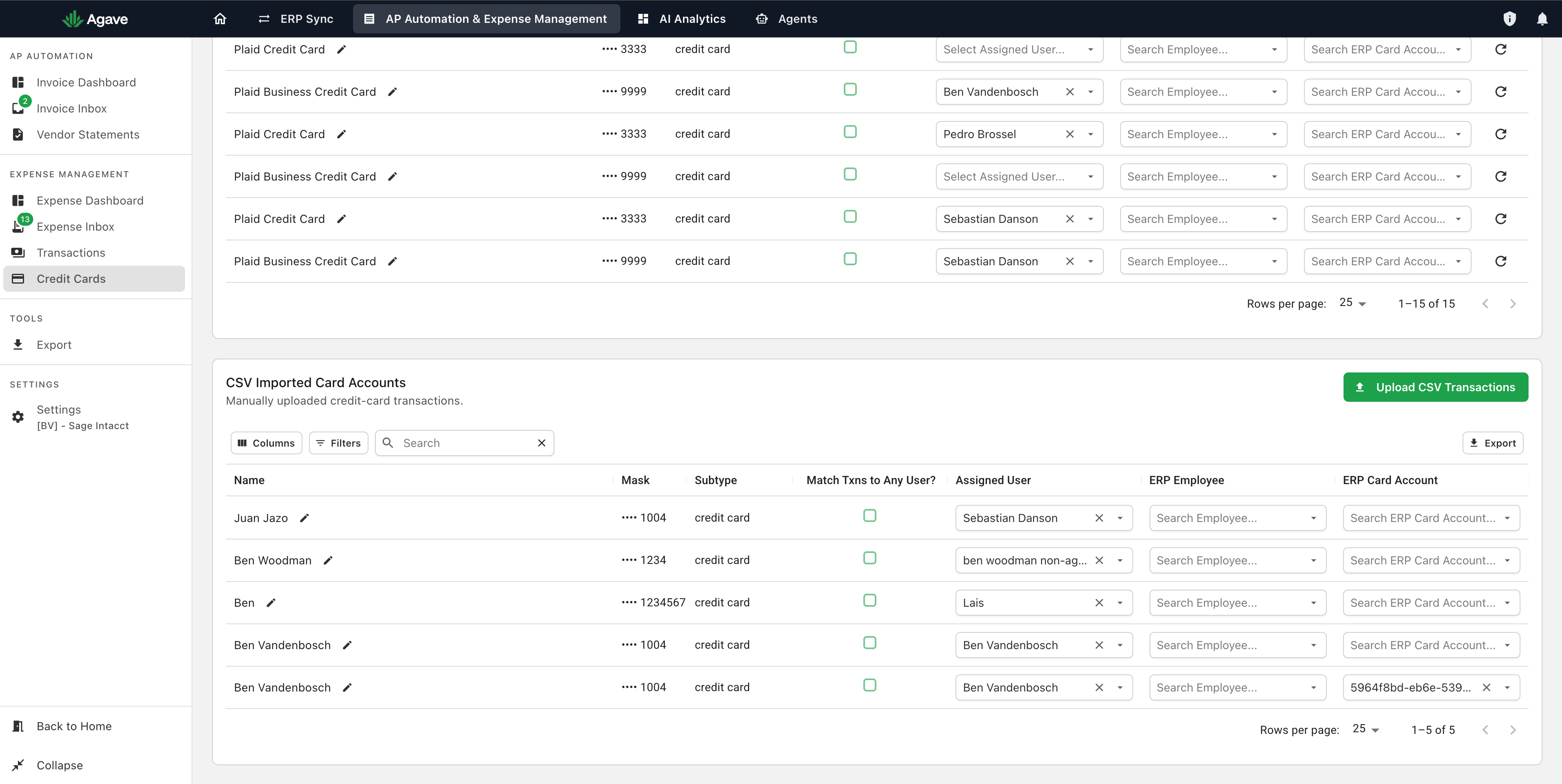
- Scroll past Connected Accounts to the CSV Imported Card Accounts section.
- Select Upload CSV Transactions.
Connected Accounts lists the cards linked through Plaid. CSV Imported Card Accounts is a separate table below it, holding the cards whose transactions you upload by hand:
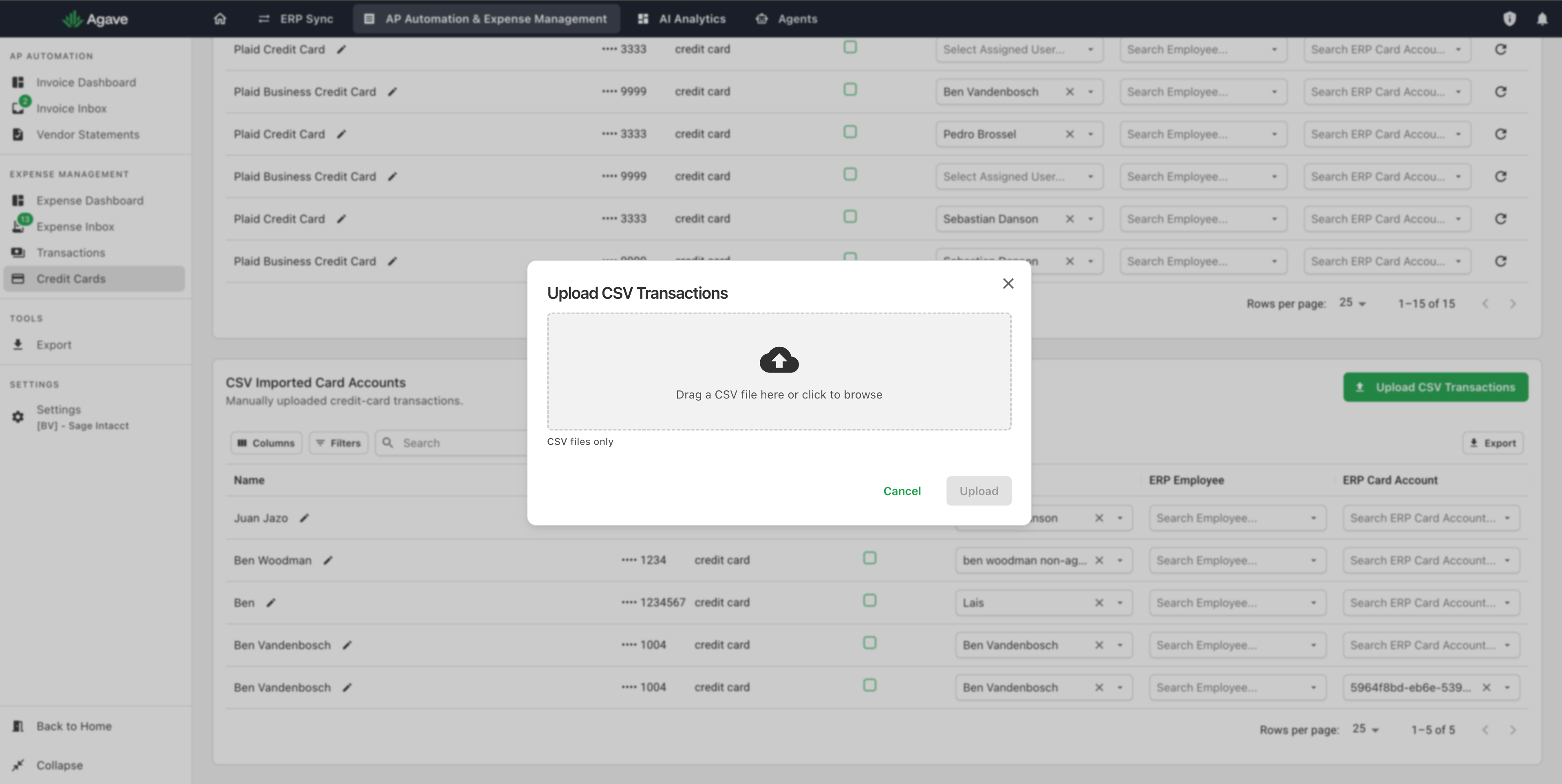
- Drag your CSV onto the drop zone, or click it to browse.
The dialog accepts CSV files only:
Step 4: Map the columns
Once you choose a file, the dialog reports how many columns it found and asks you to match them to Agave's transaction fields. Each dropdown lists the column headers from your own file.
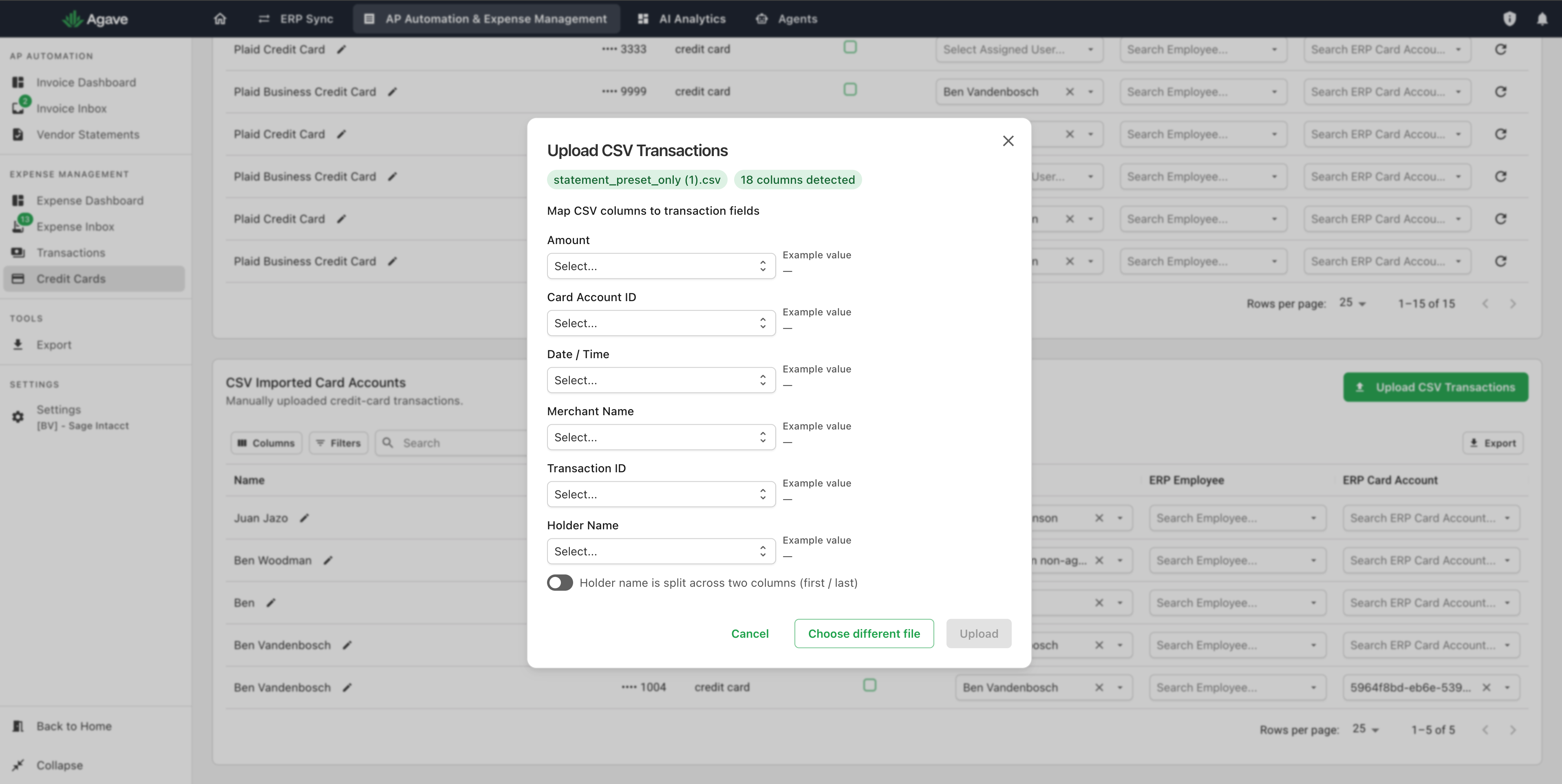
Map each field:
| Field | What to select |
|---|---|
| Amount | The column holding the charge amount |
| Card Account ID | The column identifying the card, usually its last four digits |
| Date / Time | The column holding the transaction date |
| Merchant Name | The column holding the merchant or supplier |
| Transaction ID | The issuer's reference number for the charge |
| Holder Name | The column holding the cardholder's name |
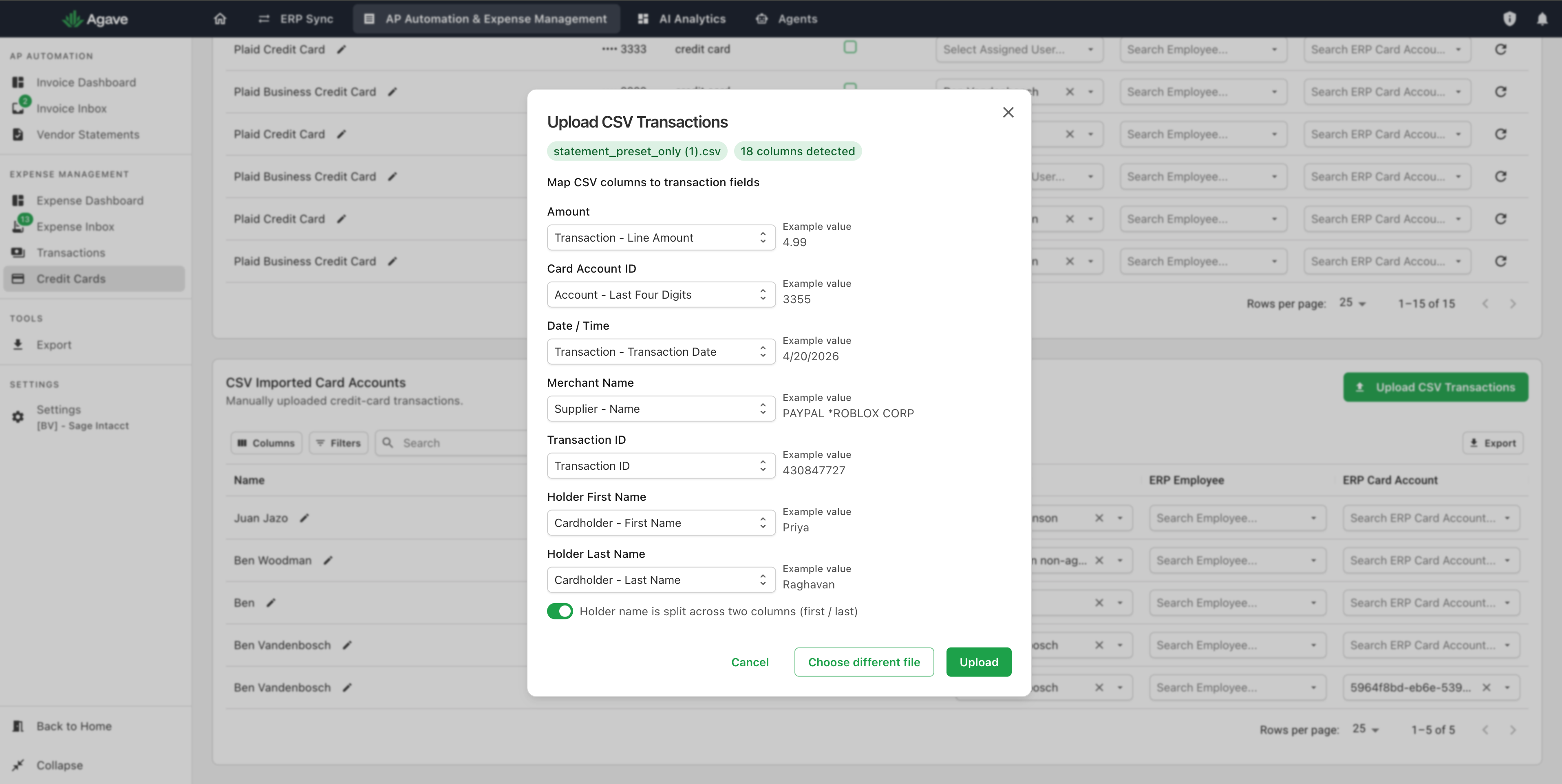
As you select each column, Agave shows an Example value beside the dropdown, taken from the first row of your file. Use it to confirm you picked the right column before you upload: for example, a date where you expected an amount means the columns are off.
If your file splits the cardholder across two columns, turn on Holder name is split across two columns (first / last). Holder Name becomes Holder First Name and Holder Last Name, each with its own dropdown.
With every field mapped, the example values populate and Upload becomes available:
Select Upload. To start over with a different statement, select Choose different file.
Step 5: Assign the uploaded card
The upload creates a row in CSV Imported Card Accounts for each unique card number it finds. That row is new, so it carries none of the assignments an existing card would have. Configure each card before the next upload:
| Column | What to set |
|---|---|
| Name | Use the pencil to rename the card to something your team recognizes |
| Assigned User | The Agave user who holds the card. This drives receipt matching |
| Match Txns to Any User? | Check this instead of assigning a user when the card is shared |
| ERP Employee | The employee record in your ERP, if your ERP uses them |
| ERP Card Account | The account in your ERP the charges post against |
A card with no assigned user and no Match Txns to Any User? produces expenses that never match a receipt, and nothing tells you it is happening. Check both columns after every first upload.
Step 6: Confirm the transactions arrived
- Under Expense Management, select Transactions.
- Filter to the card and the statement period you uploaded.
- Check the charges are there.
Filter before you compare anything against the statement. The Transactions page also holds charges from your connected cards and from earlier uploads, so a raw row count on the unfiltered page will not match a single statement.
Uploaded transactions behave exactly like transactions from a Plaid connection. They can be linked to an expense by hand, used to create an expense, or archived if they are not relevant.
Duplicate handling is not documented here yet. Until it is confirmed, upload each statement period once and check the Transactions page before uploading the same file again.
How matching works after an upload
Matching runs when new transactions arrive, so an upload triggers a matching pass across the receipts already sitting in Agave. Receipts that were waiting on a transaction pick up their match without anyone re-submitting them.
The card's assigned user is what links a receipt to a charge, which is why Step 5 matters more than it looks. For the full picture, including what to do with a receipt that does not find its transaction, see How Matching Works.
Anything left unmatched after the upload can be linked by hand from the Transactions page. See Expense Inbox and Transactions.
When the upload fails
Nothing appears after the upload. A file Agave cannot read fails silently, with no error message, so an upload that looks like it worked but produced no transactions is the symptom. Check for rows with a blank card account number, usually statement fees, interest, or payments against the statement. Remove them and upload again.
Credits arrived as positive amounts, or the file was rejected. Confirm every credit is a numeric negative value rather than text such as (45.00) or 45.00 CR.
Transactions arrived but nothing matched. Open Credit Cards and check the card's row in CSV Imported Card Accounts. Matching needs either an Assigned User or Match Txns to Any User?.
The card is not in CSV Imported Card Accounts. The row is created by the upload. If it is not there, the file did not upload.
Related guides
- Connect Your Card Feed: connecting cards your bank supports through Plaid
- Setting Up Your Cards: setting the assigned user that drives matching
- How Matching Works: how receipts and transactions get linked
- Expense Inbox and Transactions: working with transactions once they are in Agave