Working with Invoice Documents
This guide is for anyone editing an open invoice: reviewers and AP clerks. Use it to code header and line fields, and to run document actions (attachments, delivery tickets, split, and related files).
It assumes the invoice is already open. For finding work and approving or rejecting, see Reviewing and Approving Invoices.
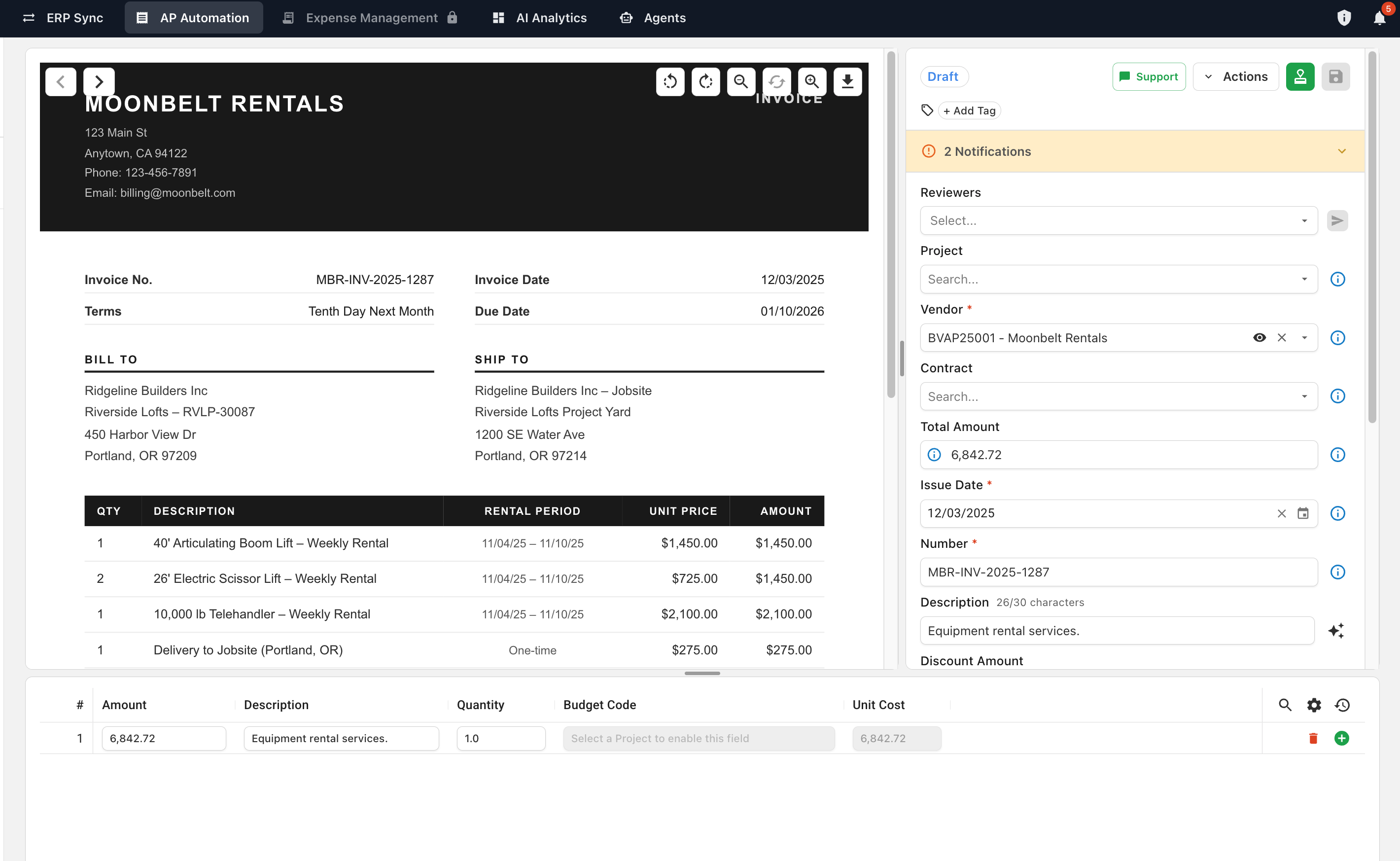
The invoice page
- Left: the invoice file.
- Right: status chip, Actions, approve/reject controls, and header fields.
- Bottom: the line items grid. Drag the divider to expand or collapse it.
Coding the header
Header fields apply to the whole invoice. Common fields:
- Project, Vendor, Contract (PO or subcontract)
- Total Amount, Issue Date, Number, Description
- Discount Amount, Discount Date, Due Date
Change a dropdown by searching and selecting the ERP record. Hover the blue information icon on an auto-filled field to see why Agave set it.
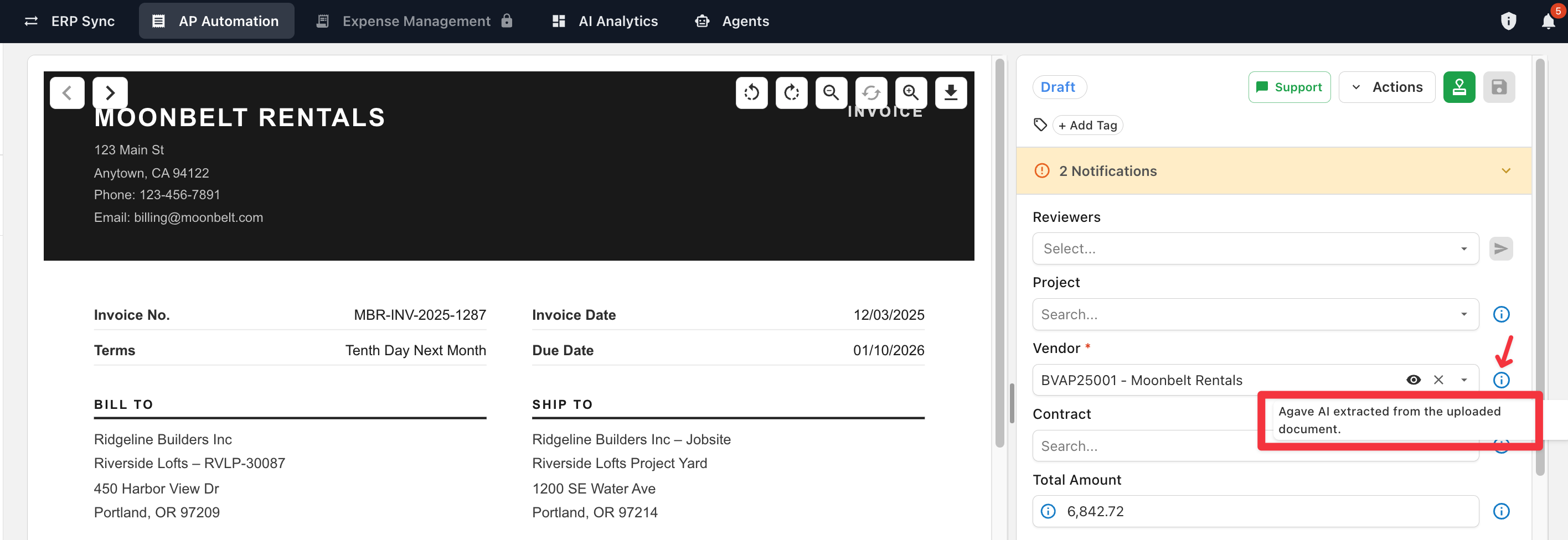
Some fields show a view (eye) icon. Click it to open the ERP record sidebar (project, vendor, or contract details). For commitment billing on a PO or subcontract, see Reviewing Commitment Billing.
Deep dive: Header Field Coding.
Coding line items
- Expand the line items area if it is collapsed.
- Review each row’s Amount, Contract Line Item, Cost Code, Cost Type, and Description.
- Watch the footer Remaining. Aim for Remaining: $0.00 so line amounts match the header Total Amount.
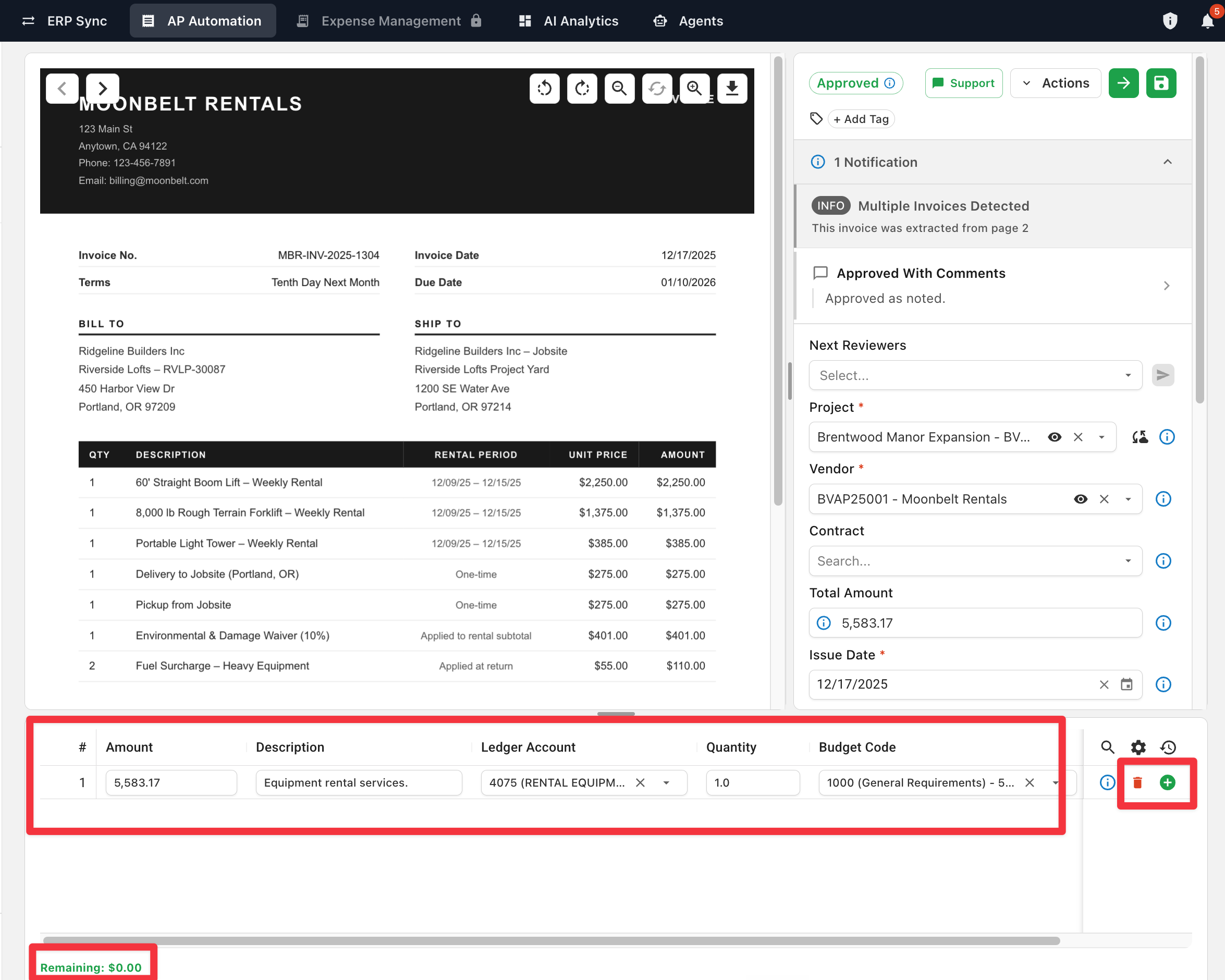
Other columns (for example ledger account, sub job, quantity) may appear depending on your ERP and Default Field Visibility. Use the gear control on the grid to show, hide, or reorder columns.
Add or remove lines
- Use the green plus on a row to add a line.
- Use the red trash control to delete a line.
Deep dive: Line Item Coding.
Layout templates
If enabled for your account, a layout control on the line items area switches which coding columns are emphasized:
| Template | Use when |
|---|---|
| Default | No project set / show every column |
| Overhead | GL only, no job costing |
| Job Costed | Project job costing (Cost Code, Cost Type, and related fields) |

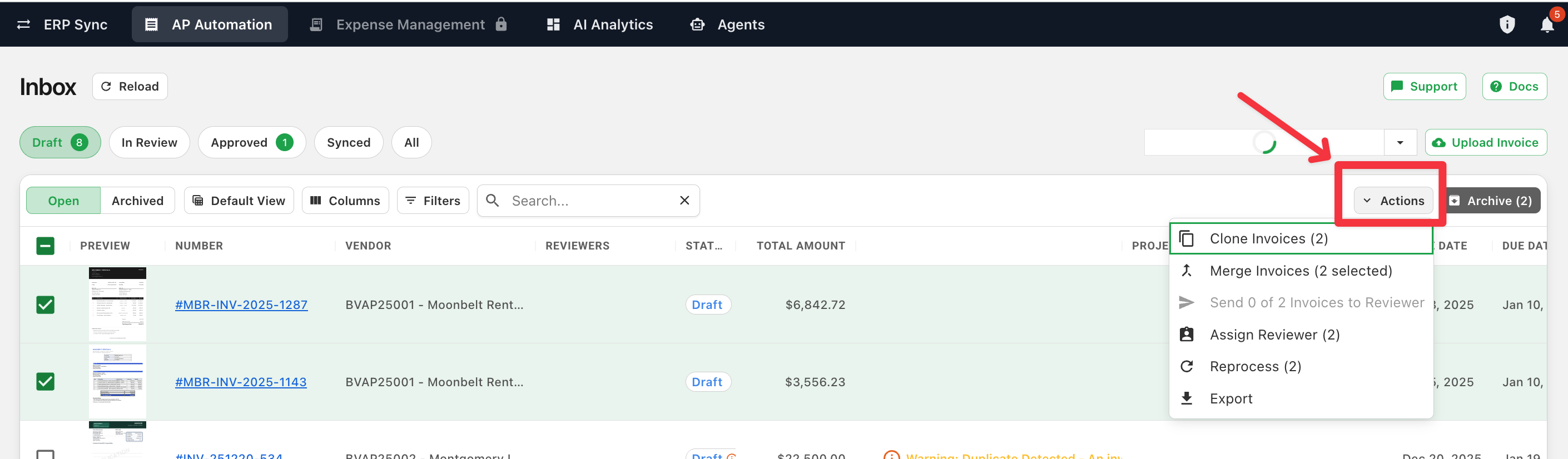
Actions menu
Most document tools live under Actions in the invoice header.
Documentation
| Action | What it does |
|---|---|
| Related Documents | Documents from the same email or upload thread |
| Original Document | Opens the original file when available |
| View Email Thread | Shows the source email as a timeline |
| Upload Attachment | Attaches a file; optional Upload as delivery ticket |
| Select Delivery Tickets | Links delivery tickets to this invoice |
| Compare Documents | Side-by-side invoice / delivery ticket / contract |
Processing
| Action | What it does |
|---|---|
| Split Invoice | Split one PDF into multiple invoices, then Save & Split |
| Clone Invoice | Creates copies of the invoice |
| Convert to Delivery Ticket | Reclassifies the document (when delivery tickets are enabled) |
Status and audit
| Action | What it does |
|---|---|
| View History | Audit trail for the invoice |
| Archive Invoice | Removes it from the active queue |
| Reset to Draft | Admin only. Restarts review |
| Exclude from Inbox | Admin only. Blocks future uploads of the same file |
Save your work
Use the save control (disk icon) to keep coding changes without approving or rejecting.
When coding is complete, return to Reviewing and Approving Invoices to Save & Approve or Reject Invoice.
Frequently asked questions
Header vs line coding?
Header sets invoice-wide values (Vendor, Project, Contract). Cost Code and Cost Type are set per line so lines can hit different budget codes.
One PDF is actually two invoices. What do I do? Use Split Invoice, group the pages, then Save & Split.
How do I see if I’m overbilling a PO? Open the contract view sidebar and check billing / remaining balance before you approve.
Related guides
- Reviewing and Approving Invoices: Find, approve, and reject
- Uploading an Invoice: Manual upload into the Inbox
- Header Field Coding: Project, Vendor, and Contract matching
- Line Item Coding: Line matching and allocation
- Default Field Visibility: Which coding columns appear