Header Field Coding
When an invoice arrives in Agave, AI reads the document and pre-populates the header fields at the top of the invoice viewer: vendor, project, commitment (PO/Subcontract), dates, amounts, and more.
Agave then matches those extracted values to records in your connected ERP. The result is a pre-coded invoice your team can review, adjust, and approve — without starting from a blank form.
This guide covers:
- How header matching works for Project, Vendor, and Commitment
- How dropdown fields are populated from your ERP
- How to use match breadcrumbs to understand why a field was coded
- What happens with all other header fields (dates, amounts, invoice number, etc.)
For line-level behavior, see Line Item Coding.
How Header Auto-Coding Works
Header coding happens in two steps:
-
Extract: Agave AI reads the invoice file and pulls out header values (vendor name, project name/address, PO number, invoice date, total amount, etc.).
-
Match: Agave compares those extracted values against records synced from your ERP (projects, vendors, POs, subcontracts) and selects the best match.
The matched ERP record is what appears in each dropdown. Extracted text alone is never written to your accounting system.
Prerequisite: Vendor, project, and commitment dropdowns only contain records Agave has fetched from your ERP. If a record is missing, refresh your ERP data in the Agave Invoice Inbox view, or confirm the connection is healthy. See Accounting/ERP System Connection.
Understanding Match Breadcrumbs
Many header fields show a blue information icon when Agave auto-coded the value. This is your match breadcrumb.
To use it:
- Hover over the blue information icon next to the field.
- Read the explanation (for example, "Project matched from contract").
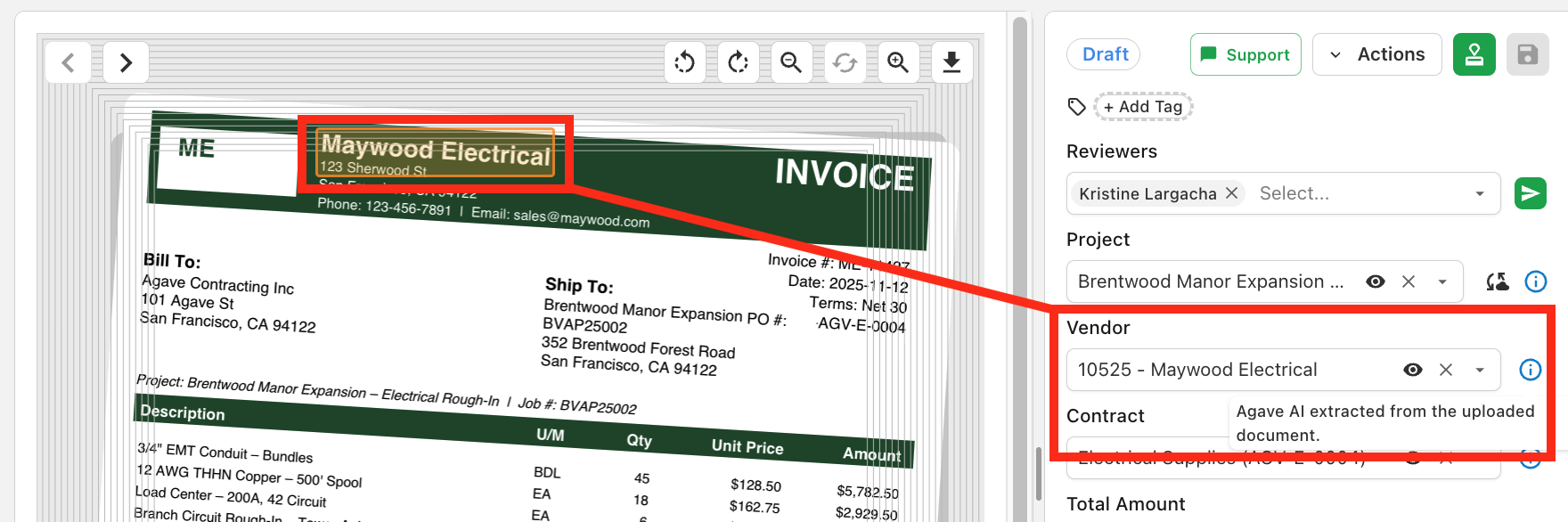
- Agave highlights the corresponding area on the invoice file so you can verify the match.
If you change a field manually, the breadcrumb updates to reflect your selection.
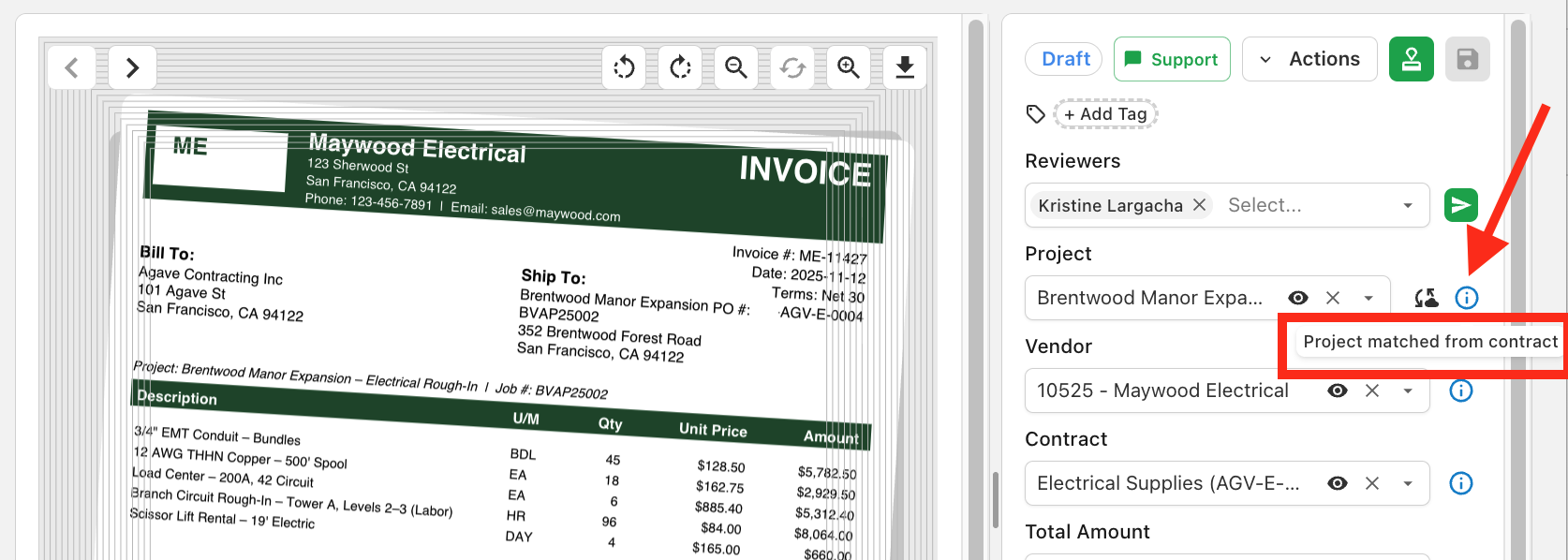
Breadcrumbs are available on auto-matched Project, Vendor, Commitment, and extracted fields like Invoice Date and Total Amount. Learn more in the changelog →
Header Dropdowns: How Options are Populated
Header fields that reference ERP records (Project, Vendor, Commitment) appear as searchable dropdowns.
On initial invoice load:
- If Agave matched a record, the dropdown shows the matched ERP record (name/number as it appears in your system).
When you search or open a dropdown:
- Agave loads records from your ERP (vendors, projects, POs/subcontracts).
- Results update as you type, scoped to your connected accounting system.
When you change a parent field
- Some fields depend on others. For example, selecting a Project may narrow which Commitments are available, and selecting a Commitment may auto-fill Project and Vendor from that contract.
- Changing a parent field may clear dependent fields so you do not accidentally sync with a stale combination.
Viewing the ERP record
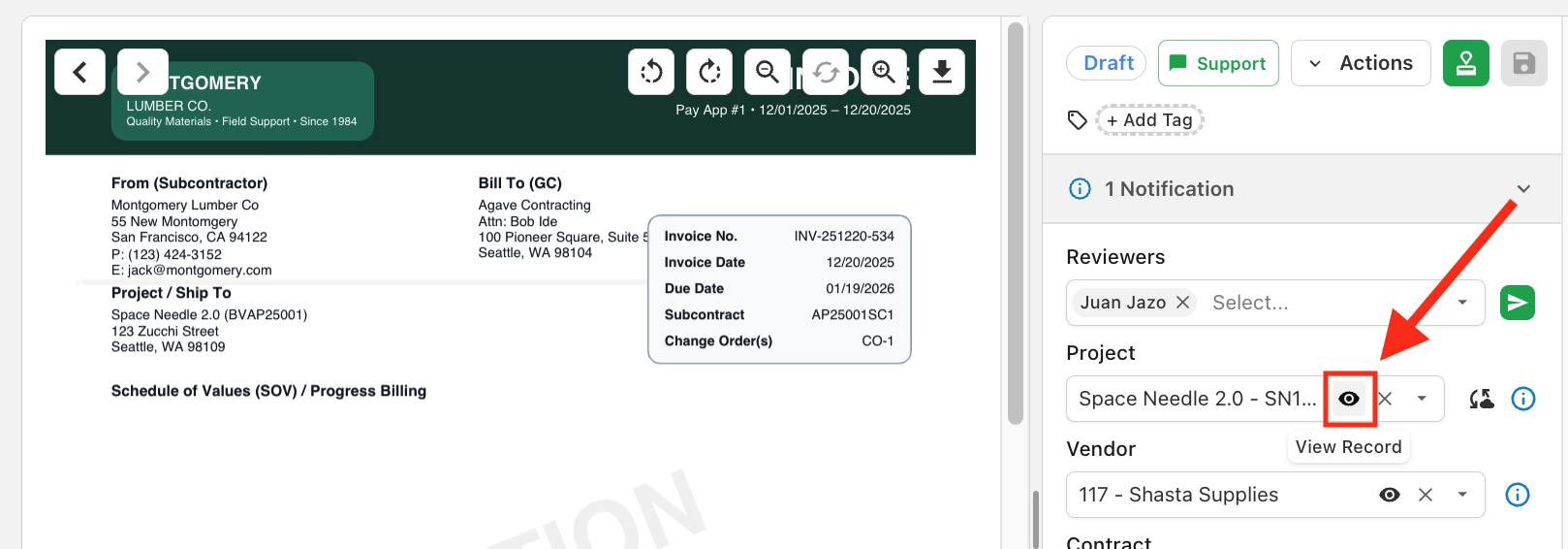
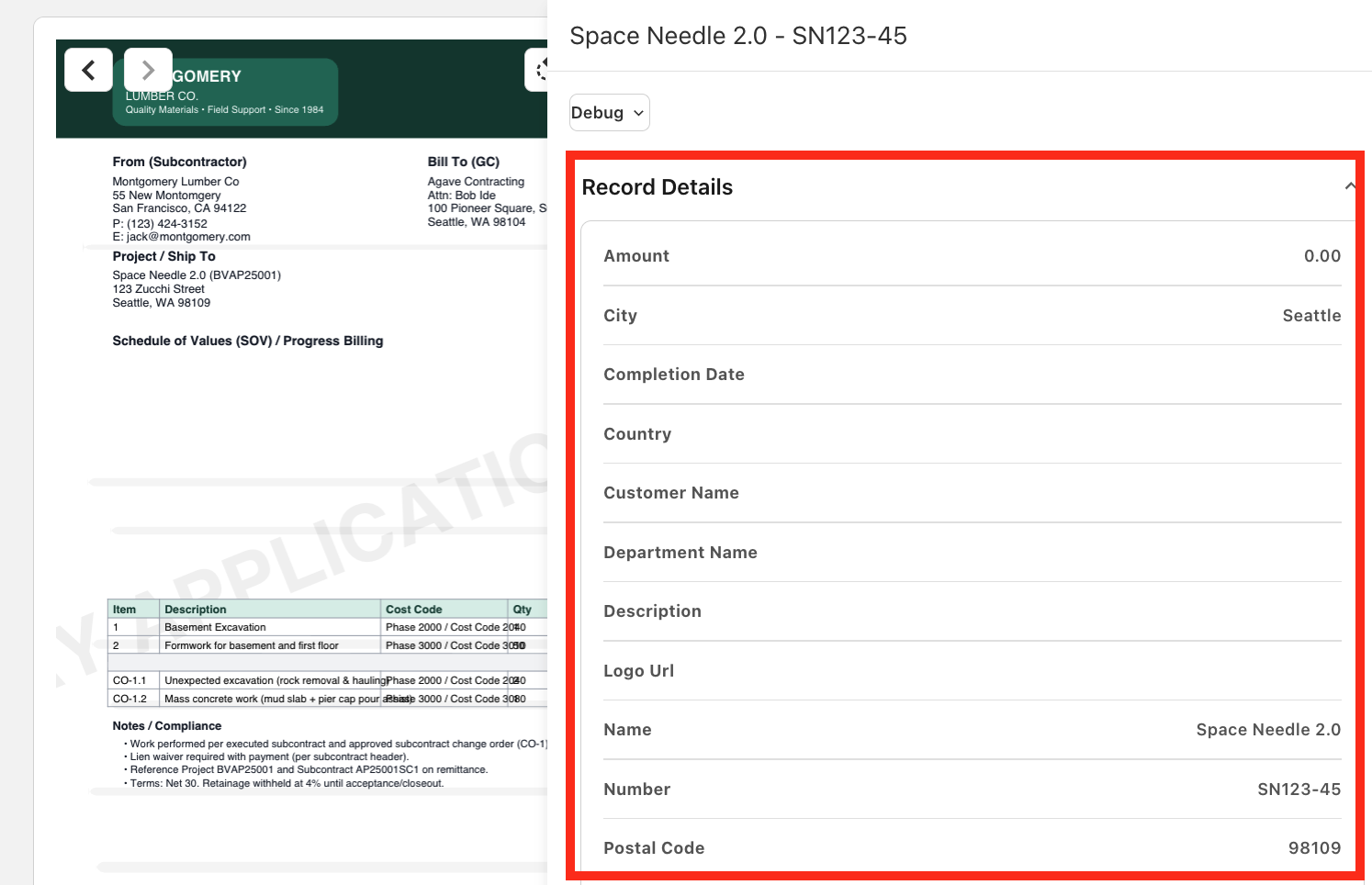
- When a Project, Vendor, or Commitment is selected, use the view record icon next to the dropdown to open the underlying ERP record in the sidebar (project details, line items, billing history, etc.).
Project matching
Agave matches Project using information on the invoice and records in your ERP. A matched commitment, your team's past coding choices, and text on the invoice (project name, number, or job site address) all inform Agave's Project matching.
If your organization uses a project management system connected to Agave, project matching may also cross-reference that system.
Hover over the breadcrumb on the Project field to see which signal was used. Common messages include:
- "Project matched from contract"
- "Project matched by Agave AI based on your previous selections for this project."
- "Matched by Agave AI on project name similarity."
- "Matched by Agave AI on project address similarity."
Vendor matching
Agave uses the vendor on a matched commitment, your team's past coding choices, and the vendor name extracted from the invoice to inform Vendor matching.
Hover over the breadcrumb on the Vendor field to see which signal was used. Common messages include:
- "Vendor matched from contract"
- "Vendor matched by Agave AI based on your previous selections for this vendor."
- "Agave AI extracted from the uploaded document."
Commitment matching (PO / Subcontract)
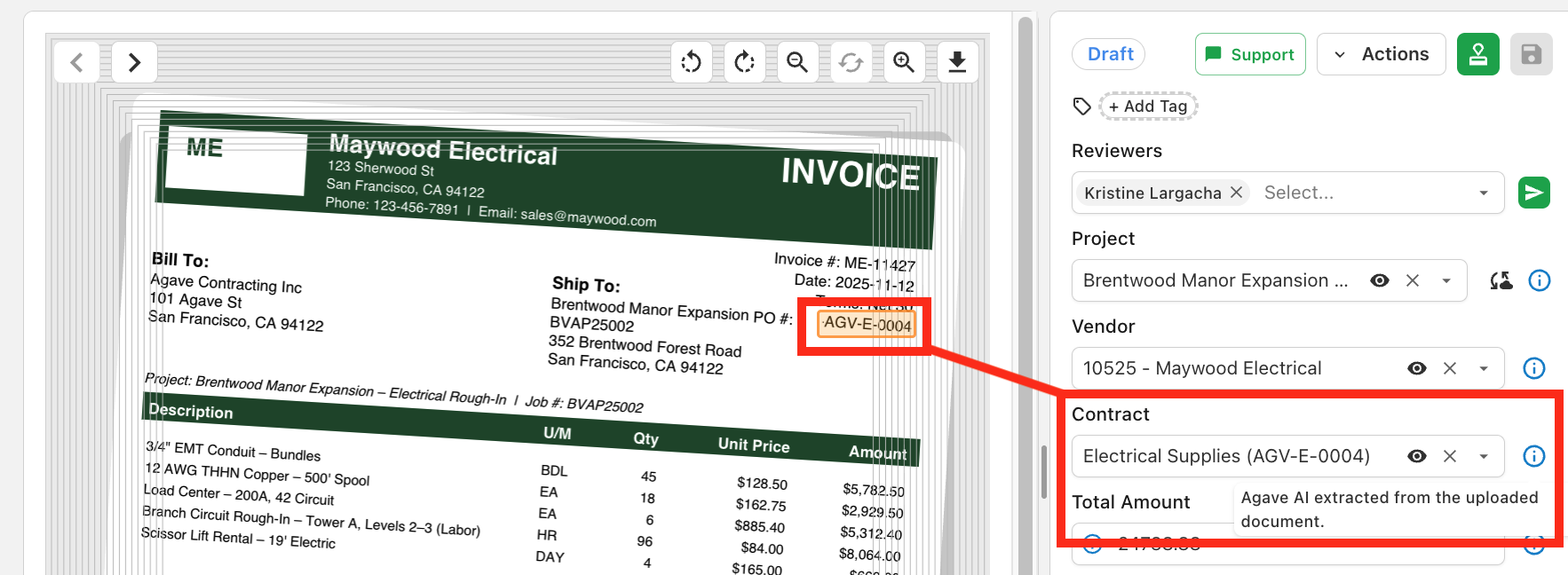
The Commitment field links the invoice to a Purchase Order or Subcontract in your ERP.
Agave looks for a PO or Subcontract number on the invoice, then finds the matching record in your ERP. When the same number could match more than one record, Agave uses Project and Vendor to pick the right one.
What happens after a commitment is matched
Matching a commitment often propagates to other header fields:
| Field | Behavior |
|---|---|
| Project | Set from the commitment if not already matched. |
| Vendor | Set from the commitment if not already matched. |
| Line items | Rebuilt to mirror contract lines (see Line Item Coding). |
If no PO or Subcontract number appears on the invoice, the Commitment field stays empty and the invoice is treated as non-committed.
Hover over the breadcrumb on the Commitment field to see how the match was made. You may also see "Project matched from contract" or "Vendor matched from contract" when those fields were filled from the commitment.
Other header fields
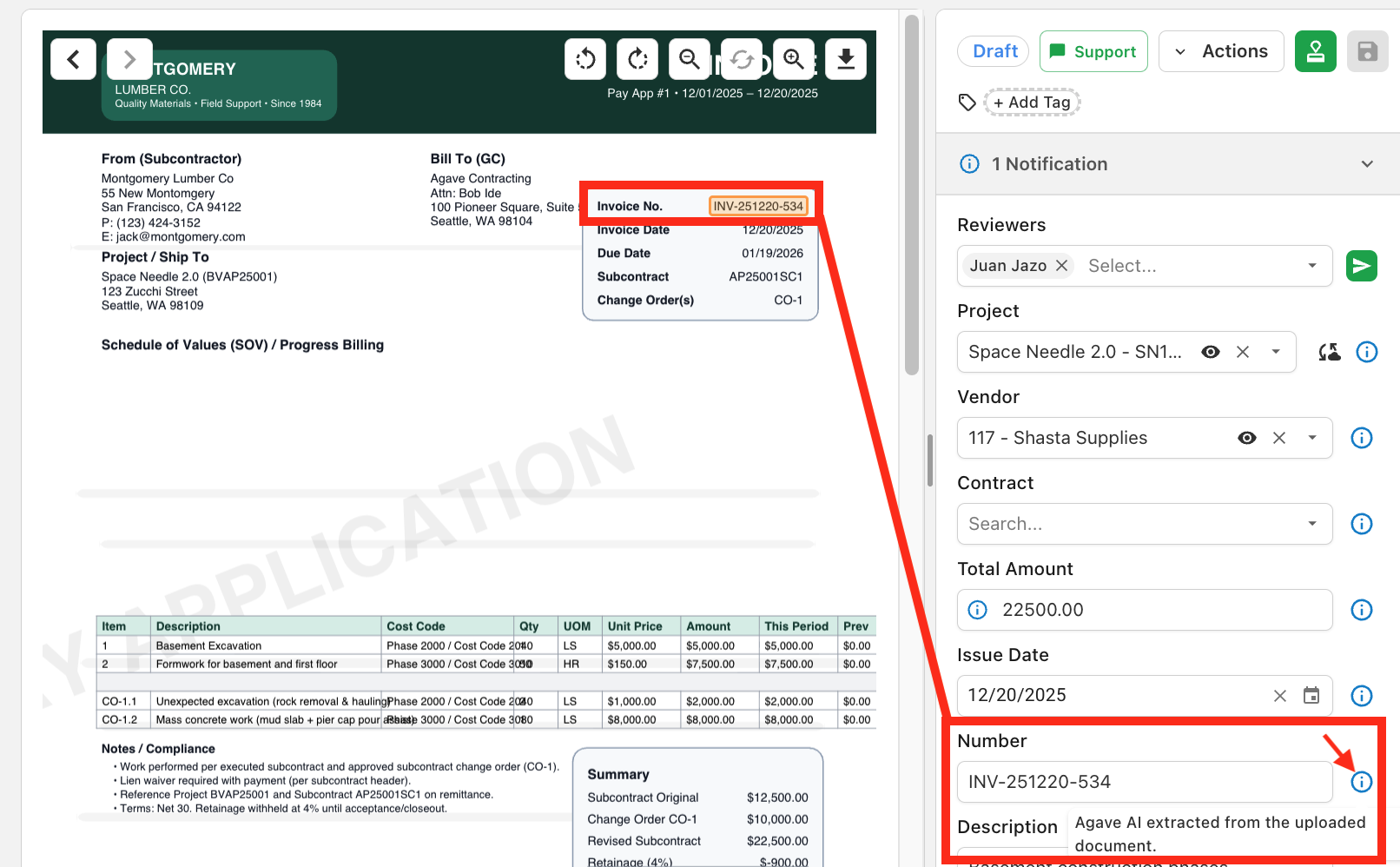
Not every header field links to an ERP record. Agave extracts these directly from the invoice document and displays them for review.
| Field | Source | Notes |
|---|---|---|
| Invoice Number | Extracted from PDF | |
| Invoice Date | Extracted from PDF | |
| Due Date | Extracted from PDF (or derived from payment terms) | |
| Total Amount | Extracted from PDF | Editable if line item totals need reconciliation. |
| Subtotal / Tax / Retainage | Extracted when present | Used for validation and line item construction. |
| Description / Memo | Extracted when present | |
| Department / Division | Manual selection or routing rules | On some ERPs, Department and Project are mutually exclusive. |
| Primary / Secondary Reviewer | Assigned from project settings | Based on default reviewers configured for the matched project. See Users and Permissions. |
For extracted fields, the breadcrumb typically describes where on the invoice the value was found. Hover the icon to see the highlight.
When auto-coding gets it wrong
Agave pre-codes header fields to speed up review, but reviewers stay in control of what gets synced to your ERP.
If a field is incorrect:
- Click the dropdown and search for the correct ERP record.
- Agave updates the breadcrumb to "Manually selected by user."
- Dependent fields (commitment → project/vendor → line items) will refresh based on your change.
If a field is empty:
- The extracted value may not have matched any ERP record confidently enough.
- The record may not be loaded in Agave yet. Try refreshing your ERP data in the Agave Invoice Inbox page, or confirm it exists in your ERP.
- The vendor or project may be excluded from automatching in Settings.
If project and commitment disagree: On ERPs with non-unique commitment numbers, always confirm Project and Vendor before approving the Commitment match.
How your actions improve future matching
Every invoice you code teaches Agave your preferences. When you confirm or correct a Project or Vendor match, Agave stores that pattern as a historical match. Future invoices with similar extracted names or addresses are more likely to auto-code correctly.
Historical matching applies to header fields (Project, Vendor) and line item budget fields. The more consistently your team codes invoices, the better auto-coding becomes over time.
Related guides
- Line Item Coding — How Agave matches and allocates invoice line items against commitments and budgets.
- Default Field Visibility — Configure which header and line item columns reviewers see.
- Accounting/ERP System Connection — Ensure ERP records are available for matching.
- Exclude vendors or projects from automatching — Disable auto-matching for specific records.