Post-Sync Payment Status
An invoice's life does not end when it syncs to your ERP. It still has to be posted, selected for payment, and paid, and sometimes it is voided or reversed. Agave reads that progress back from your ERP and shows it as a Payment Status, so you can answer "what is happening with this invoice?" without leaving Agave.
This guide is for AP clerks, AP admins, and reviewers who follow up on invoices after they sync.
Payment status is currently supported for Sage Intacct and Foundation, and is coming soon for all other ERPs.
This guide covers:
- Where to find payment status in the Inbox and on the invoice page
- How payment status updates
- What each status means in Sage Intacct and Foundation
For finding and approving invoices before they sync, see Reviewing and Approving Invoices.
Step 1: Show the Payment Status column
The Synced tab in the Inbox has a Payment Status column. If you cannot see it, turn it on:
- Open the Inbox and select the Synced tab.
- Open the Columns picker.
- Turn on Payment Status.
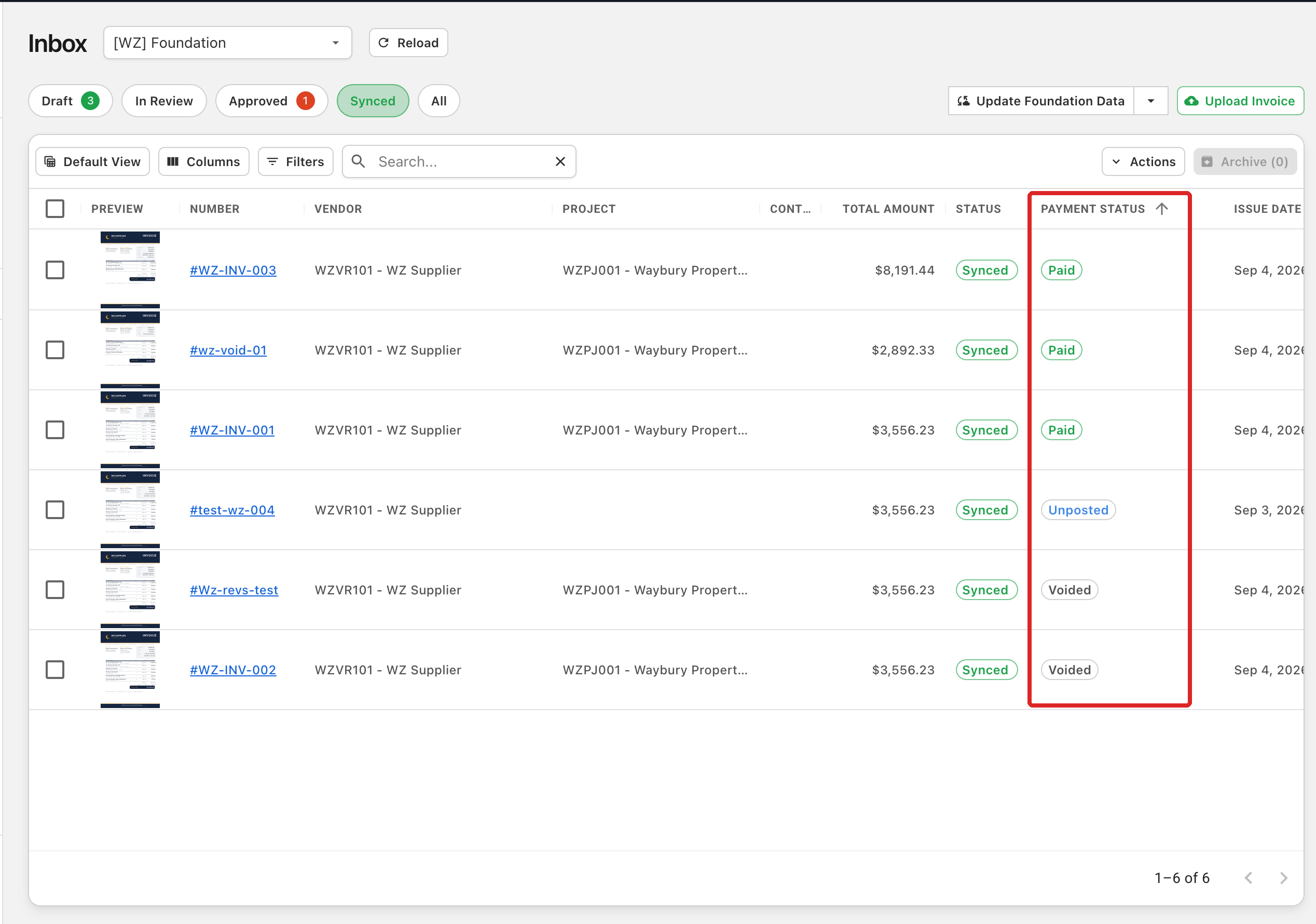
The column appears on the far right of the table. Drag it to wherever you want it.
The Synced tab with the Payment Status column turned on:
Step 2: Check payment status on an invoice
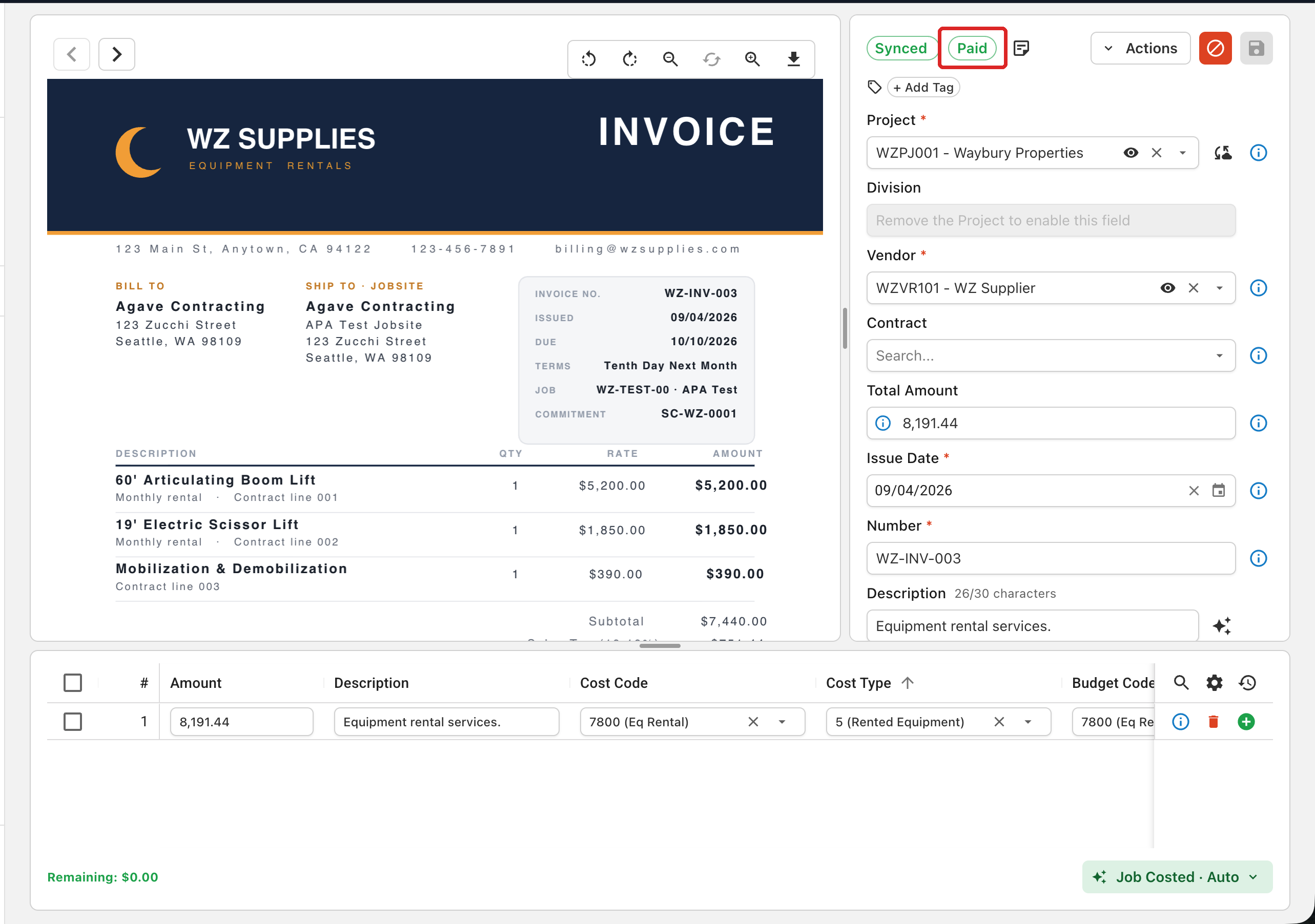
Open any synced invoice. The payment status appears next to the Synced status at the top of the invoice page.
A synced invoice showing a payment status of Paid:
How payment status updates
Agave reads each synced invoice back from your ERP. Wherever your ERP tracks a native payment status on the invoice, Agave shows that status as is. Where the ERP has no single payment status field, Agave works out the status from the ERP's invoice and payment records and maps it to a standard set of values.
Payment status does not update in real time. A change made in your ERP shows in Agave after Agave's next read of your invoice data.
To pull the latest payment status right away:
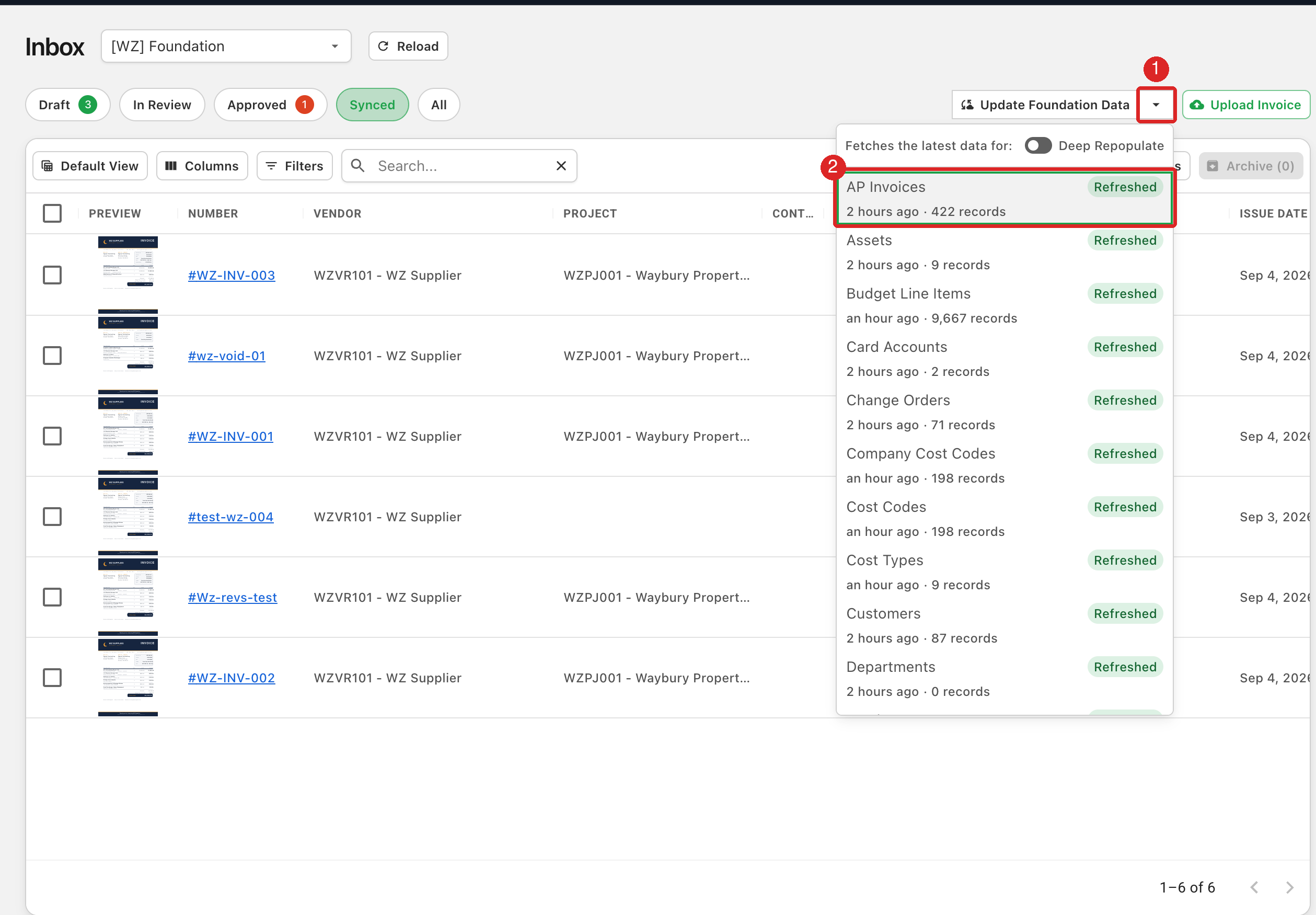
- In the Inbox, open the dropdown next to the Update [ERP] Data button (for example, Update Foundation Data).
- Select AP Invoices.
The refresh can take anywhere from a few seconds to a few minutes. When it finishes, Agave updates the payment status with any changes from your ERP. Refresh the page to see them.
The dropdown arrow (1) and AP Invoices (2) in the Inbox:
Payment statuses by ERP
The statuses are mostly the same across all systems, with small differences described below.
Sage Intacct
| Payment Status | Meaning |
|---|---|
| Submitted | Waiting on approval in Sage Intacct. Shows only for overhead invoices when AP bill approval is turned on. |
| Posted | Approved, with no payment activity yet. A paid invoice whose payment is voided returns here. |
| Selected | In a payment run. The money has not gone out yet. |
| Partially Paid | Some payment applied, with a balance remaining. |
| Paid | Paid in full. |
| Voided | Reversed or deleted in Sage Intacct. It will not be paid. |
Foundation
| Payment Status | Meaning |
|---|---|
| Unposted | In Foundation's unposted batch, the status right after sync. It has to be posted before it can be paid. |
| Open | Posted, with no payment activity yet. A voided check, removal from a check run, or a released hold returns the invoice here. |
| Selected | In a check run or electronic payment batch. The money has not gone out yet. |
| Partially Paid | Some payment applied, with a balance remaining. |
| Paid | Paid in full. |
| Hold | On hold and cannot be selected for payment. |
| Voided | Reversed in Foundation. It will not be paid. |
Related guides
- Reviewing and Approving Invoices: find, review, and approve invoices before they sync
- Creating and Saving Inbox Views: save a layout that keeps the Payment Status column visible