Line Item Coding
When an invoice arrives in Agave, AI extracts line-level detail from the document and automatically builds the coding rows your reviewers see. How those rows are structured depends on whether the invoice is tied to a commitment (Purchase Order or Subcontract) or coded as a non-committed invoice.
This guide covers:
- How commitment invoices match invoice lines to contract lines and allocate amounts
- How non-committed invoices are structured (combined vs. separated line items)
- How to use match breadcrumbs to understand why a line was coded
- What to do when auto-coding leaves amounts unallocated
For header-level matching (Project, Vendor, Commitment), see Header Field Coding.
Line Item Coding for Commitment Invoices
For invoices against a Purchase Order or Subcontract, Agave creates one coding row for every line on the contract, including approved Change Order lines. Budget fields (Cost Code, Cost Type, Sub Job, and others depending on your ERP) are inherited from the matched contract line.
Agave then pairs extracted invoice lines with contract lines and distributes the invoice amount across them. If no strong match is found, Agave will leave the remaining amount for you to distribute:
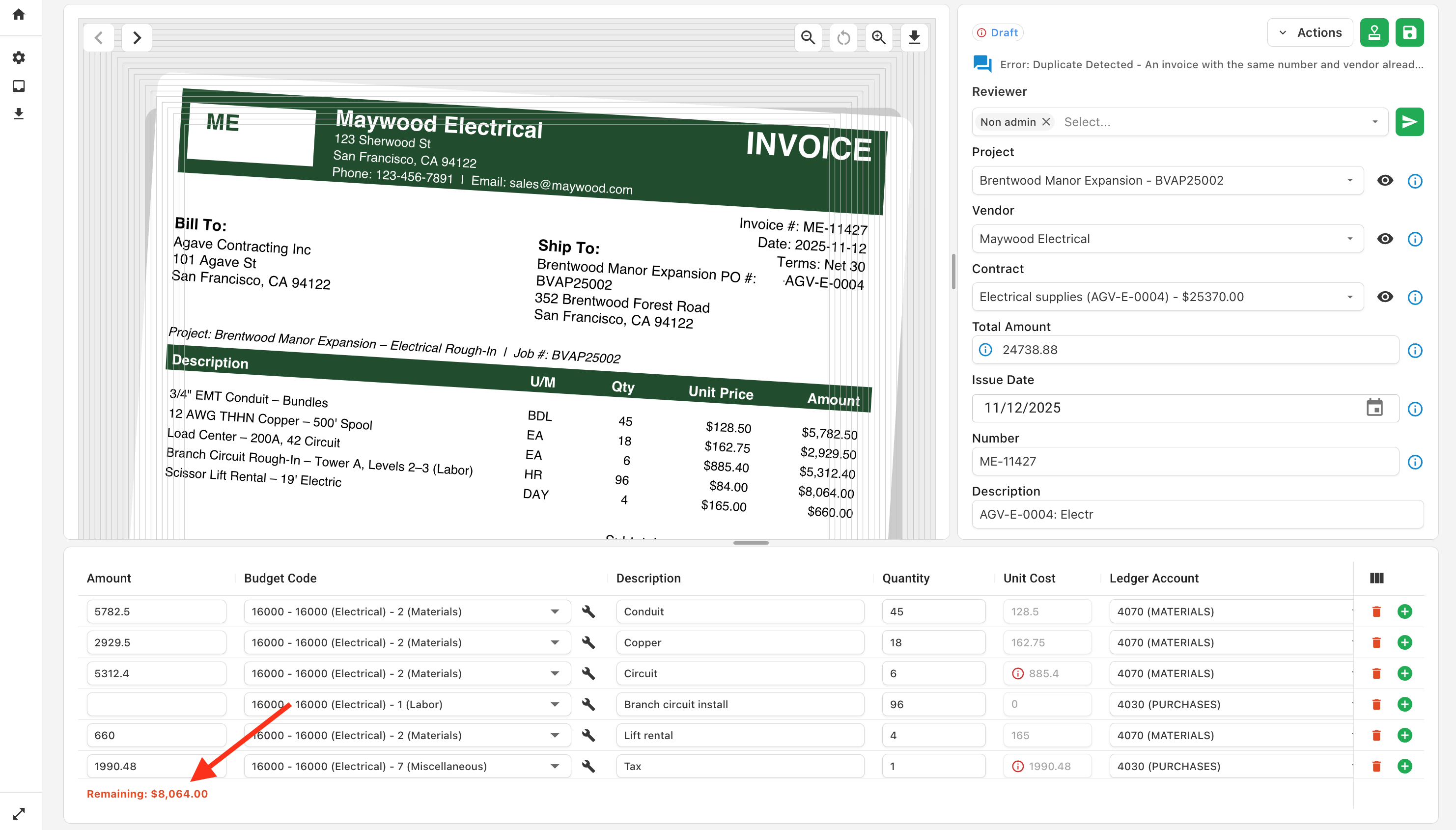
How Invoice Lines are Matched to Contract Lines
Agave compares each line on the invoice to lines on the matched PO or Subcontract. It uses line descriptions, budget descriptions, unit cost, and amount to inform line item matching. Invoice lines can also match Change Order lines on the contract.
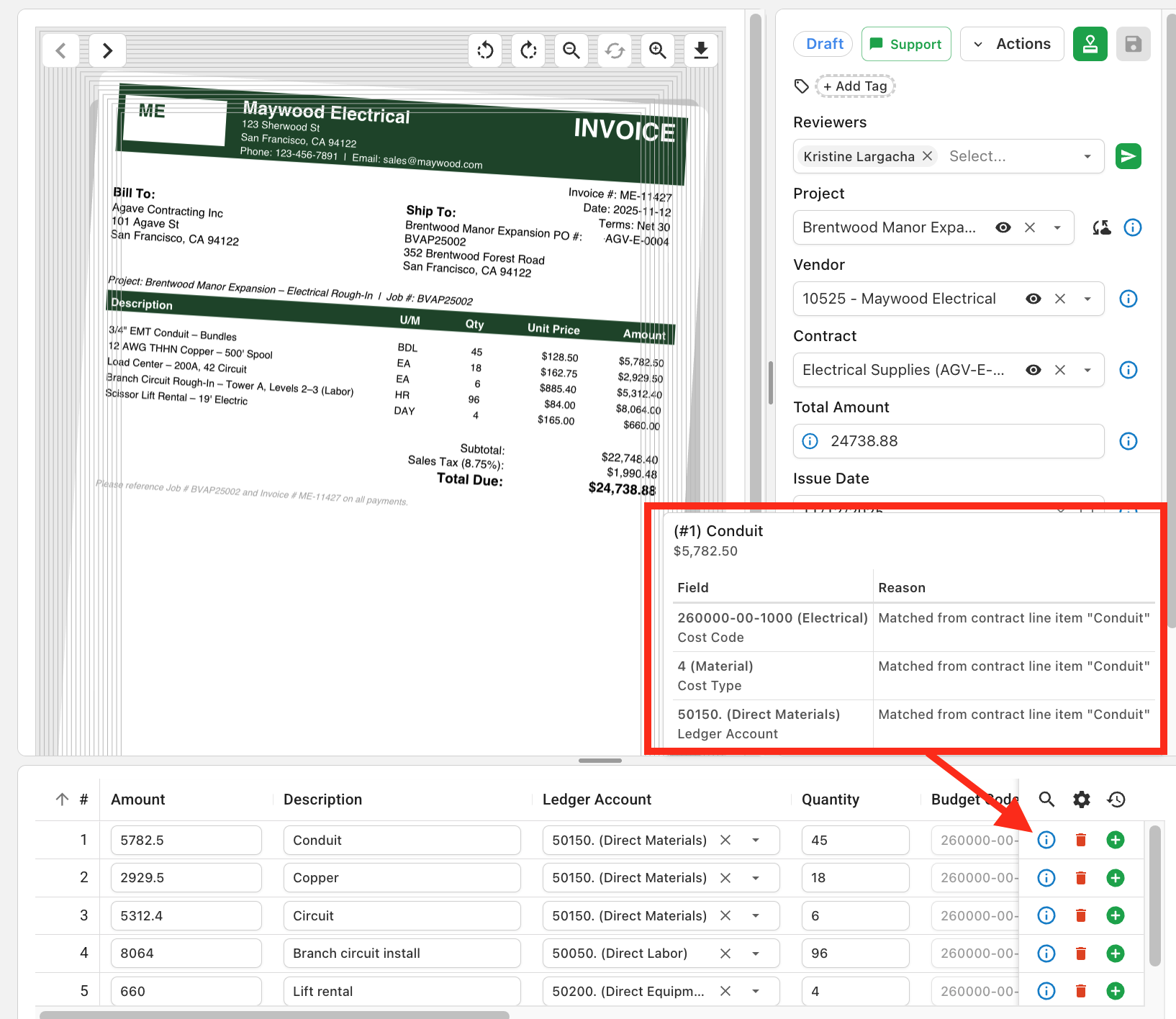
Hover over the information icon next to a coded field to see how Agave matched it. Agave also highlights the corresponding area on the invoice document.
See why a line was coded a certain way
Hover over the information icon next to a coded field to see how Agave matched it (for example, "Matched from contract line item 'Conduit' by description"). Learn more in the changelog →
PO Lines Without a Line Description
When Agave encounters a contract line with no description, it uses the budget lines linked to that contract line as the matching target. Invoice line descriptions are compared to those budget descriptions, and the invoice line is paired with the contract line when a strong budget match is found.
Allocating Amounts Across Duplicate Contract Lines
Some POs contain multiple lines with the same description, such as two separate orders of the same material at the same unit price. When an invoice line matches that shared description, Agave does not put the full amount on the first line only.
Instead, Agave distributes the amount in contract line order, drawing down each line up to its scheduled value before moving to the next. The last matching line absorbs any remainder.
Example: A PO has two lines for "2-inch PVC conduit," each with a $300 scheduled value. An invoice arrives for $500 on that line item:
| PO Line | Scheduled Value | Amount Applied |
|---|---|---|
| Line 1 | $300 | $300 |
| Line 2 | $300 | $200 |
Change Orders, Tax, and Freight
Change orders: Approved Change Order lines on the contract are included in the line item table alongside base PO/SC lines. Invoice lines that do not match a base contract line may match a Change Order line instead.
Tax and Freight: If Agave detects separate tax or freight lines on the invoice and those charges are not already represented on the contract, they may be appended as additional invoice lines (depending on your account settings).
Reviewing Commitment Billing
When coding a commitment invoice, use the view record icon next to the Commitment field to open billing history on that PO or Subcontract.
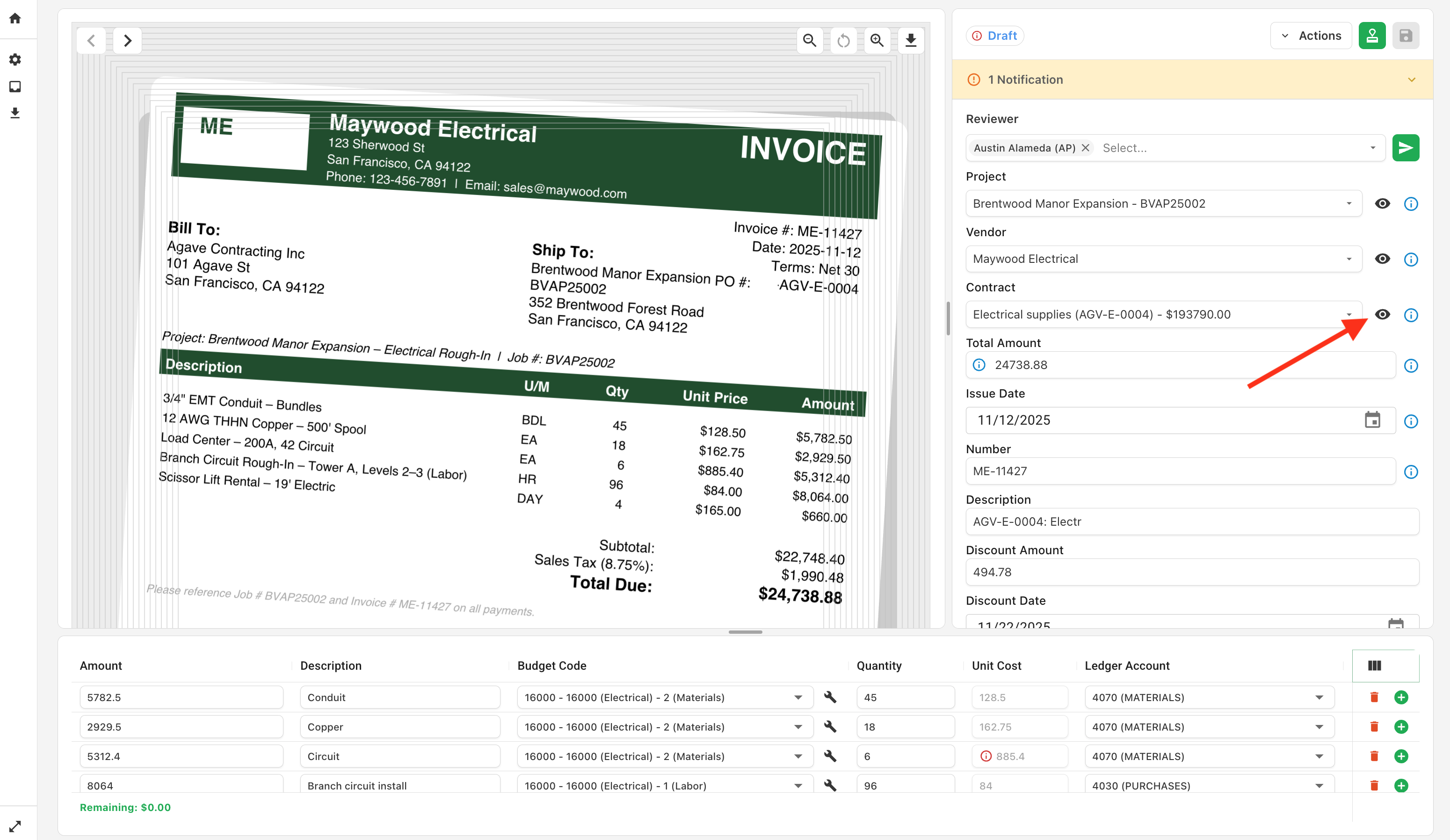
The contract panel shows billings to date and the total billed including the current invoice. Previous invoices are pulled from your accounting system, with their status noted.
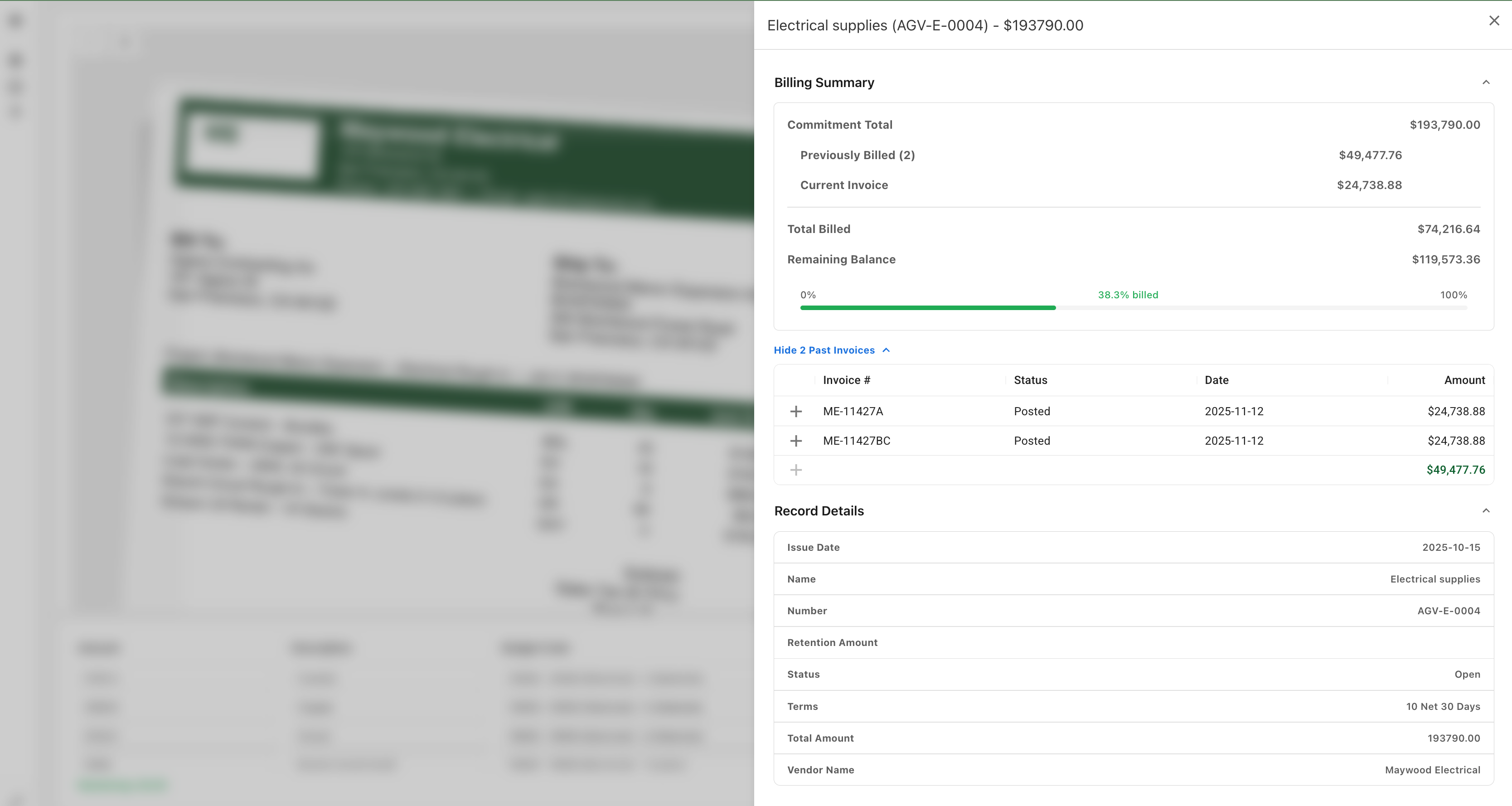
Agave also warns you during review if the current invoice would overbill the contract:
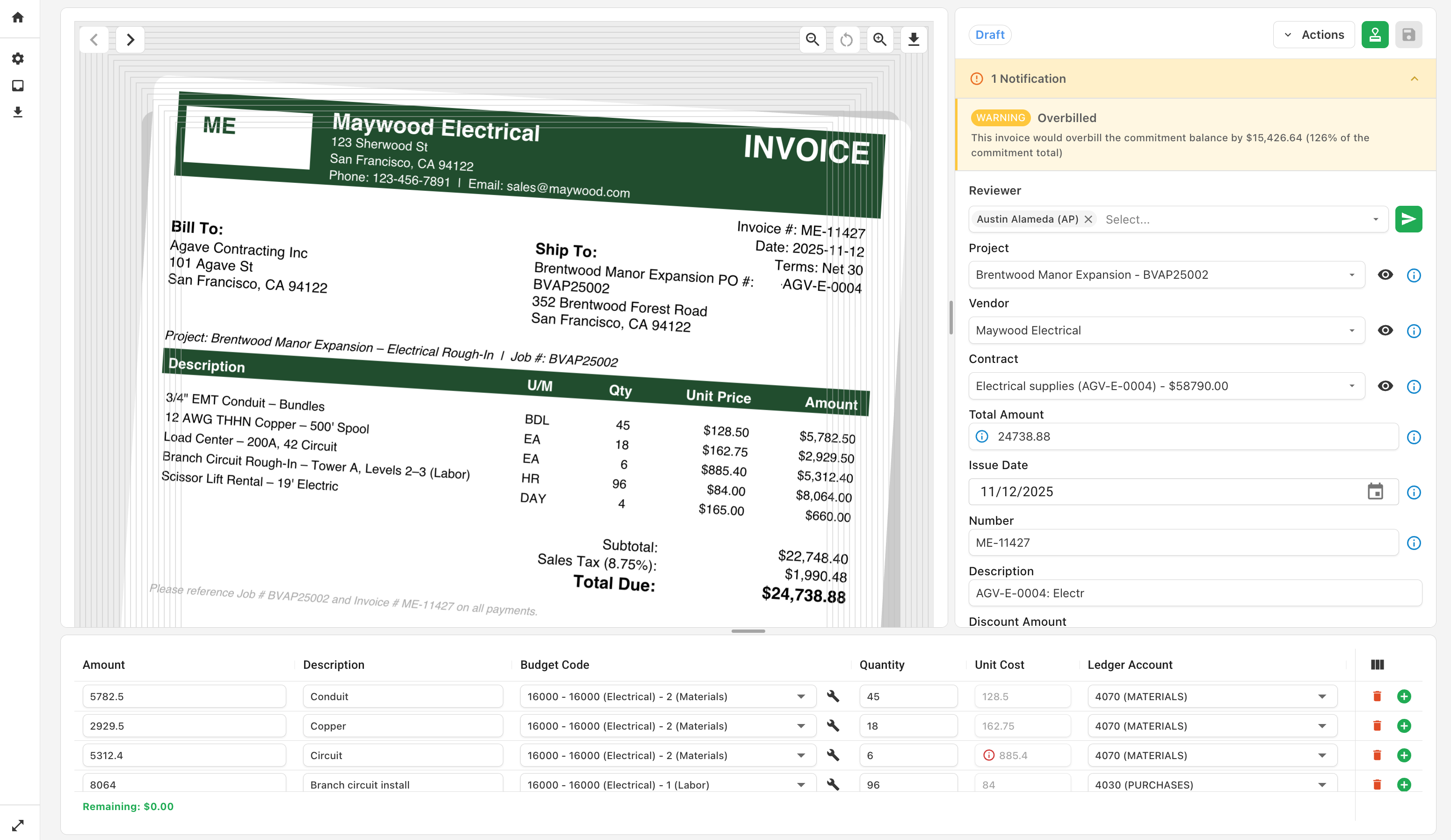
You can also see overbilling details in the commitment panel:
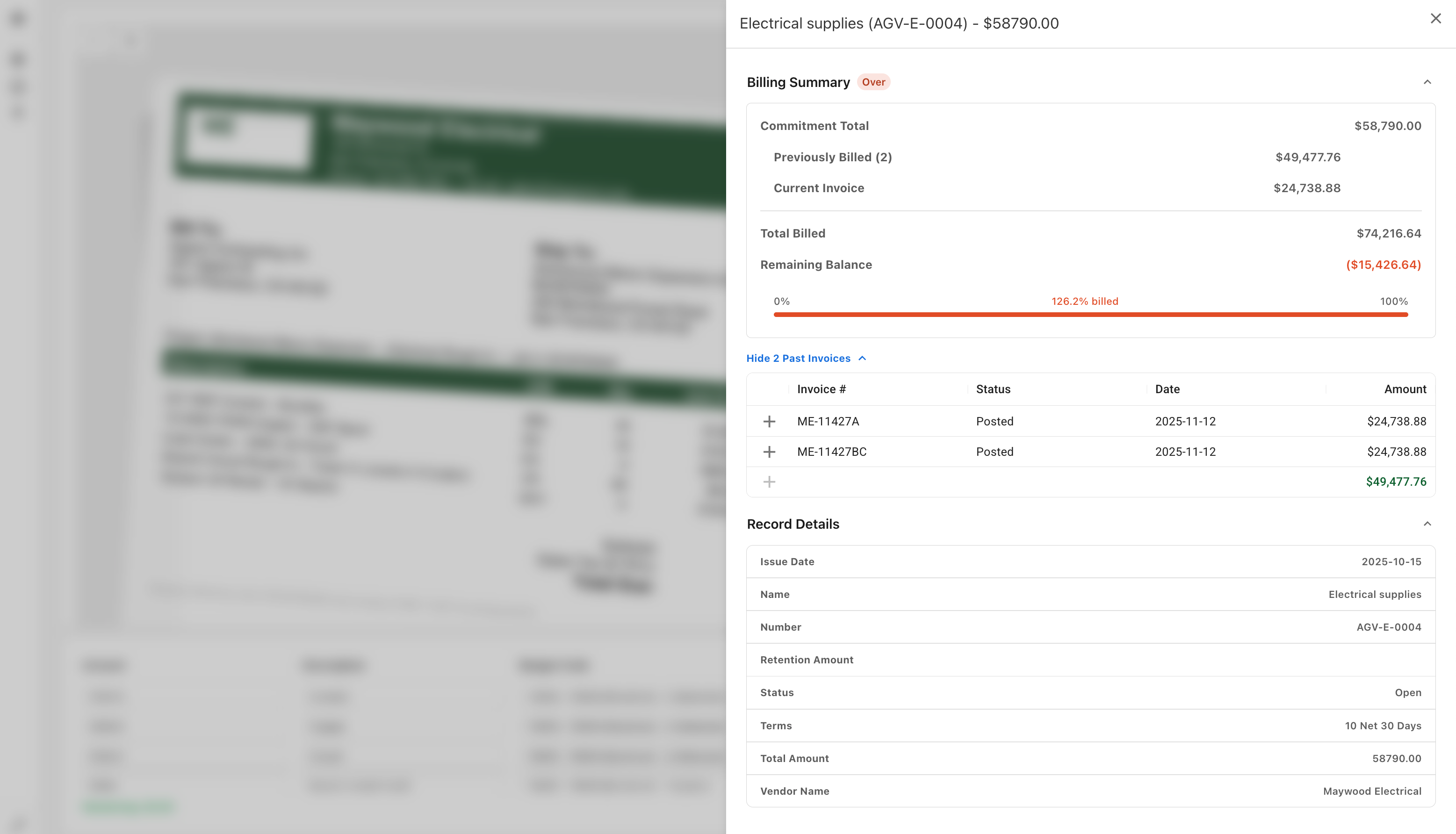
Learn more about reviewing commitment billing →
Line Item Coding for Non-Committed Invoices
For invoices not tied to a PO or Subcontract, you choose how Agave structures the line items when they first arrive:
-
Combine Line Items into One (more common): Agave creates one line item per invoice by default. Reviewers can split it into additional lines as needed. Best when your team typically enters a single line per invoice, or when invoices are usually coded to one Cost Code / Cost Type.
-
Separated Line Items: Agave creates one line item for each line detected on the invoice. Best when you need full line-level description detail on every invoice.
For non-committed invoices, Agave also attempts to auto-code budget fields by matching line descriptions to project budgets, using vendor coding history where available.
This behavior is controlled by the Combine Line Items Into One checkbox on the settings page:
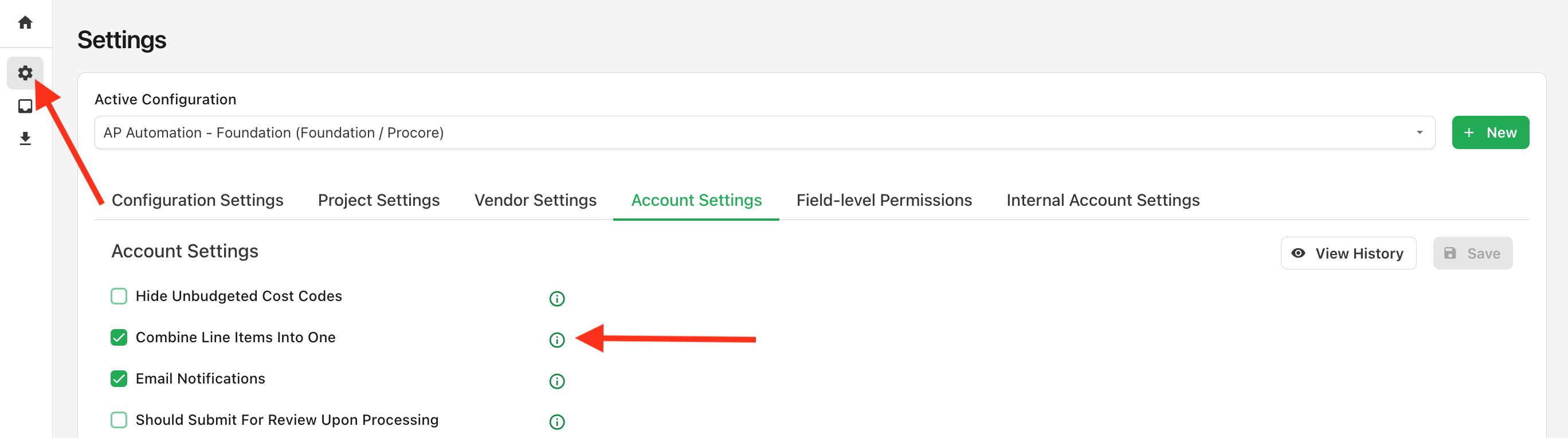
It applies on a go-forward basis only. Existing invoices in the inbox are not restructured when you change the setting.
Combined / Separated Examples
Below are examples of the same invoice with Combine Line Items into One enabled vs. disabled.
Combine Line Items Enabled
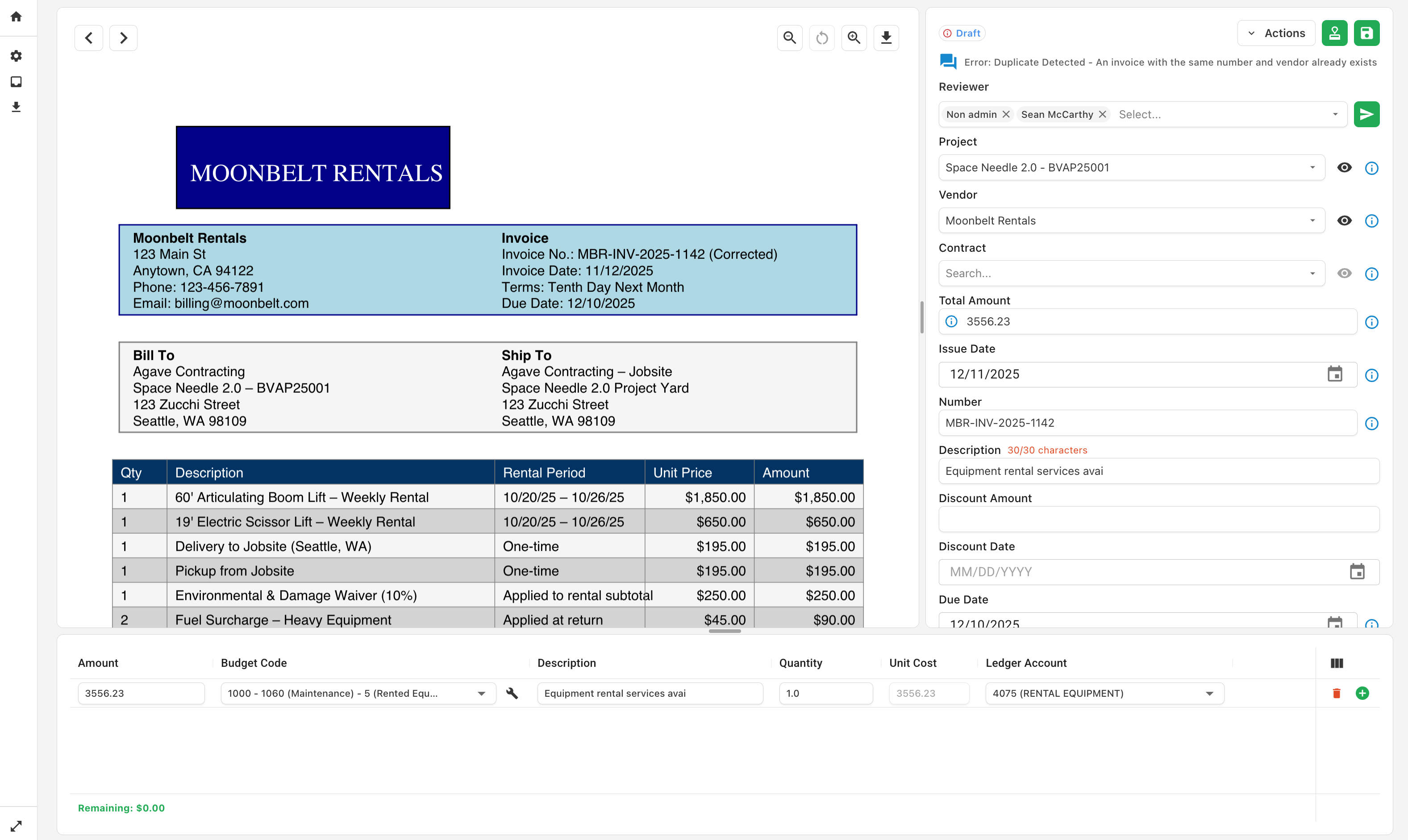
Combine Line Items Disabled
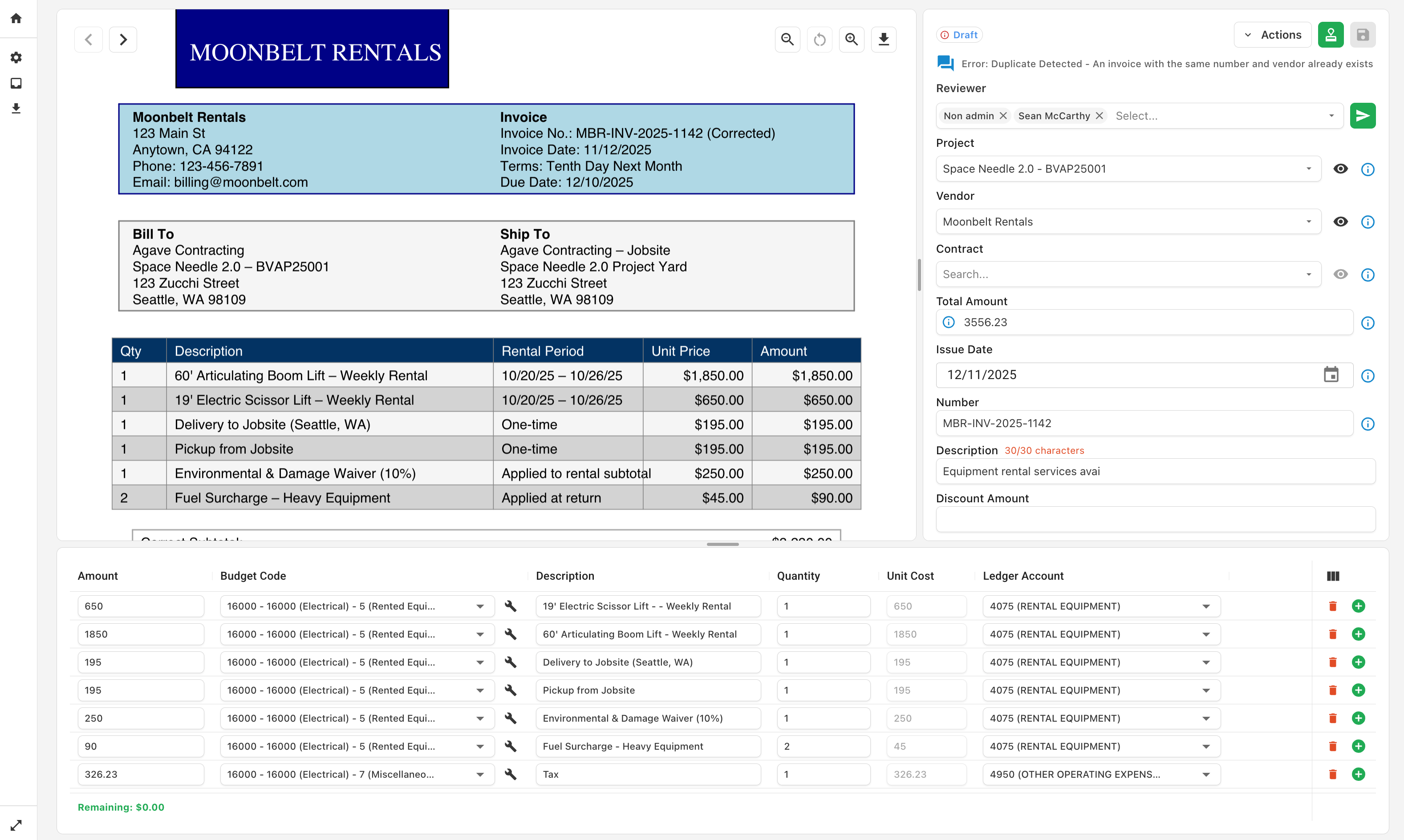
Reviewing Line Item Coding
If amounts are unallocated:
- Agave could not find a strong match for part of the invoice total. Distribute the remaining amount manually across the contract lines.
If a line is coded to the wrong contract line:
- Adjust the amount or reassign it to the correct line.
- Hover the breadcrumb to confirm your change is reflected.
If you need to add or remove lines:
- You can still add or remove line items when a commitment is selected. Some accounting systems do not allow non-committed line items on commitment invoices. Agave will enforce those limits at sync time.
How your actions improve future matching
When you confirm or correct line item coding, Agave stores that pattern for future invoices. Historical matching applies to budget fields on non-committed invoices and helps Agave auto-code similar line descriptions over time.
Related guides
- Header Field Coding — How Agave matches Project, Vendor, and Commitment at the invoice header.
- Default Field Visibility — Configure which line item columns reviewers see by default (including scheduled value and unbilled amount on supported ERPs).
- Exclude vendors or projects from automatching — Turn off automatic matching for specific vendors or projects while still allowing manual selection.