Submitting Receipts
Submitting a receipt
Option A: From an unsubmitted transaction (recommended)
When your company card has been charged and the transaction appears in the app:
- Open Agave Expenses.
- In the Unsubmitted Transactions section, tap the transaction.
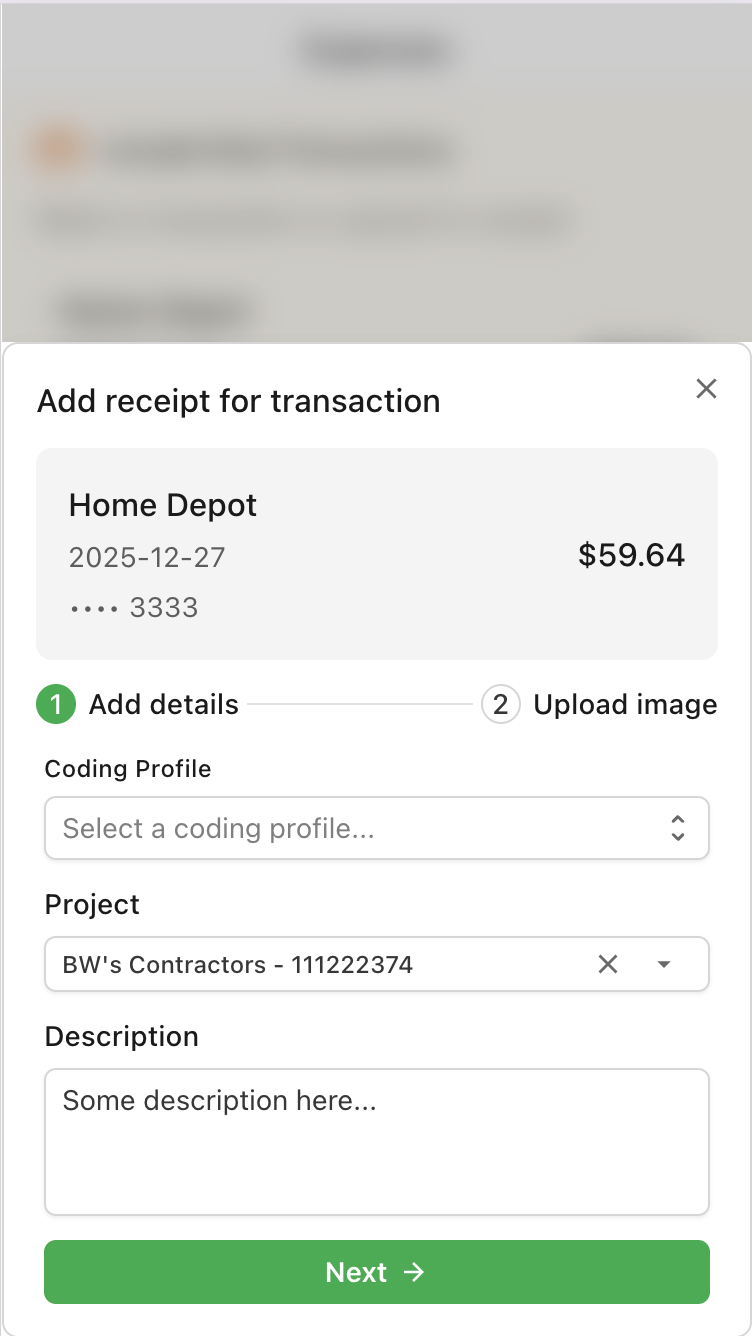
- If shown, complete the Add details step:
- Select a coding profile if your admin set one up
- Enter project and/or description if required
- On the Upload image step, choose how to add your receipt:
- Take photo — opens your camera
- Photo library — pick an existing photo
- Wait for the upload to complete.
- You'll see a Submitted to accounting team confirmation.
- The transaction disappears from the unsubmitted list.
- Your expense appears in the Receipts list (or shows as "processing" while AI reads the receipt).
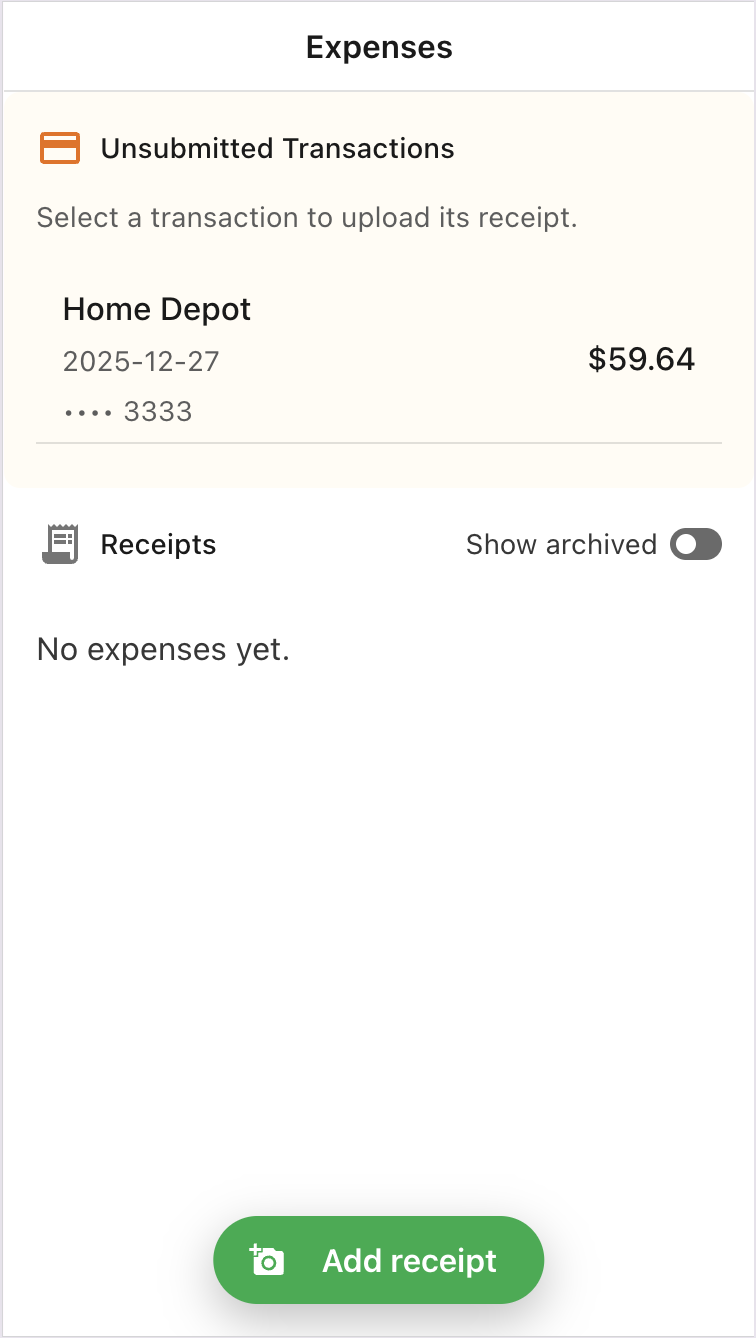
Expenses home
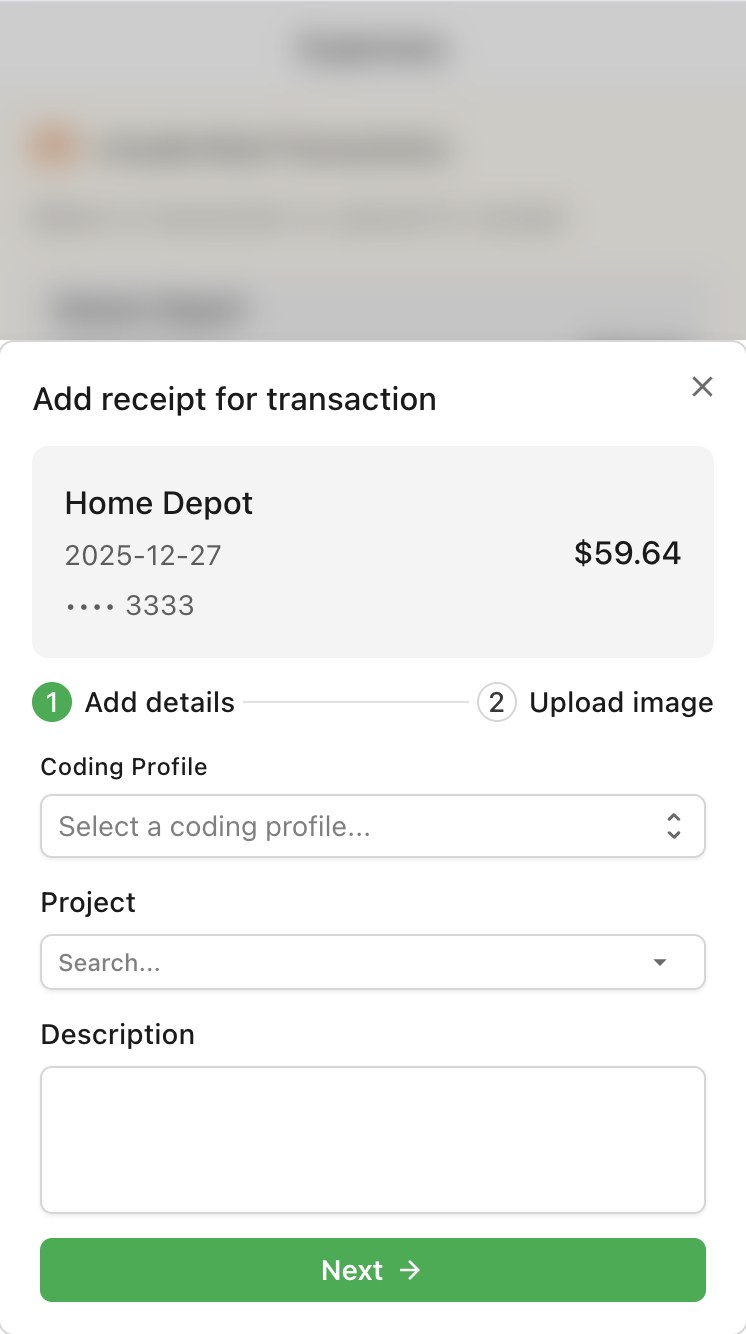
Add details
Upload image
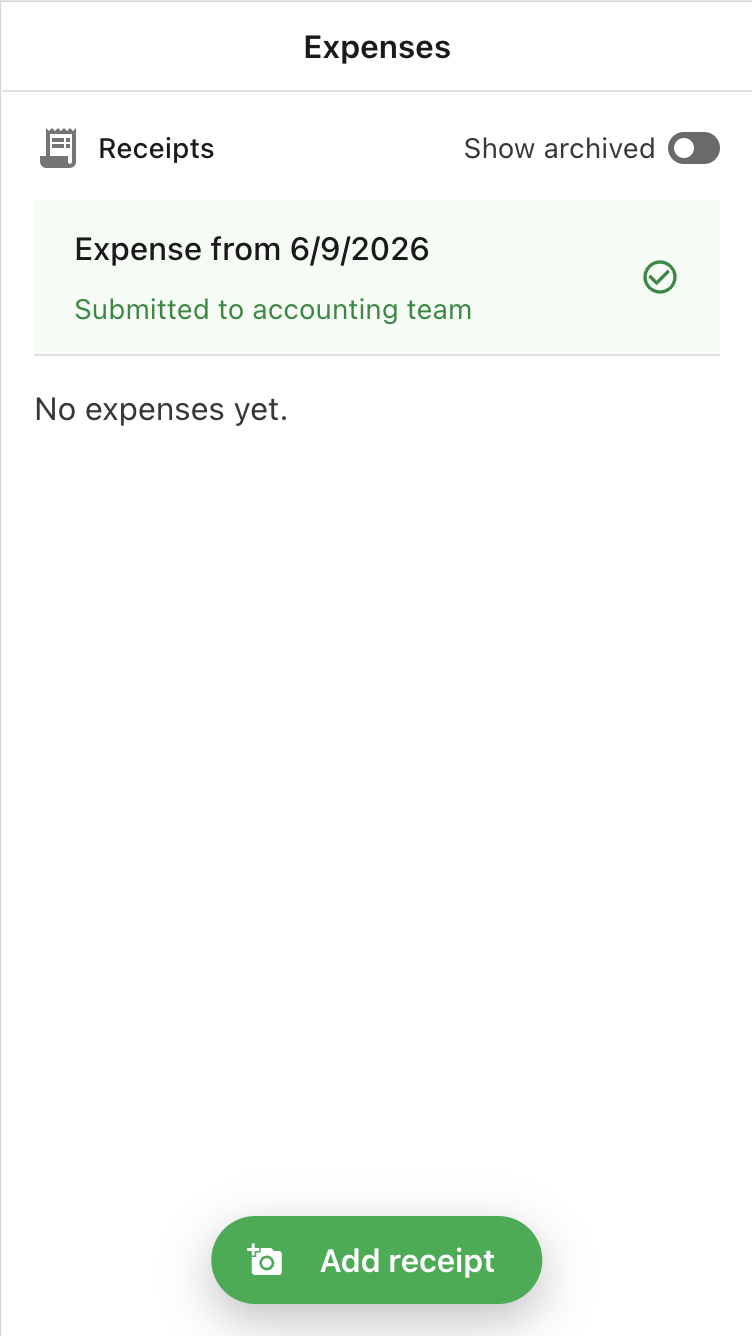
Submitted
Option B: Standalone receipt (no matching transaction)
For cash purchases or charges not yet synced:
- Tap the Add receipt button at the bottom of the screen.
- Complete Add details if prompted.
- Upload your receipt image.
- The expense appears in your Receipts list after processing.
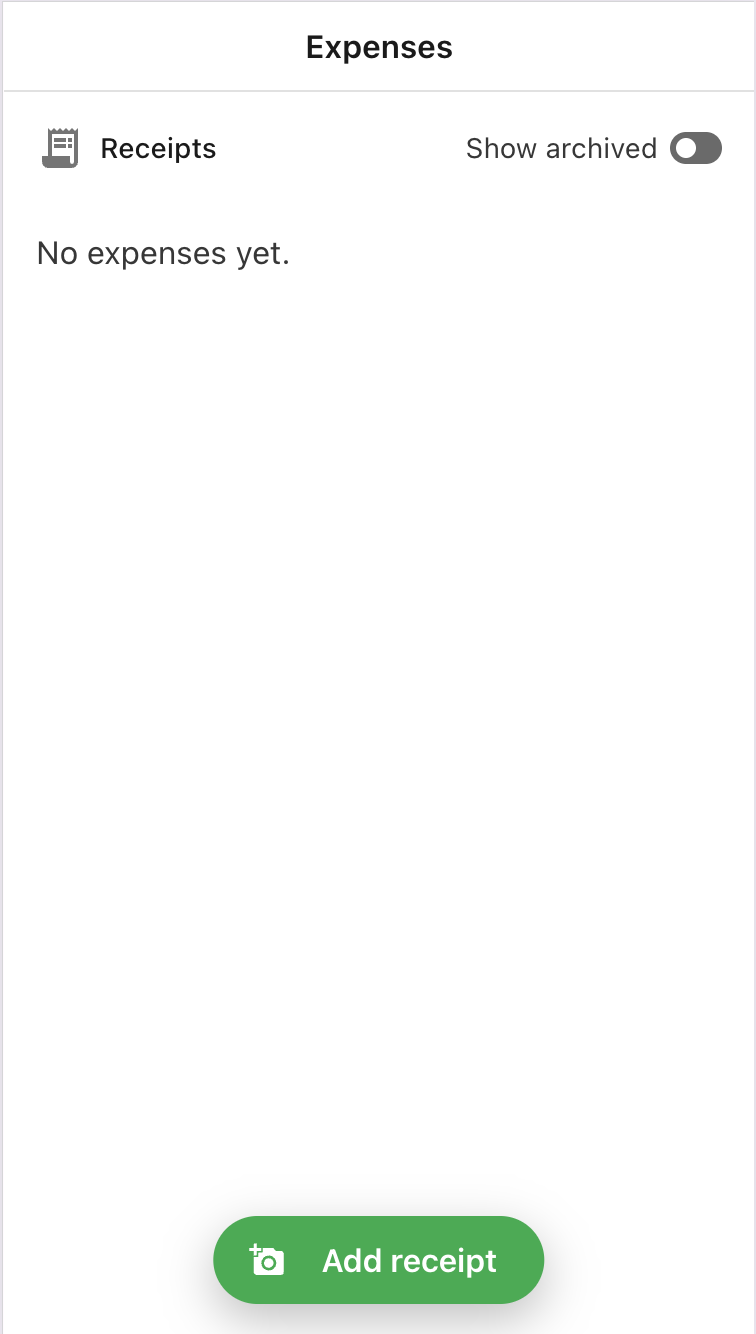
Expenses home
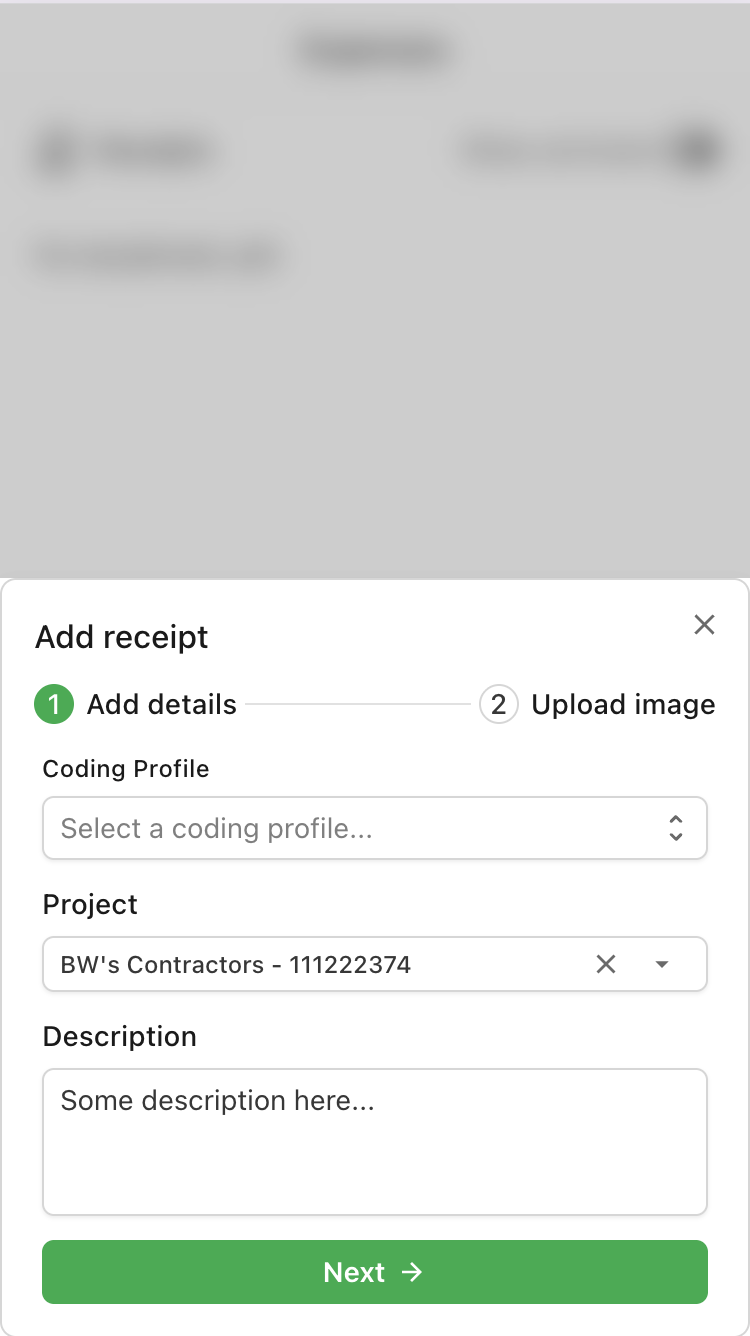
Add details
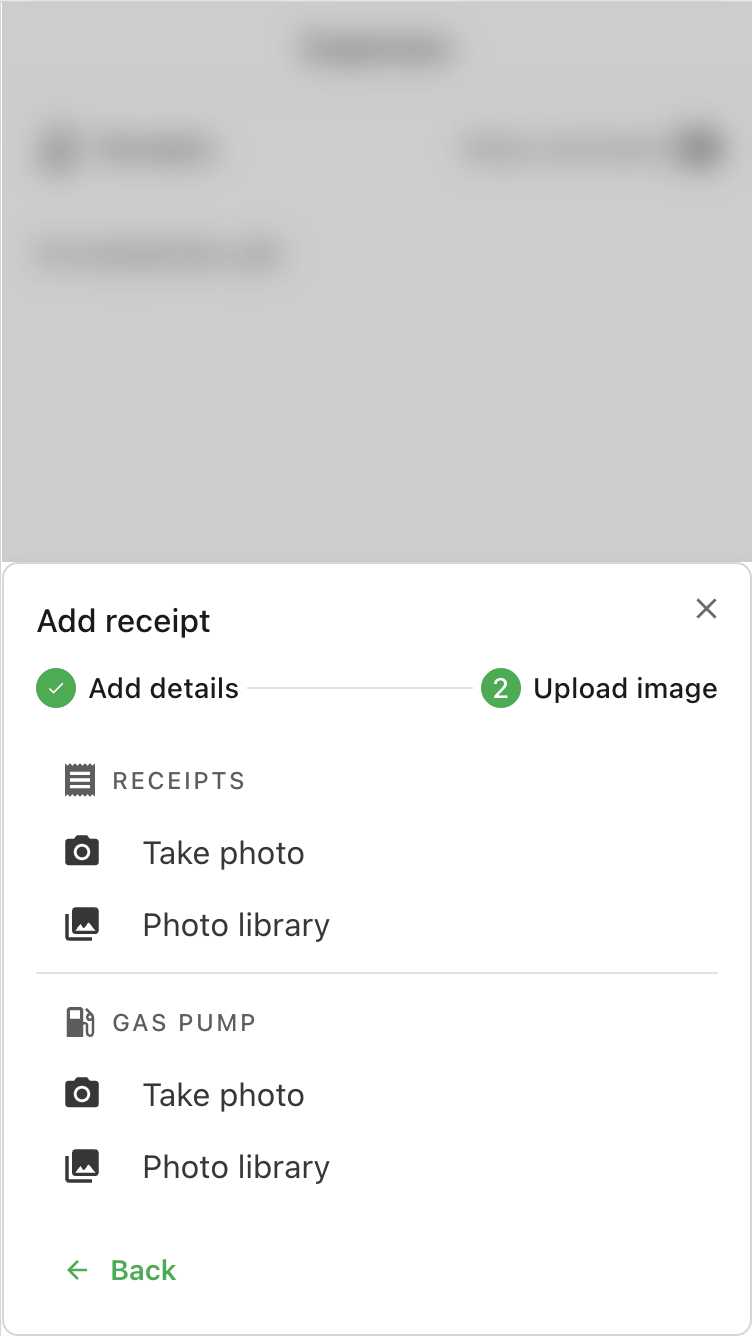
Upload image
Submitted
What happens after you submit
You don't need to do anything else after uploading. Behind the scenes:
- AI reads your receipt — extracts vendor, amount, date, and line items.
- Your expense is sent to your accounting team for review (if configured).
- Once approved, it syncs to your company's ERP.
You'll see the expense status update in your Receipts list. If your admin rejects an expense, they will contact you directly.