Email Forwarding Setup
Agave can automatically extract, code, and route invoices directly via email, without manual upload required.
If you are not ready to enable auto-forwarding, you can manually forward invoices directly to your Agave email for testing. This is safe; no data will be synced to your accounting system automatically during setup.
How It Works
- Agave creates a dedicated email address for your organization during onboarding
- You configure a forwarding rule on your AP inbox that sends a copy of every incoming email to that Agave address
- Agave receives the email, extracts invoice data from the attachments, matches vendors and projects, and populates your Agave Connector inbox
- The original email stays in your AP inbox — your existing workflow continues uninterrupted with no change for your vendors.
About Your Agave Ingestion Email
During onboarding, your Agave Account Manager will provision a dedicated email address for your organization. This address is unique to your account and is where all forwarded invoices are routed for processing.Your ingestion email address should be treated as internal. It does not need to be shared with vendors — they continue sending invoices to your existing AP inbox as usual.
You can find your dedicated email address in Agave via AP Automation > Settings > Configuration:
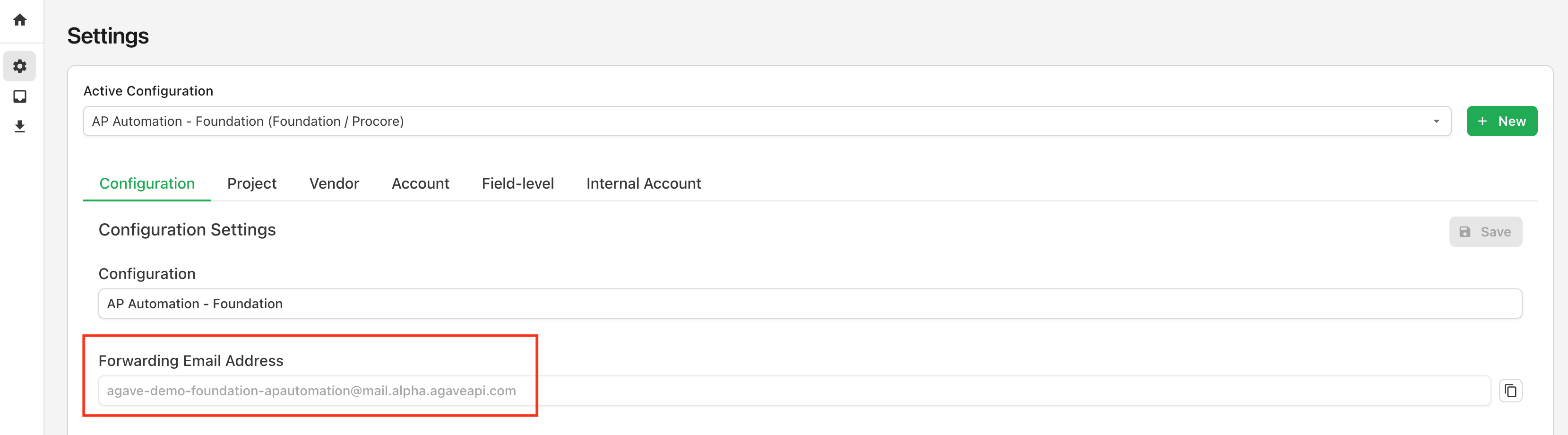
Your Account Manager will share the address with you directly. If you haven't received it yet, reach out to your Agave contact.
Setting Up Forwarding
For particular mail providers, see:
Microsoft Outlook / Microsoft 365
Step 1: Creating the Forwarding Rule
Microsoft has two methods for enabling email forwarding. Please enable one of the following from your existing AP Inbox to your Agave-generated email:
- Method 1: Mailbox Forwarding (most common) (see Microsoft's Guide)
- Method 2: Inbox Rules (see Microsoft's Guide)
Please ensure you select the option to preserve the email in your existing inbox
For Mailbox Forwarding, ensure you select "Deliver message to both forwarding address and mailbox" to keep a copy.
For Inbox Rules, set up a Forwarding rule (not a Redirect rule).
Step 2: Allowing External Forwarding
By default, Microsoft 365 often blocks external forwarding through its anti-spam outbound policy. You will need to enable an Anti-Spam Policy to allow external mail forwarding to Agave specifically.
To enable it, see Microsoft's guide on outbound spam policies.
Specifically, you will want to add an anti-spam policy (under Policies and Rules -> Threat Policies -> Anti-Spam) that allows a daily message limit greater than the number of messages you typically get to your accounting inbox with "On - Forwarding is enabled" turned on as a forwarding rule.
Gmail / GSuite
Step 1: Add your Agave AP Automation email as a forwarding address
- Follow steps 1-7 of these steps (Google's Guide) to add {your company}-apautomation@mail.agaveapi.com as a forwarding address
- Email your Agave implementation manager, who will verify your Agave AP Automation email address
- Finish steps 9-14 of (Google's Guide)
Please ensure you select the option to preserve the email in your existing inbox
In step 13 of Google's Guide, select Keep Gmail's copy in the the Inbox
Why Email Forwarding?
Most AP teams already have a central inbox where vendors send invoices — an address like invoices@yourcompany.com or ap@yourcompany.com. Rather than asking your vendors to change where they send invoices or requiring you to manually upload files, Agave plugs directly into this existing workflow.
By setting up a forwarding rule on your AP inbox, every invoice that arrives is automatically sent to Agave for extraction and processing. Your team keeps working exactly as they do today — no vendor communication changes, no new habits to build. Invoices simply start showing up in the Agave AP Inbox.