Document Upload & Classification
Every file that reaches Agave (forwarded to your AP inbox or uploaded by hand) is automatically read, sorted, and turned into a coded invoice draft. This guide covers:
- How documents get into Agave
- How Agave classifies invoices vs. other files
- How to handle non-invoice documents
- How to view and add related documents on an invoice
- How to split, merge, and link documents when you need to
How Documents Enter Agave
Documents reach Agave in two ways:
- AP Inbox (email). Invoices forwarded to your dedicated Agave email address are ingested automatically. See Email Forwarding Setup to configure this.
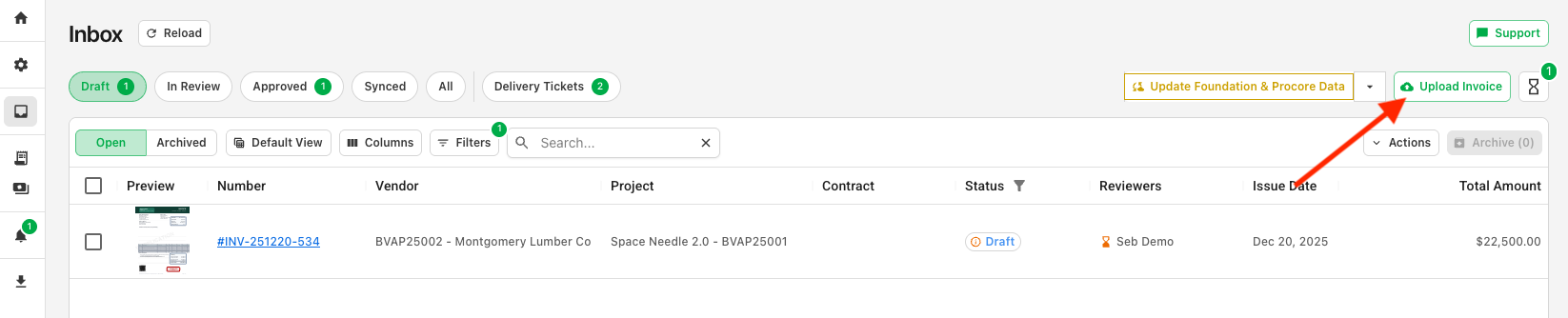
- Direct upload. Use the Upload Invoice button in the top right of the Inbox to add files yourself. You can select multiple files at once.
Direct uploads are processed as a background job. Your files will not appear the instant you upload them; they move into the Inbox a short time later, once Agave has read and classified them.
The Inbox with the Upload Invoice button highlighted in the top right:
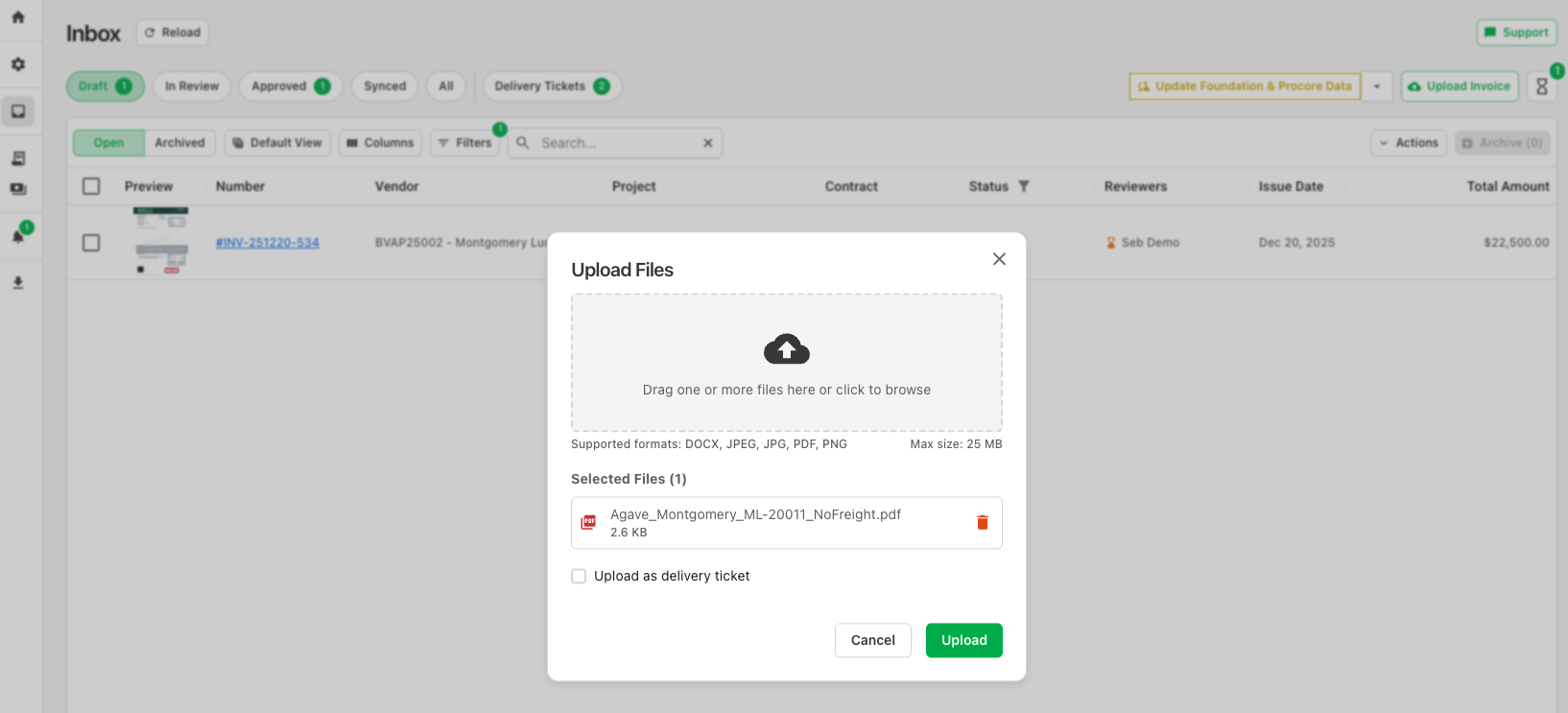
You can then drag and drop files from your desktop, or open your file selector:
Once a document is ingested, Agave reads it, extracts the header and line item data, and creates one or more Draft invoices in your Inbox.
How Document Classification Works
Agave automatically classifies every file received to determine whether or not it is an invoice. This keeps your Inbox focused on real invoices, while your other documents are still accessible as needed for invoice approval. Here is how Agave classifies and sorts documents:
- Invoices are parsed and added to the Inbox as Draft invoices.
- Non-Financial clutter (company logos, email signatures, etc) is filtered out so it does not crowd your queue.
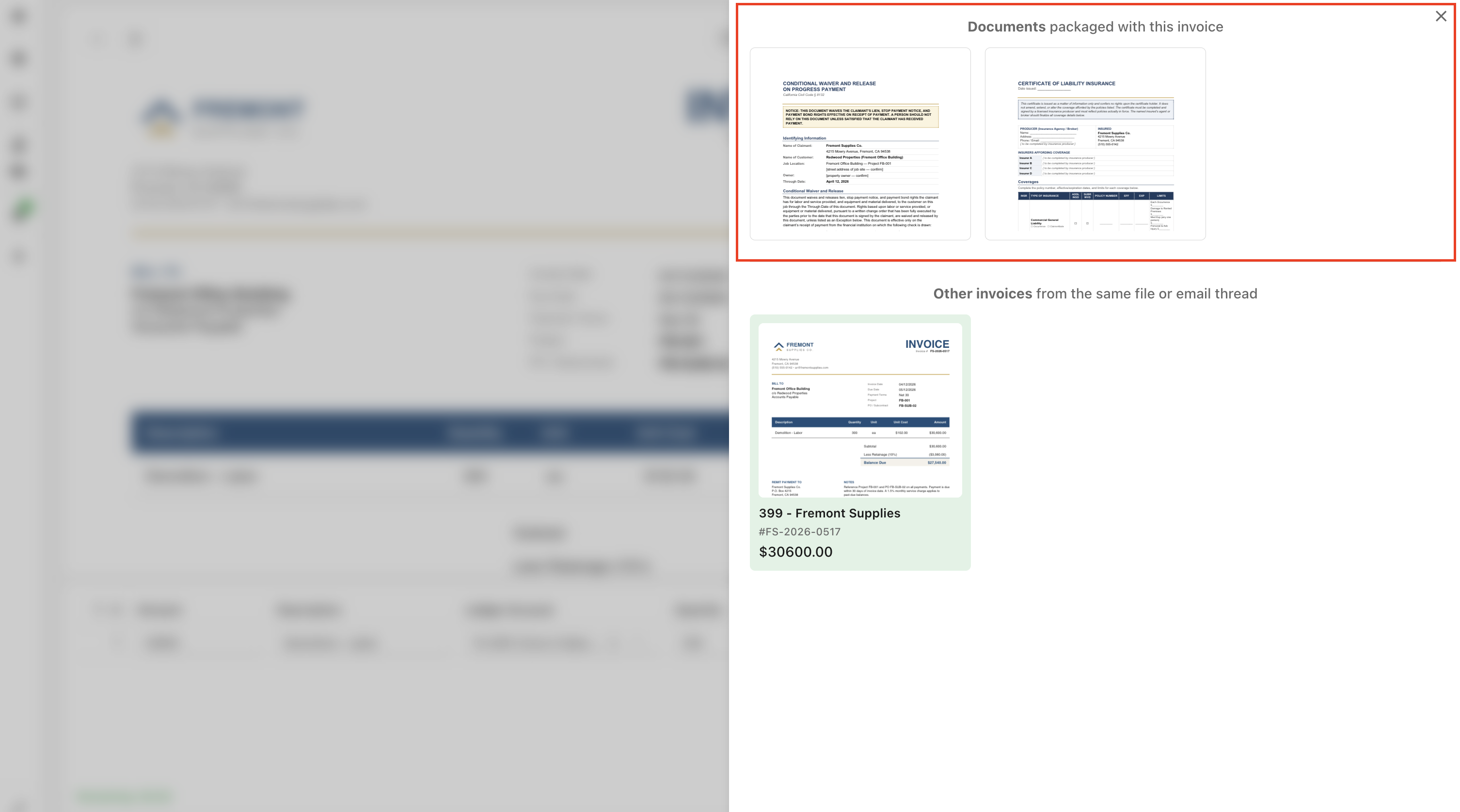
- Supporting documents packaged with an invoice (lien waivers, certificates of insurance, change orders) are routed to the Archived tab to avoid clogging your approval queue. They will still be accessible from their relevant invoice.
- Multiple invoices in one file are detected and split into separate Draft invoices automatically, so a single PDF that contains three invoices becomes three records you can route independently. See Splitting and Merging Invoice Documents.
- Delivery tickets and packing slips are recognized and handled separately.
Any document that is not categorized as an invoice automatically by Agave can always be manually routed as an invoice. This ensures you have full control over the documents in your approval queue.
The Archived Tab & Non-Invoice Documents
Agave keeps your active Inbox clean by moving anything you do not need to act on into the Archived tab. Switch between the Open and Archived tabs at the top of the Draft Inbox to move between them:
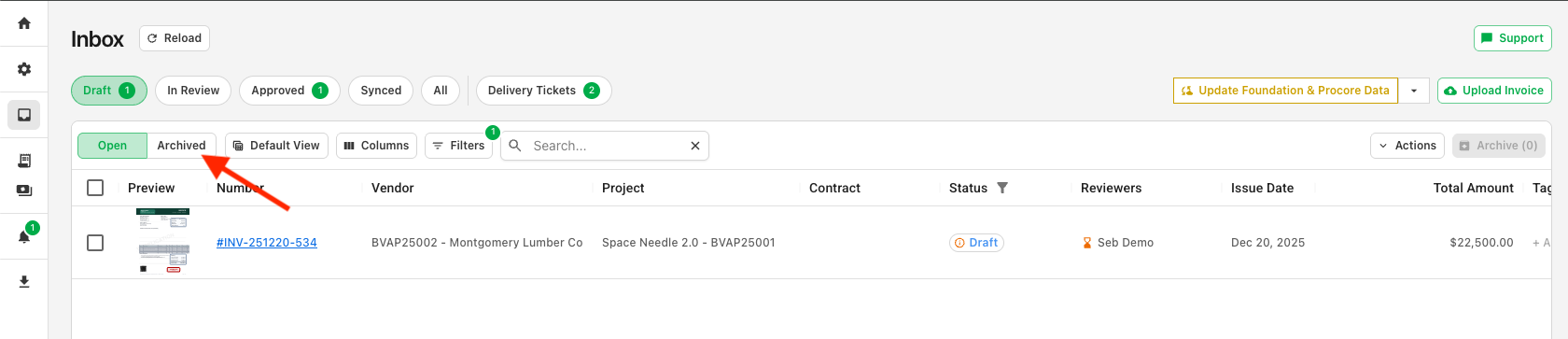
Items land in Archived when:
- A file is classified as a non-invoice and set aside.
- Agave detects a duplicate of an invoice you have already received, and duplicate auto-archiving is enabled.
- You manually archive an invoice using the Archive action.
The duplicate auto-archiving setting under Settings (Account Settings > Invoice Processing). You can disable this any time:
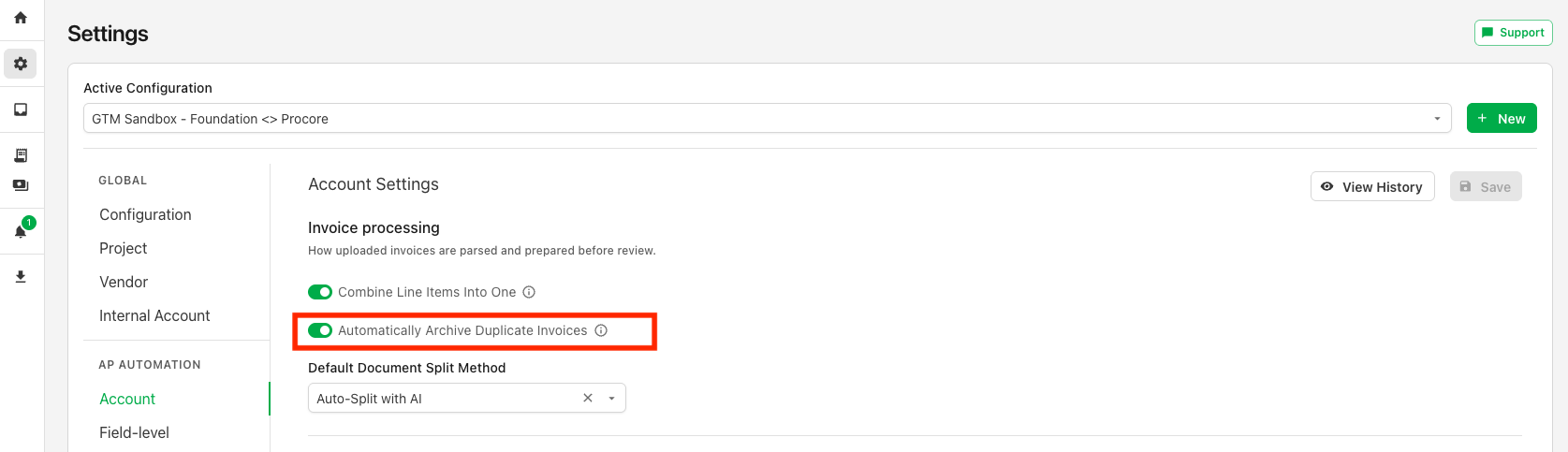
An invoice is considered a duplicate if the Vendor, Invoice Number, and Amount match.
Restoring Archived Invoices to the Approval Queue
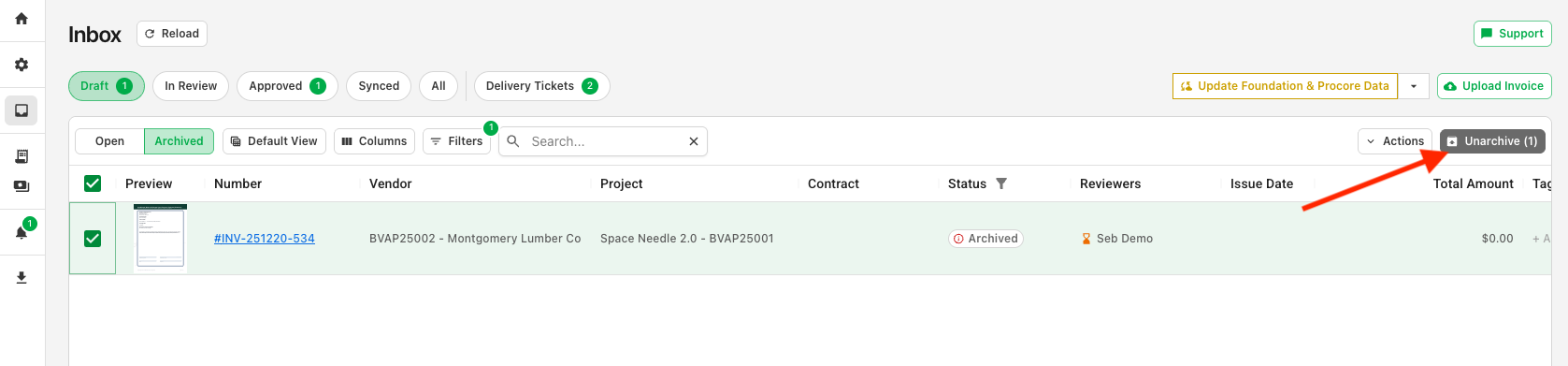
To bring an item back, open the Archived view, select the record, and click "Unarchive" to restore it to your active Inbox:
Related Documents on an Invoice
Supporting files — lien waivers, certificates of insurance, change orders, and other backup — are tied to the invoice they belong to rather than living in your approval queue. Each invoice keeps its own set of related documents, drawn from two places:
- Documents Agave routed automatically: When a supporting file arrives in the same email as an invoice, Agave classifies it as a non-invoice, moves it to the Archived tab, and links it to that invoice as a related document.
- Documents you add manually: You can attach additional files to an invoice at any time (see below).
Adding related documents
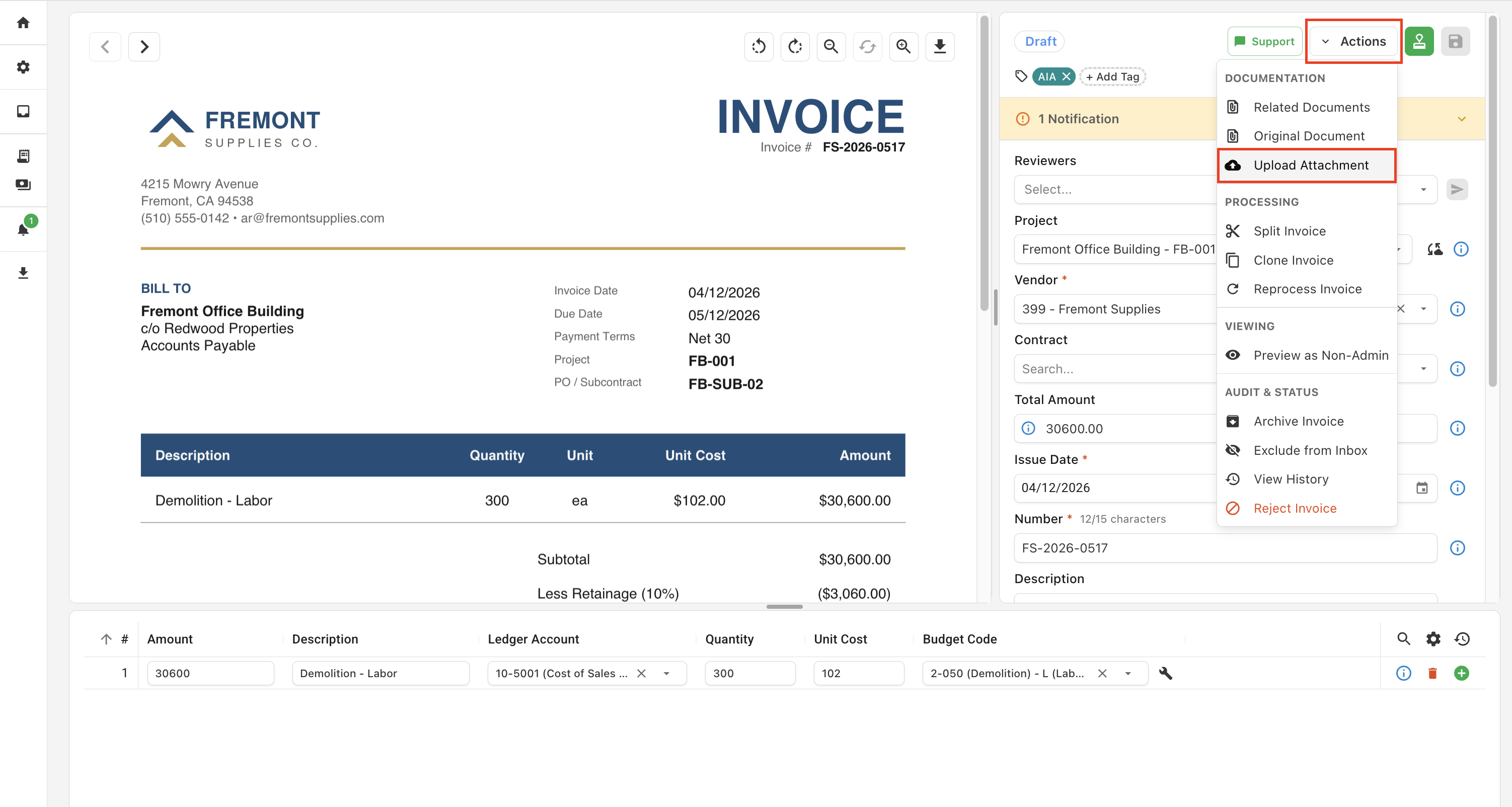
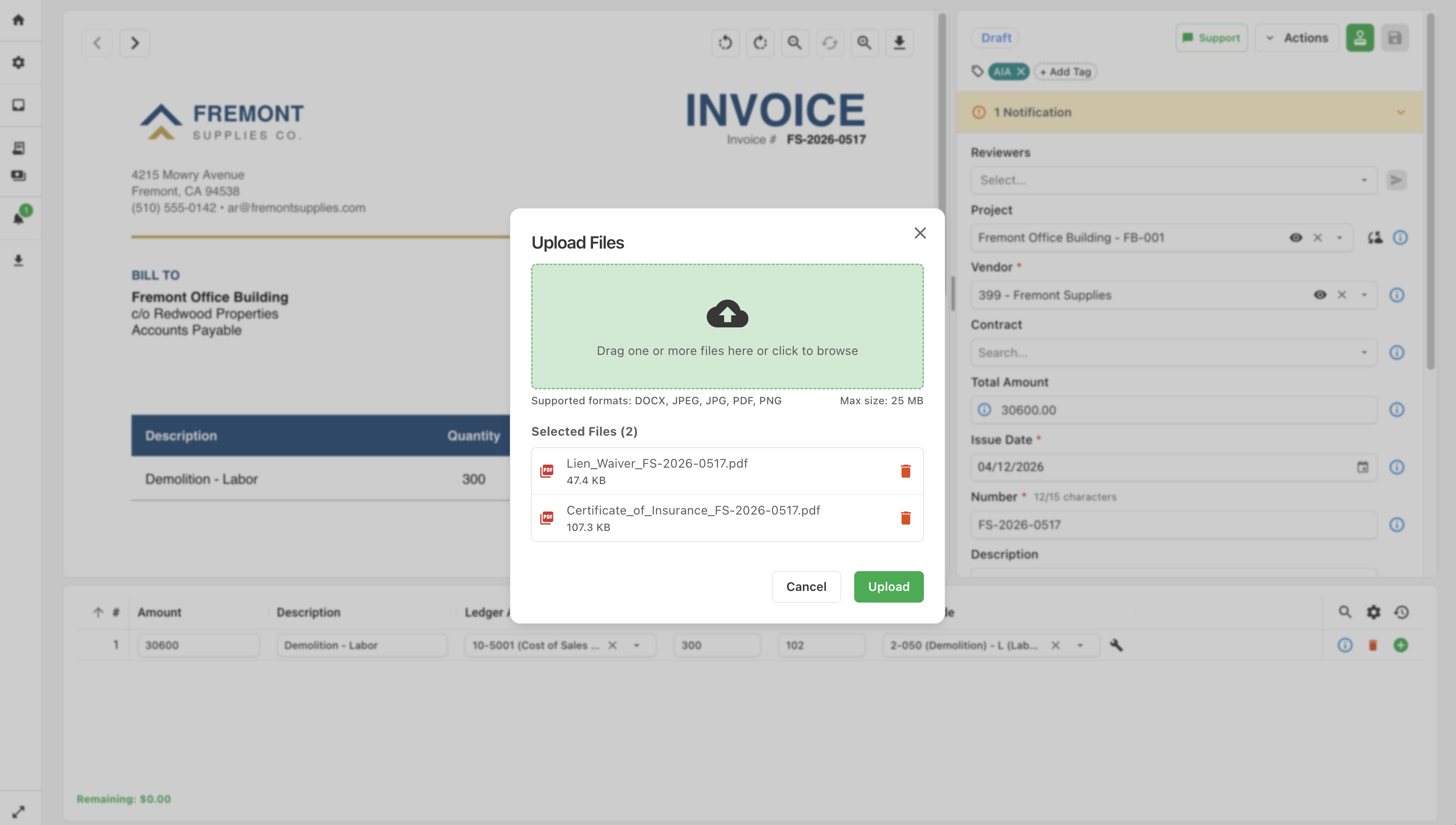
To attach more supporting files to an invoice, open the invoice from the Inbox and select Actions > Upload Attachment. In the Upload Files dialog, drag one or more files into the drop zone or click to browse and select them from your computer, then click Upload. See Supported File Formats for the full list of file types you can attach, and the size limit. Uploaded files are linked directly to that invoice and travel with it — including when you export the invoice with related documents included.
Viewing related documents
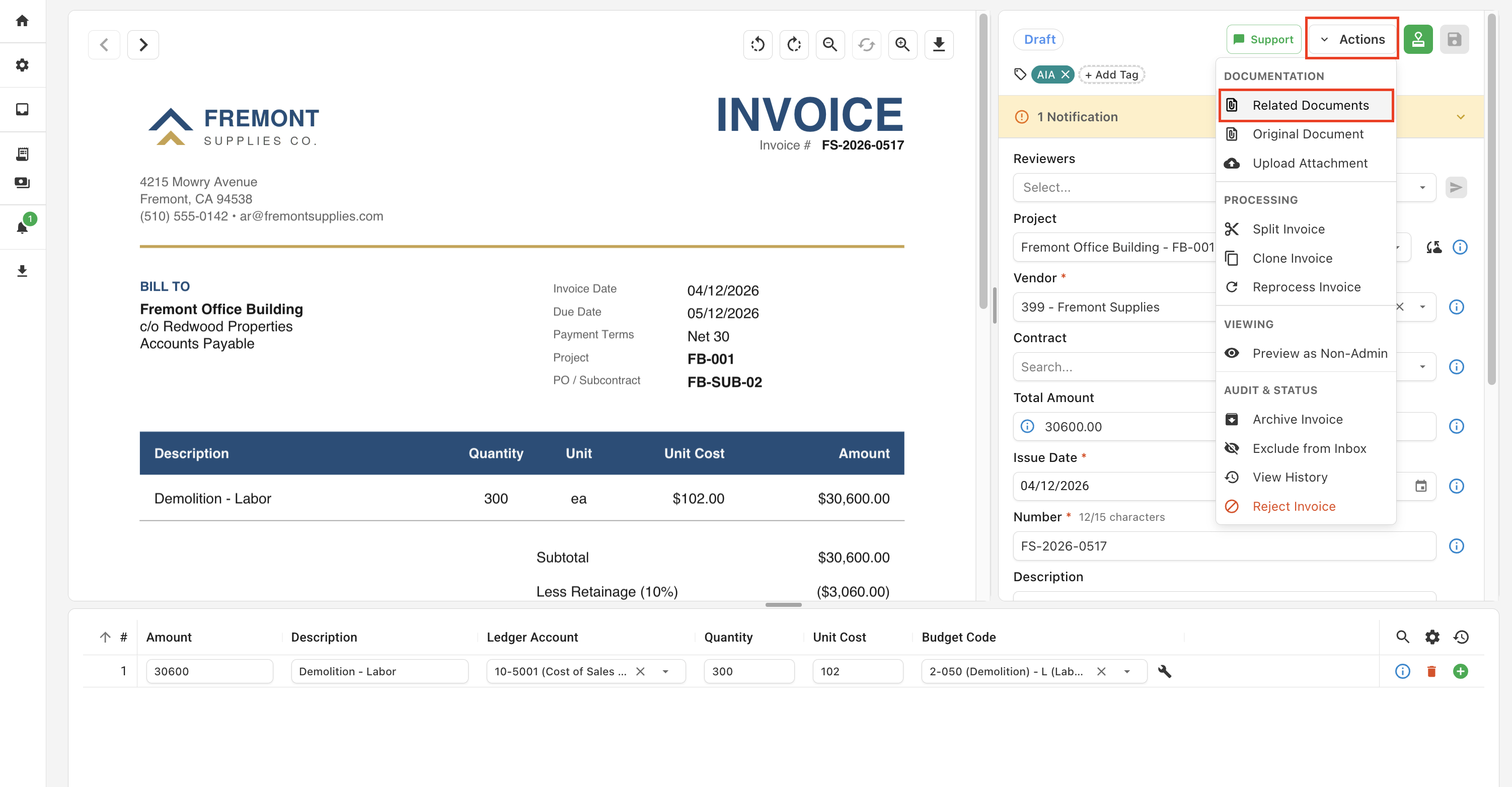
Open the invoice from the Inbox to reach its Invoice Detail page, then select Actions > Related Documents. A flyout panel opens on the right listing every related document linked to the invoice, where you can open or download each file alongside the invoice.
Splitting and Merging Invoice Documents
Many users receive emails from high-volume vendors with several invoices (often across projects) included in the same attachment. Agave can automatically split these invoices for separate approval routing and costing.
You can also manually split and merge documents, as well as control Agave's automatic splitting behavior.
Automatic Invoice Splitting
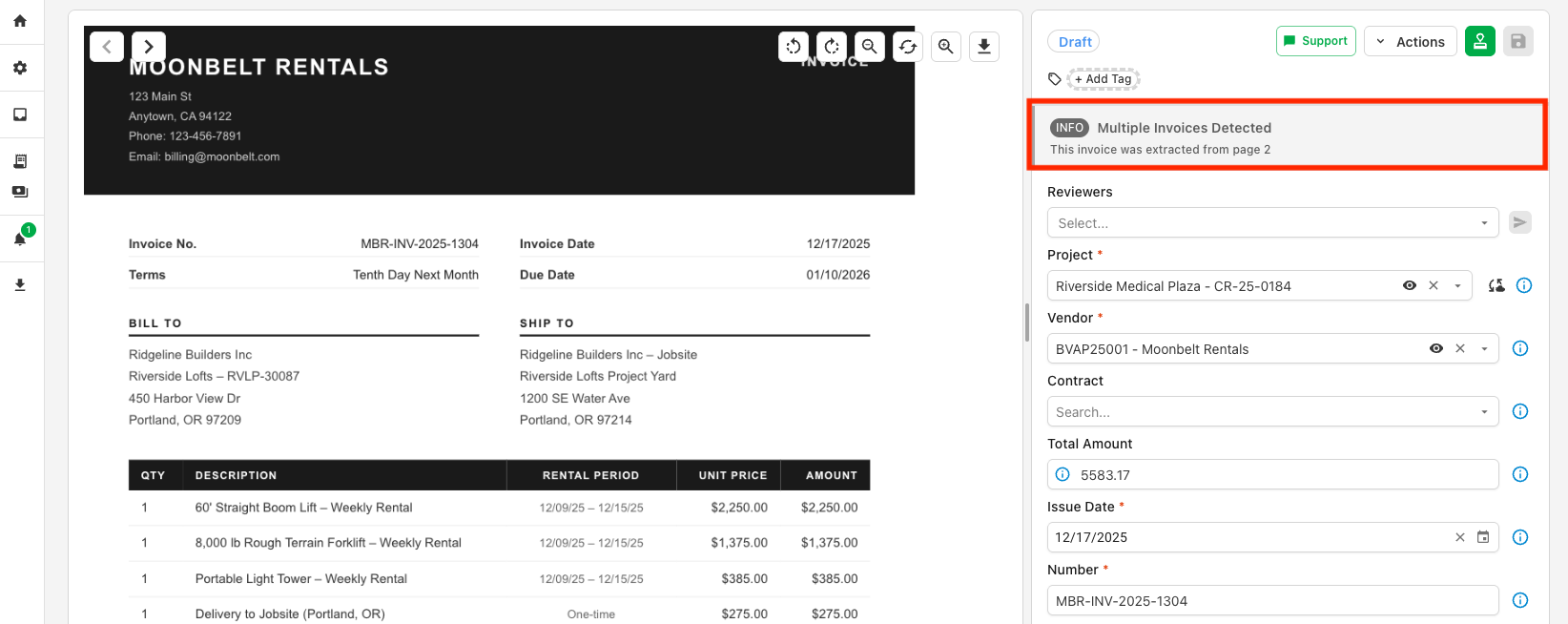
When Agave detects multiple invoices in the same file, it will automatically split these into separate invoice entries in your inbox. On the Invoice Detail page, a note will show the page range it was selected from:
Manual Invoice Splitting
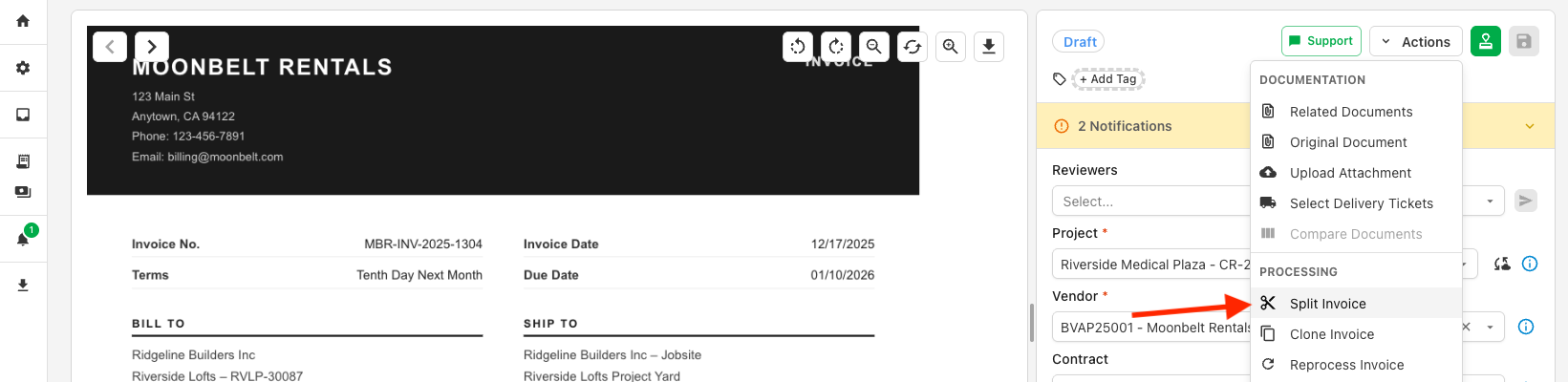
If a file contains more than one invoice and you need to adjust Agave's split, you can use the Split Invoice feature from the Actions dropdown on the Invoice Detail Page:
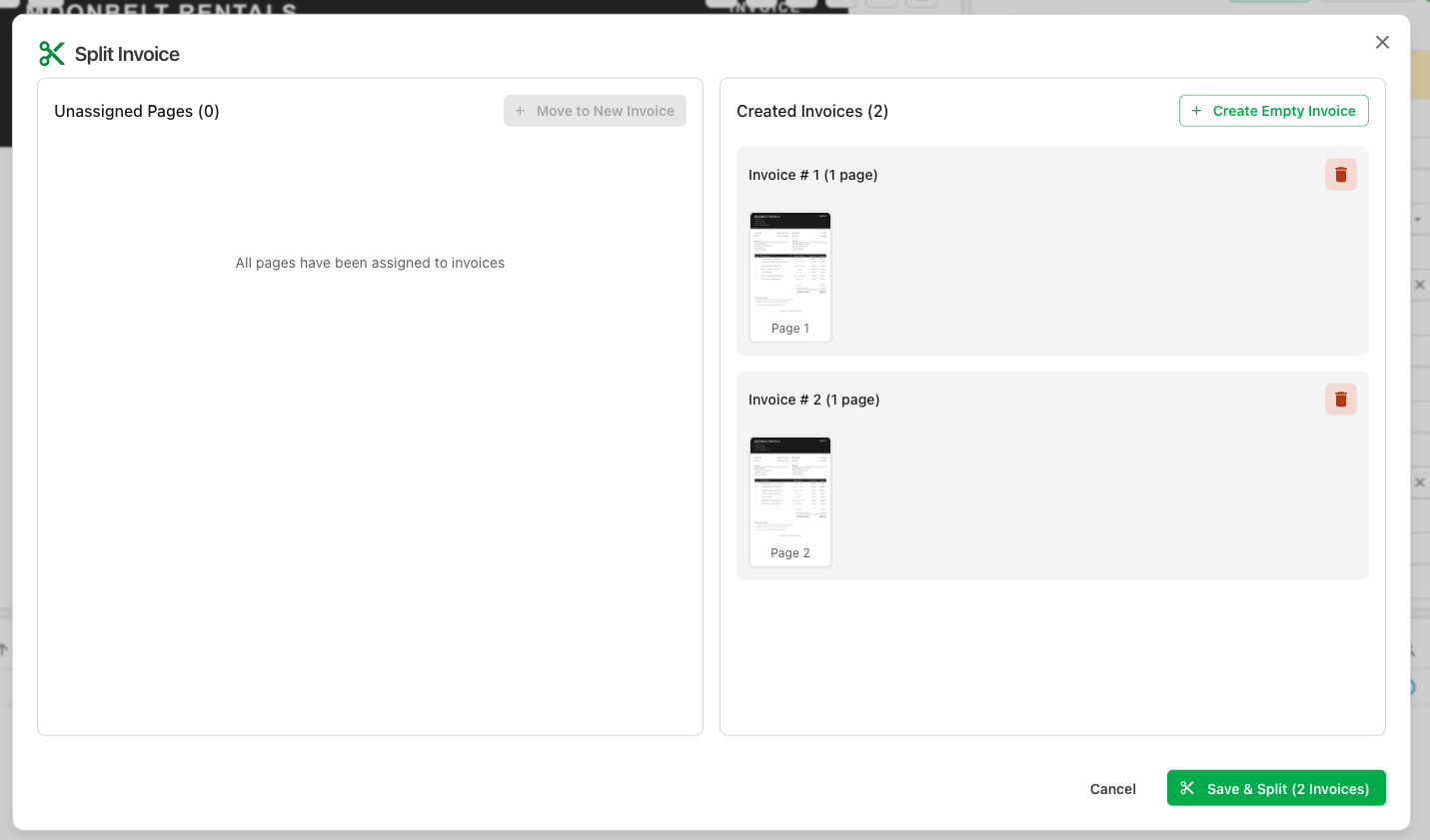
You can then click and drag pages to regroup them into separate invoice records as needed:
Merge Documents Back Together
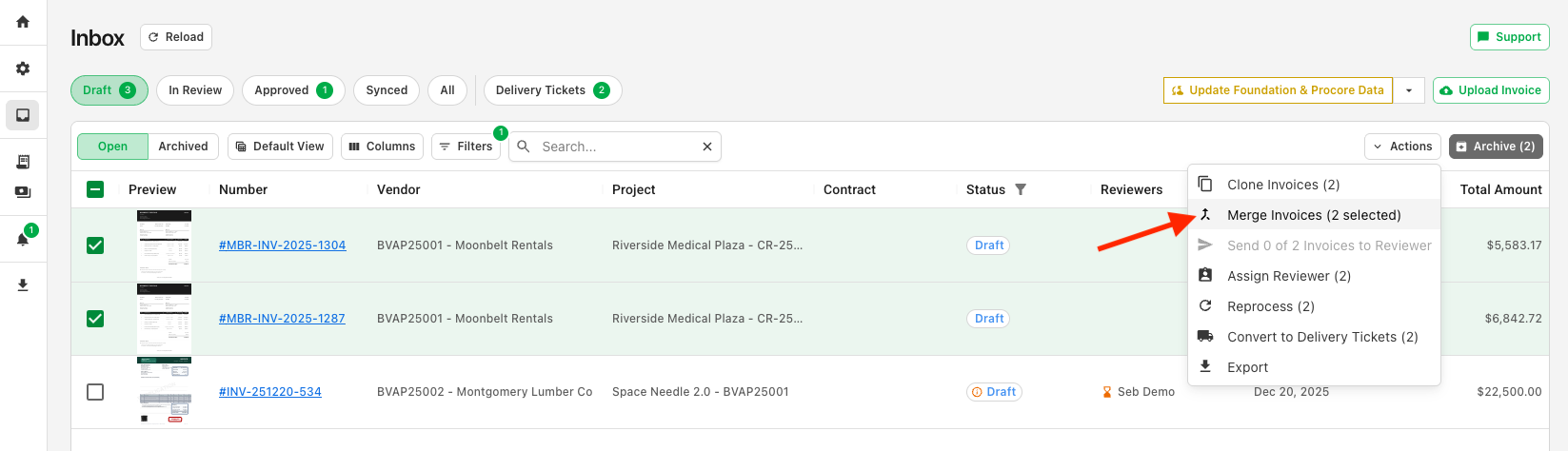
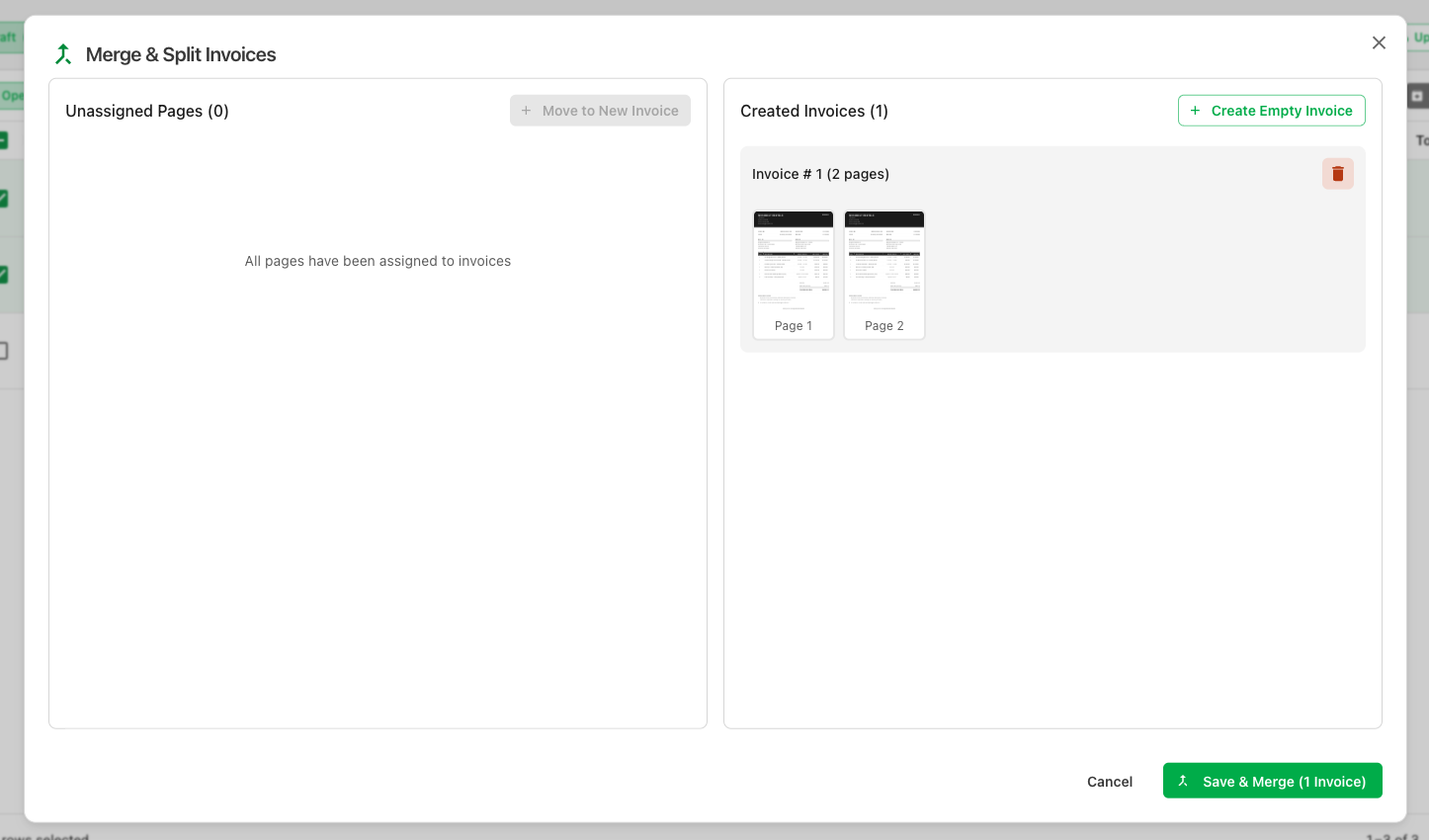
If Agave split a document that should have stayed whole, or if pages that belong together arrived separately, use the merge tool to combine them. After merging, Agave will reprocess the document to automatically code it before it reappears in the inbox view.
Invoices Sent as Links
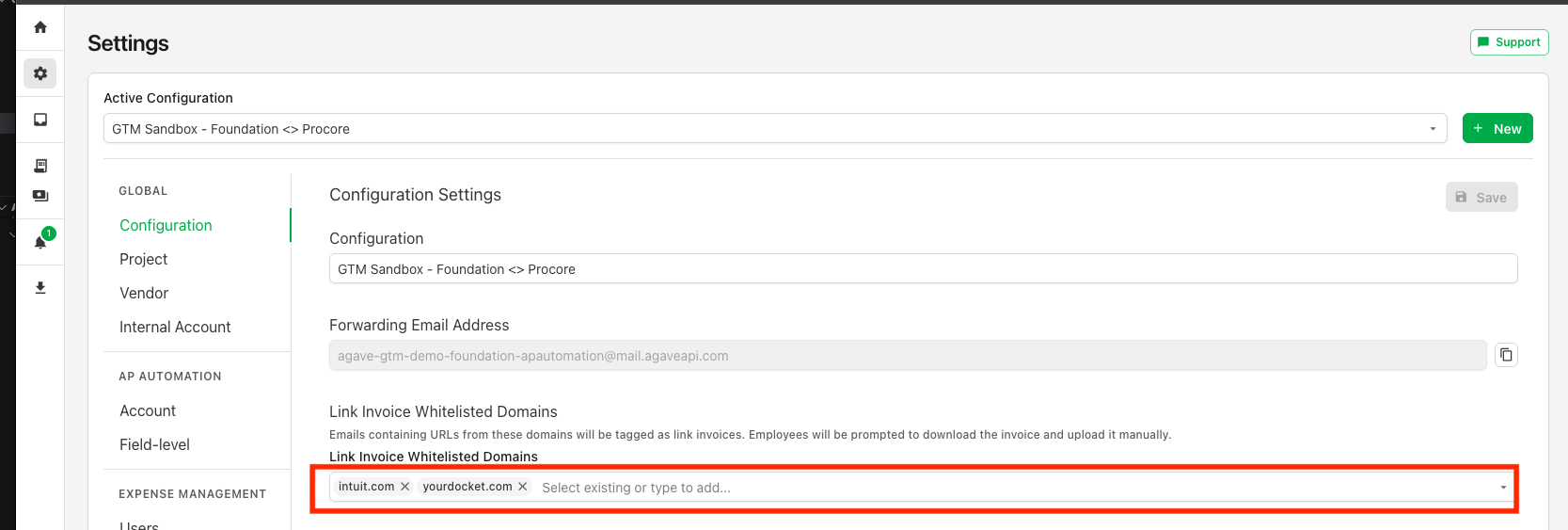
Some vendors send links to a portal for their invoices instead of attaching the file itself. To ensure these invoices are not missed, you can configure specific domains (e.g. Intuit for QuickBooks) that Agave will flag in the invoice inbox.
Configuring Accepted Domains
Agave will only create invoice entries for invoices from specific websites. You can specify which websites are eligible for Link Invoices within Settings > Configuration > Link Invoice Whitelisted Domains:
Processing Link Invoices
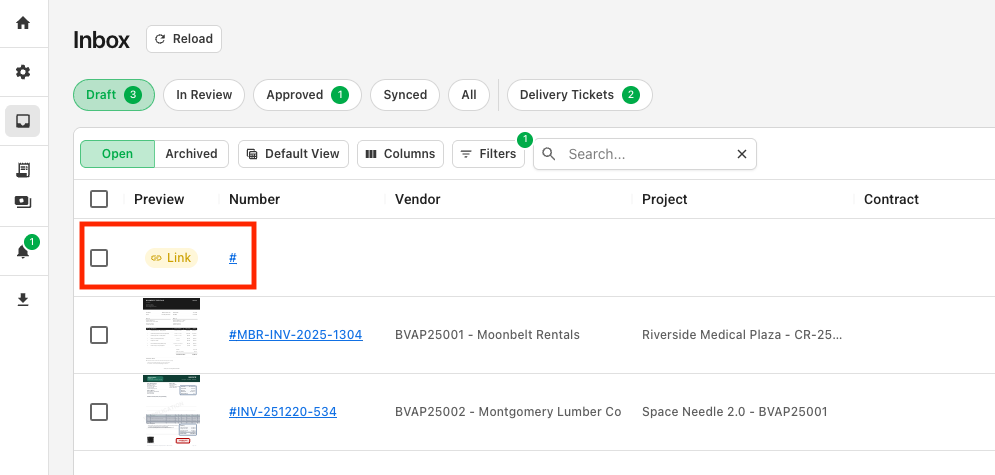
Upon receiving a link to an invoice portal, Agave creates a blank entry with type "Link" within the inbox view to ensure it is downloaded and routed for approval:
When you click into the invoice, Agave will display the direct link to the Invoice portal:
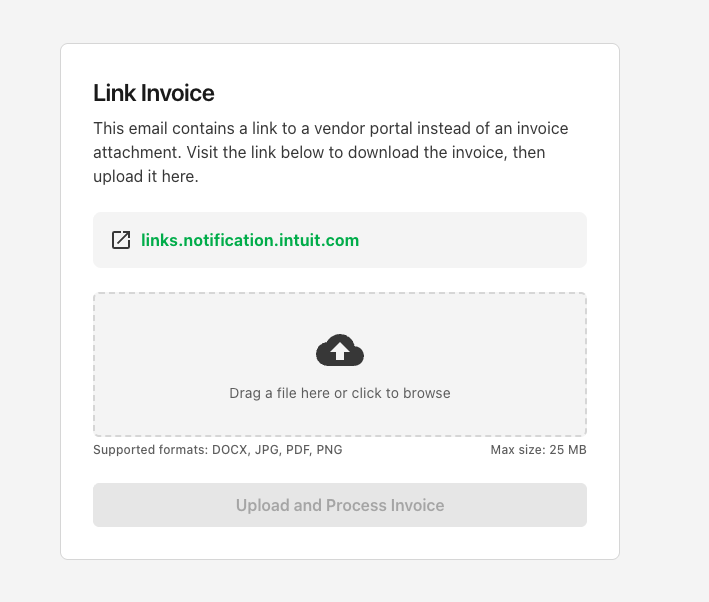
You can then download the invoice from the portal and reupload it to Agave:
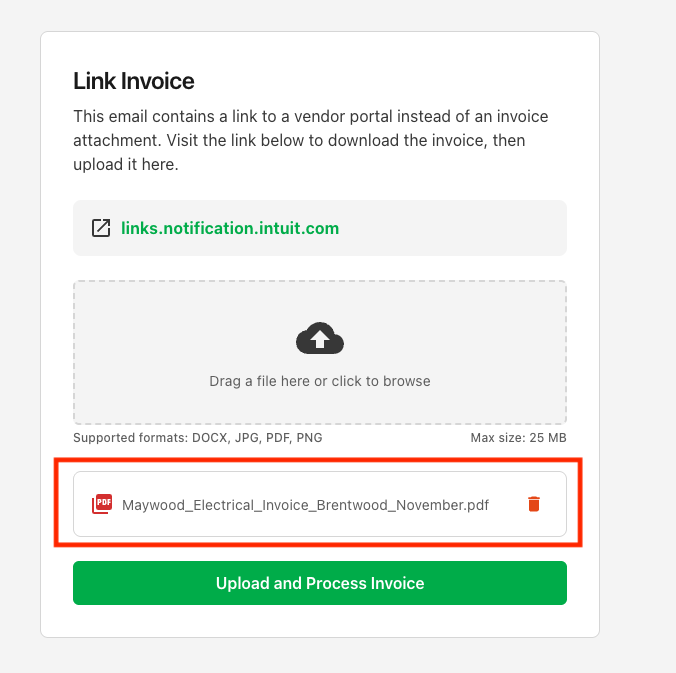
Agave will then automatically process the invoice file and code/route it for approval following the standard workflow.