Document Export
The Export tool bundles your invoices and supporting records into a single download, giving you a complete, end-to-end audit trail of the approval process — invoice PDFs, activity logs, and related attachments — without pulling files one at a time. This guide covers:
- How to filter the invoices you want to export
- How to package them — choosing what to include, how files are structured, and how they're named
- How to review and receive your export
Filter Invoices to Export
The first step is to narrow down exactly which records you want. Start by choosing whether you're exporting Invoices or Receipts at the top of the step, then apply any combination of the filters below to build your set.
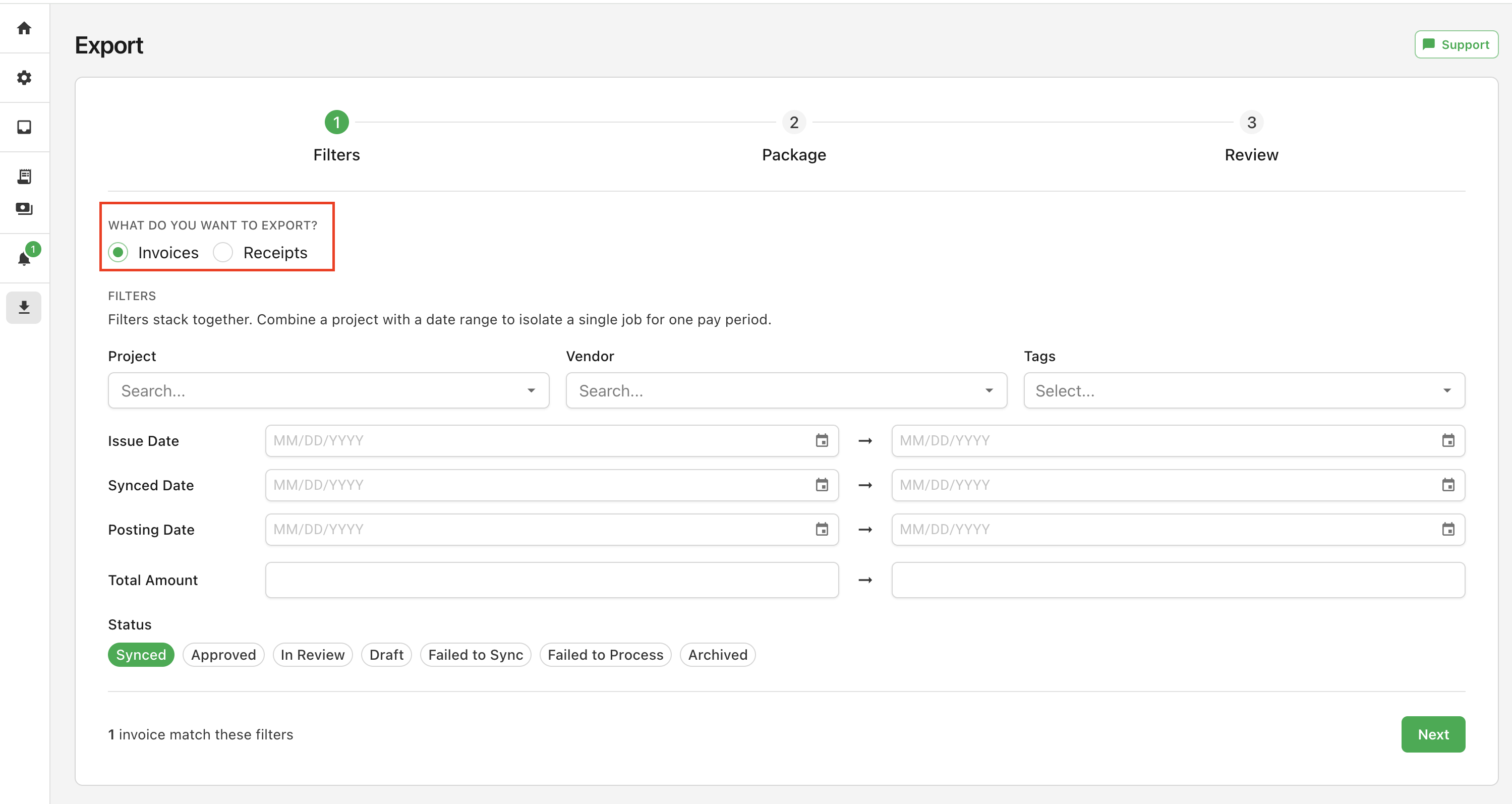
You can filter on any of the following:
- Project — select a project from the dropdown. This list is read in from your connected ERP system.
- Vendor — select a vendor from the dropdown. This list is also read in from your ERP system.
- Tags — add one or more tags. Records matching any of the selected tags are included.
- Issue Date — set a start and end date to capture records issued within that range.
- Synced Date — the date a record synced to your ERP. Set a start date, an end date, or both.
- Posting Date — the date a record posted in your ERP. Set a start date, an end date, or both.
- Total Amount — set a minimum, a maximum, or both to capture records within that amount range.
- Status — select one or more statuses (Synced, Approved, In Review, Draft, Failed to Sync, Failed to Process, Archived) to include in the export. If you don't select any, the export defaults to Synced records only.
Package Your Export
Once you've chosen your records, the second step controls what goes into the bundle and how it's organized.
What to Include
These toggles decide which documents are gathered for each matched record.
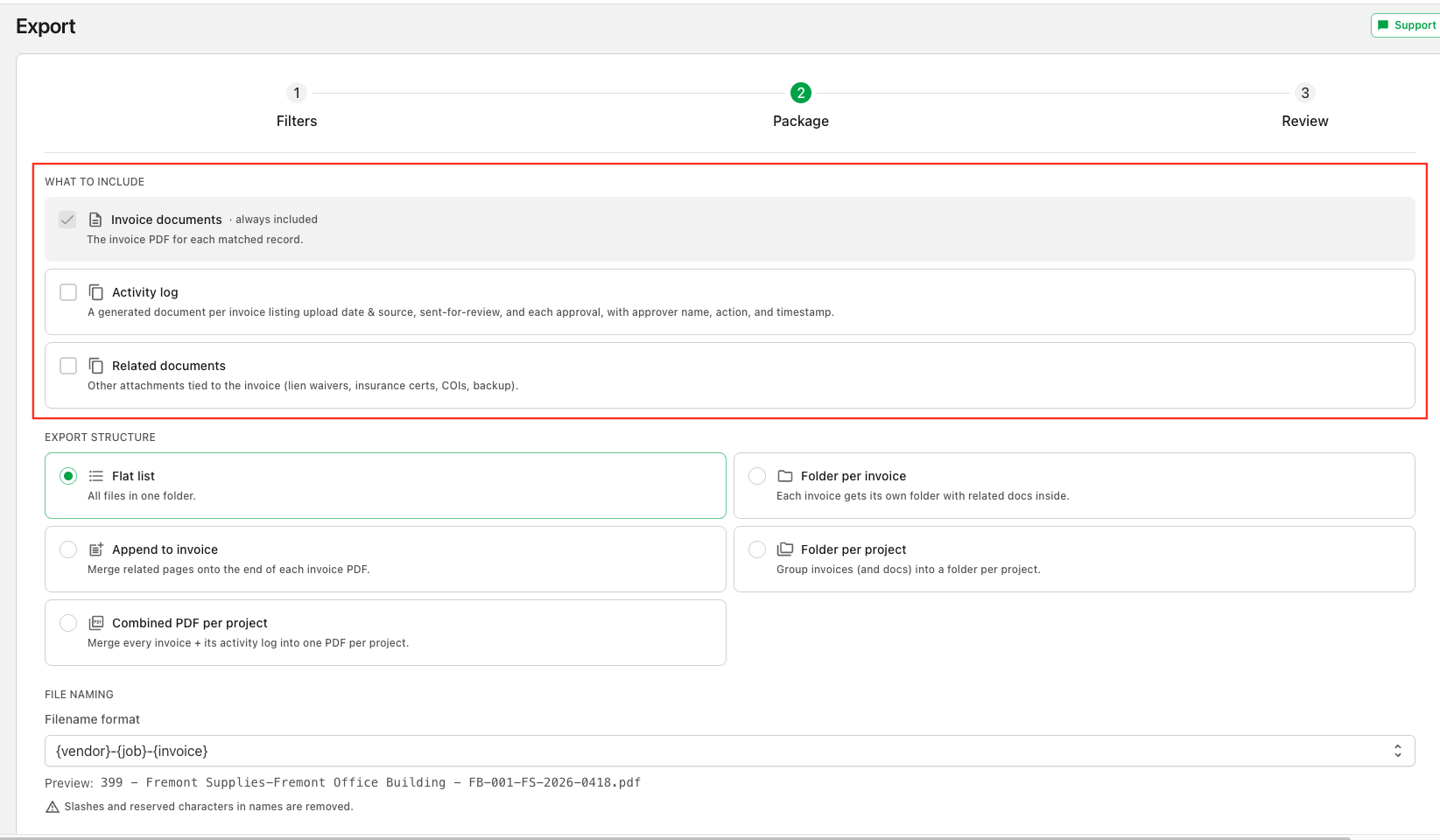
- Invoice documents — always included. This is the invoice PDF for each record and can't be turned off.
- Activity log — generates a document per invoice from its audit trail. It lists the upload date and source (web or email), when it was sent for review, and each approval — with the approver's name, the action, and a timestamp.
- Related documents — other attachments tied to the invoice, such as lien waivers, insurance certificates, COIs, and backup. This includes both files attached directly to the record and non-invoice attachments that arrived in the same email. See Related Documents on an Invoice for how these get linked.
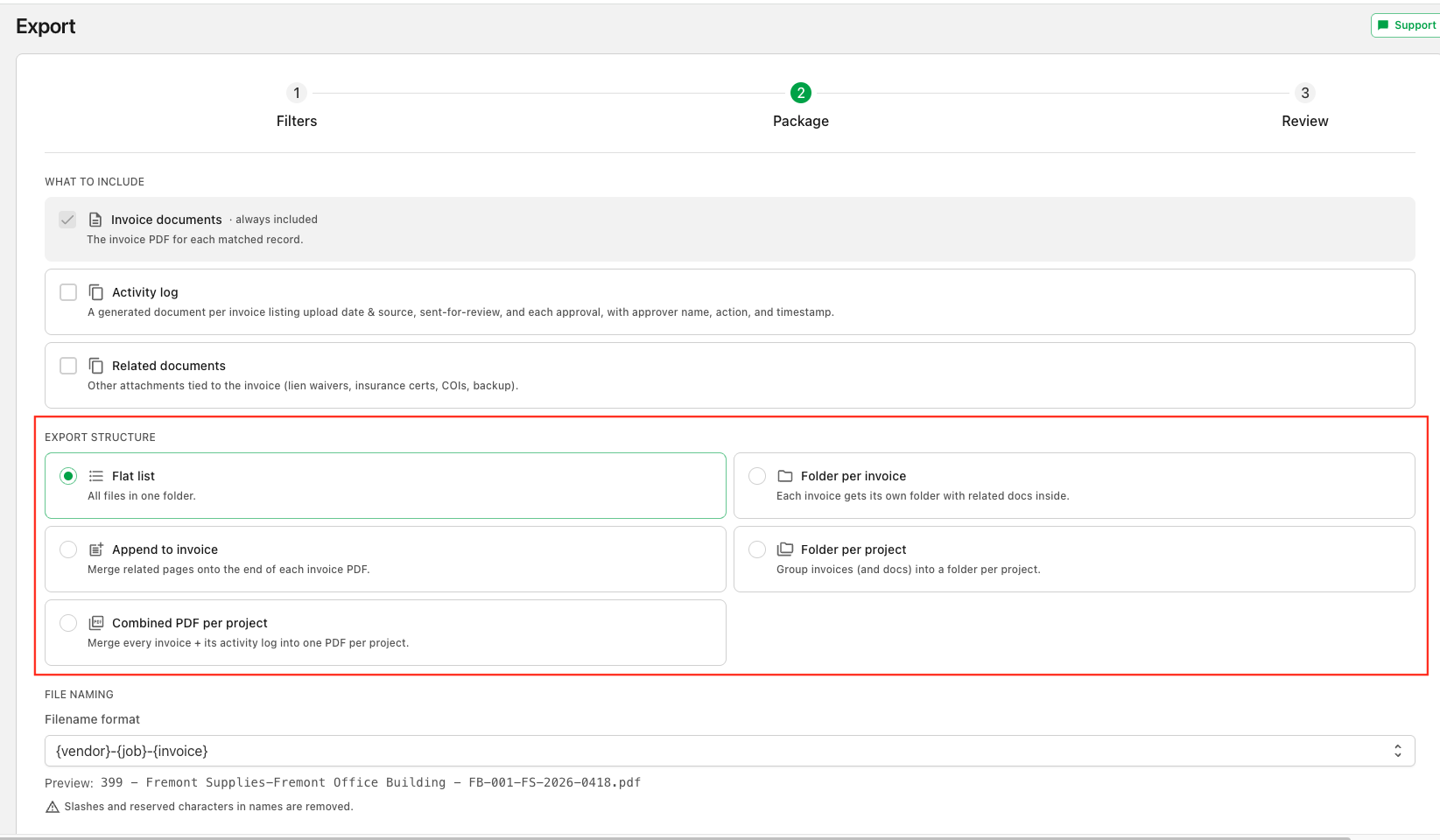
Export Structure
This controls how the gathered files are laid out in the download.
Three options arrange files into folders; two merge them into combined PDFs.
Here is a real example of an export using Folder per project. The details below explain each of the available options.
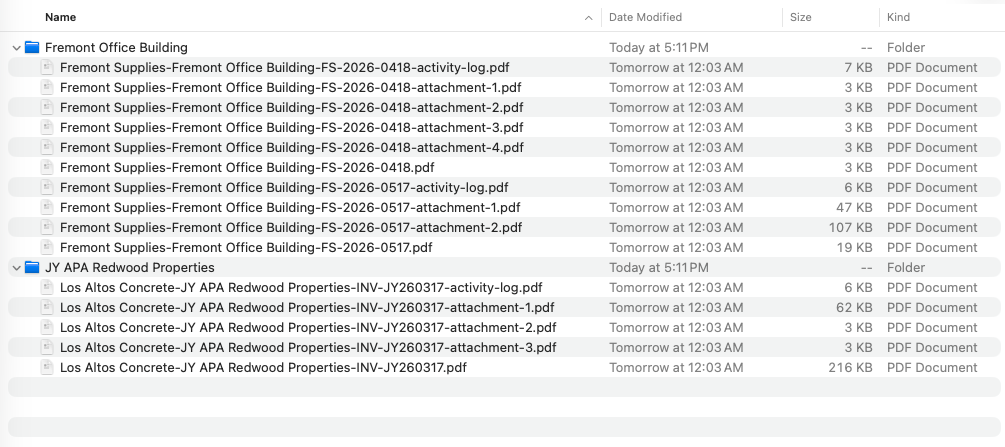
The examples below all use the same two invoices — one in the Fremont Office Building project and one in the JY APA Redwood Properties project — with activity logs and related documents included. When documents are merged, they're ordered invoice → related documents → activity log (including only the types you selected above). Any attachment that can't be merged into a PDF is added to the bundle as a separate file rather than dropped.
Flat list
Every file goes into a single folder, no merging.
Fremont Supplies-Fremont Office Building-FS-2026-0418.pdf
Fremont Supplies-Fremont Office Building-FS-2026-0418-attachment-1.pdf
Fremont Supplies-Fremont Office Building-FS-2026-0418-activity-log.pdf
Los Altos Concrete-JY APA Redwood Properties-INV-JY260317.pdf
Los Altos Concrete-JY APA Redwood Properties-INV-JY260317-activity-log.pdf
Folder per invoice
Each invoice gets its own folder, with its related docs inside.
Fremont Supplies-Fremont Office Building-FS-2026-0418/
  Fremont Supplies-Fremont Office Building-FS-2026-0418.pdf
  Fremont Supplies-Fremont Office Building-FS-2026-0418-attachment-1.pdf
  Fremont Supplies-Fremont Office Building-FS-2026-0418-activity-log.pdf
Los Altos Concrete-JY APA Redwood Properties-INV-JY260317/
  Los Altos Concrete-JY APA Redwood Properties-INV-JY260317.pdf
  Los Altos Concrete-JY APA Redwood Properties-INV-JY260317-activity-log.pdf
Append to invoice
Merges the related documents and activity log onto the end of each invoice PDF, producing one PDF per invoice.
Fremont Supplies-Fremont Office Building-FS-2026-0418.pdf     (invoice + attachment + activity log merged in)
Los Altos Concrete-JY APA Redwood Properties-INV-JY260317.pdf (invoice + activity log merged in)
Folder per project
Groups invoices (and their docs) into a folder per project. Records with no project are placed in a "No Project" folder.
Fremont Office Building/
  Fremont Supplies-Fremont Office Building-FS-2026-0418.pdf
  Fremont Supplies-Fremont Office Building-FS-2026-0418-attachment-1.pdf
  Fremont Supplies-Fremont Office Building-FS-2026-0418-activity-log.pdf
JY APA Redwood Properties/
  Los Altos Concrete-JY APA Redwood Properties-INV-JY260317.pdf
  Los Altos Concrete-JY APA Redwood Properties-INV-JY260317-activity-log.pdf
Combined PDF per project
Merges every invoice and its activity log across a project into one PDF per project.
Fremont Office Building.pdf       (all invoices + their activity logs merged into one PDF)
JY APA Redwood Properties.pdf
File Naming
Choose a filename format to control how exported files are named.
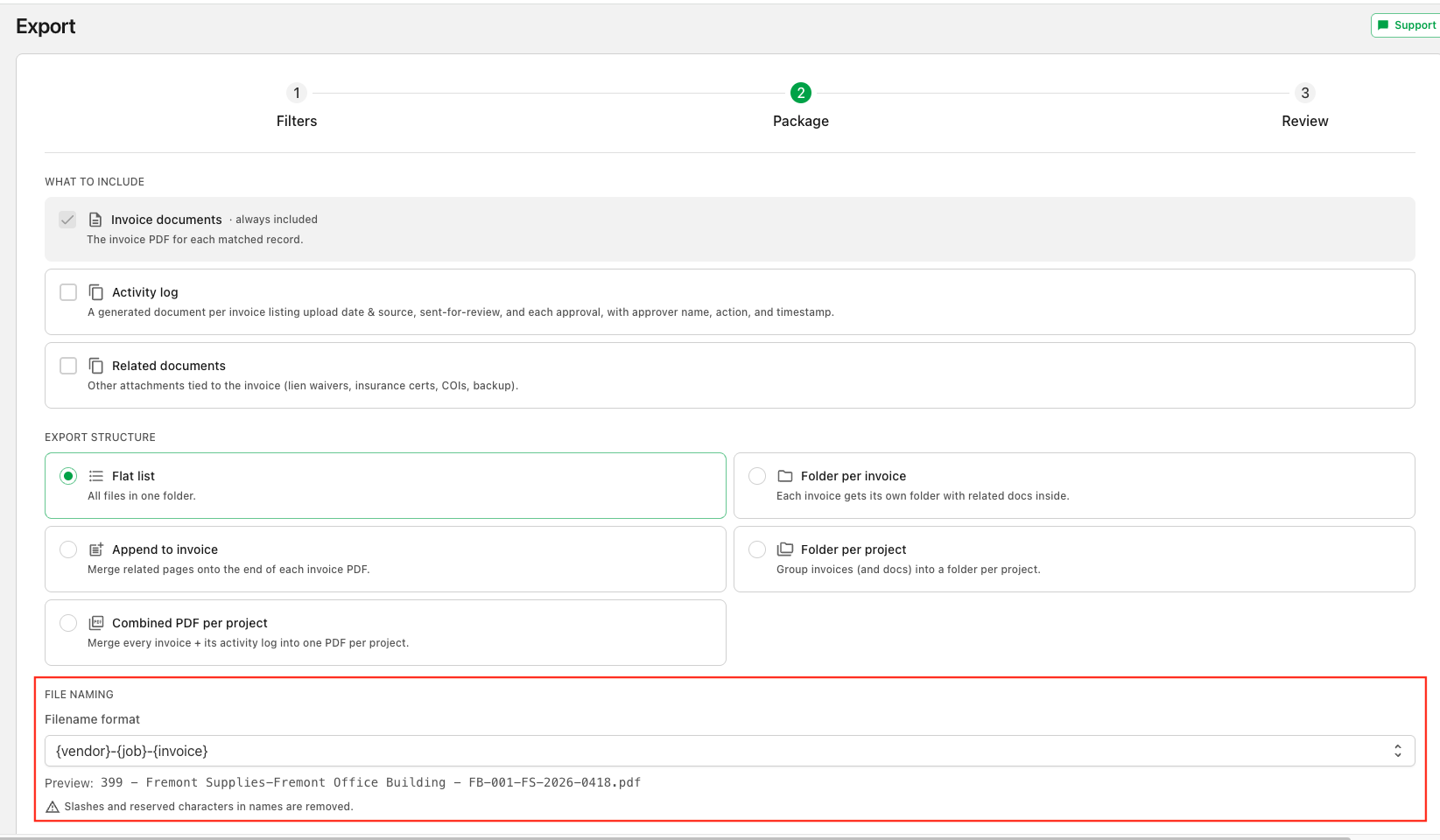
The available formats are:
{vendor}-{job}-{invoice}(default){vendor}-{invoice}{job}-{invoice}{invoice}-{vendor}{invoice}
The tokens fill in with the record's vendor name, job (project) name, and invoice number. A token that has no value is dropped from the name — so a missing project won't leave a stray dash. The preview under the dropdown shows an example of the result.
Slashes and other reserved characters (< > : " / \ | ? *) are stripped from names, extra spaces are collapsed, and if two files would end up with the same name a number is appended to keep them unique.
Review and Receive Export
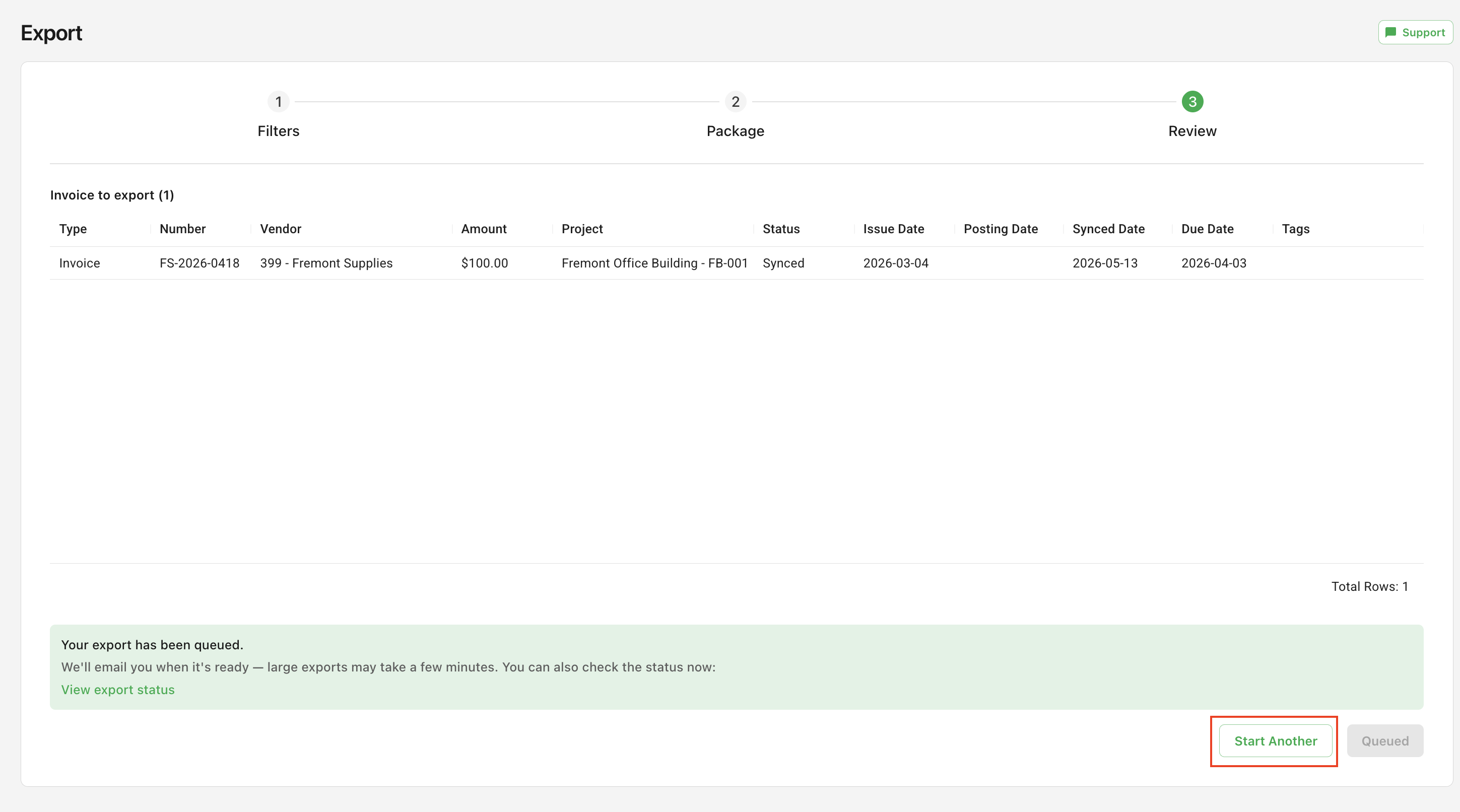
The final step shows exactly which records will be included before anything is generated. Review the table to confirm the set looks right — it lists each record's type, number, vendor, amount, project, status, and dates. When you're ready, click Queue Export. Your export is generated in the background, so you don't have to wait on the page. Use Back if you need to adjust your filters or packaging options.
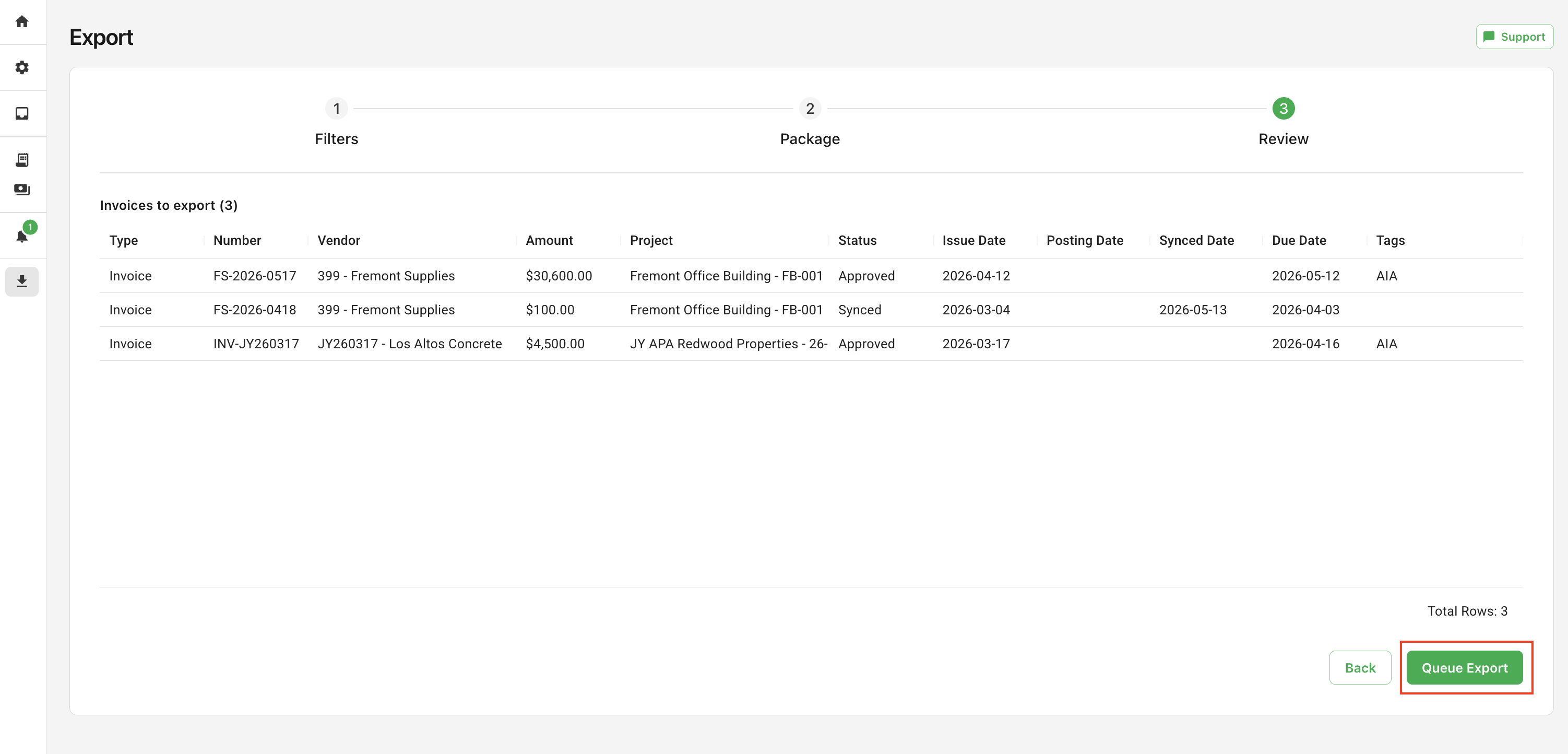
A green confirmation bar appears letting you know it's been queued — we'll email you when it's ready, and large exports may take a few minutes.
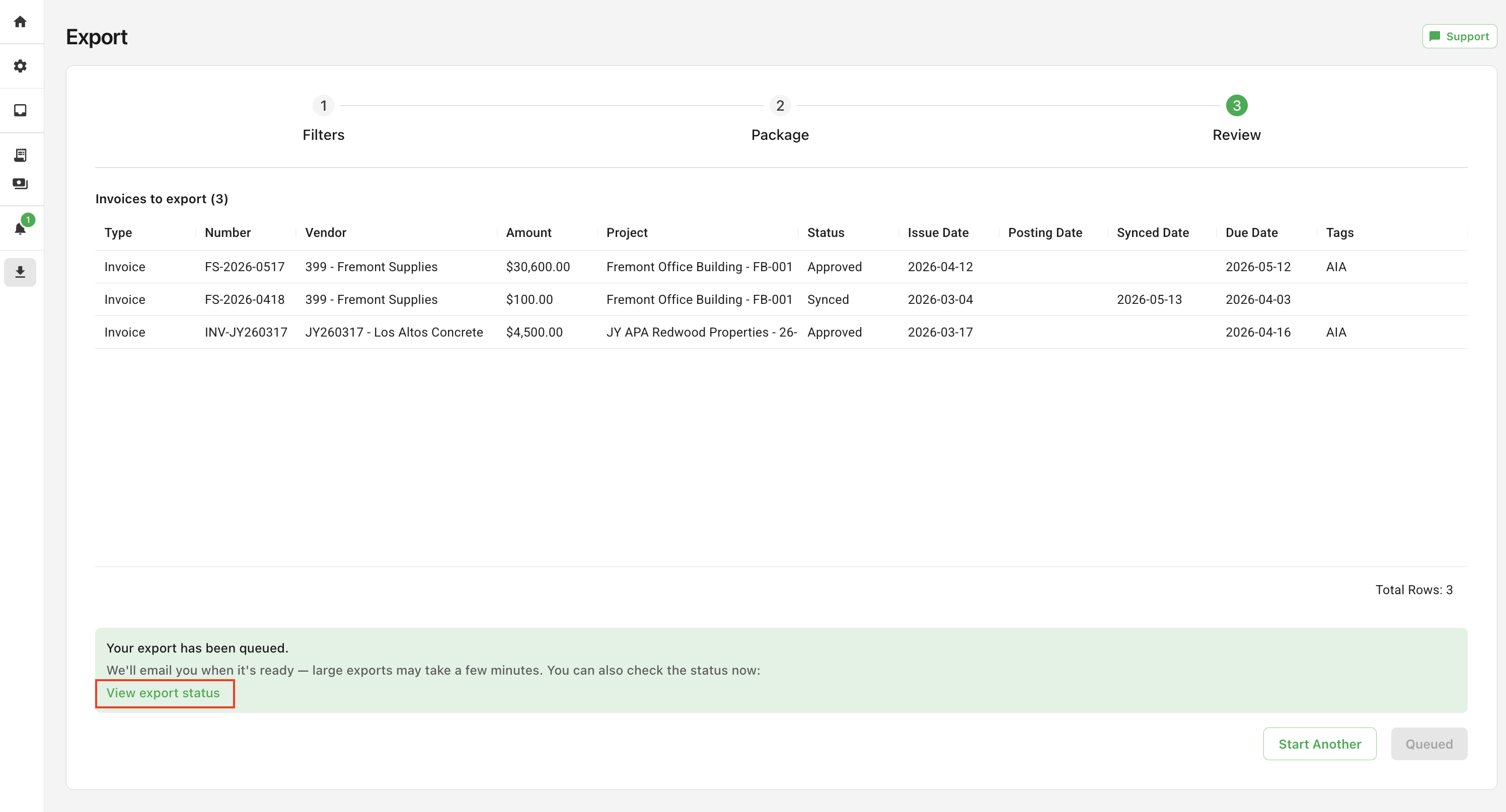
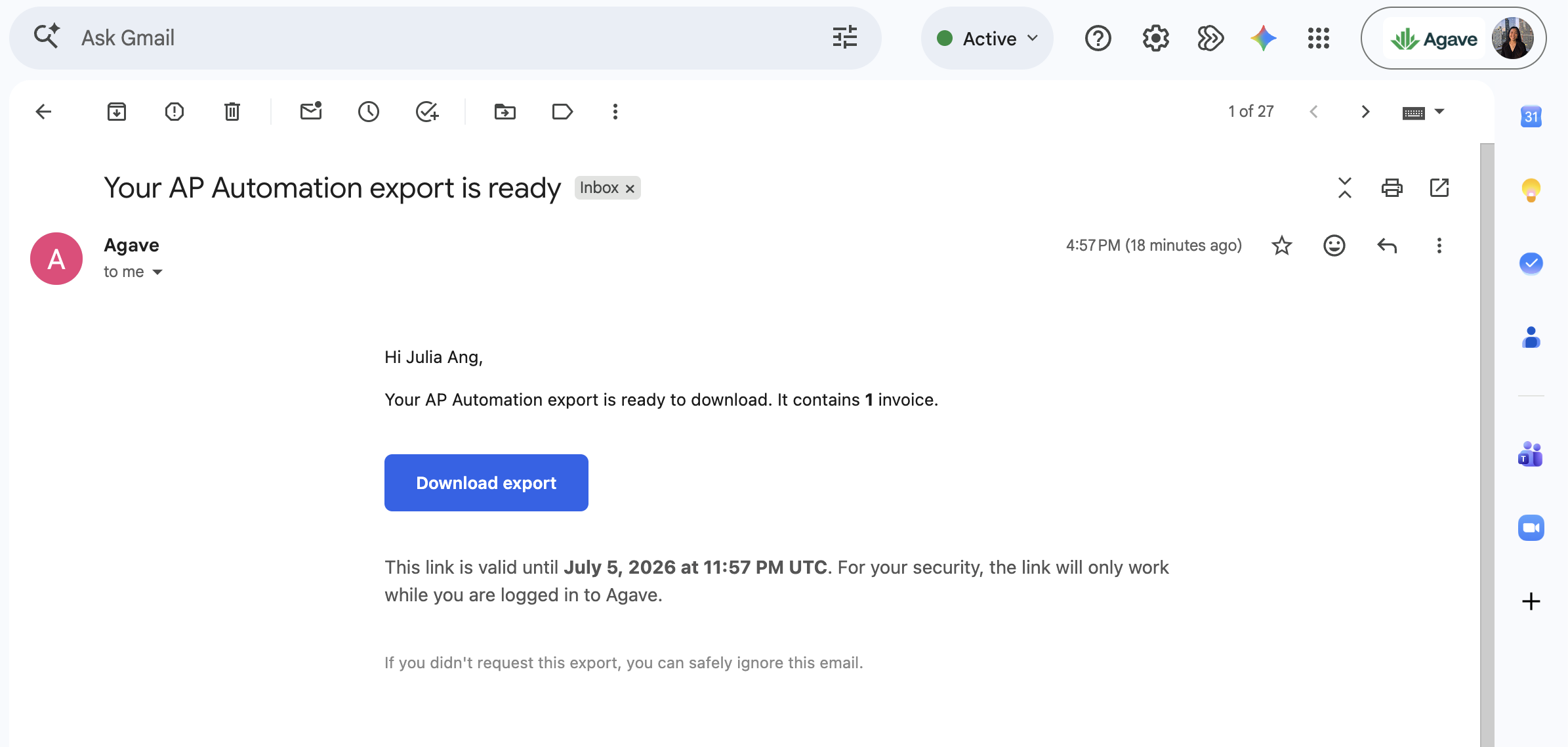
From here you have two options:
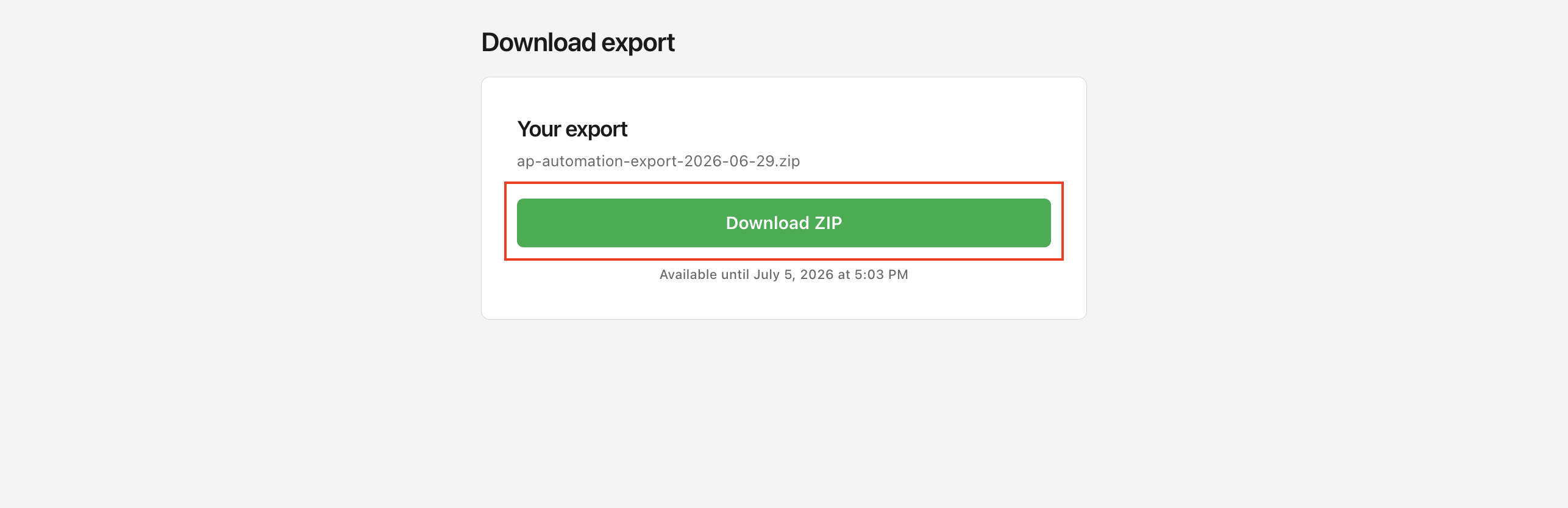
- Download your export — click View export status to open the download page. Once the export has finished building, a Download ZIP button appears with your bundle (for example,
ap-automation-export-2026-06-28.zip). The download link is available for a limited time — the page shows the exact expiration date.
- Start another export — click Start Another to return to Step 1 with a fresh set of filters and generate a new export.