Setting Up Auto-Tagging
Auto-tagging applies tags to your invoices automatically, based on rules you write in plain language. You describe when a tag should apply, and Agave checks each invoice against that description. This saves your AP team from tagging invoices by hand and makes it easier to filter and prioritize work.
Setup takes about five minutes. This guide is for admins. A short video walkthrough:
The example below creates a tag called Small amount that is applied to any invoice whose total is less than $5,000.
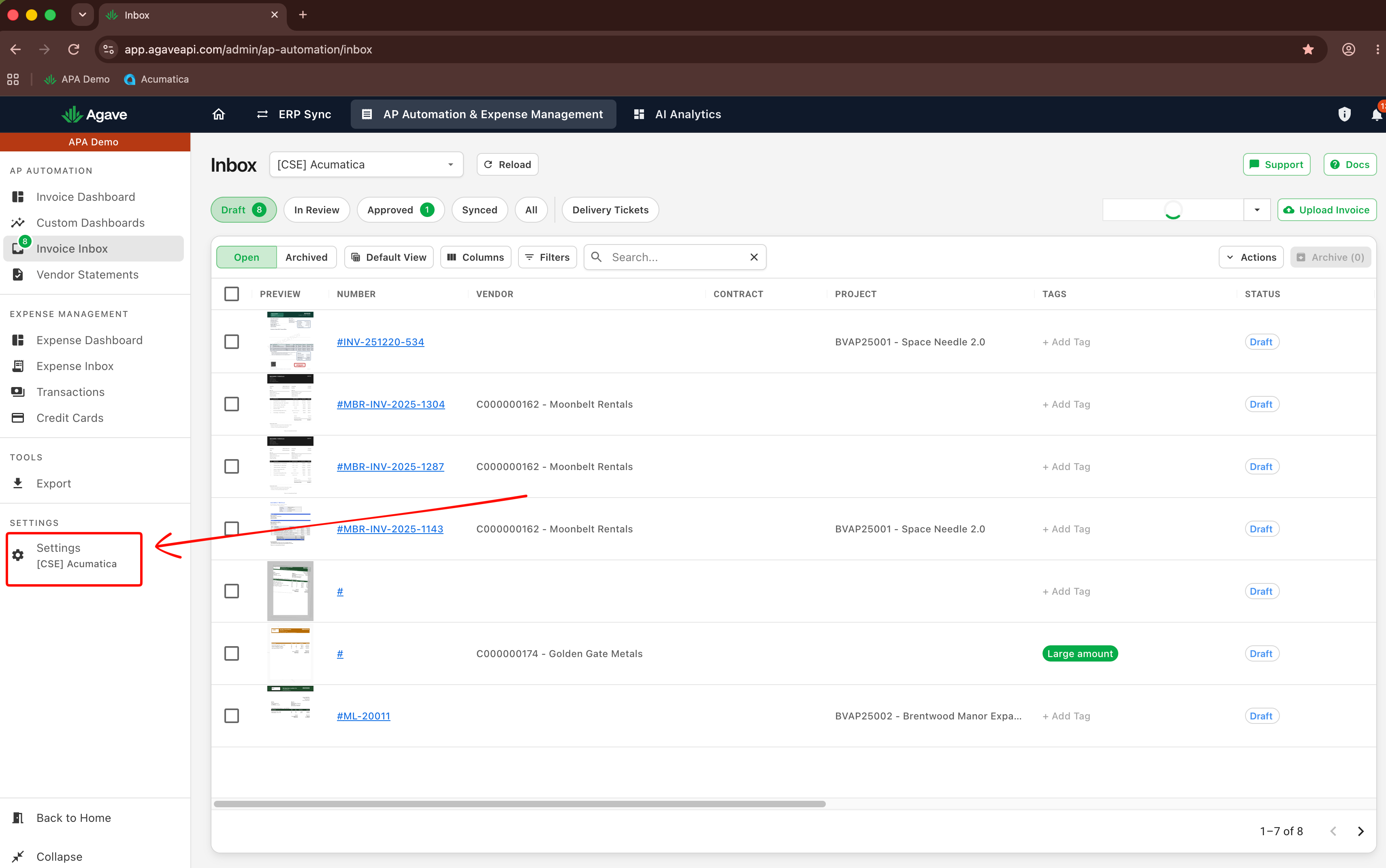
Step 1: Open your settings
From the homepage, click the settings icon:
Step 2: Find your tags on the Configuration tab
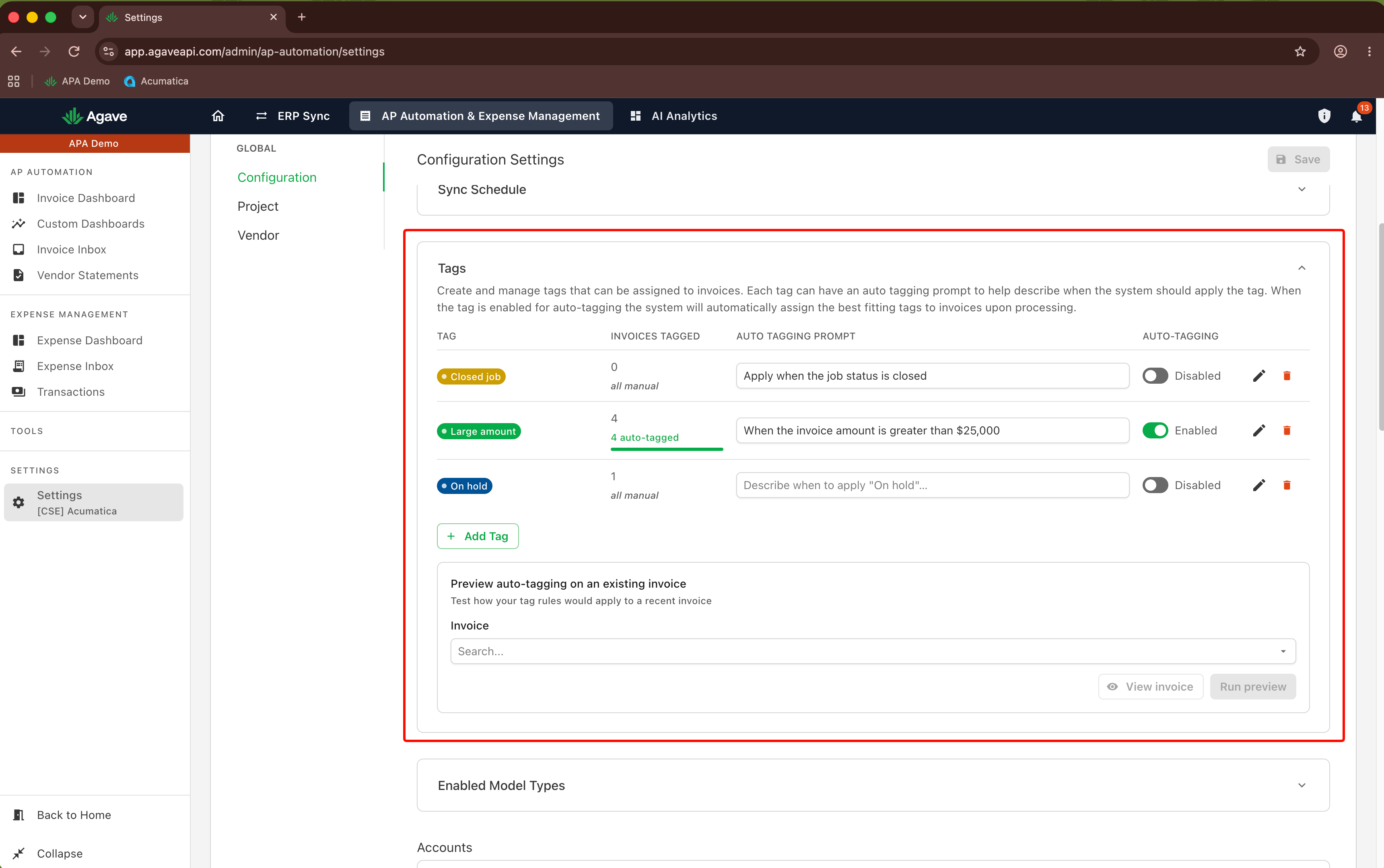
On the Configuration tab, scroll to the bottom of the page. This is where your tags and auto-tagging prompts live:
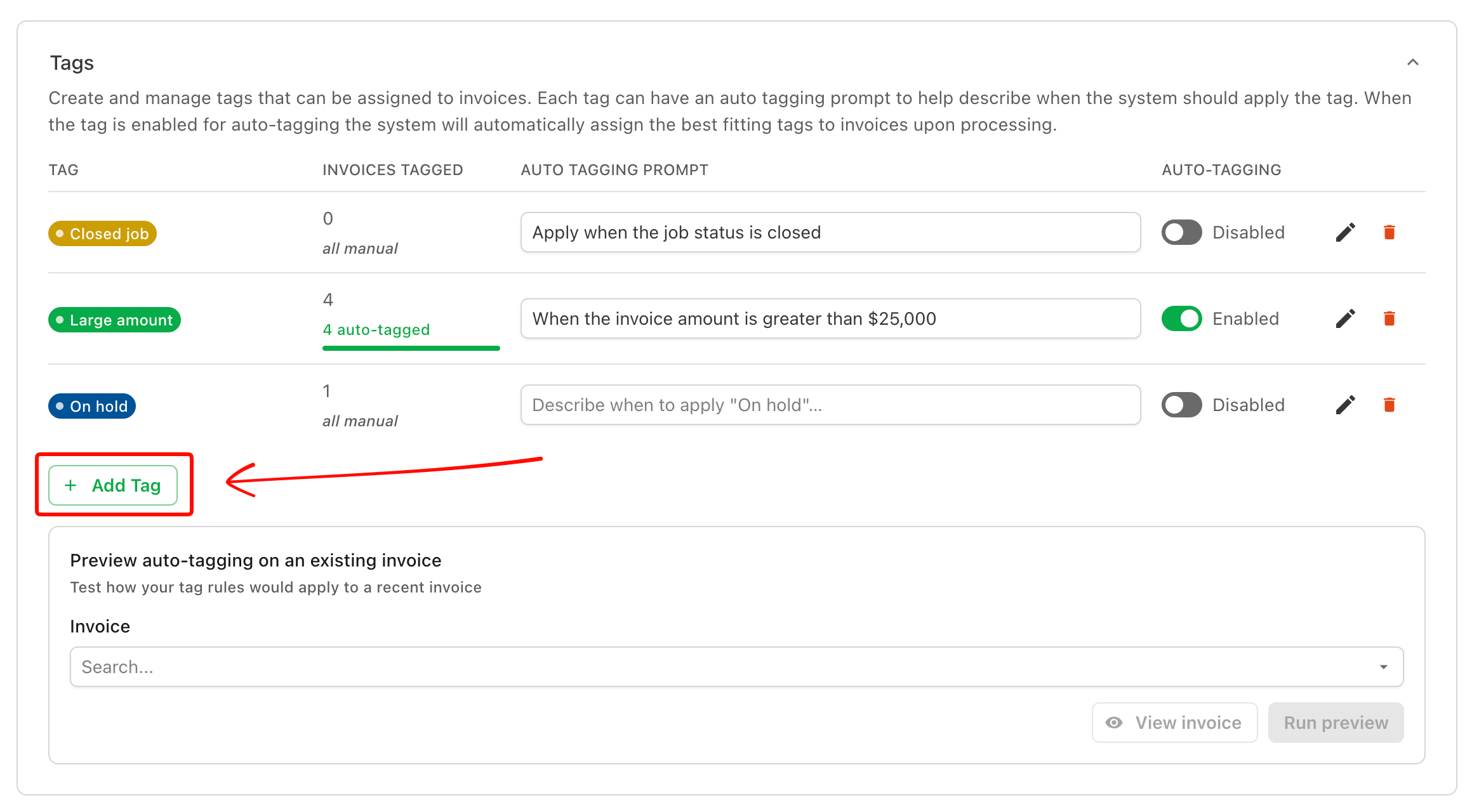
Step 3: Add a new tag
Click Add Tag:
Step 4: Name the tag
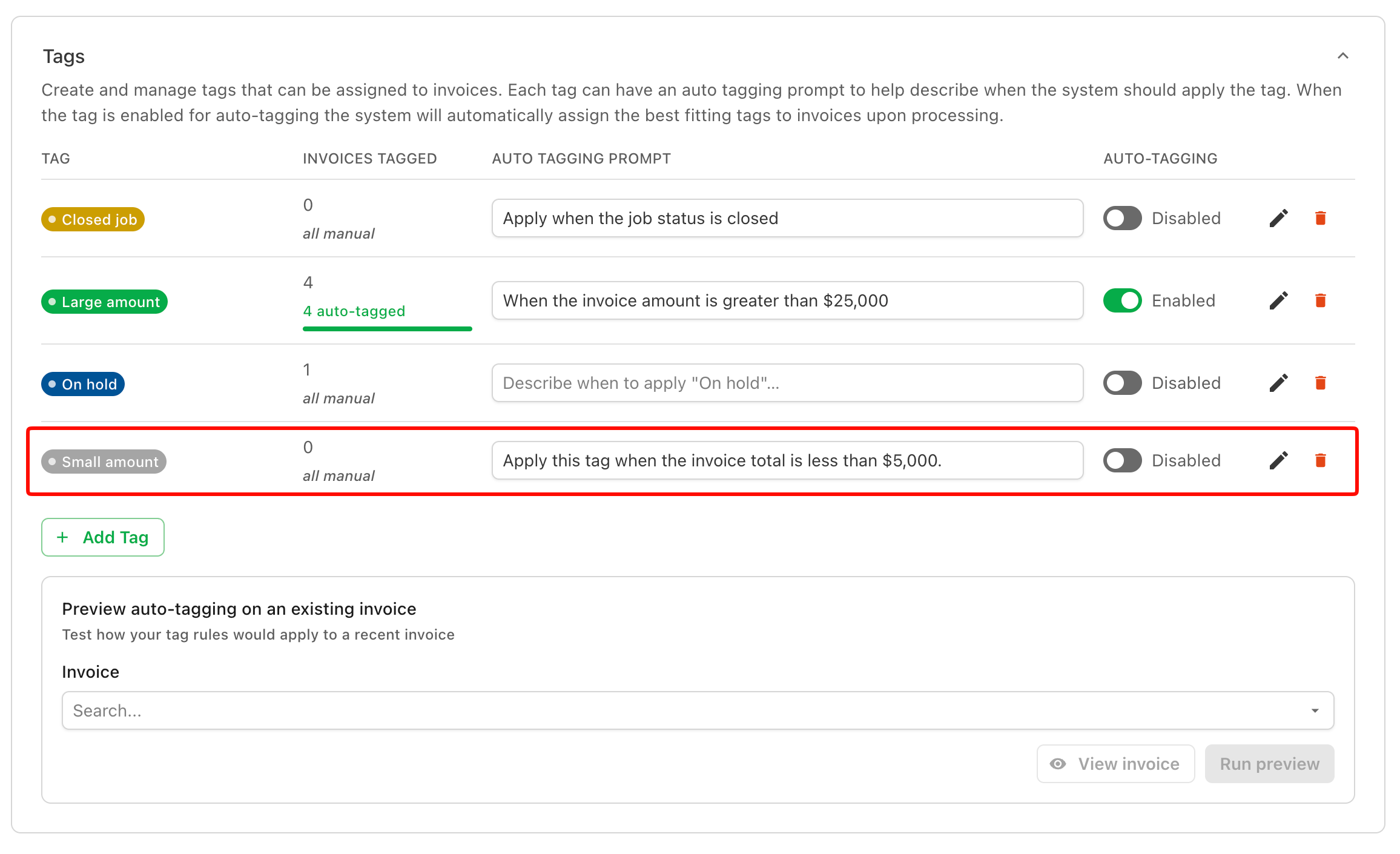
Give the tag a short, readable name. Your team will see this name on invoices and use it to filter, so keep it simple. In this example, the name is Small amount.
Step 5: Describe when to apply the tag
In the description field, write in plain language when this tag should be applied. For Small amount:
Apply this tag when the invoice total is less than $5,000.
Step 6: Turn on auto-tagging
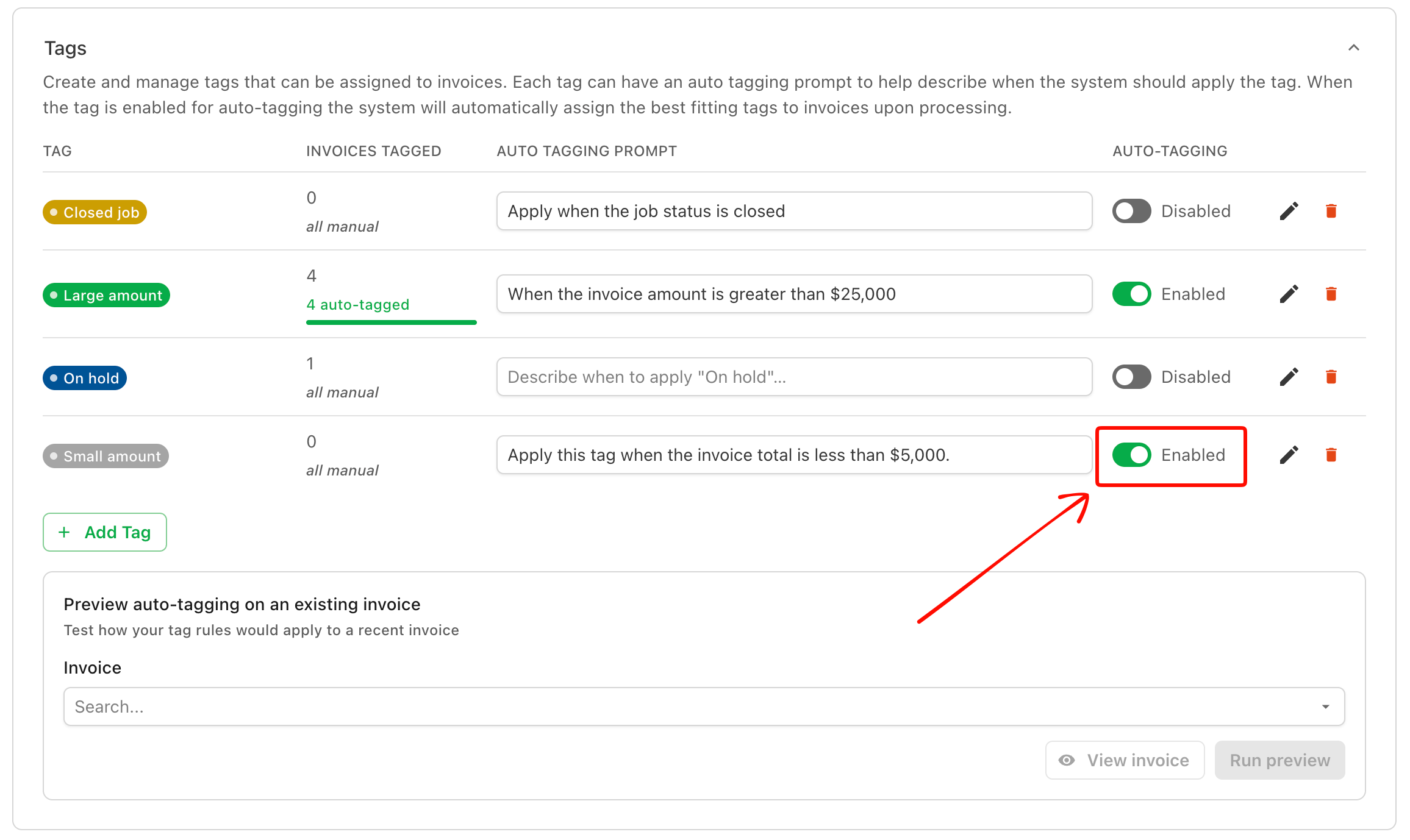
Set the Auto-tagging toggle to enabled before you preview. If it is off, the tag will not be applied automatically, and the preview will not include it:
Step 7: Preview the results
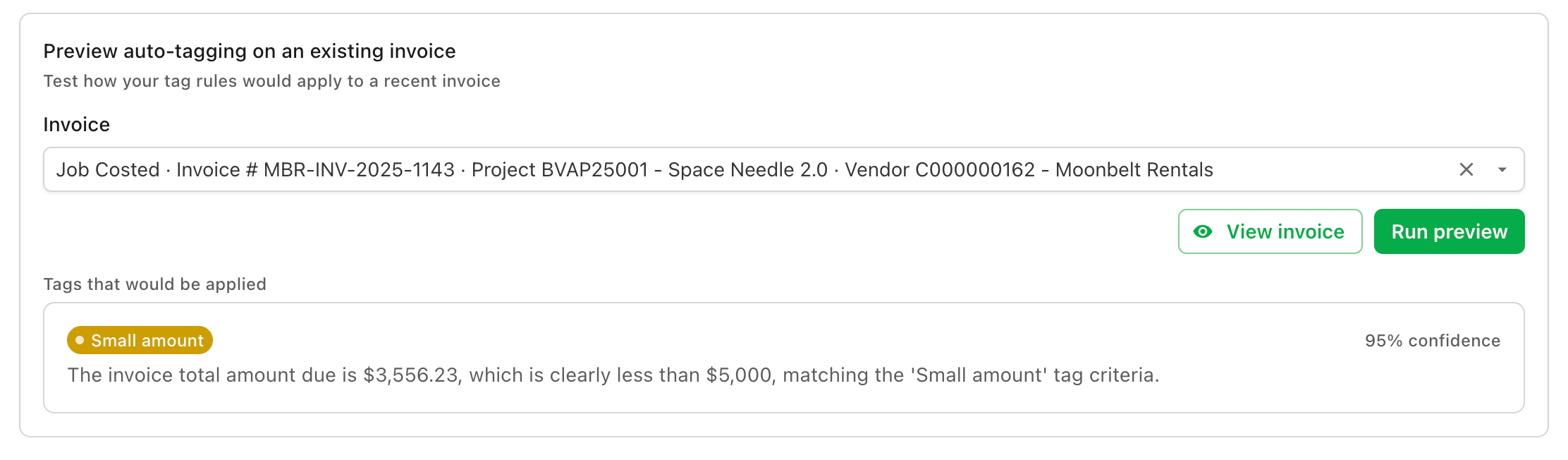
Click Preview Auto-Tagging to see which invoices the tag would be applied to before you save. If the results look off, adjust your description and preview again:
Step 8: Save your settings
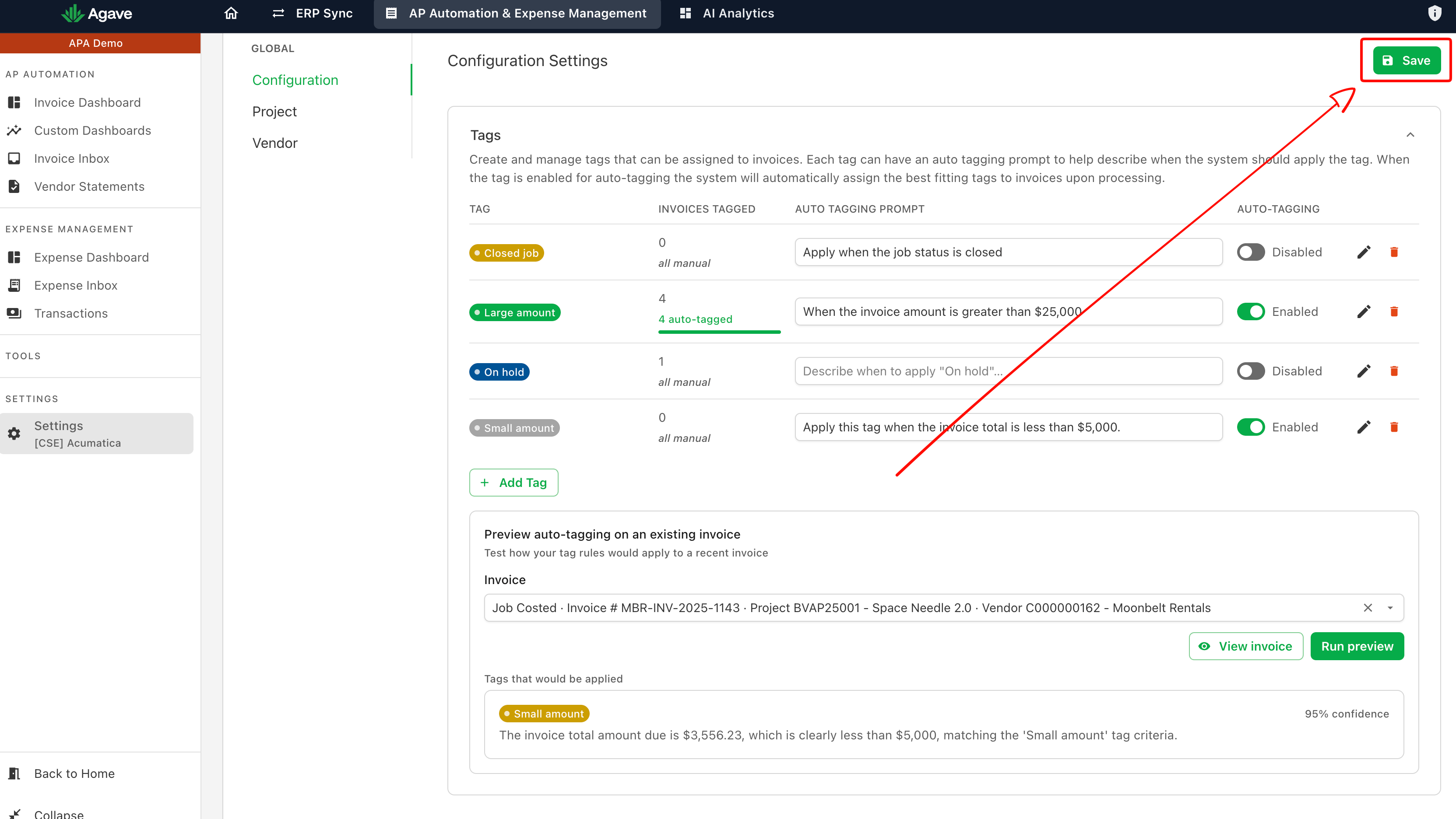
Scroll back to the top of the page and click Save. Agave applies the tag to matching invoices as they are processed from this point on:
Auto-tagging is not retroactive. Saving a tag does not apply it to invoices already in Agave. It applies only to invoices processed after you turn it on.
Tips for writing tag descriptions
- Be specific. "Invoice total is less than $5,000" works better than "invoice is small."
- Describe one condition per tag. If you need two conditions, consider two separate tags.
- Always preview before saving. It is the fastest way to catch a description that is too broad or too narrow.
- Use names your team already uses, such as Small amount or Needs Approval, so tags are easy to recognize.
Need help?
If you have questions about auto-tagging, reach out to your Agave Customer Solutions Engineer or contact support@useagave.com.