Sage Intacct Authentication
Agave connects to Sage Intacct through a Web Services User and a registered API application. This guide covers creating both, and the permissions they need.
This guide is for your Sage Intacct administrator. You only need it once, when Expense Management and/or AP Automation are first connected.
This guide covers:
- Whether you need a new Web Services User
- Enabling the Web Services subscription and authorizing Agave's Sender ID
- Creating a Web Services User and the role that grants it permissions
- Registering an API application and authorizing it in Sage Intacct
- Authenticating with Sage Intacct in Agave
Before you start
Two things are required before you start:
- An active Sage Intacct Web Services subscription. This license comes with a Sender ID and a Sender Password, which Sage sends you when your subscription is activated. Store both somewhere secure. You will need them more than once below.
- The Sage Intacct Construction Financials module. The Construction Project Management module is not required.
You will also need Sage Intacct administrator access, so you can reach the Company, Admin, and Setup screens used below.
How many Web Services Users you need
Sage Intacct needs a separate Web Services User for each Agave product, with one exception: AP Automation and Expense Management share a single user.
| What you use Agave for today | What to do |
|---|---|
| Nothing, you are new to Agave | Complete every step on this page |
| Agave ERP Sync | Create a second Web Services User in Step 3 |
If you already use AP Automation, your existing Web Services User covers Expense Management too. There is nothing to do on this page.
Step 1: Enable the Web Services subscription
Skip this step if you already use any Agave product with Sage Intacct.
- Contact your Sage Intacct account manager to enable a Web Services license.
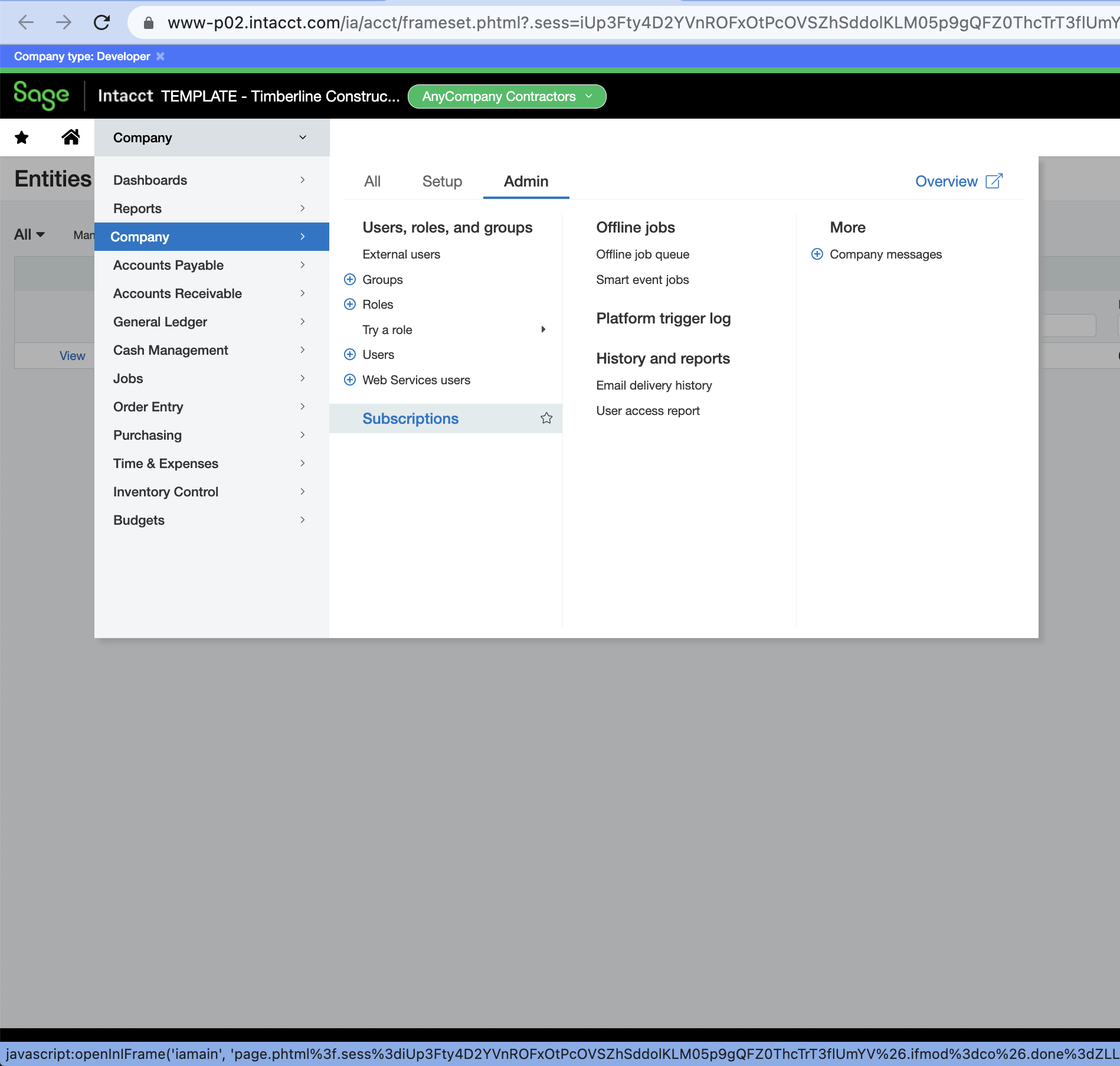
- Go to Company > Admin > Subscriptions.
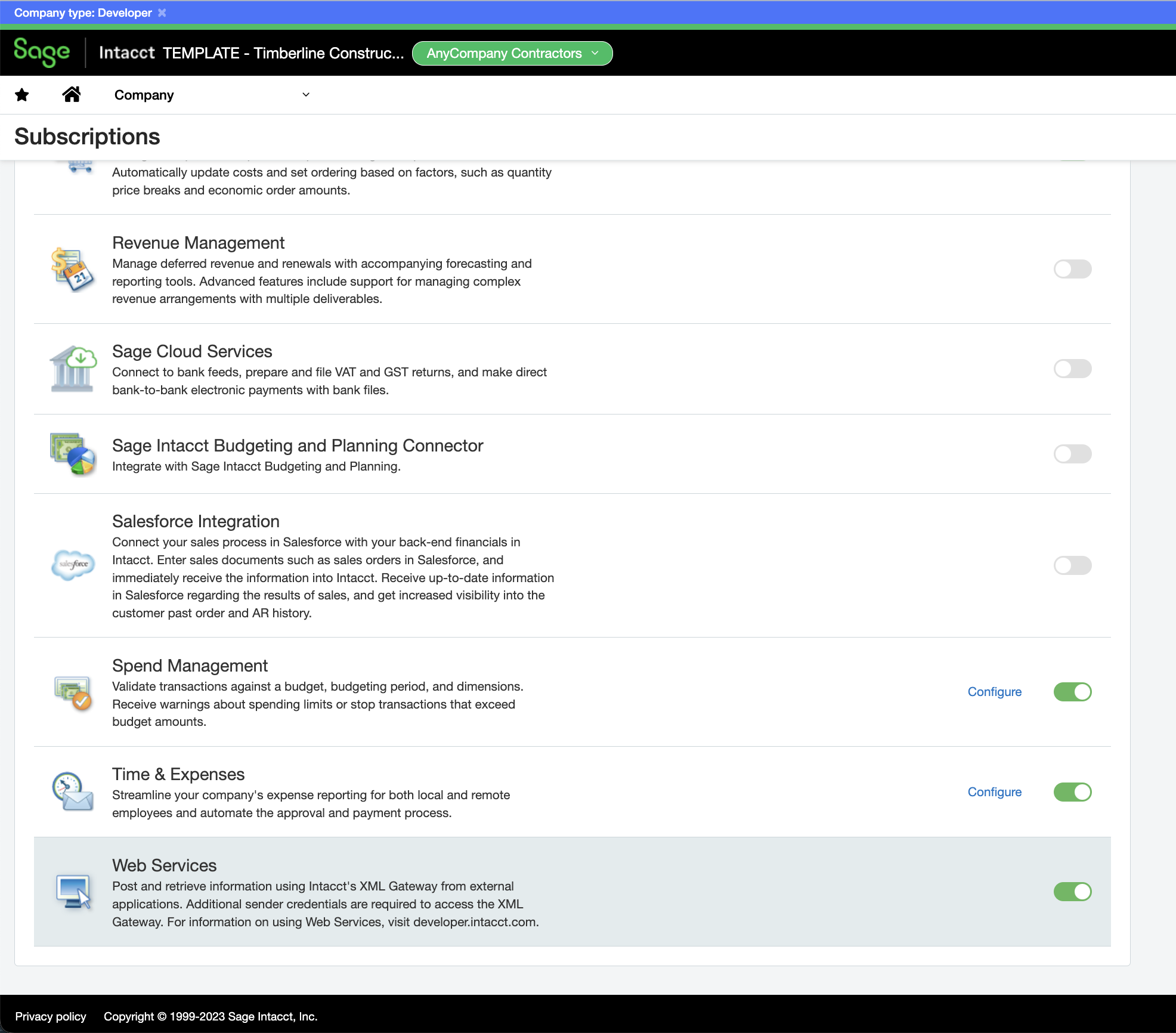
- Scroll to the bottom of the page and enable the Web Services subscription.
Step 2: Authorize the Web Services Sender ID
Skip this step if you already use any Agave product with Sage Intacct.
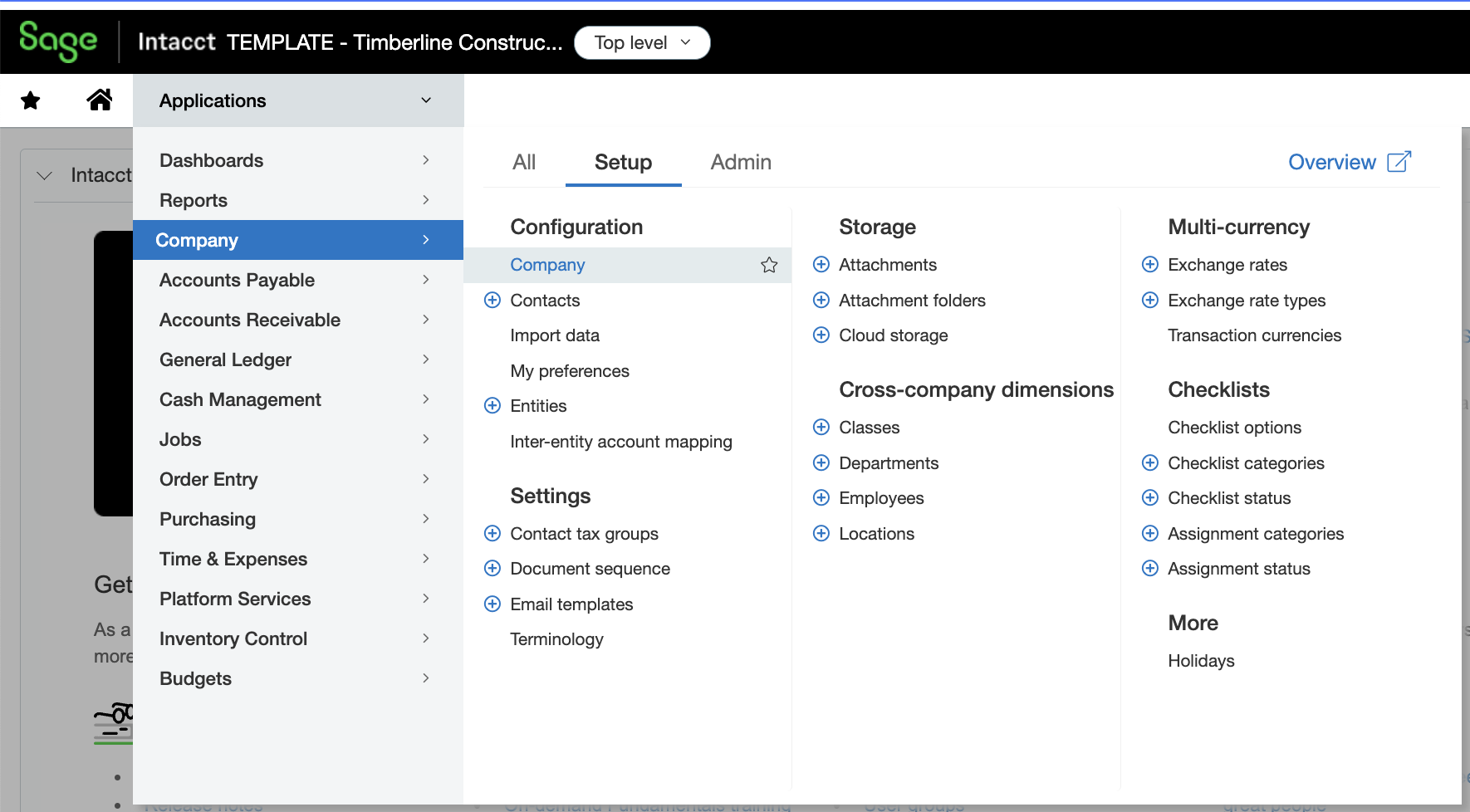
- Select Company > Setup > Company (under Configuration).
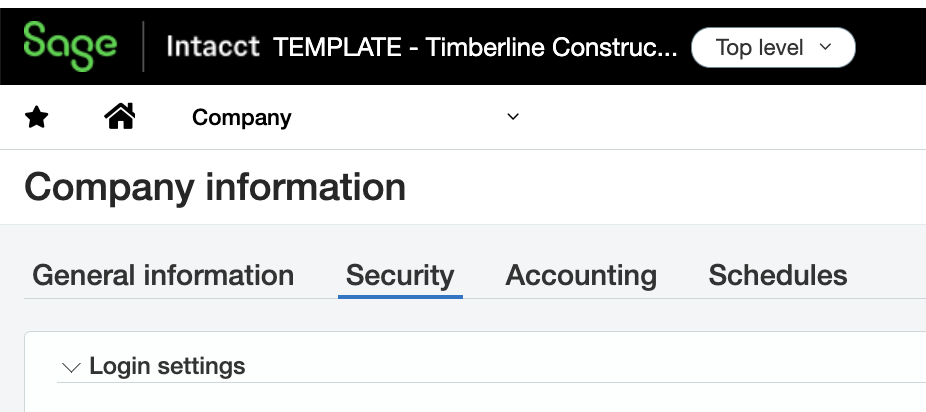
- Select Security.
- Scroll down to Web Services Authorizations and press Add.
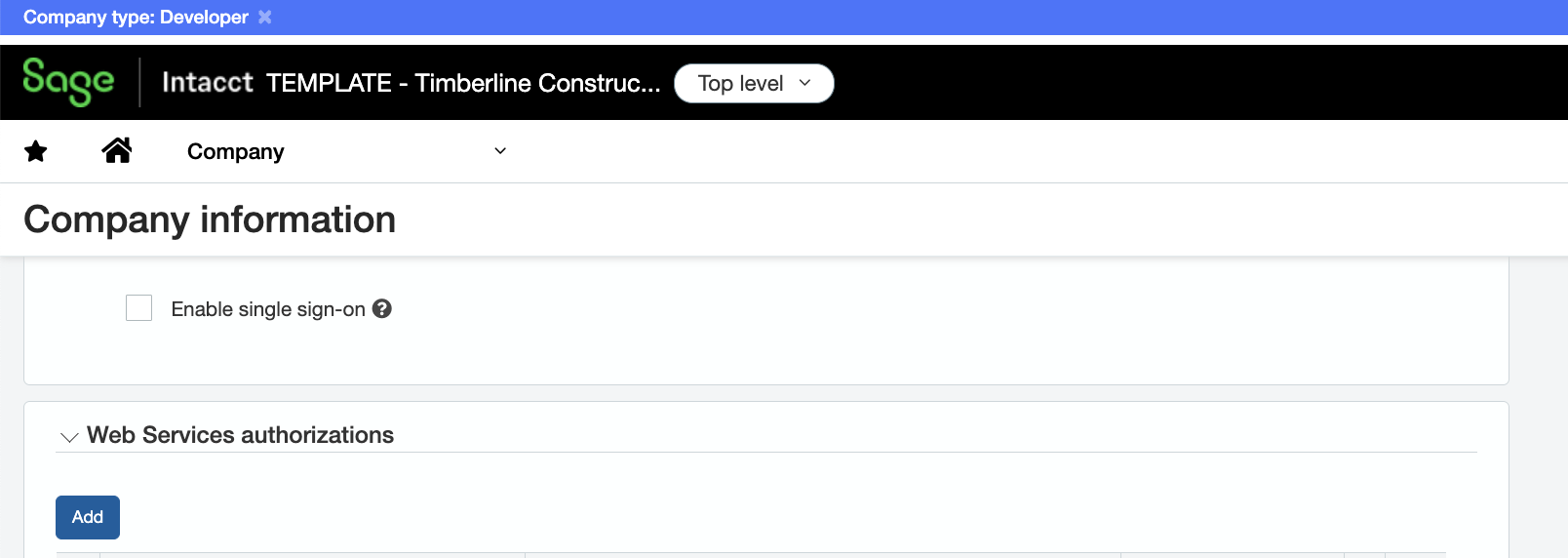
- Enter the Sender ID you received in Step 1, then press Save.
Step 3: Create a Web Services User
A Web Services User is the account Agave acts as inside Sage Intacct.
If you already use Agave AP Automation, you have this user already. Skip to step 4 below and confirm its role covers the Cash Management module.
If you use Agave ERP Sync or AI Analytics, work through this step to create a second Web Services User. Give it a name that makes its purpose obvious, such as AgaveEM, so it is not confused with the user your other Agave product uses.
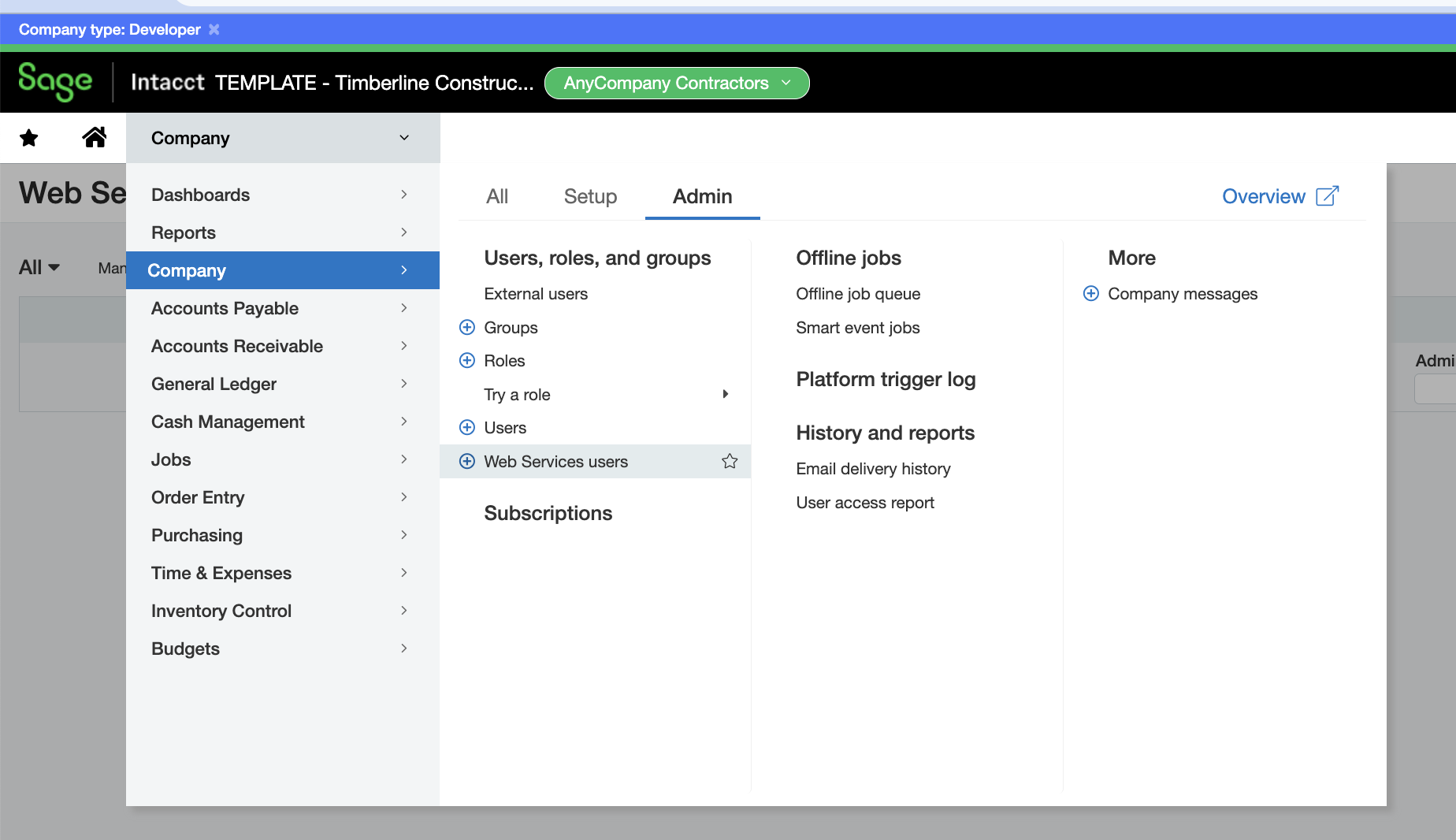
- Select Company > Admin > Web Services Users.
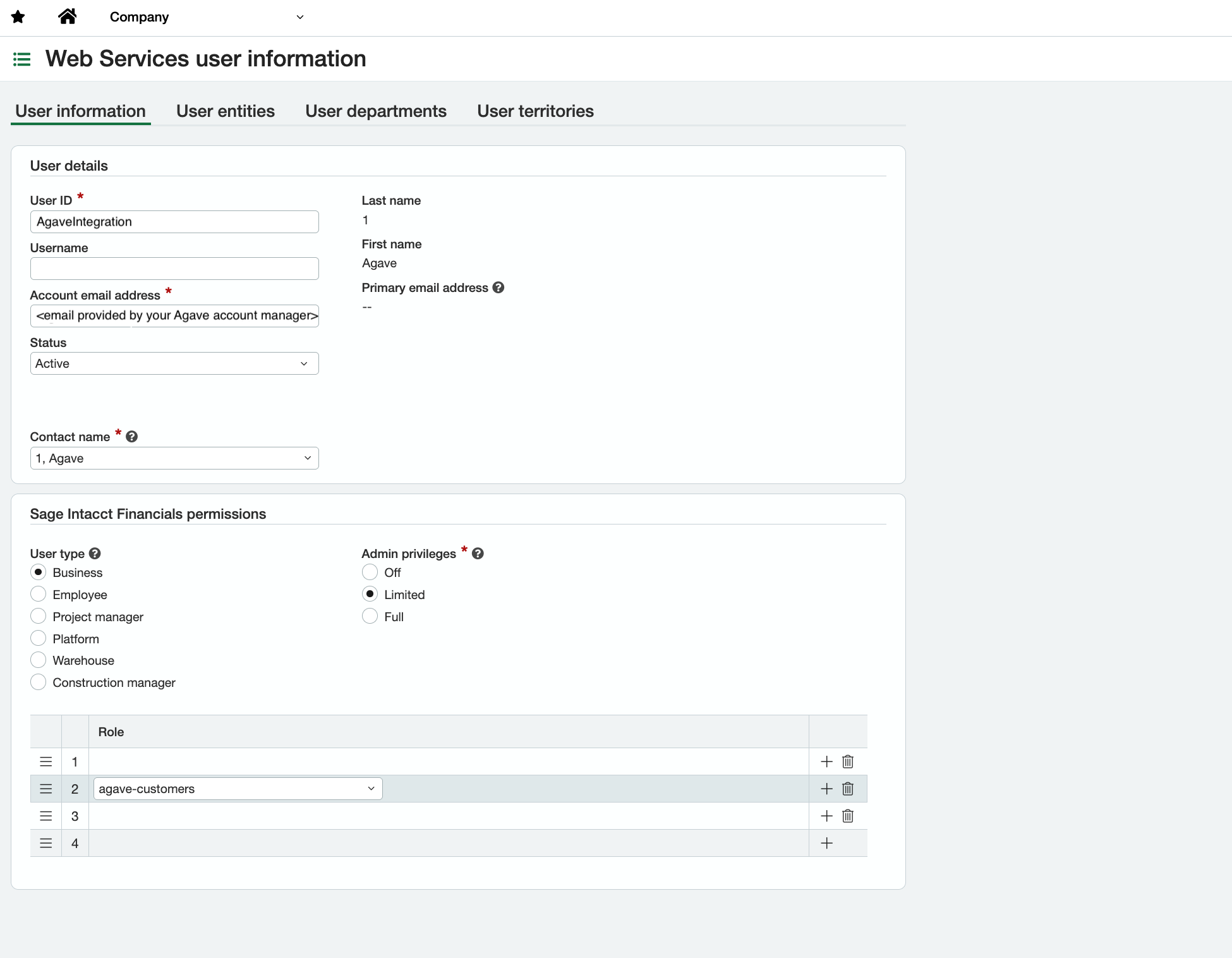
- Enter the user information for the Web Services User. Add the user's role in the table at the bottom of the page. Steps 5 through 8 below cover creating that role.
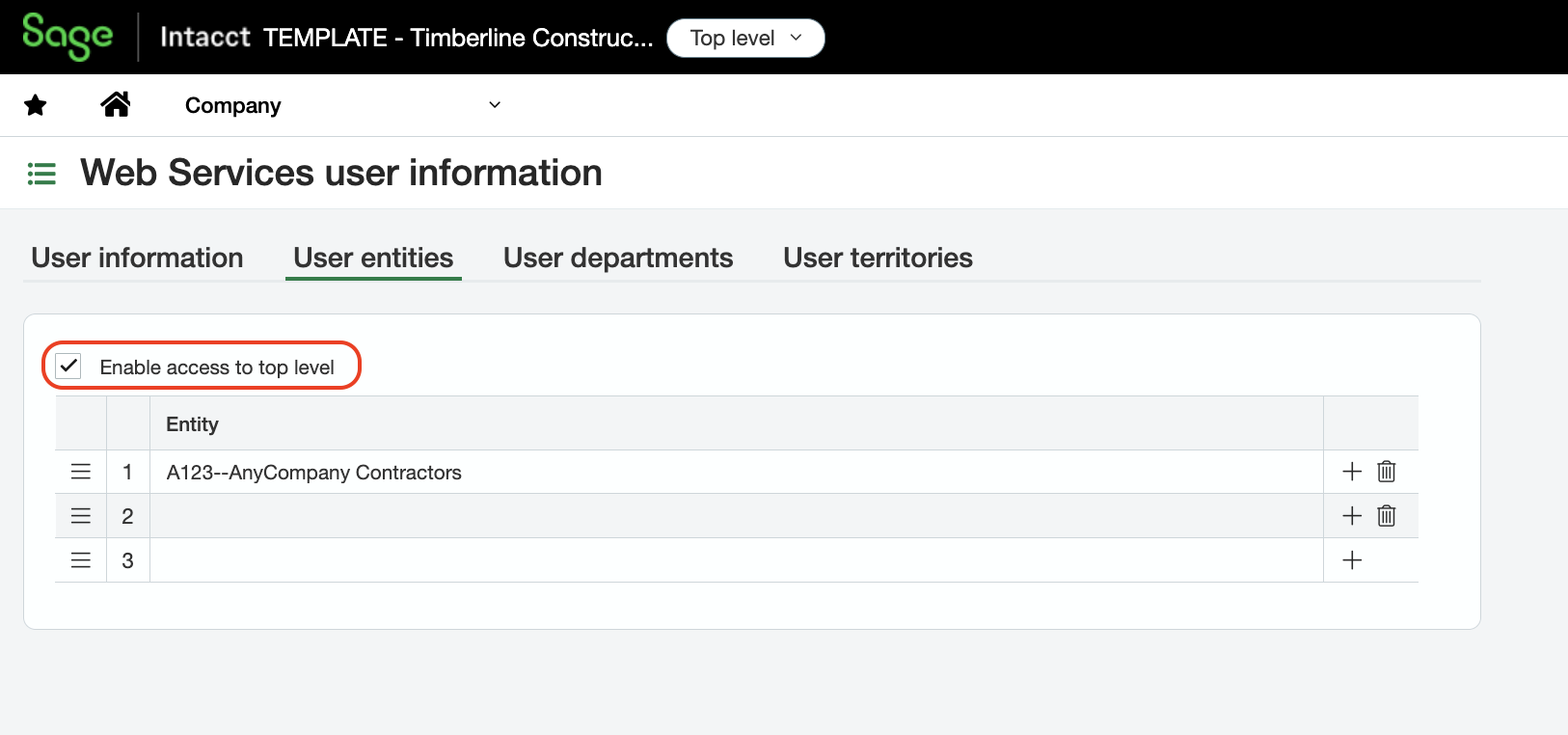
- Go to the User Entities tab. Select Enable access to top level, plus any entities you want this Web Services User to reach.
- To give the Web Services User its permissions, go to Company > Admin > Roles.
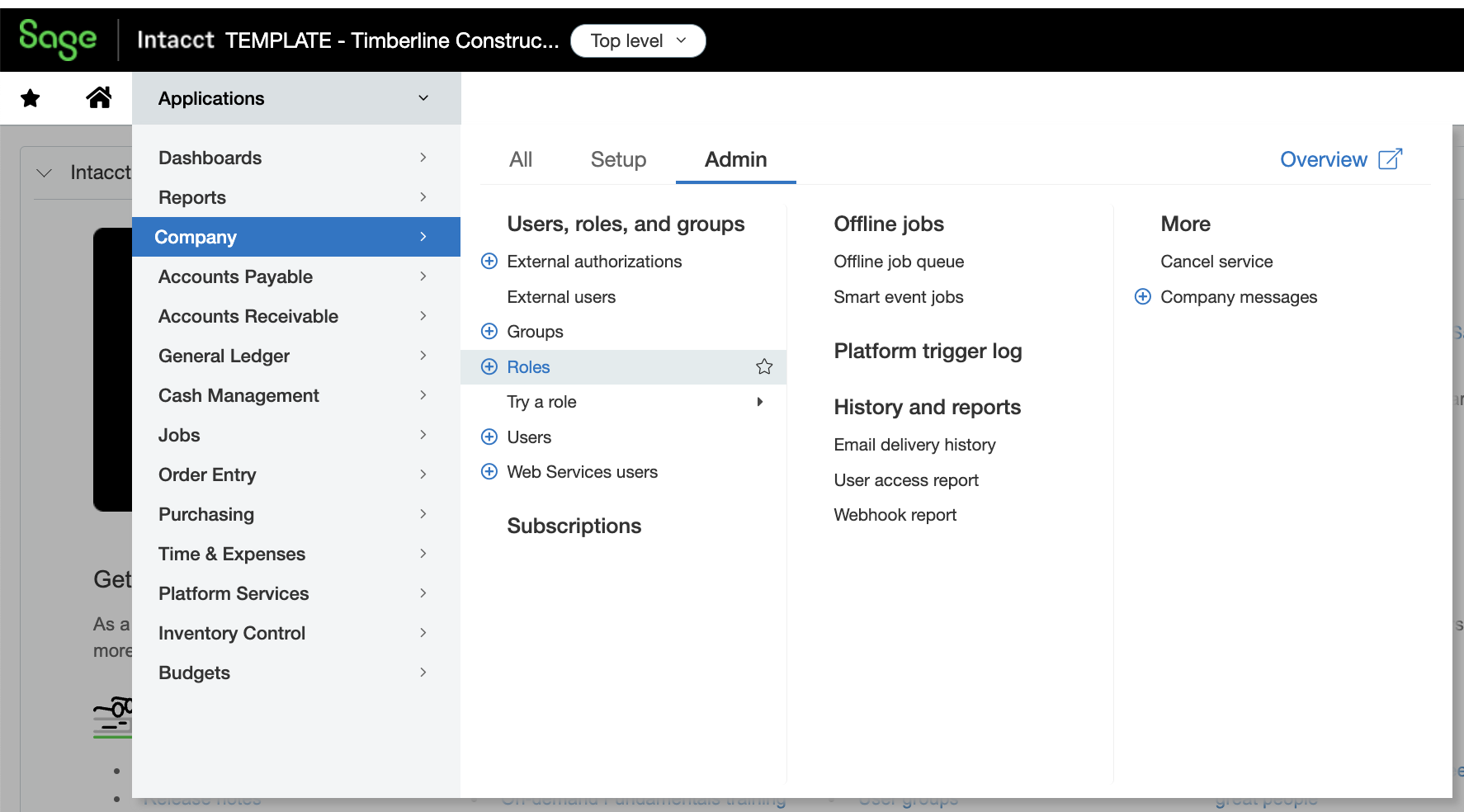
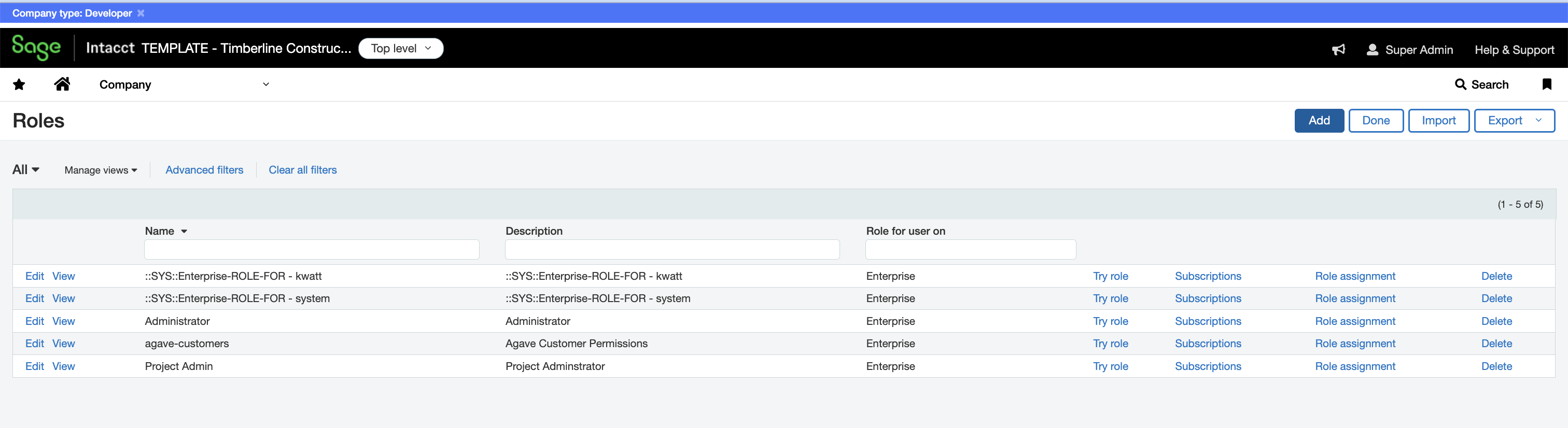
- Select Add.
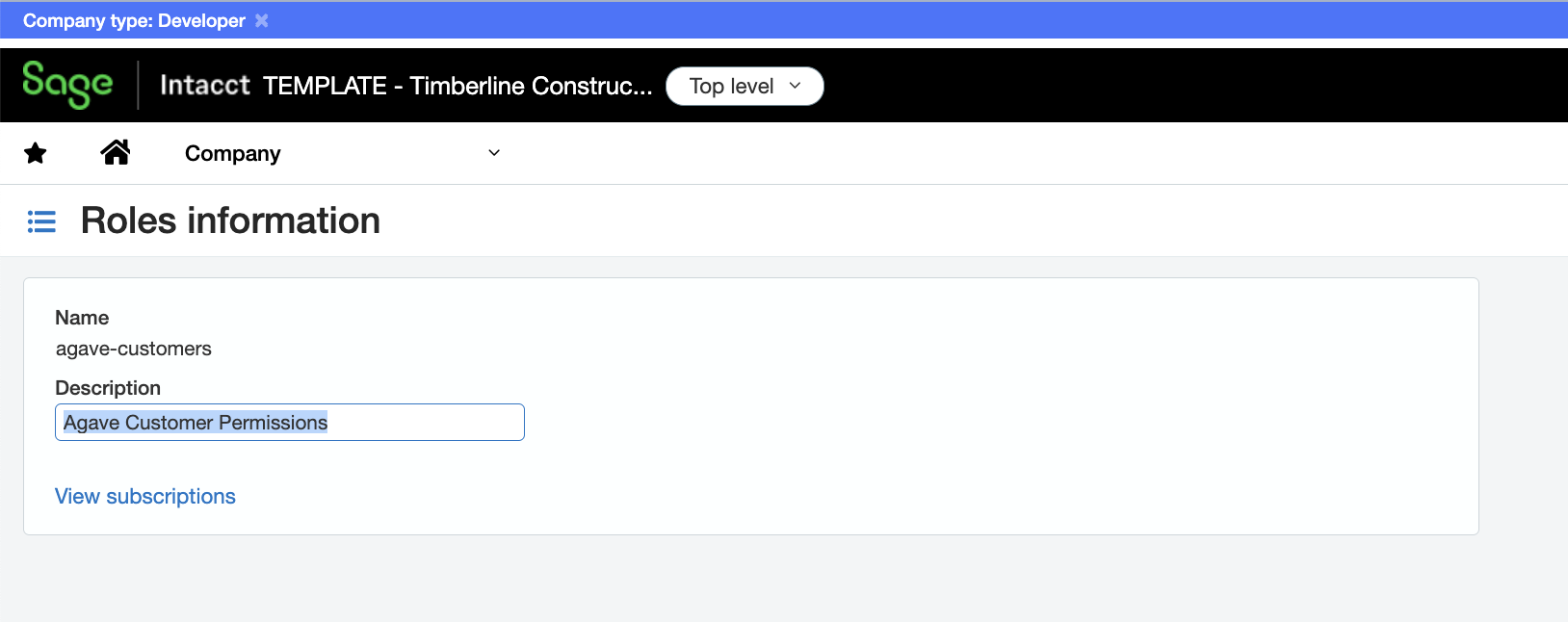
- Add a name and description for the role, then click Save.
- For each module, click Permissions next to the module name, then click All and Save. Repeat until every required module has permissions enabled.
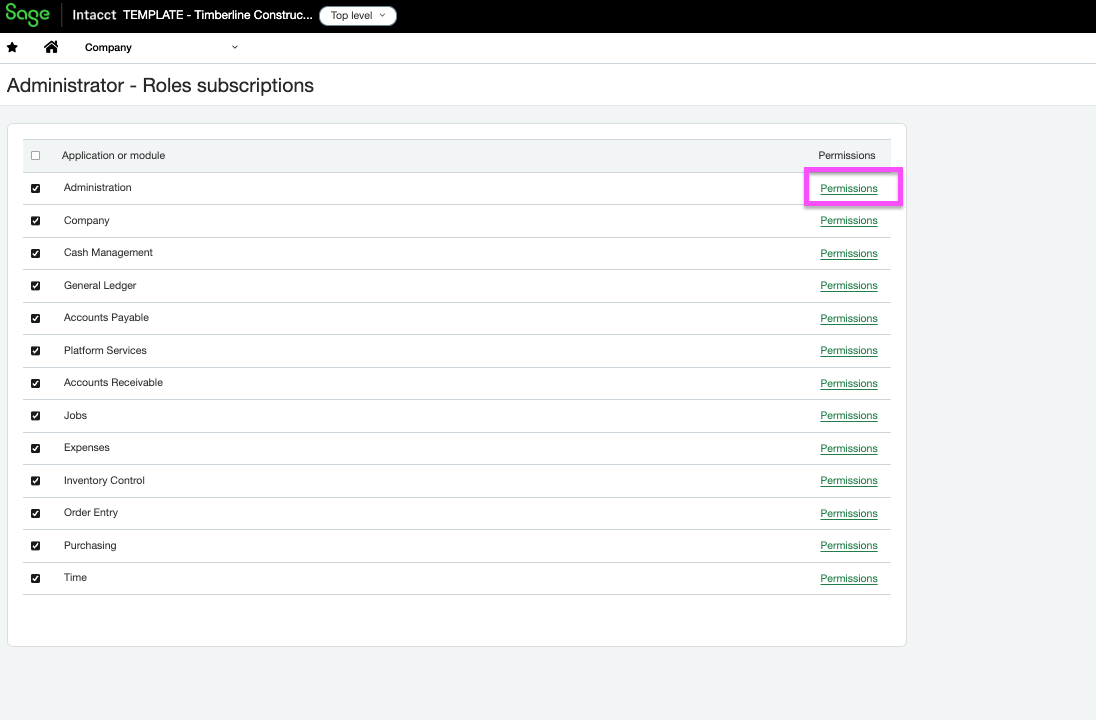
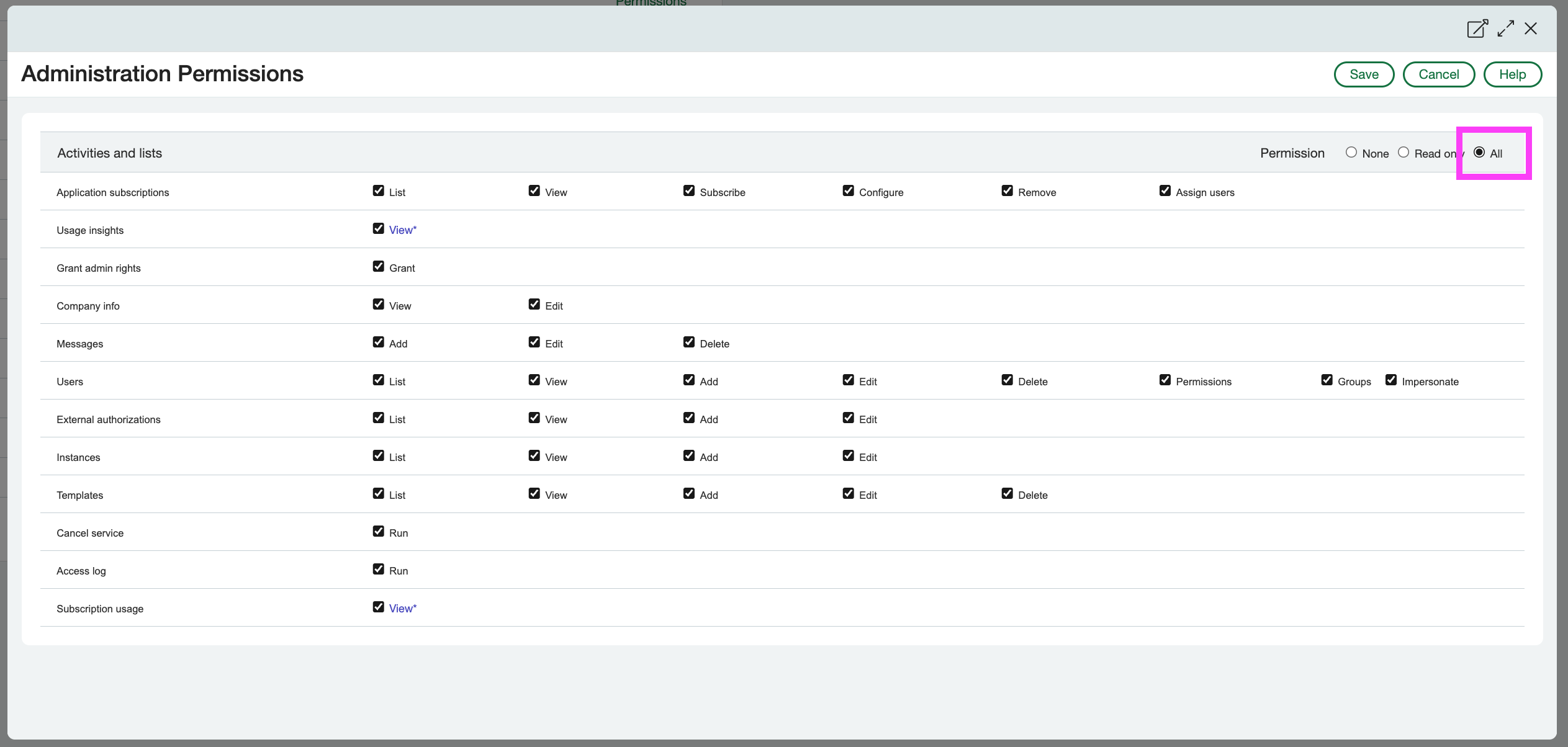
Enable permissions for at least the Company, General Ledger, Accounts Payable, Accounts Receivable, Jobs, Order Entry, and Purchasing modules.
Expense Management also needs permissions on the Cash Management module, which is where credit card transactions live. The other Agave products do not use it, so it is easy to miss if you are adding Expense Management to an existing connection.
- After saving the role, return to the Web Services User page in step 2 above and add the new role under the Role table at the bottom.
Step 4: Register an API application
Agave connects to Sage Intacct through the JSON API, which needs an application registered in the Sage Developer Portal.
Skip this step if you are already an Agave ERP Sync customer. The application registered for that connection works here too, and the Client ID and Secret Key you need in Step 6 are the same ones. Go straight to Step 6.
- Go to https://developer.sage.com/intacct/, log in with your Sage Intacct Developer Workspace credentials, and select the Console tab.
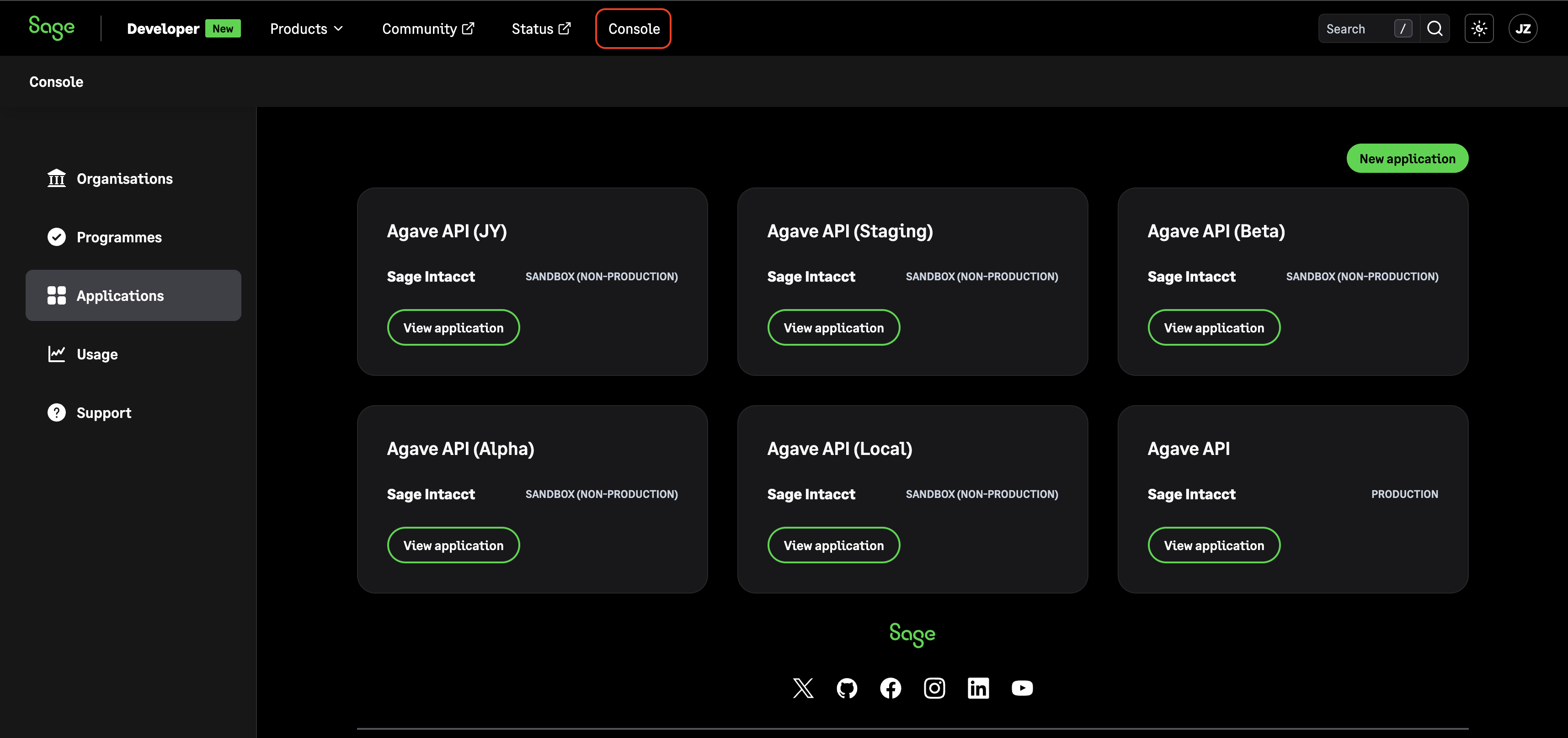
If nobody at your company has used the portal before, do these two things first. If you already have a login and are enrolled in the Sage Intacct Developer Programme, go straight to step 2 below.
Create a Sage ID. On the login page, click Sign up. Use a shared or role-based work address such as it-admin@yourcompany.com rather than a personal one, so the account is not orphaned if someone leaves. When prompted, create a workspace named after your company.
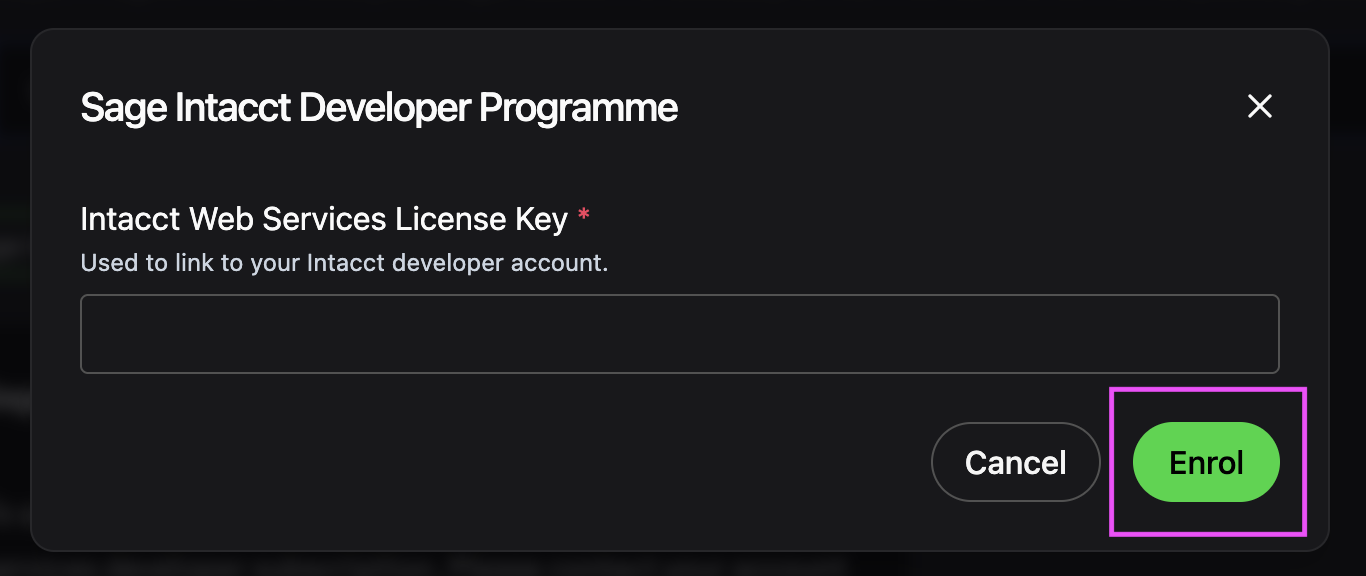
Enroll in the Sage Intacct Developer Programme. From the Console, go to Applications and create a new application. If you see an Enroll to unlock button, click it, then click Enroll on the page that opens.
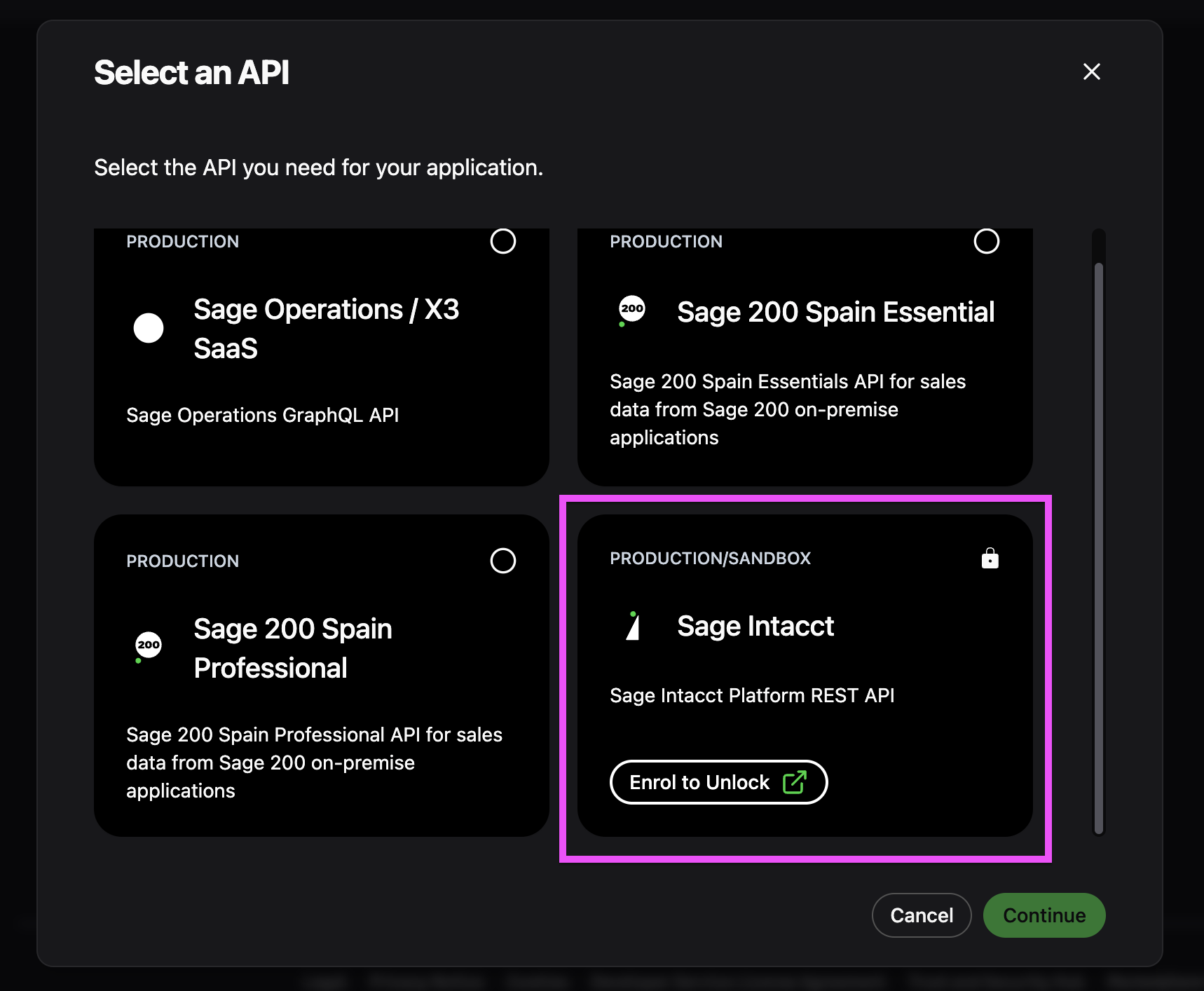
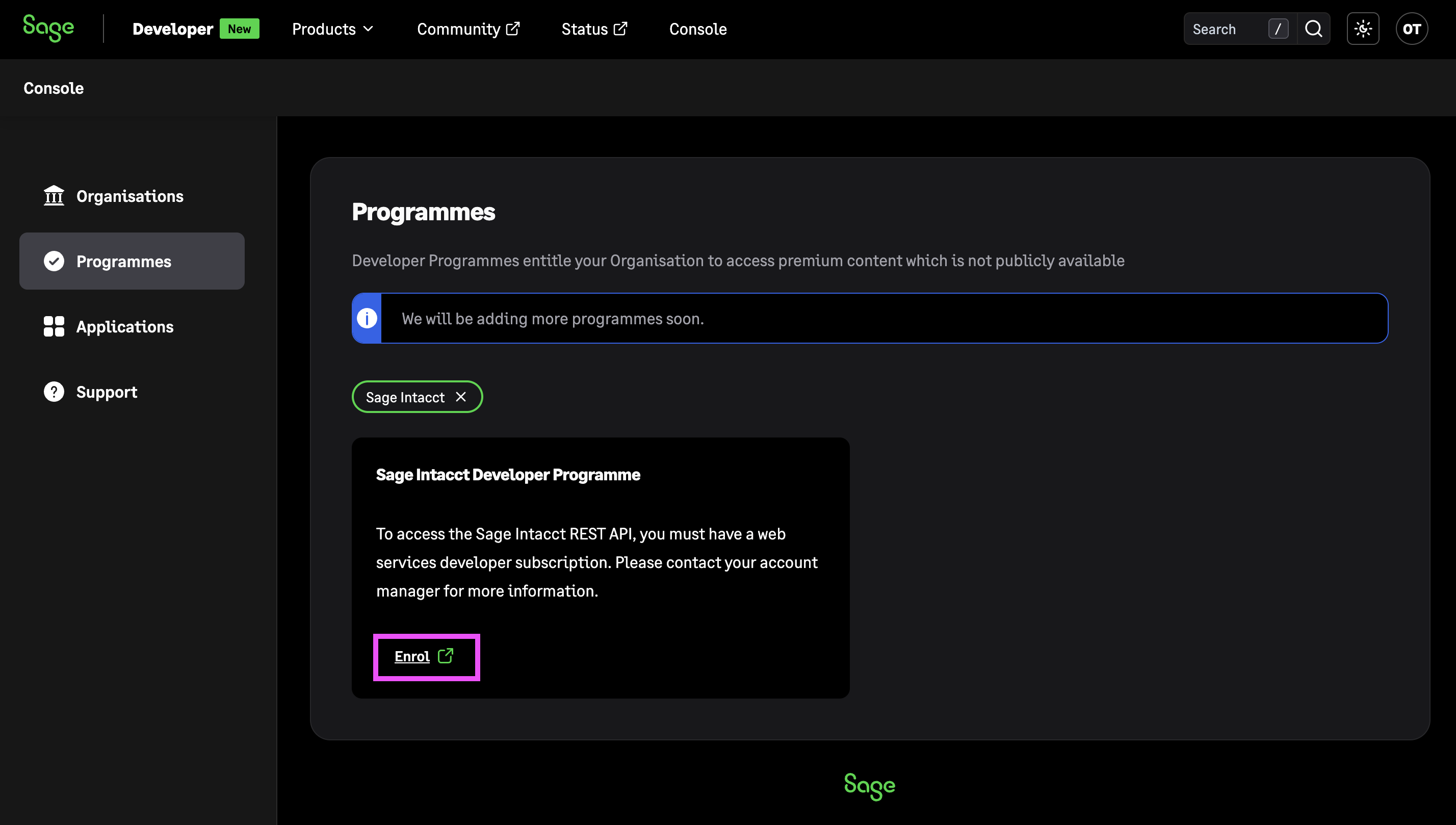
A dialog asks for your Intacct Web Services License Key. This is the Sender ID from Step 1. Paste it in and click Enroll.
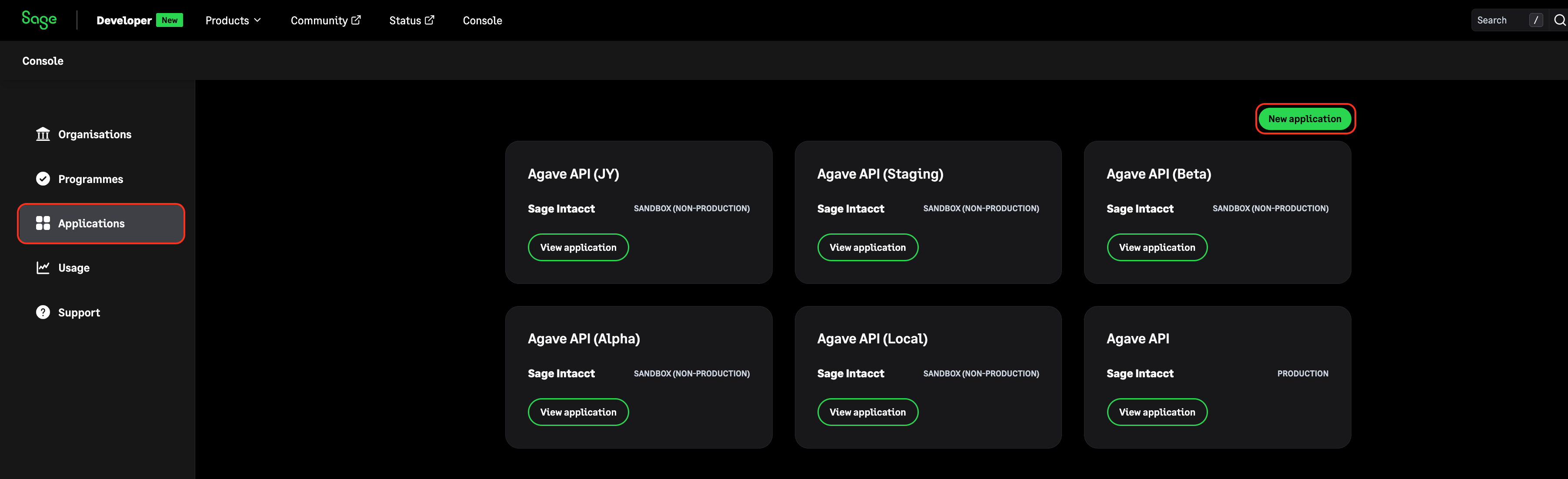
- Select Applications in the sidebar and create a new application.
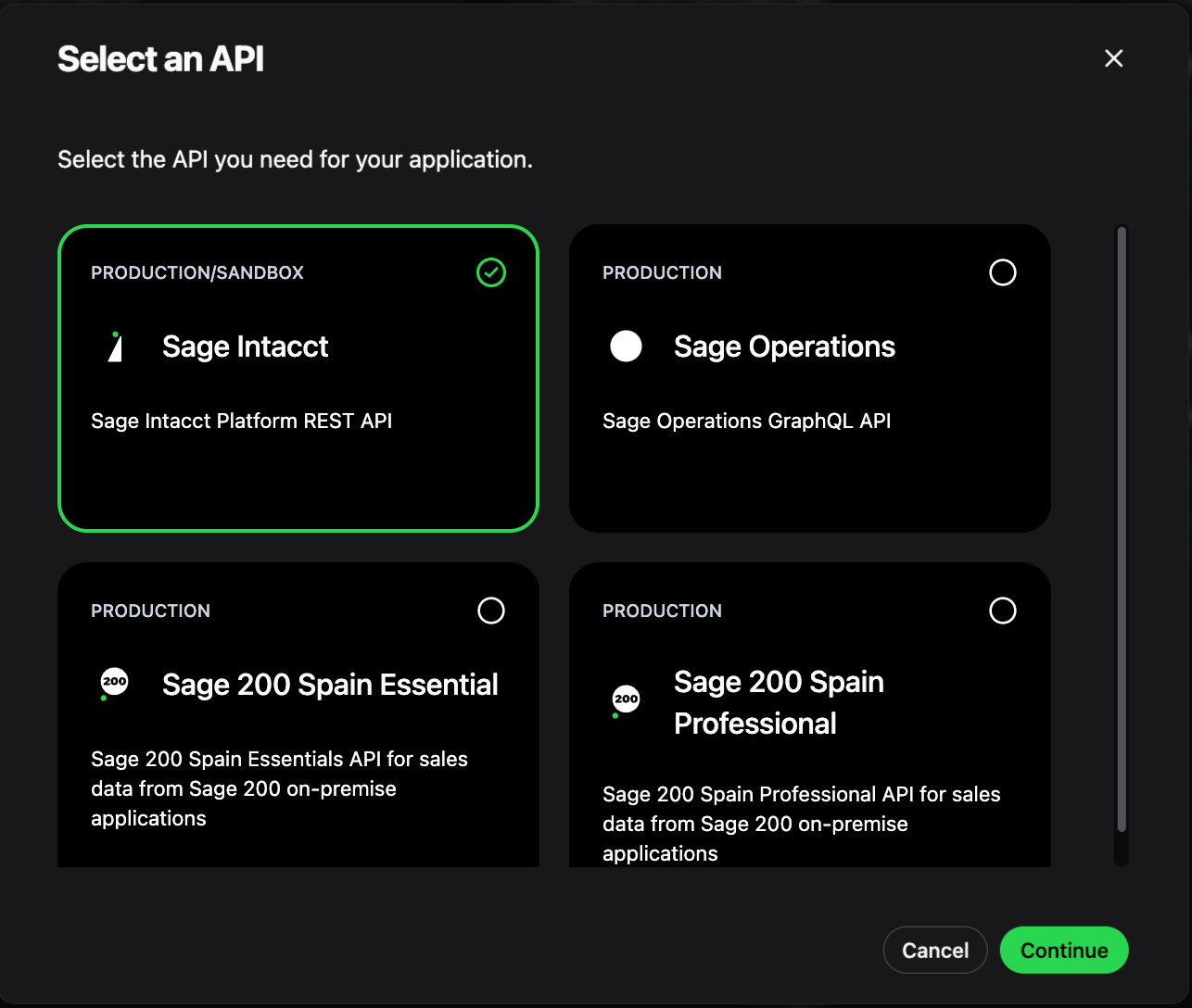
- Select the Sage Intacct API.
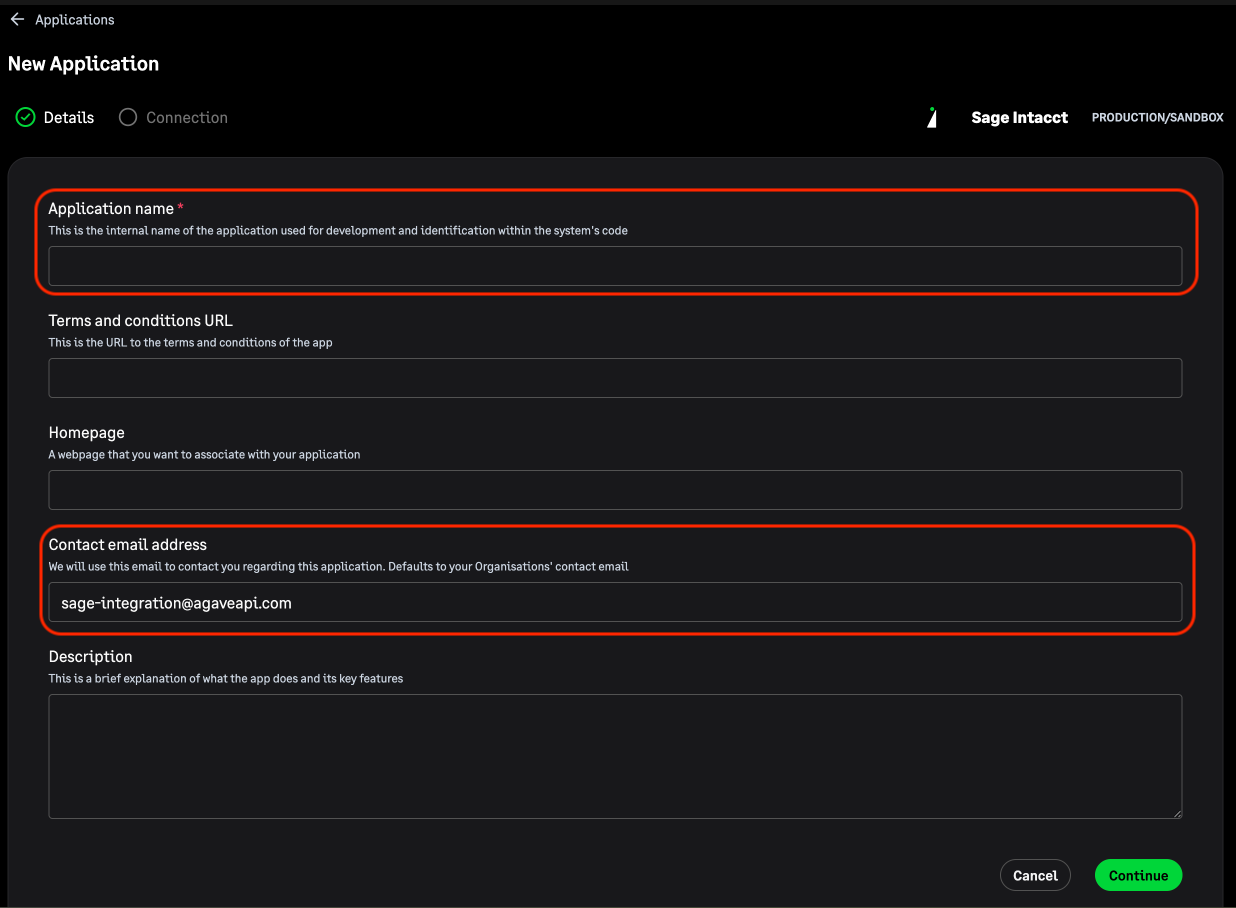
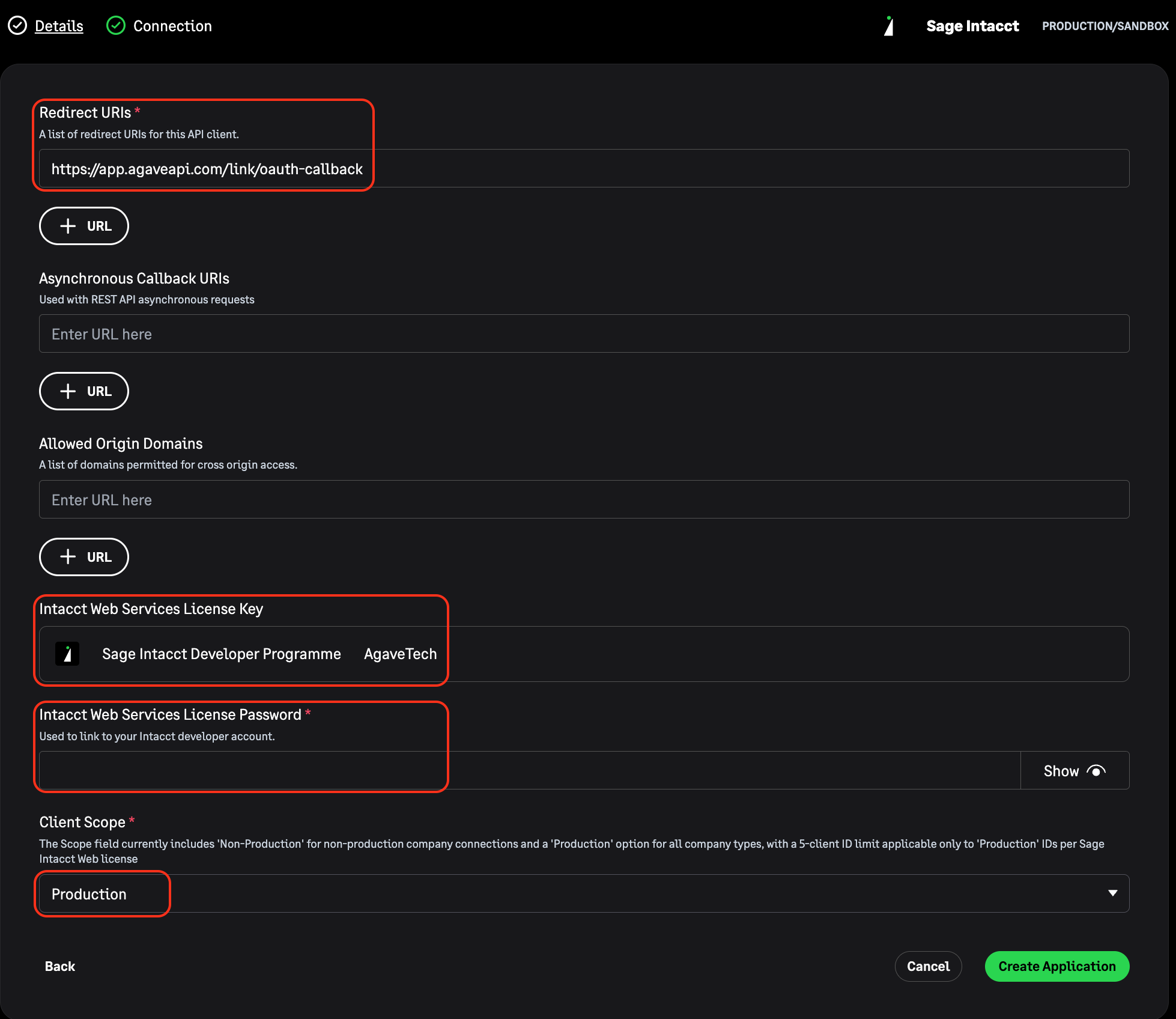
- Enter "Agave Customer" as the Application Name and your email address as the Contact Email Address.
- Enter
https://app.agaveapi.com/link/oauth-callbackas the redirect URI, set Client Scope to production, and enter your Web Services Sender Password for the password. Leave Async Callback URI and Allowed Origin Domains blank.
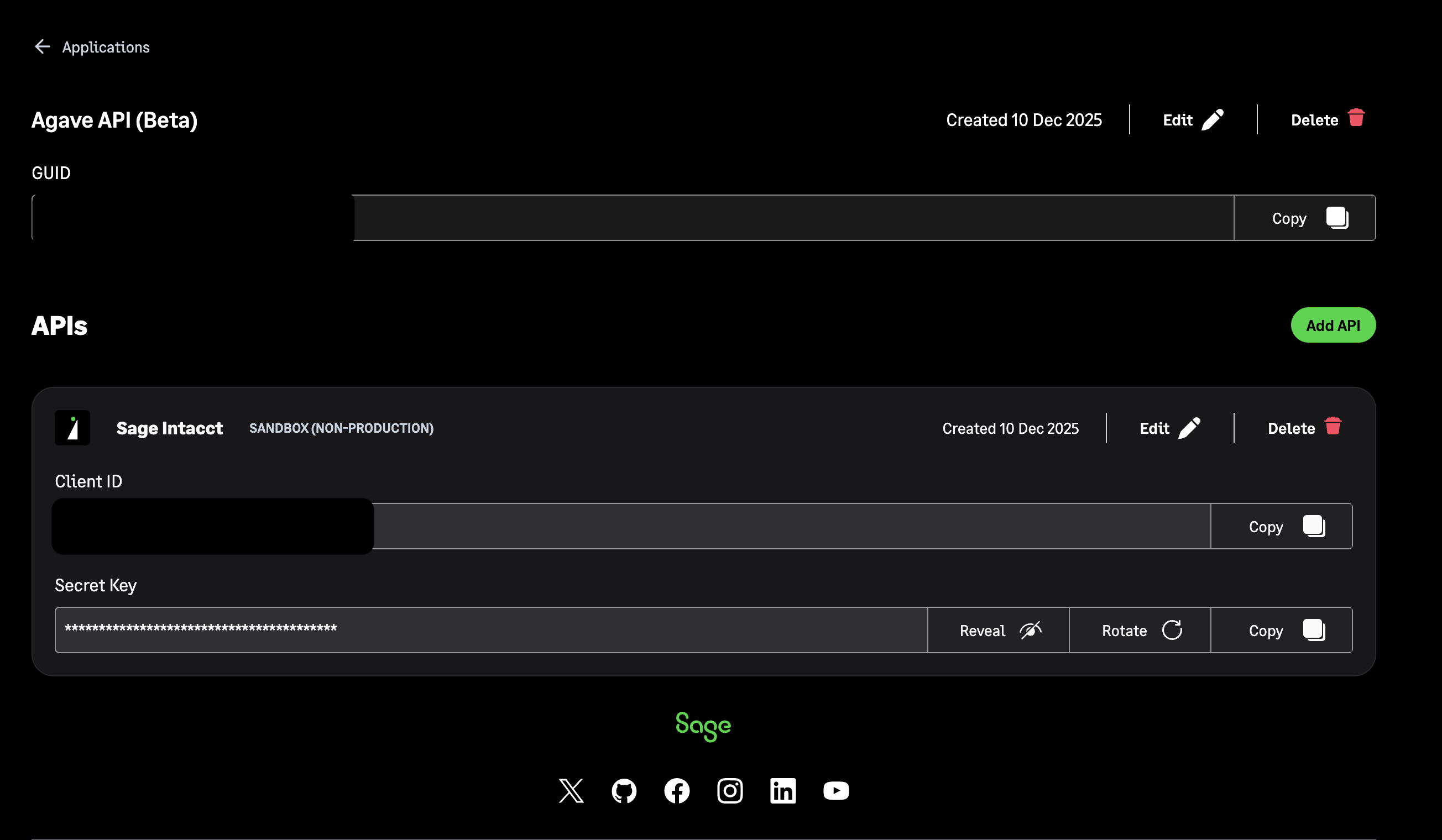
- On completion you receive a GUID, a Client ID, and a Secret Key. Keep the Client ID and Secret Key to hand, since you need them in Step 6.
Step 5: Authorize the application in Sage Intacct
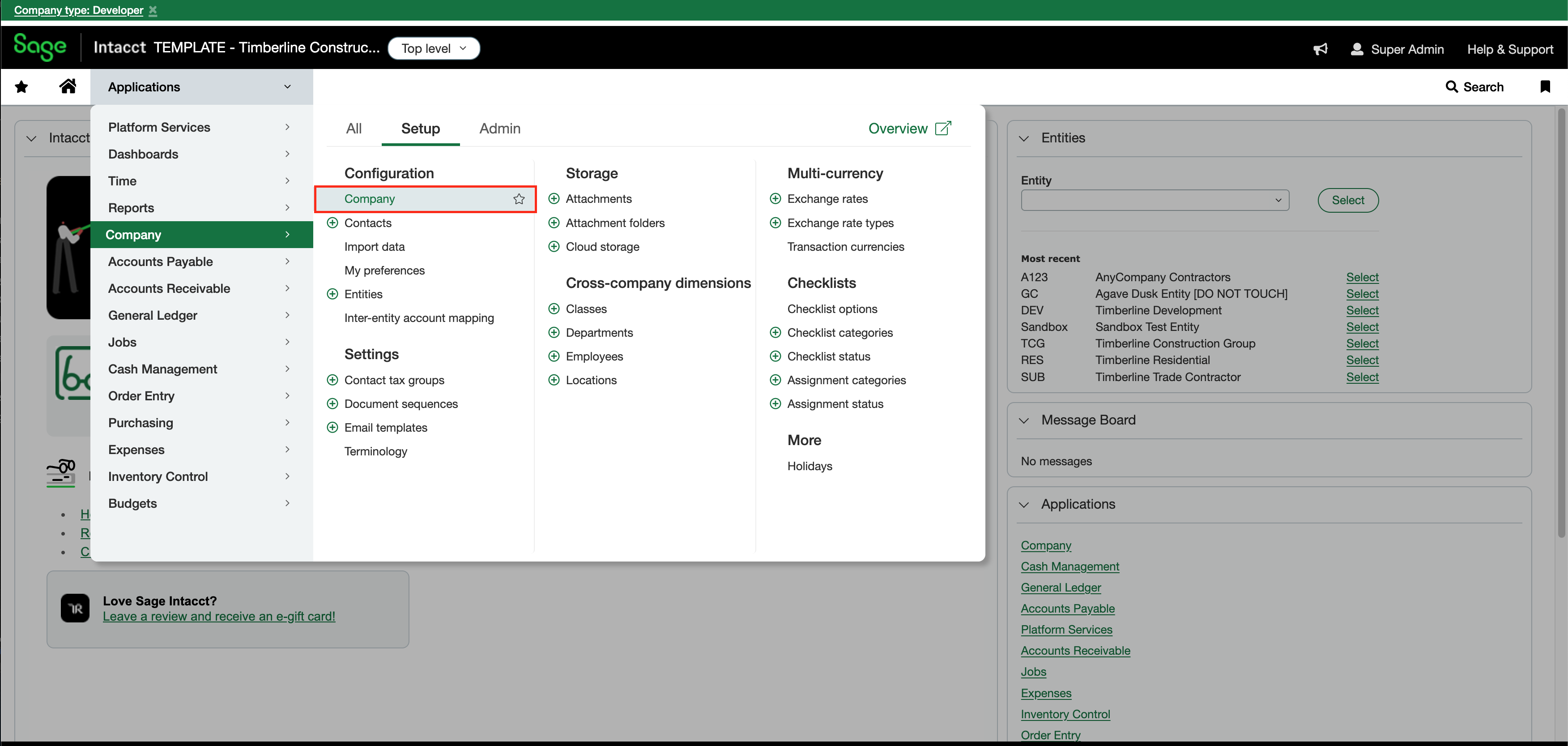
- Open Sage Intacct at the top level entity and go to Company > Setup > Company > Security.
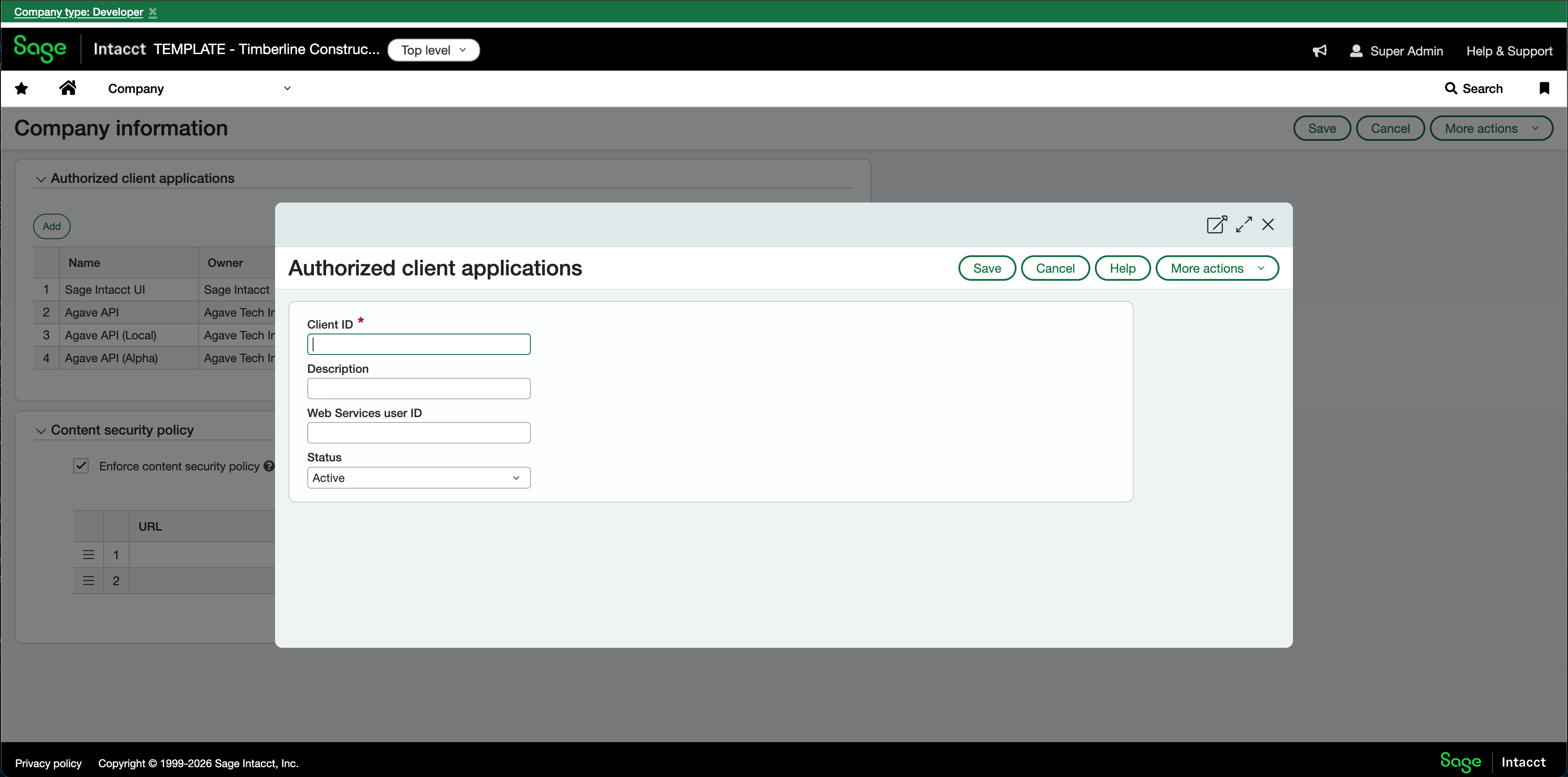
- Under Authorized client applications, click Add. Enter the Client ID from Step 4 and a description. Leave the Web Services user ID field blank. Click Save.
Step 6: Authenticate with Sage Intacct in Agave
- Open Agave Link for Sage Intacct. You will first see a prompt asking "Would you like to enable the JSON API?" Click YES.
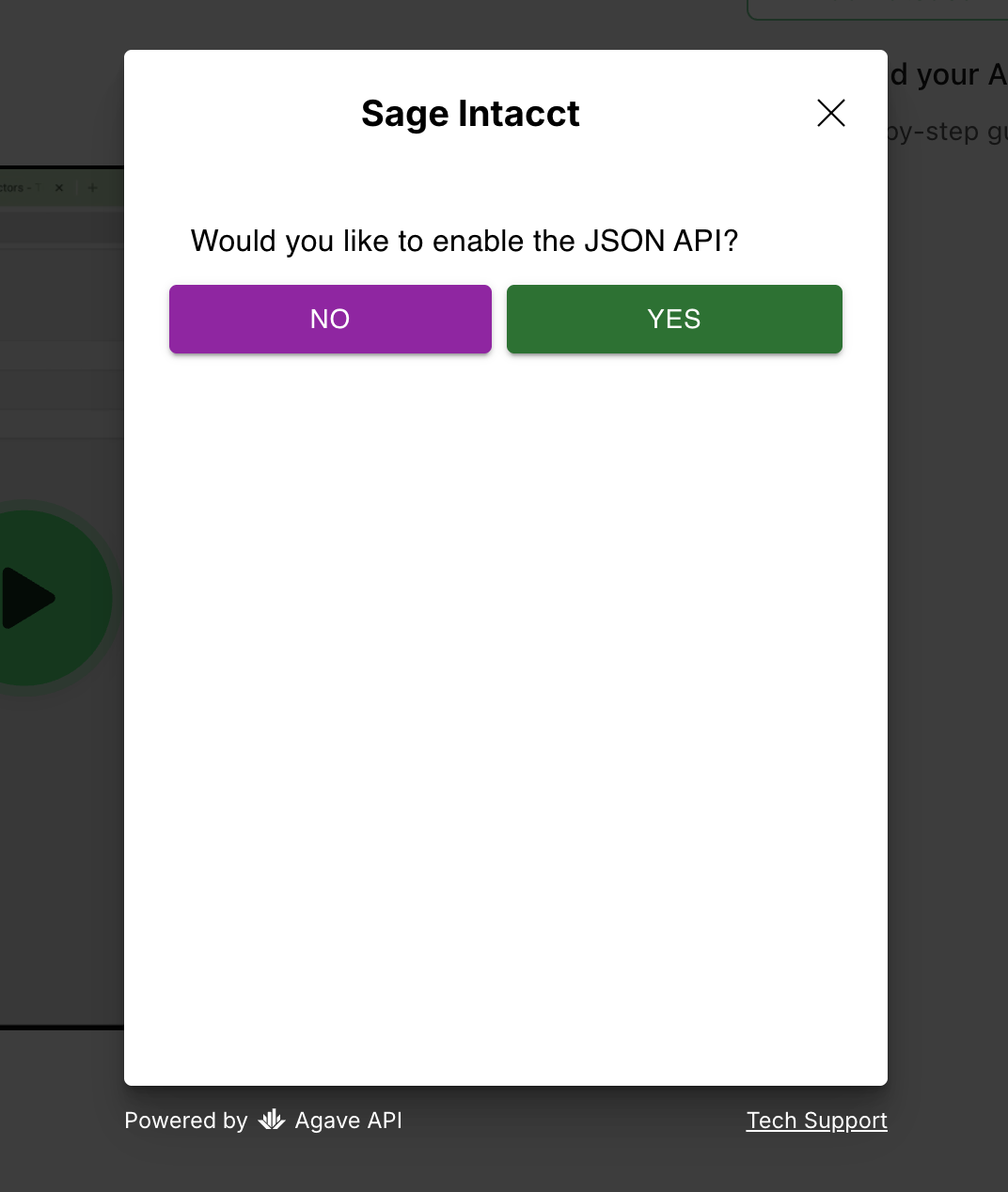
Answer YES here. Expense Management uses the JSON API, and answering NO produces an XML only connection that cannot write credit card transactions.
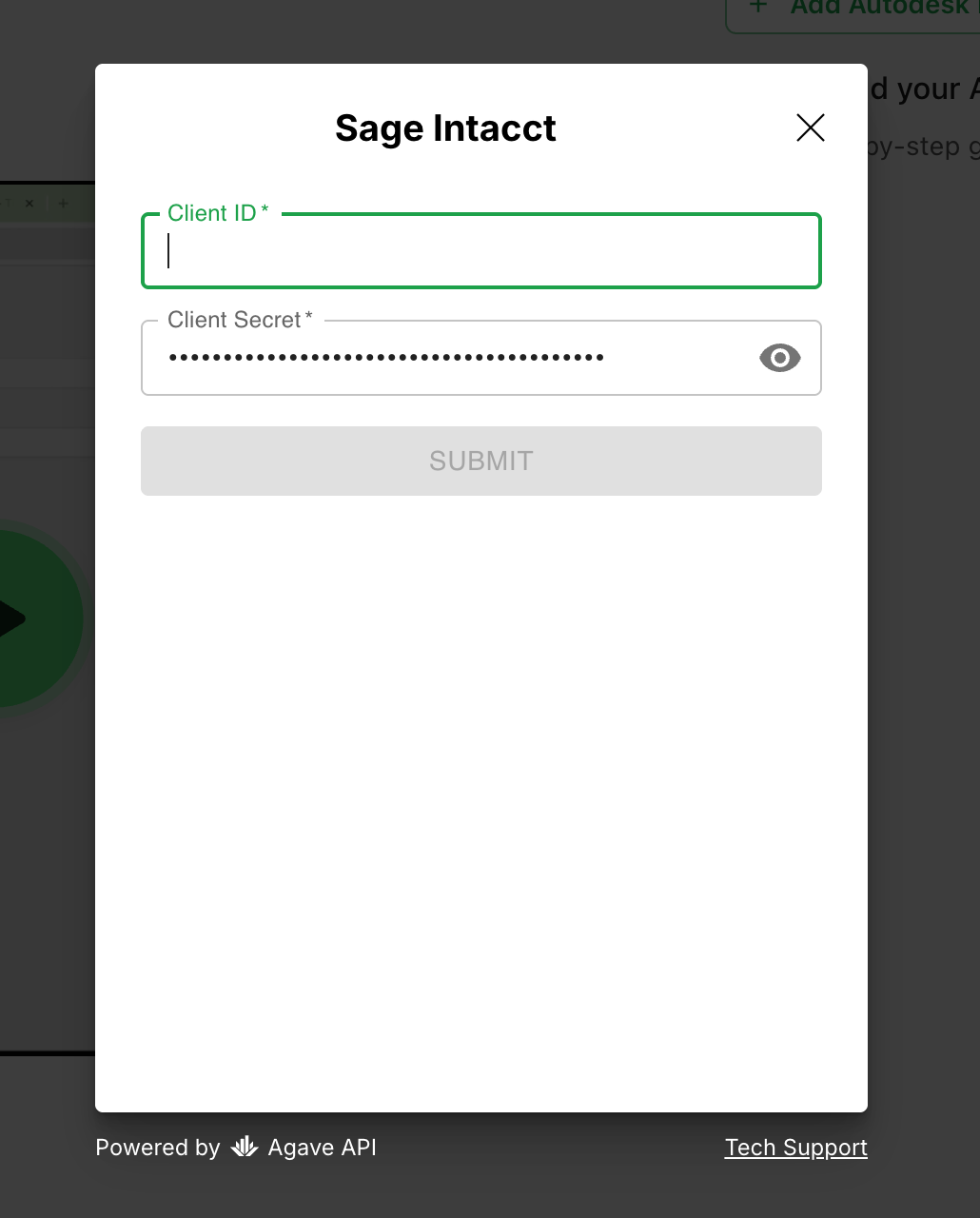
- Enter the Client ID and Secret Key from Step 4, then click SUBMIT.
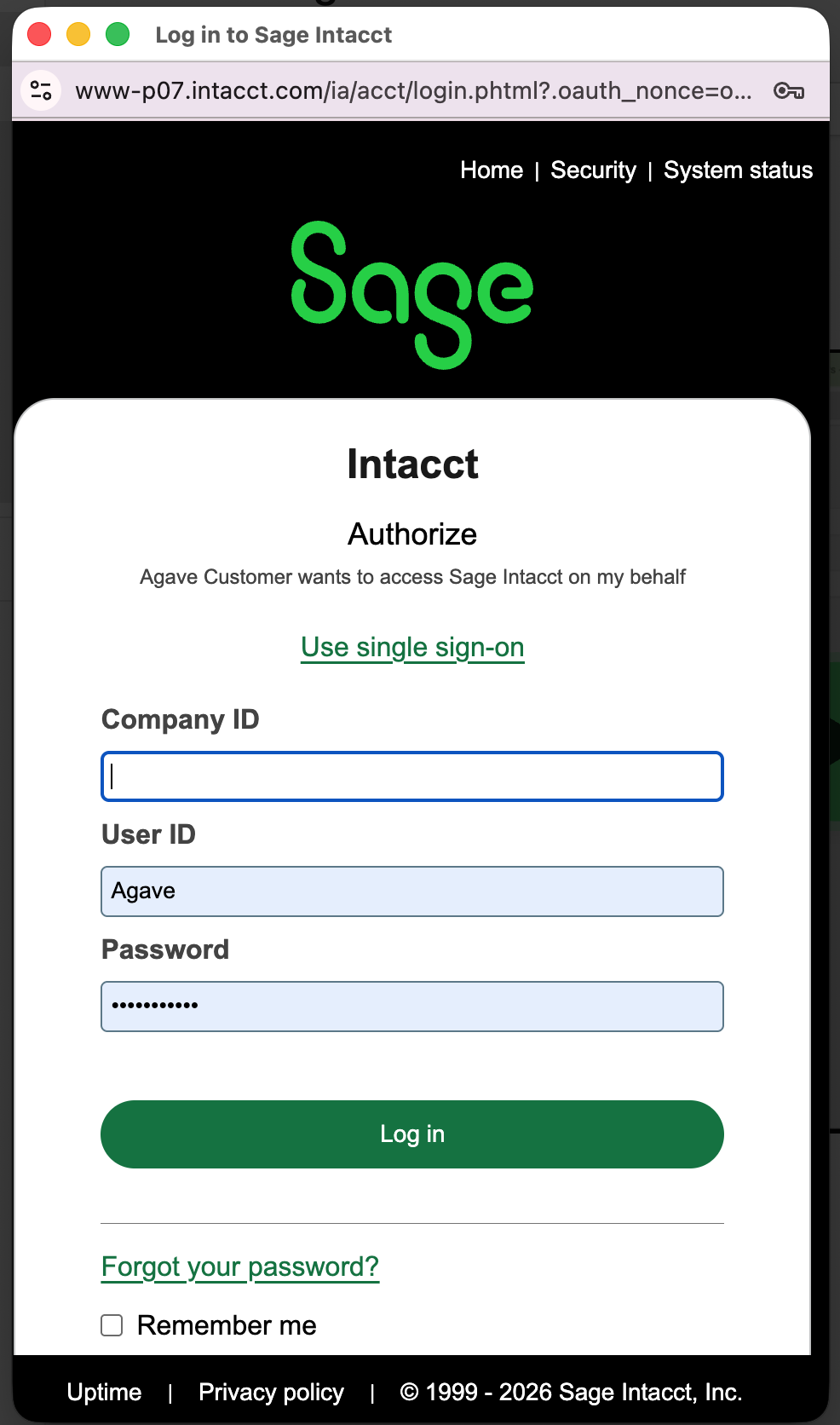
- You are redirected to a Sage Intacct login page titled "Authorize - Agave Customer wants to access Sage Intacct on my behalf". Enter the following and click Log in:
- Company ID: see the note below on where to find this.
- User ID: your Web Services User ID from Step 3. This field is often pre-filled as "Agave".
- Password: the password for that Web Services User.
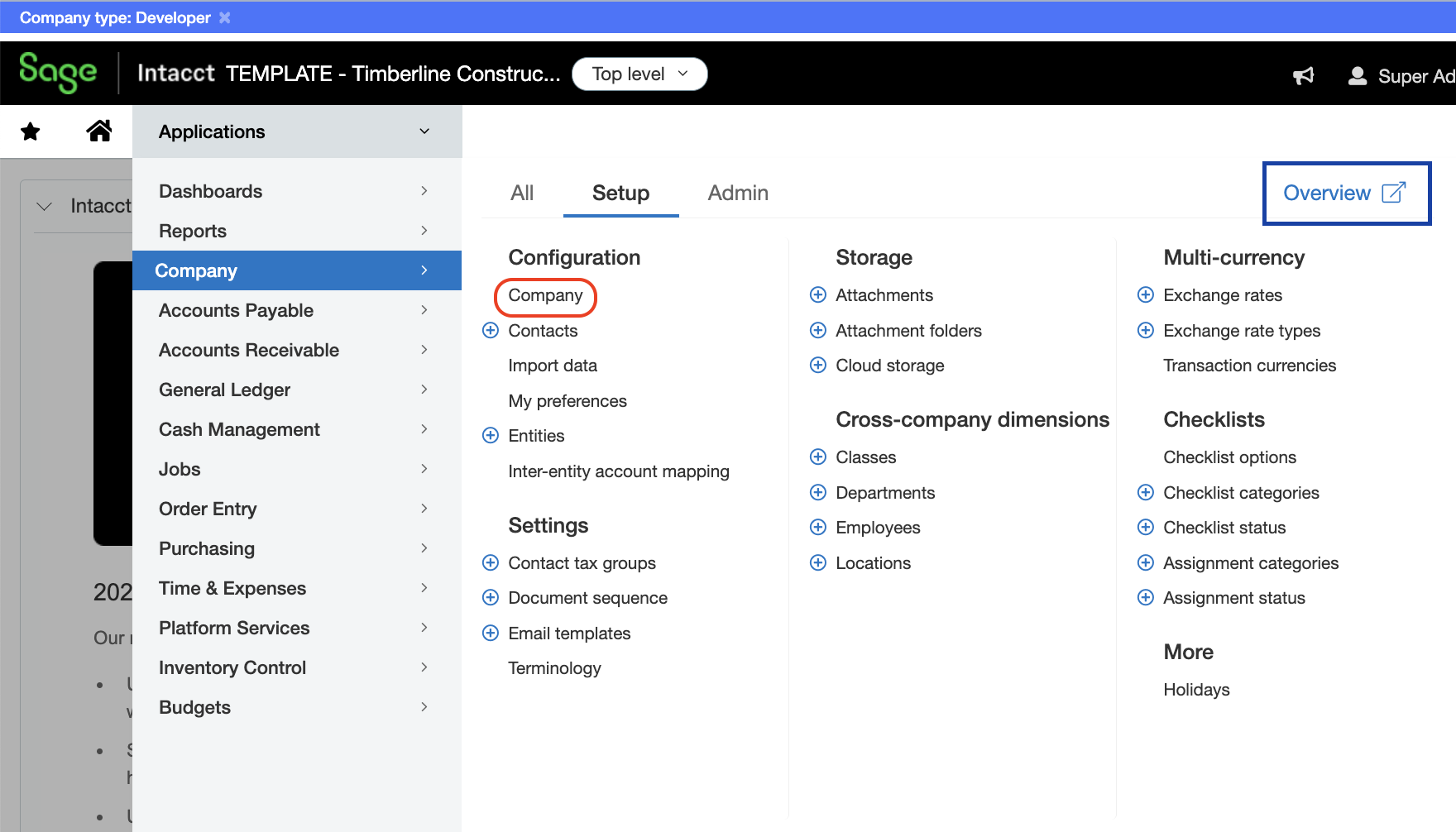
Select Applications > Company > Company in Sage Intacct. Your Company ID appears at the top of the page.
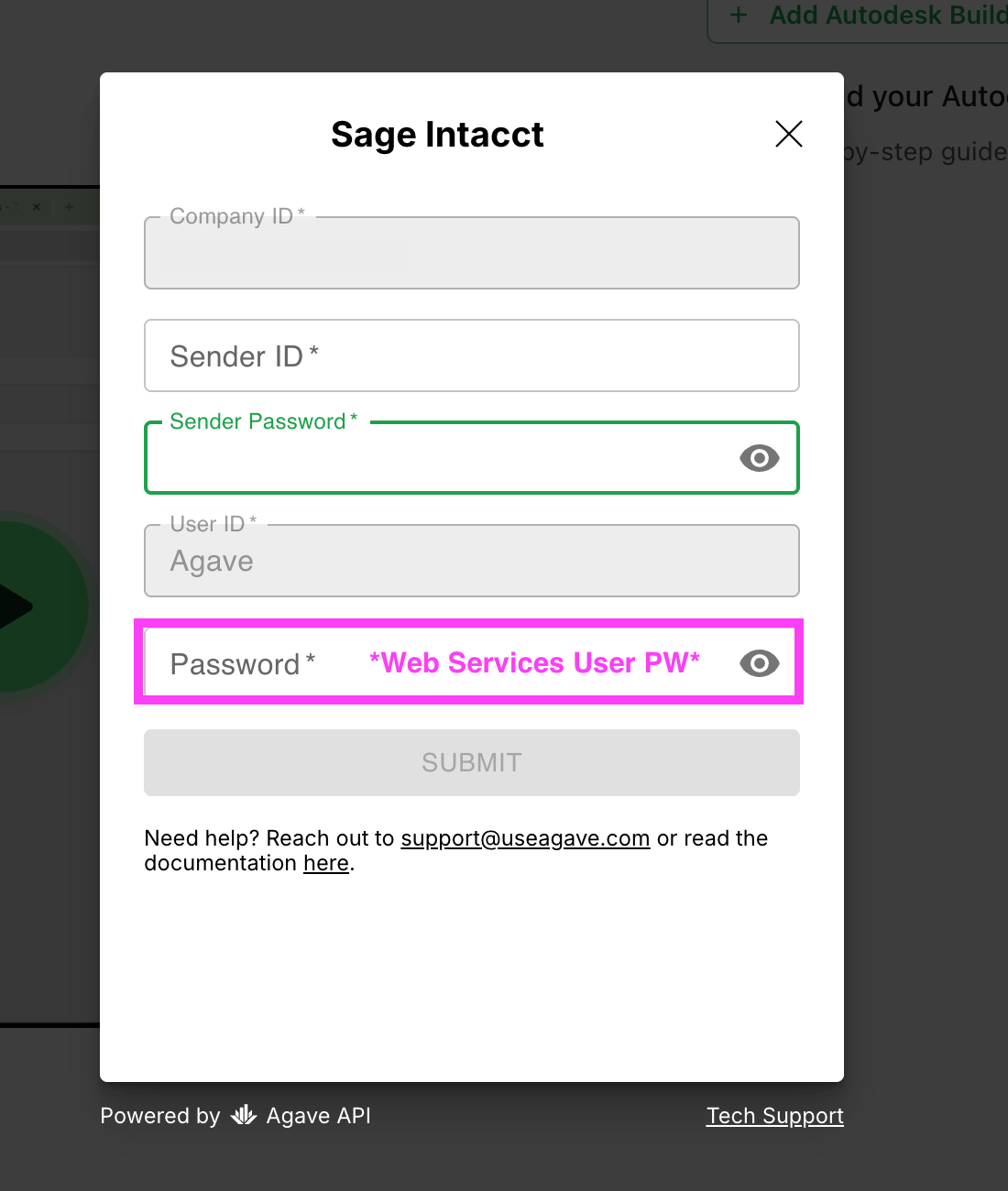
- You are returned to Agave Link with Company ID and User ID already filled in. Complete the rest:
- Sender ID: the Web Services Sender ID provided by Sage.
- Sender Password: the Web Services Sender Password.
- Password: the Web Services User password again, the same value you entered in step 3.
Click SUBMIT.
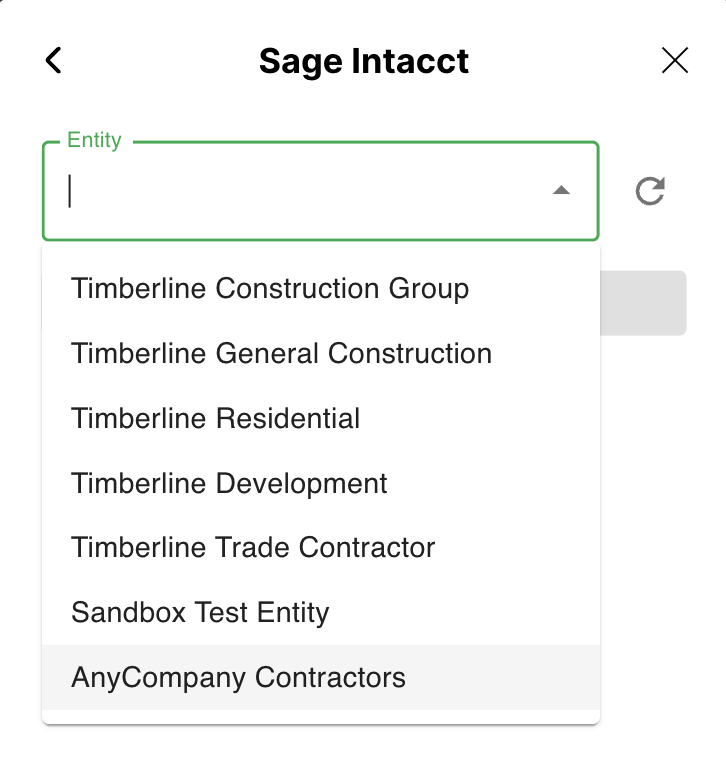
- On the next screen, select an Entity and press Confirm.
Related guides
- Accounting/ERP System Connection: finishing the connection in Agave once your system is configured