Deltek ComputerEase Authentication
Agave reads from and writes to ComputerEase over ODBC, through the Agave Connector: a small Windows application that runs alongside your ComputerEase instance. This guide covers enabling ODBC access and getting the Connector installed and connected.
This guide is for your ComputerEase administrator. You only need it once, when Expense Management and/or AP Automation are first connected.
This guide covers:
- What to do if you already use another Agave product
- Enabling ODBC access on your ComputerEase instance
- Installing the Agave Connector and connecting it
- Keeping the Connector running, for single-tenant hosted instances
Before you start
What you need depends on how ComputerEase is hosted:
- Single-tenant hosted, also called cloud. Access to the Desktops view on the ComputerEase website, which usually requires Admin-level permissions.
- On-premise. The ability to log into the ComputerEase server as a user with Admin-level permissions.
If you already use Agave
Expense Management, AP Automation, and ERP Sync all share one Agave Connector installation and one ComputerEase user. You do not need to install a second Connector or create a second ComputerEase user.
| What you use Agave for today | What to do |
|---|---|
| Nothing, you are new to Agave | Complete every step on this page |
| Any other Agave product | ODBC access and the Connector are already in place. Contact your Agave Account Manager, who will confirm whether your existing connection covers Expense Management or whether a second account needs adding to the Connector |
Step 1: Set up ODBC access
This step applies to both single-tenant hosted and on-premise instances.
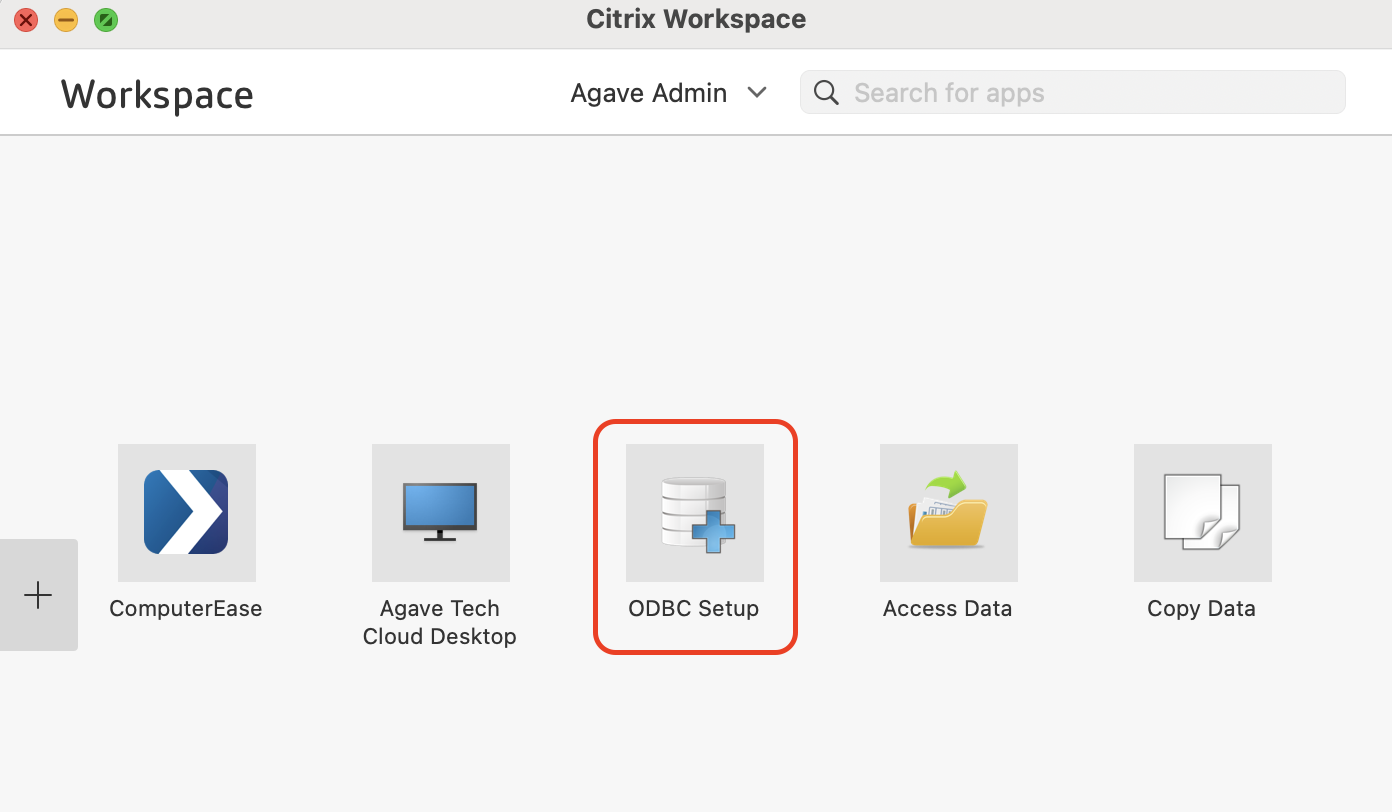
- From the Citrix Workspace view, press ODBC Setup. This runs a process that sets up ODBC access for your ComputerEase instance.
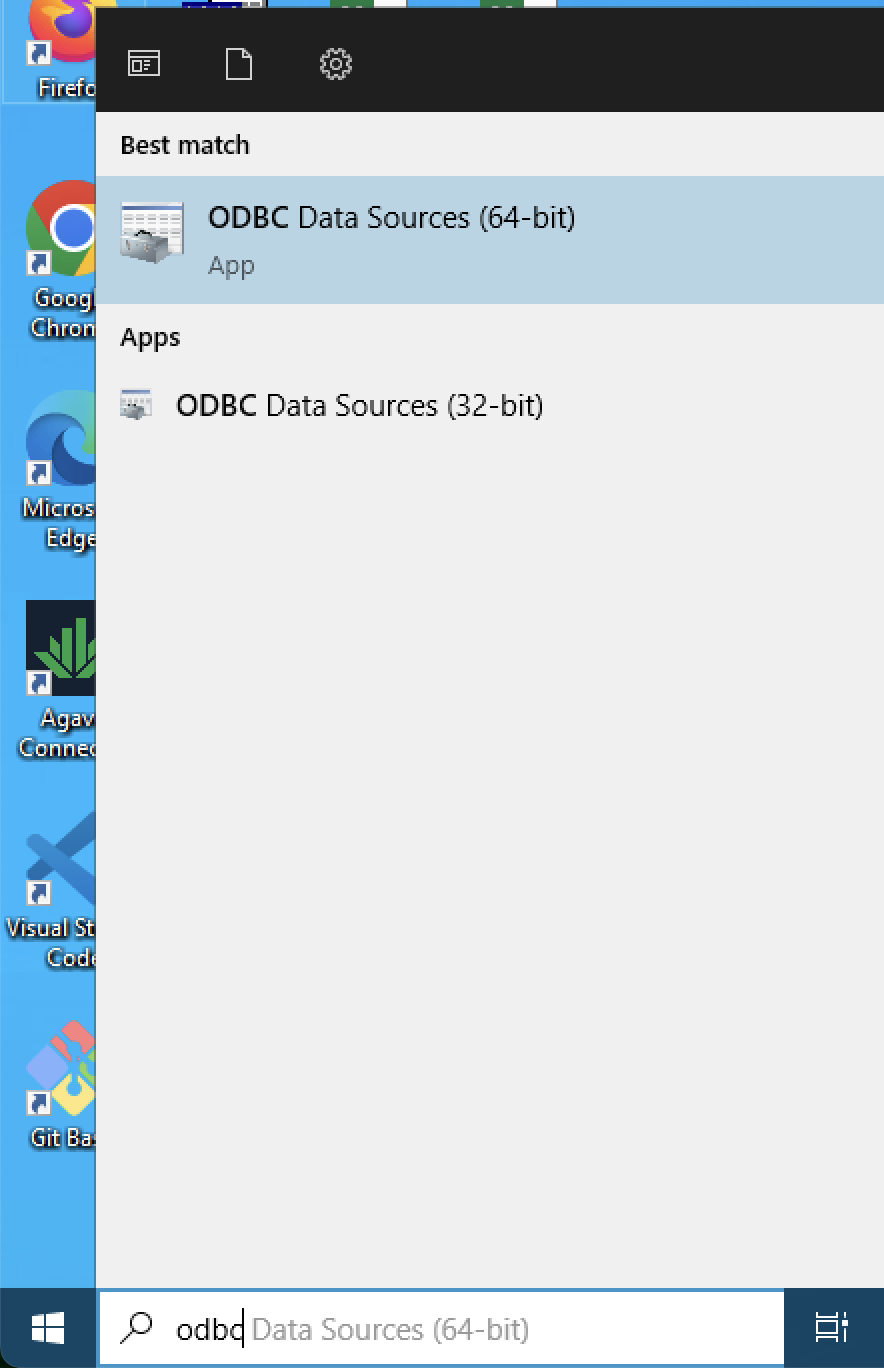
- To check it worked, log into the Desktop view. From the Windows Taskbar, open ODBC Data sources (64-bit).
ODBC Data sources in the Windows Taskbar:
- On the User DSN tab, you should see a list of company names.
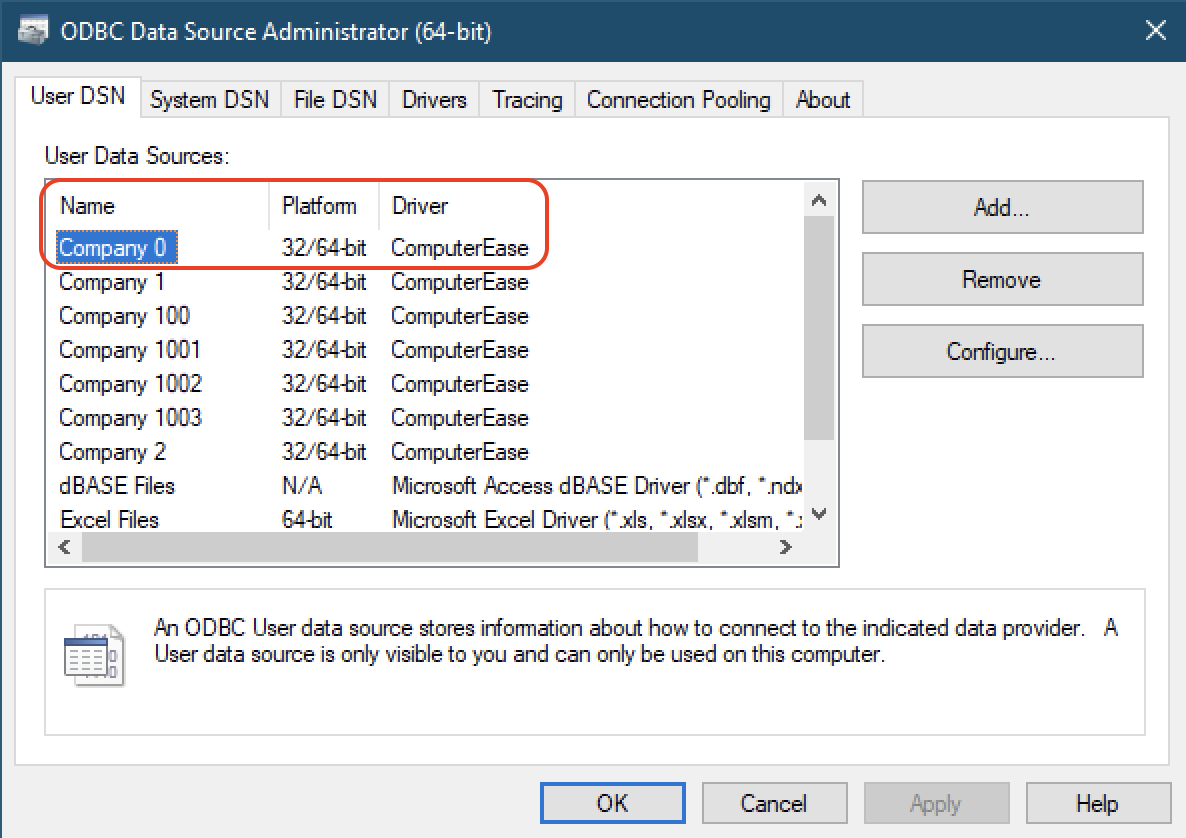
If your company name is not listed, contact Deltek Support and ask them to enable ODBC access for your Desktop ComputerEase instance. Nothing below will work until it appears here.
Step 2: Install and connect the Agave Connector
- In Agave, open the ComputerEase connection and follow the prompt to connect.
- When asked to Enable ComputerEase API Integration, select No, disable API integration.
API integration is not required for most customers and in most cases should be left disabled.
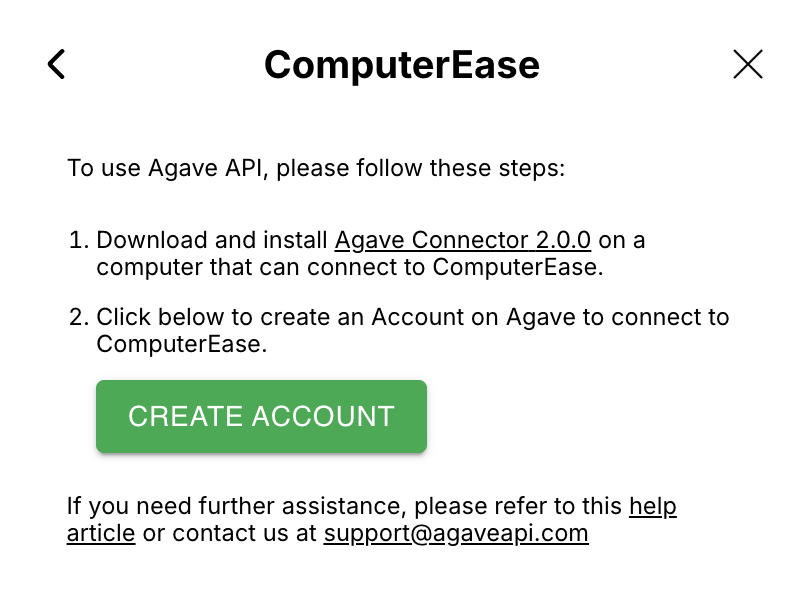
- Click the Agave Connector link to download and install the Connector, before clicking Create Account.
For on-premise instances, install the Agave Connector on the server hosting ComputerEase rather than a user's workstation.
Some companies run the Connector under a separate account rather than admin. If you plan to, sign in as that account before installing, since the Connector installs for the account that runs it.
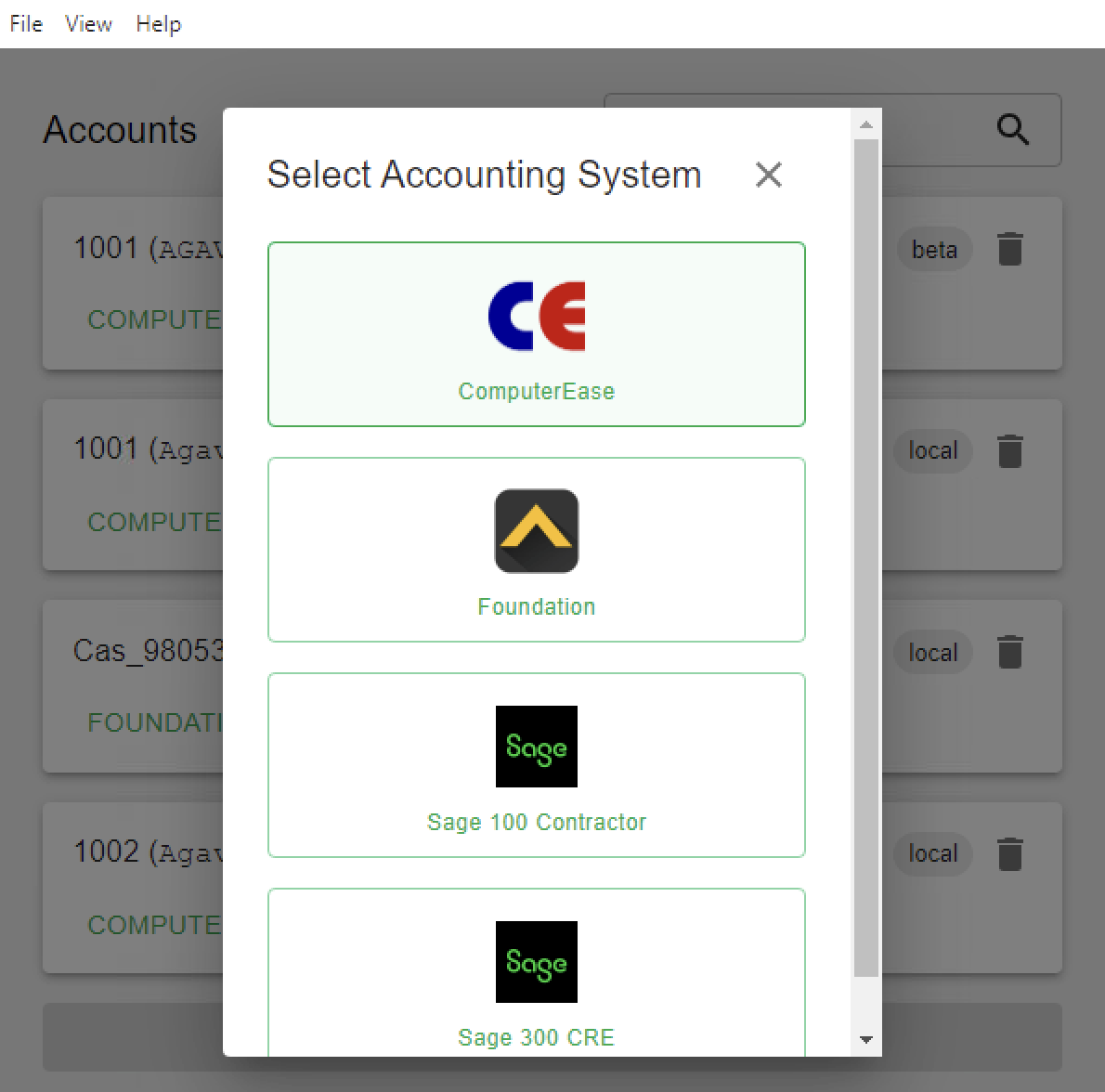
- Open the Agave Connector, press Add Account, and select ComputerEase as your source system.
- Enter the Company Number, Username, Password, and Application Path for your ComputerEase user, then press Test and Save.
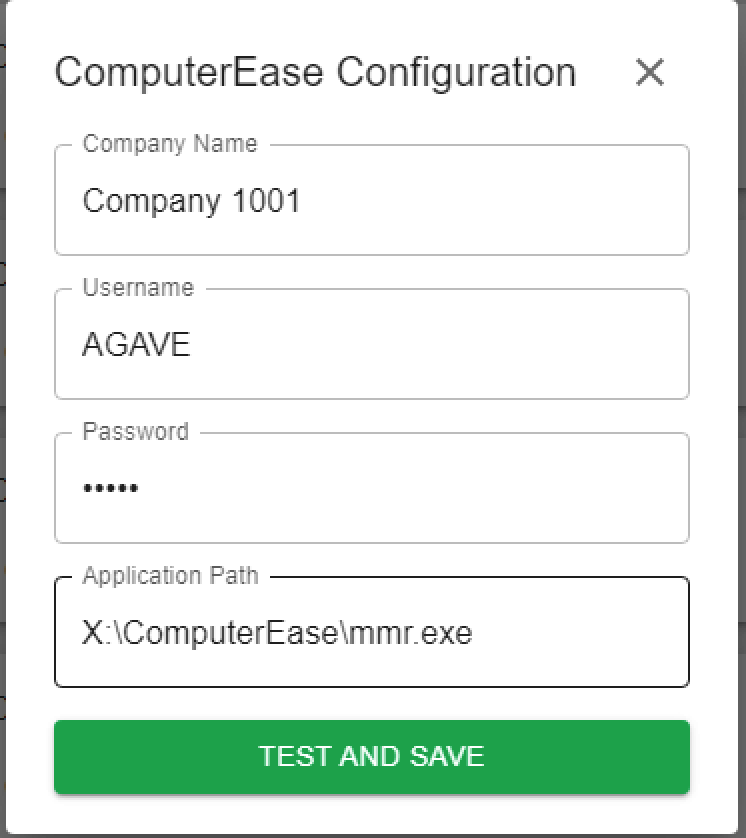
The Username and Password can be the same login details you use in ComputerEase.
For single-tenant hosted instances, the Application Path is always X:\ComputerEase\mmr.exe.
For on-premise instances, it maps to the root of your ComputerEase installation directory.
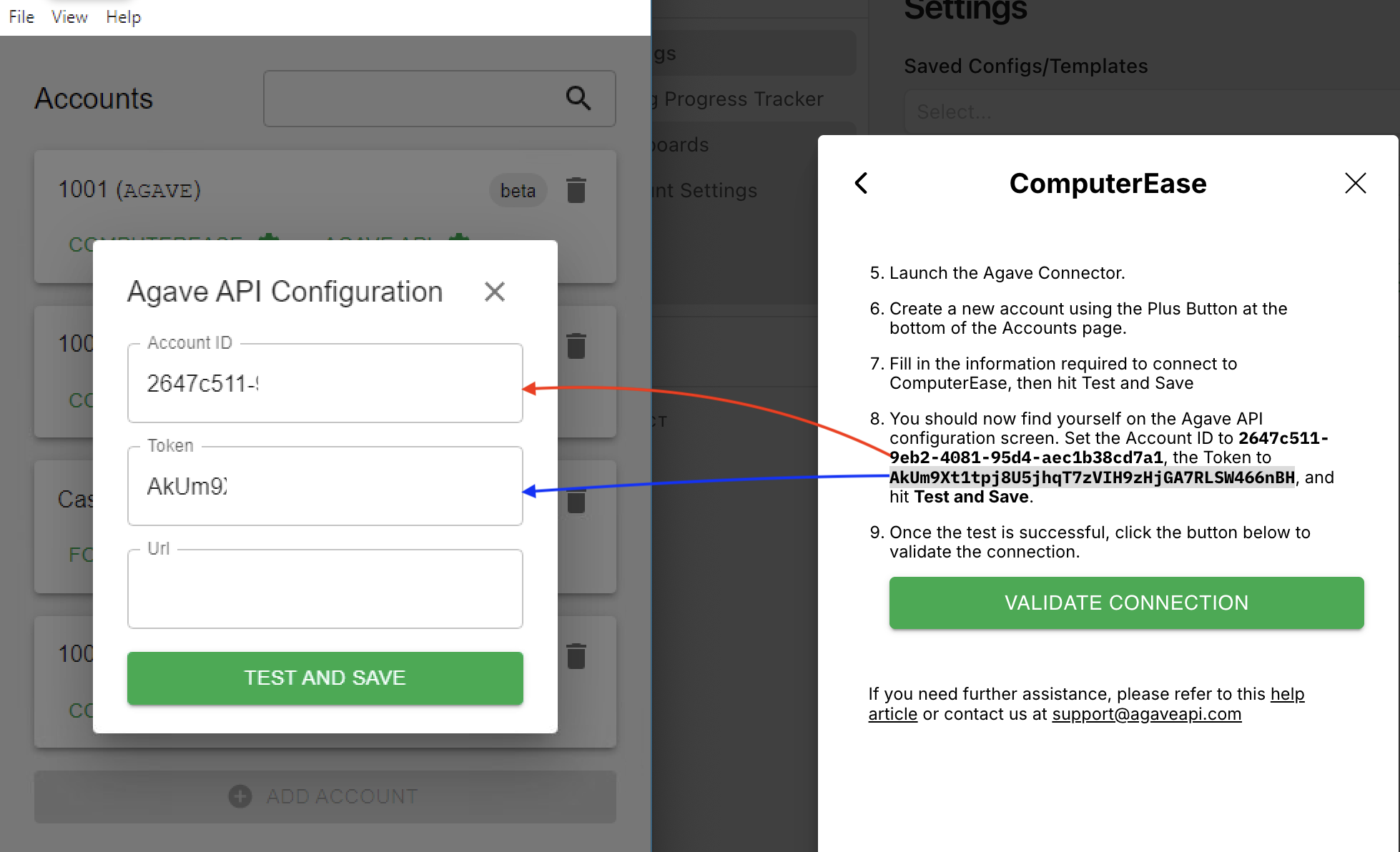
- Back in Agave, copy the Account ID and Account Token. Enter them on the next screen of the Agave Connector and press Test and Save.
- In Agave, press Validate Connection.
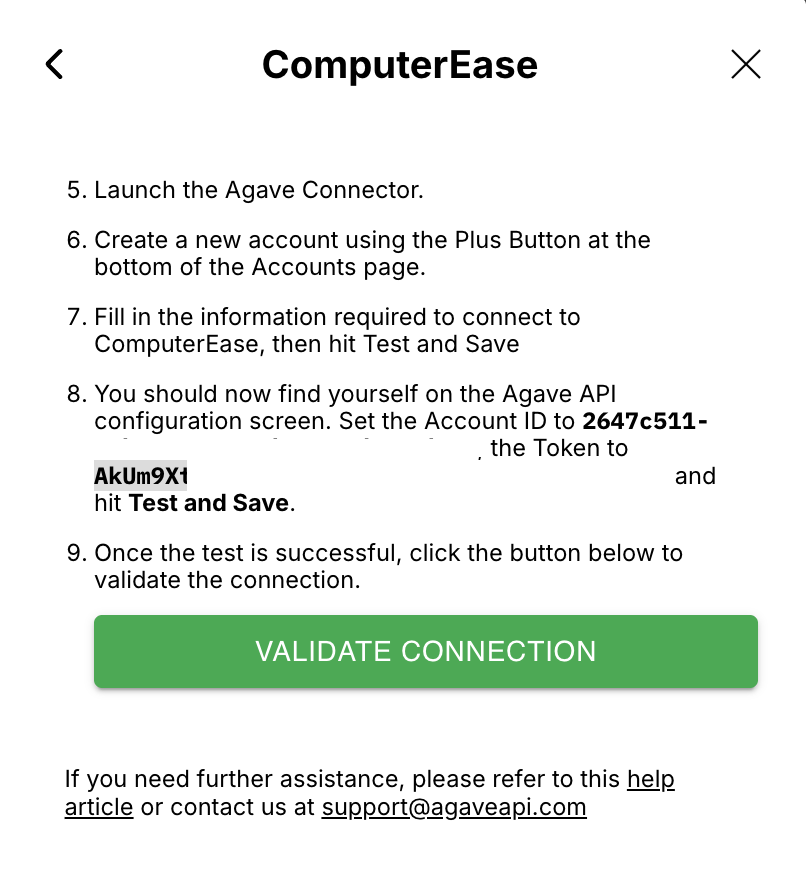
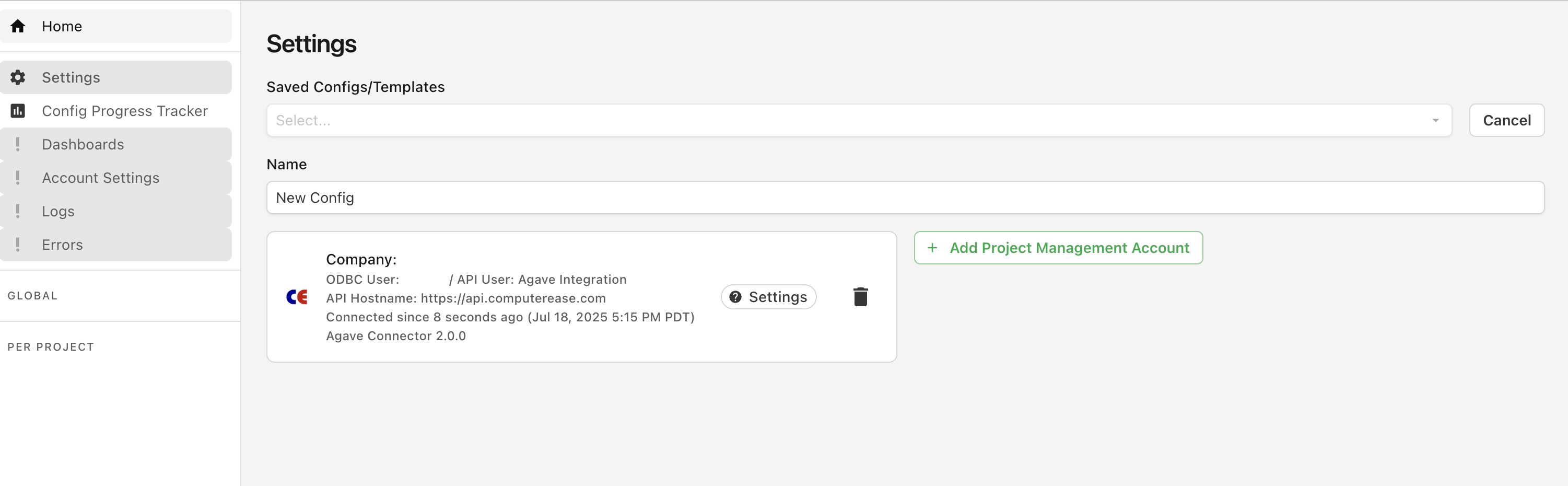
The Agave Connector must stay open for Agave to reach ComputerEase. If it is closed, expenses stop syncing.
Step 3: Keep the Connector online
This step applies to single-tenant hosted instances only. On-premise customers can skip it, since the Connector runs on a server you control.
The Citrix Desktop resets overnight, which shuts down the Agave Connector. Open a support ticket with Deltek immediately after installing it to request that it stay online continuously.
- Go to Deltek Support.
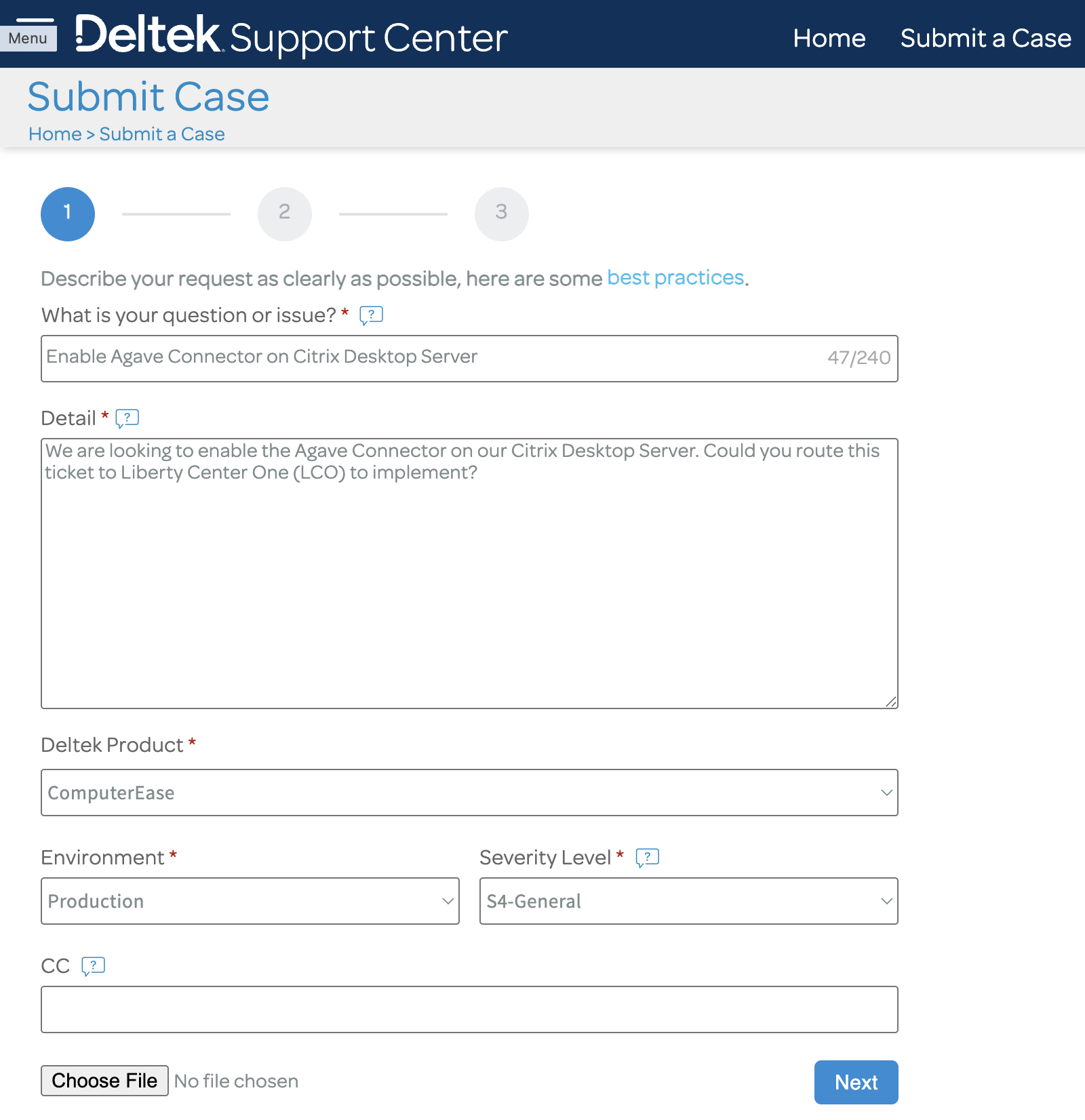
- Submit a case with the following details, then press Next:
- What is your question or issue:
Enable Agave Connector on Citrix Desktop Server - Detail:
We are looking to enable the Agave Connector on our Citrix Desktop Server. Could you route this ticket to Liberty Center One (LCO) to implement? - Deltek Product:
ComputerEase - Severity Level:
S4-General - CC: the email address of your Agave Account Manager
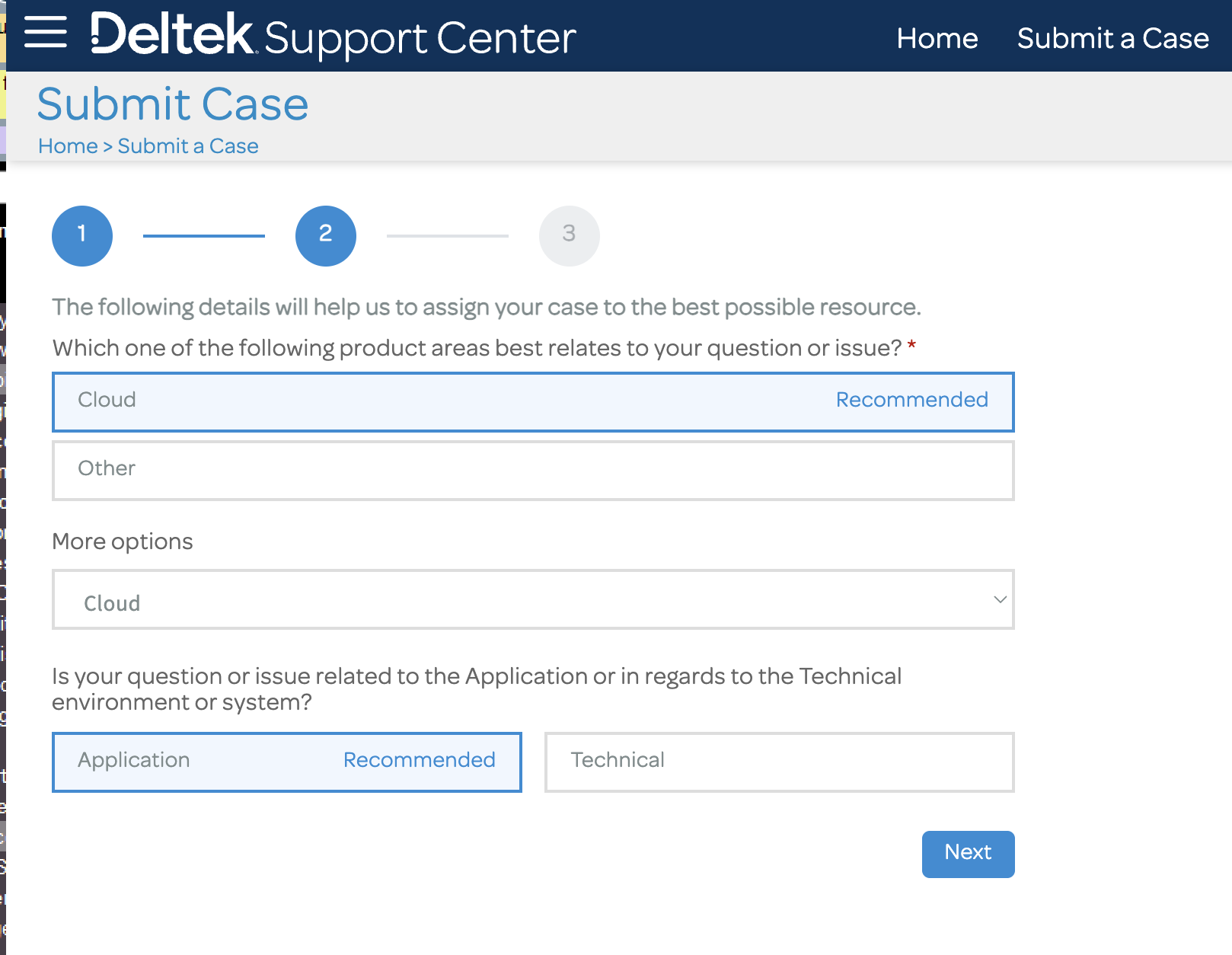
- On the next screen, select Cloud as the product area and Application as the question type, then press Next.
- On the final screen, scroll to the bottom and press Finish Submitting Case.
Related guides
- Accounting/ERP System Connection: finishing the connection in Agave once your system is configured